4
Music Listening
Listening to Music via Chromecast built-in
【Chromecast built-in Benefits】
Signa S3 features Chromecast built-in which lets you easily:
・ Stream music from your favorite apps over Wi-Fi.
・ Create a whole-home audio experience. Multi-room sync
let’s you play the same song across Chromecast built-in
compatible speakers in your house at the same time.
・ Use Google Assistant on a Google Home speaker to control
music playback on the Signa S3 using voice commands.
【Chromecast built-in Setup】
1. Download the free Google Home app and follow the in-app
instructions to connect the Polk Signa S3 to your Wi-Fi.
2. For more detailed setup information about Google Home
and Chromecast built-in for audio, visit: https://support.
google.com/googlehome and https://support.google.com/
chromecastbuiltin
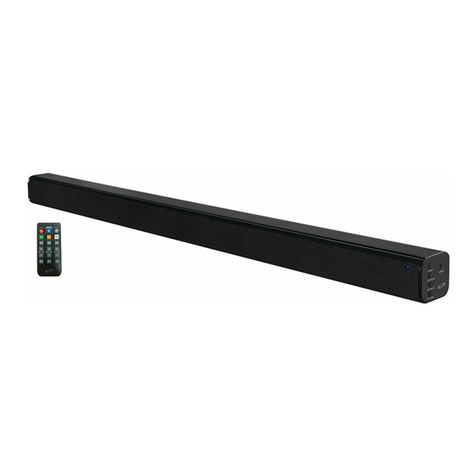
3. When streaming from a Chromecast-enabled app, a white
light will appear on the sound bar.
・ If streaming operations are performed with a Chromecast-
enabled music app while this unit is in standby mode, this
unit will turn on automatically.
Listening to Music via Bluetooth
1. To enable Bluetooth, press the Bluetooth button on
the sound bar or remote control. A blue LED will blink on
the sound bar.
2. Go to the Bluetooth devices section on your phone, tablet
or computer and select “Signa S3”. The LED is solid blue
when Bluetooth is connected.
・ If a Bluetooth device is connected while this unit is in
standby mode, this unit will turn on automatically.
NOTE: To take control when another device is connected,
press and hold the Bluetooth button for
approximately 3 seconds.
Auto standby
When there is no input signal and operation for 20 minutes,
this unit automatically enters the standby mode. The default
setting is “ON”.
Press and hold the Night Mode button for approximately 5
seconds to set the Auto standby function to on/o. The LEDs
blink three times in the colors in the following table.
ON
(Default)
OFF
english
french
spanish
italian
german
chinese
Marche
Arrêt
Activado
Desactivado
Acceso
Spento
Ein
Aus
开
关
Deep standby
This unit can be placed into deep standby mode, in which
its standby power consumption is lower than in normal
standby mode. When this unit is in deep standby mode, it
cannot be turned on by performing streaming operations
with a Chromecast-enabled music app or with a Bluetooth
connection. The automatic software update function is also
disabled. Perform the following steps to put this unit into deep
standby mode.
1. Press and hold the power button ( ) for about 5 seconds.
・ All of the status display LEDs blink in white 3 times before
turning off and the unit enters deep standby mode.
NOTE:When in normal standby mode, if this unit is not
connected to a Wi-Fi network for a continuous period
of 60 minutes or more due to a problem with an
external device such as a router or with the
Wi-Fi environment, this unit automatically enters deep
standby mode.
Automatic software update
The software of this unit can be updated automatically using
a Wi-Fi network. Software updates include updating to the
latest functions and improving the software of this unit. Simply
download the free Google Home app onto an iOS or Android
device and connect this unit to a Wi-Fi network to enable the
automatic software update function. Automatic updates are
performed when the unit is in standby mode at night.
NOTE:The automatic update function is not active when this
unit is in deep standby mode.
Polk SignaS3_QSG_200302.indd 4Polk SignaS3_QSG_200302.indd 4 2020/03/03 17:00:282020/03/03 17:00:28