3Load Poly Lens Desktop App by visiting poly.com/lens. This allows you to customize your
headset behavior through advanced settings and options.
Your high-fidelity Bluetooth USB adapter comes ready to take calls. If you want to listen to
music, you will need to configure your Bluetooth USB adapter.
Windows
1To configure your Bluetooth USB adapter to play music, go to Start menu > Control Panel >
Sound > Playback tab. Select Poly BT700 or Plantronics BT600, set it as the Default Device
and click OK.
2To pause music when you place or receive calls, go to Start menu > Control Panel > Sound >
Communications tab and select the desired parameter.
Mac
1To configure the Bluetooth USB adapter, go to Apple menu > System Preferences > Sound.
On both the Input and Output tabs, select Poly BT700 or Plantronics BT600.
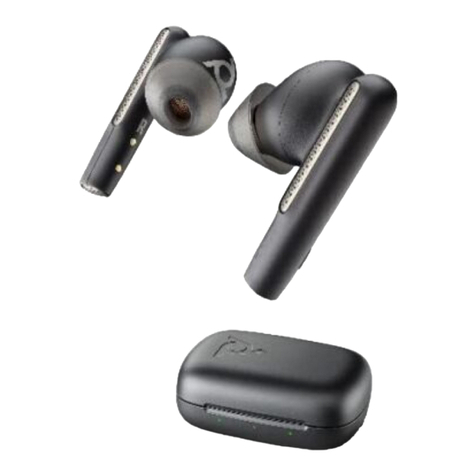
With Bluetooth activated and in range, click your right earbud to reconnect to your
phone.
Choose from 2 ways to put your earbuds in pair mode:
•With your earbuds removed from the case, select the Bluetooth icon on the charge case
touch screen.
• Press and hold your earbud button for 4 seconds until you hear "pairing."
Your USB adapter requires Poly Lens Desktop App to pair to a Poly audio device.
Download: poly.com/lens.
BT700 USB-C BT700 USB-A
1Insert the high-fidelity Bluetooth USB adapter into your laptop or computer and wait for
your computer to recognize it.
Configure USB adapter
Reconnect
Pair mode
Pair BT700 USB
adapter again
9