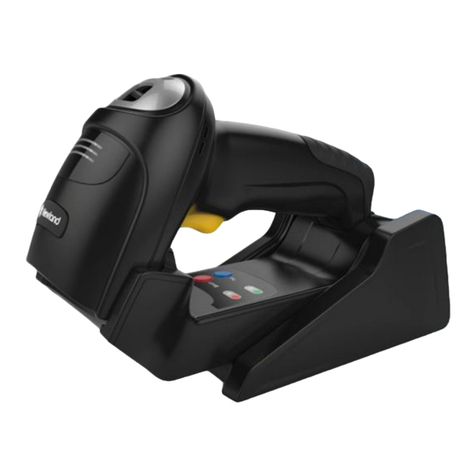
POSIFLEX CD-3200U User manual

1
Package Contents
CD-3200U/3201U
CD-3200U/3201U 2D image scanner
ST-8000 scanner holder stand (Optional)
USB cable
Quick setup guide for CD-3200U/R
CD-3200R/3201R
CD-3200R/3201R 2D image scanner
ST-8000 scanner holder stand (Optional)
RS-232 cable
Quick setup guide for CD-3200U/R
18160900030 Ver. B0
http://www.posiflex.com
CD-3200U/R & CD-3201U/R
2D Image Scanner
Quick Setup Guide

2
Product Overview
Front View
Rear View
Scanner Maintenance
The scanner is designed for long-term trouble-free operation and rarely
requires any maintenance. Only an occasional cleaning of the scanner window
is necessary in order to remove dirt and fingerprints.
Wipe the scan window with a soft lint-free cloth and a non-abrasive cleaner to
avoid the scan window from being scratched and damaged. The scan window
can be cleaned while the scanner is running.
The standard interface cable is attached to the scanner with a 10-pin modular
connector. When the connector is properly seated, it is secured in the scanner
by a flexible retention tab. The cable is designed to be field replaceable.
Replacement cables can be obtained from your authorized distributor. To
replace the cable, take the following steps.
1. Make sure the power of both the host terminal and the scanner is powered
off.
2. Disconnect the old scanner cable from the host terminal.
3. Press down the retention tab, and gently pull out the cable.
4. Insert the new interface cable into the bottom of the scanner until it clicks.
Then, plug the new cable into the host.
LED Indication
Status
Explanation
Red LED flashes one time
Power On
Blue LED flashes one time
Good read
Trigger Button
Scan
window
Status LED

3
Troubleshooting
This section contains information about how to solve problems that you may
encounter when operating the scanner. If a trouble occurs, please refer to the
following diagnostic tips as a mean to solve the trouble. However, before
referring to the tips, make sure that the scanner is installed well. If the problem
remains, contact your dealer.
Problem
Diagnostic Tips
The scanner is on but cannot read
any barcode.
The scanner window is dirty. Clean the scanner
window as described in the Scanner
Maintenance section.
The presented barcode type is not enabled. Use
this guide to tell the scanner to accept that type
of barcode.
The host terminal has disabled the scanner.
Check the setup of host terminal.
The barcode type presented is not supported by
the scanner.
The scanner does not accept more
than two or three barcode labels.
Determine whether the required barcode types
are enabled or not.
A stray barcode is sitting somewhere in the
scanner field of view. Remove all barcode labels
from the scanner’s scan volume and try again.
The scanner cannot send the data to the POS
system. Make sure that the scanner is installed
well and your host POS system is ready to
receive data.
A barcode is read by the scanner
but not accepted by the POS
system.
The communication settings of the system port
and the scanner do not match. Adjust the settings
to make them match to each other.
The scanner is not installed well. Contact your
dealer for the proper installation. The software
running on the POS system does not support the
data format of the barcode label.
When a barcode stays close to the
scanner, the barcode cannot be read
automatically by the scanner.
Check whether or not you have enabled the
Manual Trigger mode. If you have enabled this
mode accidentally, please disable the Manual
Trigger mode by scanning the “Disable trigger”
barcode in the advanced user manual.

4
Programming Codes
Below are some suggestion you need to bear in mind while scanning labels:
1. The barcode labels shown in bold and black are default factory
settings.
2. Please cover the unwanted codes for scanning the specific barcode
required for the programming to prevent confusion in code scanning.
3. Use the user manual downloaded from our global website or taken from
the Information DVD for advanced programming.
4. Two operational modes, Auto Trigger and Manual Trigger, are provided
to help you manage your daily activities more efficiently via CD-3200
series scanners. By default, both of CD-3200U/R and CD-3201U/R are
set to Manual Trigger.
5. While scanning the setup barcode labels provided in the quick guide, you
need to pull the trigger to initiate the decoding process.
Firmware Version
Scan the below barcode label to retrieve the current firmware version.
Firmware Version
User Interface Switch Barcodes with Defaults Setting
Three types of user interface, including RS-232, USB-HID, and USB
virtual COM, are available for you to select. However, after the interface
type is changed, the current settings will be removed and reset to the default
factory settings. If the scanner fails to switch to the desired interface type,
please either re-plug the I/O cable or restart your host terminal, and then
scan the same barcode label to resolve the problem.
RS232
USB-HID

5
USB-VCP
Defaults Barcode Setting
To restore the default factory settings, please select one of three barcodes
listed below.
RS232
USB-HID
USB-VCP

6
Trigger Mode
In general, two trigger modes, Auto Trigger and Manual Trigger, are
offered to help you engage in routine works efficiently using CD-3200
series scanners. While Auto Trigger Mode is activated, the light source of
your scanner will always stay on in order to detect barcode data any time.
On the other hand, with enabled Manual Trigger Mode, the barcode label
will not be decoded unless the trigger button is pulled.
Auto Trigger
Manual Trigger
Auto Trigger Detection Mode
Detection Mode allows you to adjust illumination settings to facilitate the
process of detecting a target code. Through the configurable option, the
status of aiming light can be set to enable or disable. What is more, you
may also arrange the color of illumination in response to the lighting
condition to enhance your scanning performance. However, please be
reminded that Detection Mode only works under the condition that
Trigger mode of CD-3200U/R and CD-3201U/R is set to Auto Trigger.
Regarding each type of available detection modes, the following are related
description for your reference.
Green aiming detection
When a target code falls within the aiming range while the green
aiming light is emitted, the target is detected. It is recommended to
use this mode indoors because the detectability is reduced in an
environment of higher illuminance levels than indoor’s.
Red illumination detection
When a target code falls within the range of the field of view while
the red illumination light is emitted, the target is detected. This mode
can be used in a lighted environment.

7
No illumination detection
A target code is detected without illumination light. The power
consumption can be reduced, but the response of detection will also
be reduced. Ambient light is used for detection in this mode, so this
cannot be used in a dark place while it can be used in a lighted
environment.
Green aiming detection
Red aiming detection
No illumination detection
Enabling of readable codes
Enable UPC
Enable EAN
Enable Code 39
Enable Codabar

8
Enable Interleaved 2of5
Enable Chinese Post Matrix 2of5
Enable POSTNET
Enable MSI/Plessey
Enable UK/Plessey
Enable Code 128
Enable GS1-Databar
Enable GS1-Databar Limited
Enable GS1-Databar Expanded
Enable QR Code
Enable PDF417

9
Setting code specific options
UPC-A, No leading zero, transmit CD
UPC-A, No leading zero, not transmit CD
UPC-A, Leading zero, transmit CD
UPC-A, Leading zero, not transmit CD
Options for UPC-E
UPC-E, No leading digit, transmit CD
UPC-E, No leading digit, not transmit CD
UPC-E, Leading digit, transmit CD
UPC-E, Leading digit, not transmit CD

10
Options for EAN-13 and EAN-8
EAN-13 not transmit CD
EAN-13 transmit CD
EAN-8 not transmit CD
EAN-8 transmit CD
Disable ISBN translation
Enable ISBN translation
Case conversion
No case conversion
Convert to upper case
Convert to lower case
This manual suits for next models
3
Table of contents
Other POSIFLEX Barcode Reader manuals
POSIFLEX
POSIFLEX CD-3870 User manual

POSIFLEX
POSIFLEX SK-200 User manual
POSIFLEX
POSIFLEX CD-3860 User manual

POSIFLEX
POSIFLEX PG-200/2D User manual
POSIFLEX
POSIFLEX LS-1000 Series User manual

POSIFLEX
POSIFLEX CD-3830 Owner's manual
POSIFLEX
POSIFLEX CD-3860 User manual

POSIFLEX
POSIFLEX PG-200/1D User manual
POSIFLEX
POSIFLEX CD-3860 User manual

POSIFLEX
POSIFLEX CD-4860 Instruction sheet