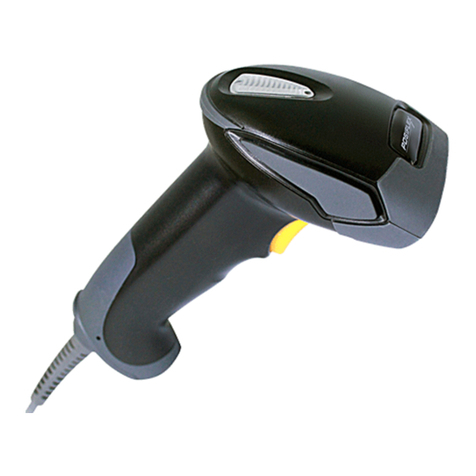
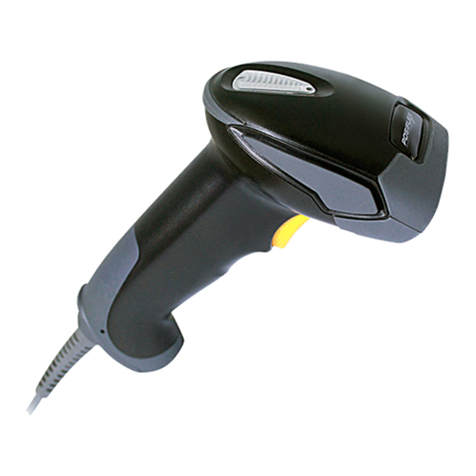
POSIFLEX CD-3860 User manual

1
1
Important Notice
No warranty of any kind is made in regard to this material, including, but not limited to,
implied warranties of merchantability or fitness for any particular purpose. We are not
liable for any errors contained herein nor for incidental or consequential damages in
connection with furnishing, performance or use of this material. We shall be under no
liability in respect of any defect arising from fair wear and tear, willful damage,
negligence, abnormal working conditions, failure to follow the instructions and warnings,
or misuse or alteration or repair of the products without written approval. No part of this
document may be reproduced, transmitted, stored in a retrieval system, transcribed, or
translated into any human or computer or other language in any form or by any means
electronic, mechanical, magnetic, optical, chemical, biological, manual or otherwise,
except for brief passages which may be quoted for purposes of scholastic or literary
review, without express written consent and authorization. We reserve the right to make
changes in product design without reservation and without notification. The material in
this guide is for information only and is sub ect to change without notice. All trademarks
mentioned herein, registered or otherwise, are the properties of their various, ill,
assorted owners.
General Handling Precautions
Do not dispose of the scanner in fire.
Do not put the scanner directly in the sun or by any heat source.
Do not use or store the scanner in a very humid place.
Do not drop the scanner or allow it to collide violently with other ob ects.
Do not take the scanner apart without authorization.
Printing Guidance
This programming guide is in A5 size. Please double check your printer setting before
printing it out.
When barcodes are to be printed out for programming, the use of a high-resolution laser
printer is strongly suggested for the best scan result.
Copyright © 2010. All rights reserved.
CD-3860 Bar Code Scanner
User’s Manual
Rev. Original

2
2
For CE-Countries
This scanner is in conformity with CE standards. Please note that an approved, CE-marked
power supply unit should be used in order to maintain CE conformance.
Table of Contents
About This Guide ........................................................................................................3
Introduction to Scanner Configuration.......................................................................3
Default Parameters.....................................................................................................4
Scanner Operation........................................................................4
Interface Communication.............................................................4
Symbologies..................................................................................5
Data Formating.............................................................................6
Programming Procedure.............................................................................................7
Parameter Setting.......................................................................................................8
Scanner Operation........................................................................8
Interface Configuration...............................................................16
The Symbologies.........................................................................24
Data Editing ................................................................................46
Appendix 1: USB Virtual COM Driver Installation ......................49
Appendix 2: Barcode Length Setting ..........................................50
Appendix 3: Full ASCII Code 39 Table.........................................51

3
About This Guide
This programming guide applies to various handheld scanners, including
* Advanced Handheld Contact CCD Scanner,
* Advanced Middle-Range Handheld CCD Scanner,
Some settings are not available for certain models. If you are not sure about the
model of your scanner at hand, refer to the device label or contact your distributor.
This document is in A5 size. Please check your printing setting before printing it out.
When barcodes are to be printed out for programming, the use of a high-resolution
laser printer is strongly suggested for the best scan result.
The settings herein shall be updated periodically without prior notice. For the latest
version, please contact your distributor.
Introduction to Scanner Configuration
Scanning a series of programming barcode labels can configure the series scanners.
This allows decoding options and interface protocols to be tailored to a specific
application. The configuration is stored in non-volatile memory and will not be lost by
removing power from the scanner.
The scanner must be properly powered before programming. For RS-232C type
scanners, an external power adapter must be used to supply DC power to the scanner.
If a keyboard emulation type scanner is used with an IBM PC/XT/ AT, PS/2 or any fully
compatible computers, power will be drawn from the keyboard port. No external
power adapter is required. If keyboard emulation type scanner is used with any other
non IBM PC compatible computers, an external power adapter may be needed.
Programmable options are divided into four groups. The second group governs the
operation of different interfaces, RS-232 serial ports, keyboard, and USB. The third
group sets the decoding parameters for each barcode symbology. The last group is
about more advanced data formatting.

4
efault Parameters
This table gives the default settings of all the programmable parameters. The default
settings would be restored whenever the scanner reads the "Reset" programming
label in programming mode. If you wish to change any setting, scan the appropriate
barcodes below.
Scanner Operation
Parameter efault
Same code delay 500msec
Beeping frequency Medium
Beeping duration 50msec
LED/Beep before data transmission On
Scan mode Trigger mode
Stand mode (only available for specific models) Enable
Header and trailer None
Inter message delay 0msec
Inter character delay 0msec
Interface Communication
Parameter efault
RS-232 Interface
Baud rate 9600
Parity none
Data Bits 8
Stop Bit 1
RTS/CTS off
Terminator <CR><LF>
Keyboard Wedge Interface
Terminal Type PC/AT
Keyboard US keyboard
Terminator Enter
USB Interface
Terminator type Enter
Code mode Scan code
Keyboard US keyboard
Wand Emulation
Wand emulation speed Normal
Data output Black=high

5
Symbologies
Parameter efault
ecoder Selection
EAN/UPC Enable
Code 39 Enable
Code 32 Disable
Codabar Enable
ITF 2 of 5 Enable
MSI Disable
Chinese Post Code Disable
Code 93 Enable
Code 128 Enable
EAN-128 Disable
Telepen Disable
Code 11 Disable
Standard 2 of 5 Disable
Industrial 2 of 5 Disable
Matrix 2 of 5 Disable
GS1 DataBar Disable
PDF417 Disable
Code Identifiers
Identifier code as factory standard Disable
Identifier code as AIM standard Disable
Code 39 identifier code M
ITF 2 of 5 identifier code I
Chinese post code identifier code H
UPC-A identifier code A
UPC-E identifier code E
EAN-13 identifier code F
EAN-8 identifier code FF
Codabar identifier code N
Code 128 identifier code K
Code 93 identifier code L
MSI identifier code P
Code 11 identifier code O
Standard 2 of 5 identifier code S
Industrial 2 of 5 identifier code D
Matrix 2 of 5 identifier code G
GS1 DataBar identifier code RS
GS1 DataBar Limited identifier code RL

6
GS1 DataBar Expanded identifier code RX
PDF417 identifier code X
Barcode Length
maximum 32
Codabar
Code 11
Standard 2 of 5
Industrial 2 of 5
Matrix 2 of 5
minimum 6
maximum 62
Code 39
Code 93
Code 128 minimum 3
maximum 16
Chinese Post Code minimum 10
maximum 32
MSI
ITF 2 of 5 minimum 4
maximum 14 GS1 DataBar
GS1 DataBar Limited minimum 14
maximum 48
GS1 DataBar Expanded minimum 6
ata Formating
Code Message Format
EAN-13 D1 D2 D3 D4 D5 D6 D7 D8 D9 D10 D11 D12 D13
EAN-8 D1 D2 D3 D4 D5 D6 D7 D8
UPC-A D1 D2 D3 D4 D5 D6 D7 D8 D9 D10 D11 D12
UPC-E D1 D2 D3 D4 D5 D6 D7 D8
Code 128 D1-Dx (default 3~62)
EAN-128 C1 D1-Dx (default 3~62)
Code 39 D1-Dx (default 3~62)
Codabar D1-Dx (default 6~32)
ITF 2 of 5 D1-Dx (default 6~32)
Chinese Post Code D1-Dx (default 8~32)
Code 93 D1-Dx (default 3~32)
MSI D1-Dx (default 6~32)

7
Programming Procedure
Below is the programming procedure by using barcodes in this guide.
1. Power up the scanner.
2.
Scan the Start of Configuration barcode.
3.
Scan the barcode for the desired feature. Multiple features can be
enabled/disabled before scanning the End of Configuration barcode.
4.
Scan the End of Configuration barcode and save the new configuration.
5.
To give up a configuration change, power off the scanner before scanning the
End of Configuration barcode or scan the Abort barcode.
6.
For some parameter setting, such as barcode length and identifier code, it is
required to scan the Set barcode to save the configuration.
Default values are highlighted in gray background.
Scan the
“
Start of
Configuration” barcode
Scan the
“
End of
Configuration” barcode
Scan the
“
Abort
”
barcode
Power off the scanner
Finish the configuration
Scan barcode of the
desired feature
Power up the scanner
Discard the configuration

8
Parameter Setting
Start Of Configuration
Scanner Operation
1. System Function Setting
Barcode
Value Barcode Label escription
--
Reset (return to factory default)
%/
Display firmware version
++
Abort :exit programming mode with no update
KE94
Return to customer default
KE95
Save as customer default
End Of Configuration

9
Start Of Configuration
2. Interface Setting
Barcode
Value Barcode Label escription
KE97
Return to USB default
KE99
Return to RS-232 default
KE87
Enable USB virtual COM
(Virtual COM driver required. For installation steps refer to
Appendix 1.)
KE01
Enable IBM PC/AT/PS/2 Keyboard emulation
KE05
Enable stand-alone keyboard
(Required no keyboard or key simulator. Only available for special
firmware version.)
KE98
Enable wand emulation
(Only available for special firmware version.)
KE77
Enable OPOS/JPOS
(Available for USB interface only and requires driver. For RS-232
interface, the scanner needs reset and identifier code has to be
enabled.)
End Of Configuration

10
Start Of Configuration
3. General Scan Mode Setting
Handheld Operation
Barcode
Value Barcode Label escription
SM01
Trigger Mode
The scanner becomes inactive as soon as the data
is transmitted. It must be triggered to become
active again.
SM02
Auto Scan Mode
The scanner is still active after the data is
transmitted but the successive transmission of
the same barcode is not allowed when the trigger
switch is pressed again.
SM04
Pulse Mode
The scanner will light up and blink when press the
scanner trigger switch once and the scanner will
turn off after next pressing.
SM05
Repeat Mode
This mode is similar to Auto Scan Mode, but
double reading for the same barcode is
prohibited if the scanner switch is pressed.
SM06
Momentary mode
The scanner will light up only when the trigger
switch is pressed the scanner will turn off when
the trigger switch is release.
Other manuals for CD-3860
2
Table of contents
Other POSIFLEX Barcode Reader manuals
POSIFLEX
POSIFLEX CD-3870 User manual

POSIFLEX
POSIFLEX PG-200/1D User manual

POSIFLEX
POSIFLEX CD-4860 Instruction sheet

POSIFLEX
POSIFLEX CD-3830 Owner's manual

POSIFLEX
POSIFLEX CD-3200U User manual

POSIFLEX
POSIFLEX PG-200/2D User manual
POSIFLEX
POSIFLEX CD-3860 User manual
POSIFLEX
POSIFLEX CD-3860 User manual

POSIFLEX
POSIFLEX SK-200 User manual
POSIFLEX
POSIFLEX LS-1000 Series User manual