YOU WILL NEED:
1. SIM card:
SIM must operate on the GSM (2G) network for this 2G version. Check with your SIM
supplier.
Credit on the SIM (we recommend automatic top-ups)
The SIM is not PIN protected
The SIM is set to disable voicemail
Avoid SIM cards that deactivate automatically if the SIM is not used often
If your SIM will do this and if your G022Gis likely to be unused for long periods of time, you will
have to send the G022Gan update request periodically to keep the SIM card active. The time
limit is often three months, check with your operator.
2. Power supply cable: long enough to reach your device in its final location.
3. Check there is mobile network reception for your SIM card in the location that your device
will be installed (you can check the SIM card in a mobile phone).
INSTALLATION
1. Download and install the app for mobile phones. https://www.quark-elec.com/downloads/
apps/
2. Select G022G location: location must be indoors and not exposed to water or high humidity.
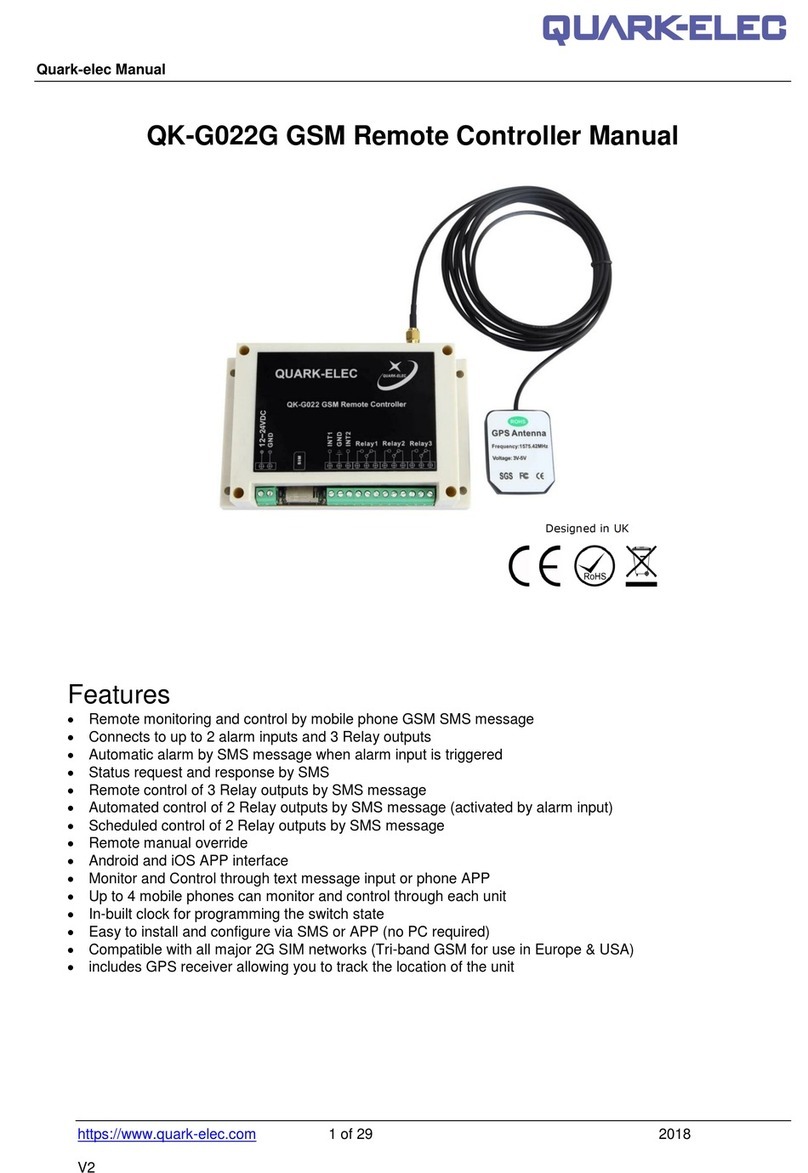
3. Connect GPS antenna to SMA connection at rear of G022G
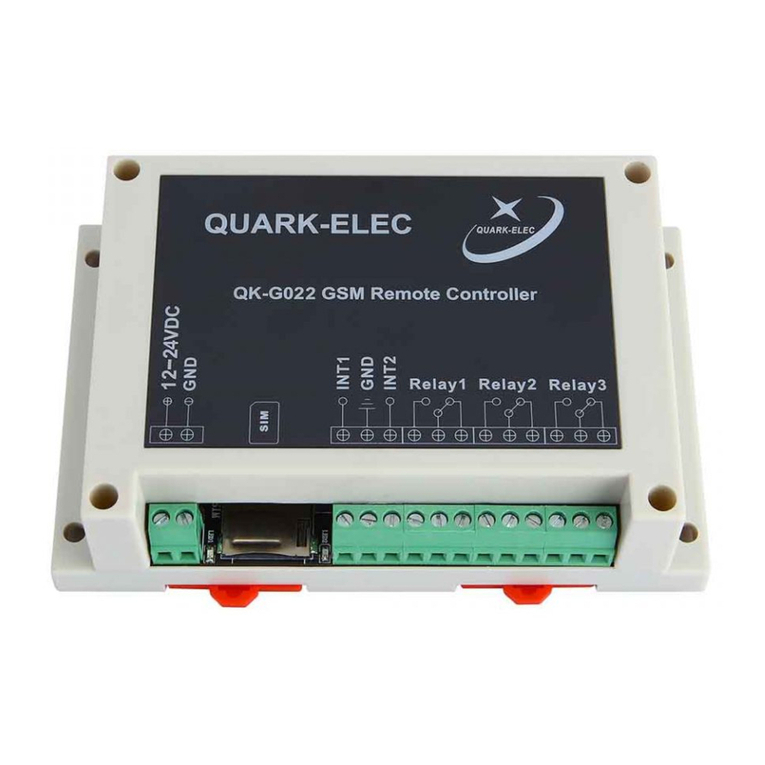
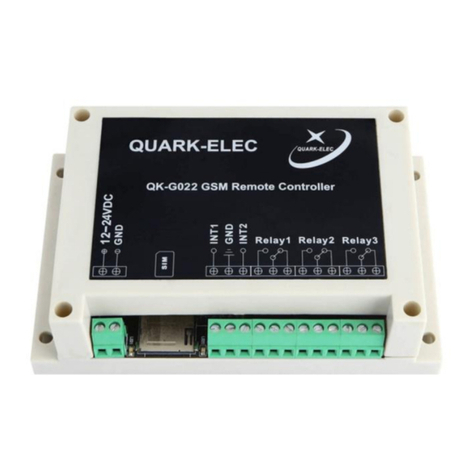
4. Connect the relay output (if required): check relay setup for whether you want relays in
normal open (NO) or normal closed (NC) position.
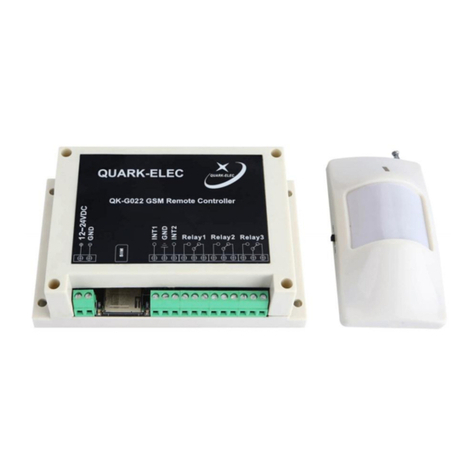
5. Connect alarm inputs (if required) to the correct terminal: alarm inputs (INT) 1/2 will activate r
elay 1/2 respectively. The G022 is compatible with inputs that send signals as a switch (by closing
the circuit) and alarm inputs that send a low voltage signal.
6. Insert your SIM into the G021/22 device (make a note of the SIM number first for reference).
7. Connect to power: Check LEDs are working correctly.
G022G
Blue LED - Net- Red LED - System
This is an overview only. Familiarize yourself with the manual and the manuals of
any connecting devices before installation. It is always recommended that
electronic equipment be installed by an experienced installer.
Red System LED: will flash at 1 second intervals once the system has finished initialization. The
LED will not flash while the G022 is processing a command.
Blue Network LED: LED will flash blue at start up as it is connecting to a network. Once
connected, the LED will flash much slower, approximately every 3 seconds.
G022G
8. Register the main phone number that will control the device within 10 minutes of powering
up the G022Gby texting ‘888888’ from your chosen phone to G022GSIM card. If registration is
successful, the module will reply with ‘Your phone has been registered’. If unsuccessful, the
module will reply with ‘registered disabled’. If registration is unsuccessful, repower the device
and reattempt registration within 10 minutes of powering up the device.
The network LED will flash at one second intervals once the registration is completed.
You can add up to three additional control mobile phones (check next page)
OPERATION
You can now send commands and receive messages by SMS text or the text generating APP.
QUICK COMMANDS
To turn relay on, text 'DKYn' (replace 'n' with the relay number).
To turn relay off, text 'GBYn' (replace 'n' with the relay number).
To run a relay for a short while, text 'ONOFFRnxxx#'. Replace 'n' with the relay number (1 or
2) and replace ‘xxx’ with the delay times (from 001 to 999 seconds). This is a one off command
and will not affect future actions.
To add an additional mobile number, text 'BDn(mobile number)F', replacing 'n' with '1', '2' or
'3' according to a number of an additional mobile device.
Daily timer settings: Relays 1 and 2 support a daily timer function. This is useful for turning the
relays on and off without having to message the device. The relays will switch ON/OFF daily
according to the timer settings. Check the manual for further instructions.
Automated relay setting for relay 1/ 2 can be changed by adjusting the small jumpers
inside the enclosure.
Self-lock control: When activated, the relay will stay on until it receives a different command.
Latching control: When activated, the relay will stay on for a period of seconds, determined
Remember, the device processes one command at a time. Each command will have a reply
to confirm the command has been received and executed. You must wait for a reply
message before sending another command. All SMS text commands must always be sent
using CAPITAL letters. Do not add spaces or any other characters.
When an alarm is triggered, the relay will stay locked ON until you send the
command “EXTRT” to reset alarm (even if set to latching mode).