manuals.online logo
Brands
  1. Home
  2. •
  3. Brands
  4. •
  5. Razer
  6. •
  7. Keyboard
  8. •
  9. Razer TRON Use and care manual

Razer TRON Use and care manual

Other manuals for TRON

1

Other Razer Keyboard manuals

Razer ORNATA V3 X User manual

Razer

Razer ORNATA V3 X User manual

Razer RZ03-0188 User manual

Razer

Razer RZ03-0188 User manual

Razer Marauder StartCraft II Use and care manual

Razer

Razer Marauder StartCraft II Use and care manual

Razer DEATHSTALKER V2 PRO TENKEYLESS User manual

Razer

Razer DEATHSTALKER V2 PRO TENKEYLESS User manual

Razer BlackWidow Ultimate 2016 User manual

Razer

Razer BlackWidow Ultimate 2016 User manual

Razer Cynosa Chroma Pro Use and care manual

Razer

Razer Cynosa Chroma Pro Use and care manual

Razer CYNOSA CHROMA Use and care manual

Razer

Razer CYNOSA CHROMA Use and care manual

Razer Anansi Use and care manual

Razer

Razer Anansi Use and care manual

Razer Anansi Use and care manual

Razer

Razer Anansi Use and care manual

Razer BlackWidow CHROMA User manual

Razer

Razer BlackWidow CHROMA User manual

Razer BlackWidow User manual

Razer

Razer BlackWidow User manual

Razer RZ03-01870300-R3W1 Use and care manual

Razer

Razer RZ03-01870300-R3W1 Use and care manual

Razer Huntsman Elite Instruction Manual

Razer

Razer Huntsman Elite Instruction Manual

Razer RZ03-04500200-R3U1 User manual

Razer

Razer RZ03-04500200-R3U1 User manual

Razer RZ03-0411 User manual

Razer

Razer RZ03-0411 User manual

Razer DEATHSTALKER User manual

Razer

Razer DEATHSTALKER User manual

Razer DEATHSTALKER V2 User manual

Razer

Razer DEATHSTALKER V2 User manual

Razer DEATHSTALKER Use and care manual

Razer

Razer DEATHSTALKER Use and care manual

Razer Tartarus V2 Use and care manual

Razer

Razer Tartarus V2 Use and care manual

Razer BLACKWIDOW X TOURNAMENT EDITION Use and care manual

Razer

Razer BLACKWIDOW X TOURNAMENT EDITION Use and care manual

Razer Star Wars: The Old Republic Use and care manual

Razer

Razer Star Wars: The Old Republic Use and care manual

Razer BlackWidow Tenkeyless User manual

Razer

Razer BlackWidow Tenkeyless User manual

Razer Blackwidow Elite Use and care manual
Razer

Razer Blackwidow Elite Use and care manual

Razer BlackWidow User manual

Razer

Razer BlackWidow User manual

Popular Keyboard manuals by other brands

Man & Machine Really Cool + user guide

Man & Machine

Man & Machine Really Cool + user guide

SteelSeries APEX PRO TKL Product information guide

SteelSeries

SteelSeries APEX PRO TKL Product information guide

Vortexgear POK3R user manual
Vortexgear

Vortexgear POK3R user manual
Logitech RUGGED LITE quick start guide

Logitech

Logitech RUGGED LITE quick start guide

Honeywell ADEMCO 5839 Installation and setup guide

Honeywell

Honeywell ADEMCO 5839 Installation and setup guide

PROZIS EZ user manual
PROZIS

PROZIS EZ user manual

Hama AK-120 Operating	 instruction

Hama

Hama AK-120 Operating instruction

Rodgers RK-76 owner's manual

Rodgers

Rodgers RK-76 owner's manual

Logic Controls KB5000 Series user manual

Logic Controls

Logic Controls KB5000 Series user manual

Rapoo E9270P quick start guide

Rapoo

Rapoo E9270P quick start guide

AbleNet Chester Creek USB Keyboard quick start guide

AbleNet

AbleNet Chester Creek USB Keyboard quick start guide

iKey DP-88 Specifications

iKey

iKey DP-88 Specifications

Logitech G413 TKL SE Complete Setup Guide

Logitech

Logitech G413 TKL SE Complete Setup Guide

Ultimate Technology 500 POS user guide

Ultimate Technology

Ultimate Technology 500 POS user guide

Mace MACALLY MERGOKEY user guide

Mace

Mace MACALLY MERGOKEY user guide

iKey KYB-42-KIOSK Specifications

iKey

iKey KYB-42-KIOSK Specifications

Akko MX108 user manual

Akko

Akko MX108 user manual

Viper V770 user manual

Viper

Viper V770 user manual

manuals.online logo
manuals.online logoBrands
  • About & Mission
  • Contact us
  • Privacy Policy
  • Terms and Conditions

Copyright 2025 Manuals.Online. All Rights Reserved.

DEREZ THE ENEMY
MASTER GUIDE
CONTENTS
1 Introduction
2 Package Contents
3 System Requirements
4 Key Features
5 Installation / Registration / Technical Support
6 Configuring Your TRON Gaming Keyboard
7 Using Your TRON Gaming Keyboard
1. INTRODUCTION
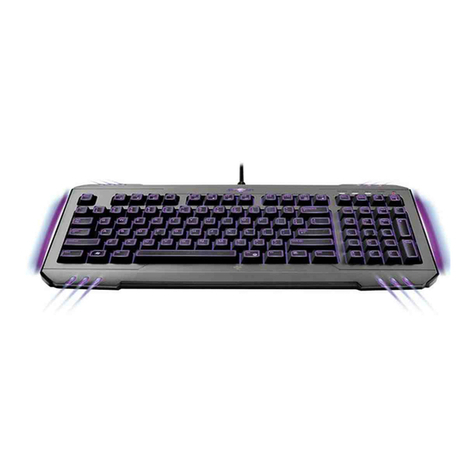
Prepare to lay programs and fellow gamers to waste with the precision of a Lightcycle carving a Light trail.
From the Rez and Derez lighting effects during startup and shutdown to the smooth black finish of the
Hyperesponse™ keys, the backlit TRON® Gaming Keyboard Designed by Razer™ is exactly what you
need to dominate the Game Grid. A detachable modular number pad, lighting effects triggered by in-game
alerts, and fully programmable keys with macro capabilities almost turn this keyboard into a Recognizer
capturing you in the TRON universe.
2. PACKAGE CONTENTS
• TRON Gaming Keyboard Designed by Razer
• Number Pad
• Connector
• Quick Start Guide
3. SYSTEM REQUIREMENTS
• PC with USB ports
• Windows® 7 / Windows Vista® / Windows® XP
• Internet connection (for driver installation)
• 35MB of free hard disk space
4. KEY FEATURES
A Flat Keys With Immediate Actuation
B Number Pad
C 1000Hz (1ms) Response Time
D Media Keys
E On-The-Fly Macro Recording
F Audio-Out
G Microphone-In
H Connector
5. INSTALLATION/REGISTRATION/TECHNICAL SUPPORT
CONNECTING YOUR TRON GAMING KEYBOARD
Windows® 7 / Windows Vista® / Windows® XP installation instructions
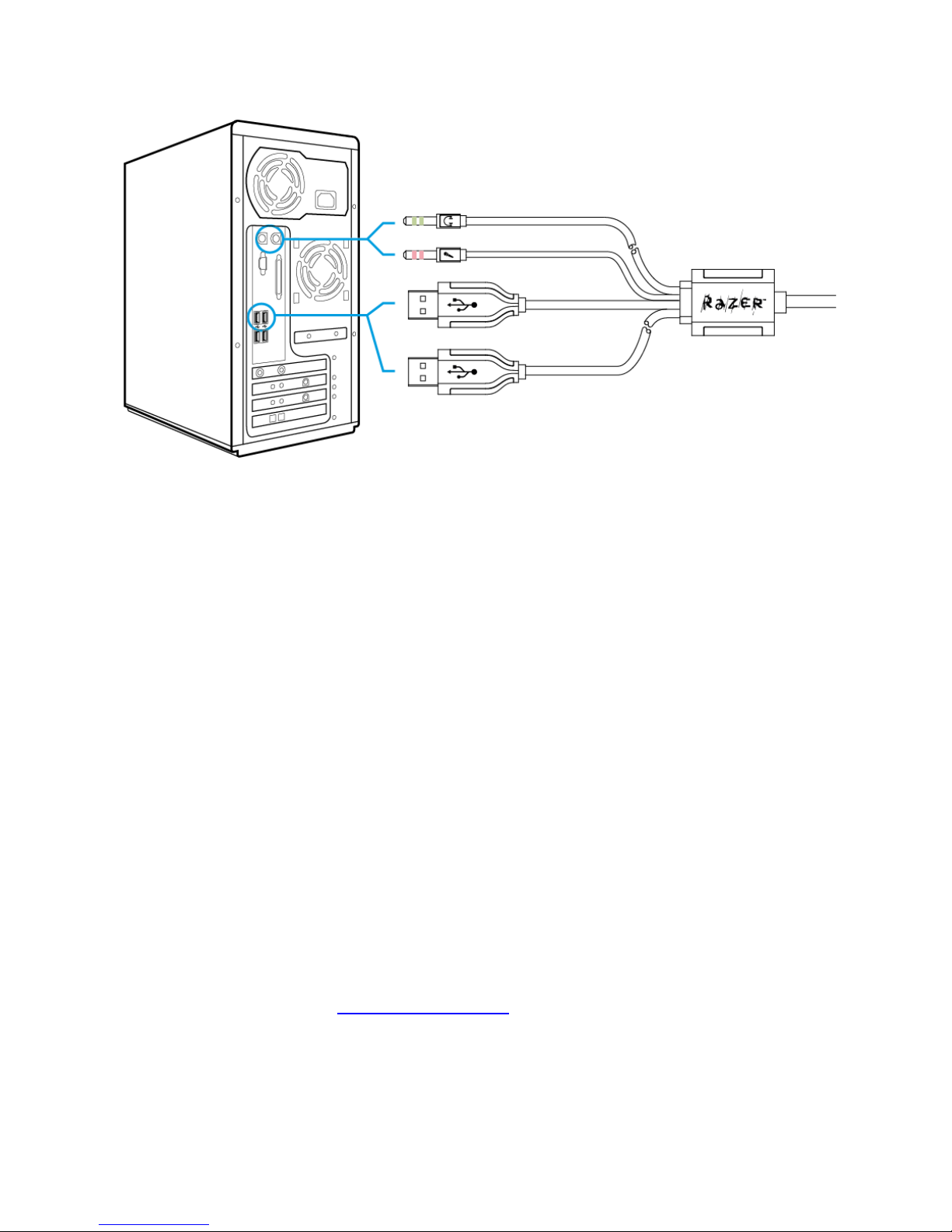
Step 1 : Plug your TRON Gaming Keyboard into the USB ports of your computer.
Step 2 : Download the Driver Installer from www.razersupport.com/.
Step 3 : Run the installer.
Step 4 : Choose setup language. Click OK to proceed.
Step 5 : The Razer TRON setup screen appears. Click NEXT to proceed.
Step 6 : Read the license agreement. If you agree to all the terms, select “I accept the terms in the
license agreement”. Click NEXT to proceed.
Step 7 : Enter your User Name and Organization. Click NEXT to proceed.
Step 8 : Choose your installation setup. Click NEXT to proceed.
Step 9 : If everything is correct. Click INSTALL to begin installation.
Step 10 : At the end of the installation, click FINISH to complete the installation.
Step 11 : Follow the instructions onscreen to restart your computer. Click YES.
* If you have already installed the Razer TRON Configurator previously, you just need to plug in your device.
You will not need to reinstall the drivers a second time.
REGISTERING YOUR TRON GAMING KEYBOARD
Please visit www.razerzone.com/registration/ for online product registration.
What you’ll get:
• 1 year limited manufacturer’s warranty.
• Free online technical support at www.razersupport.com.
6. CONFIGURING YOUR TRON GAMING KEYBOARD
The features listed here require the Razer TRON Configurator to be installed. Each setting will be saved to
the current profile on the current machine only.
ASSIGN KEYS TAB
In the Assign Keys tab, you can assign various functions to each of the keys based on your own
preferences. The key can be programmed using the following functions:
Default key – Revert to the default function of the key.
Single key – Change the function of the key to another.
Macro Playback – Assign a macro to the key.
Profile Switch – Assign a profile to the key for quick profile change.
Launch Program – Activate a program with the key.
Note:
All keys are programmable except for “FN” key.
Make use of the Current Profile drop down menu to switch between different profiles during key assignment.
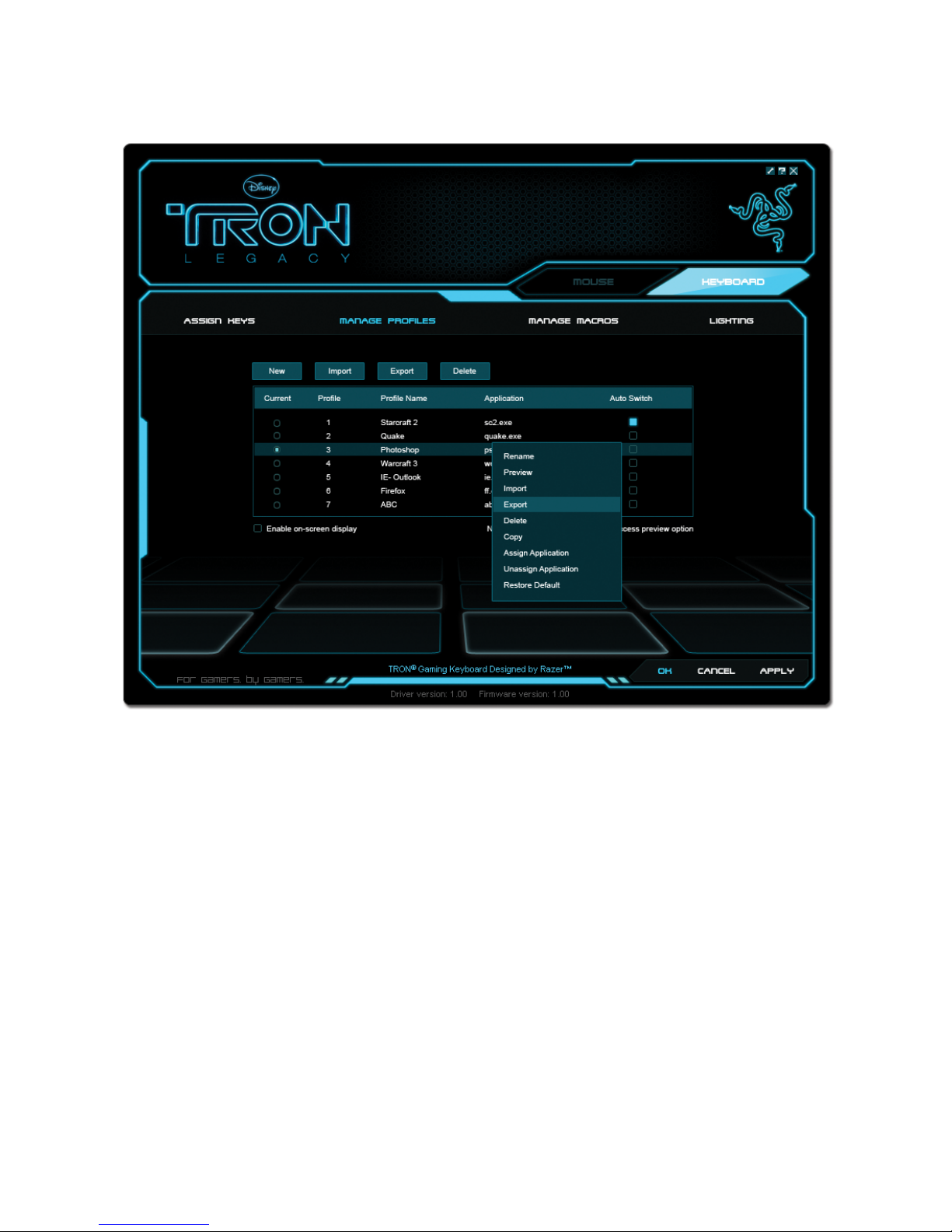
MANAGE PROFILES TAB
A profile allows you to store your various keyboard settings such as button assignments and macros as a
single group for your convenience.
In the Manage Profiles tab, you can create and launch customized profiles based on the application you
have activated.
a. Current: Indicates the current active profile.
b. Profile : Indicates the profile number.
c. Profile Name : Right-click on this row and select “Rename” to enter a profile name of your choice.
d. Application : Right-click on this row and select “Assign Application” to open up the directory browsing.
Select the executable file of the program you want the profile to be linked to.
e. Auto Switch : Select this option to activate the current profile as an On-The-Fly profile.
Check the Enable On-Screen Display box to show your profile name when the profile is activated.
Right-clicking inside the Manage Profile tab allows you to quickly access a list of extra commands.
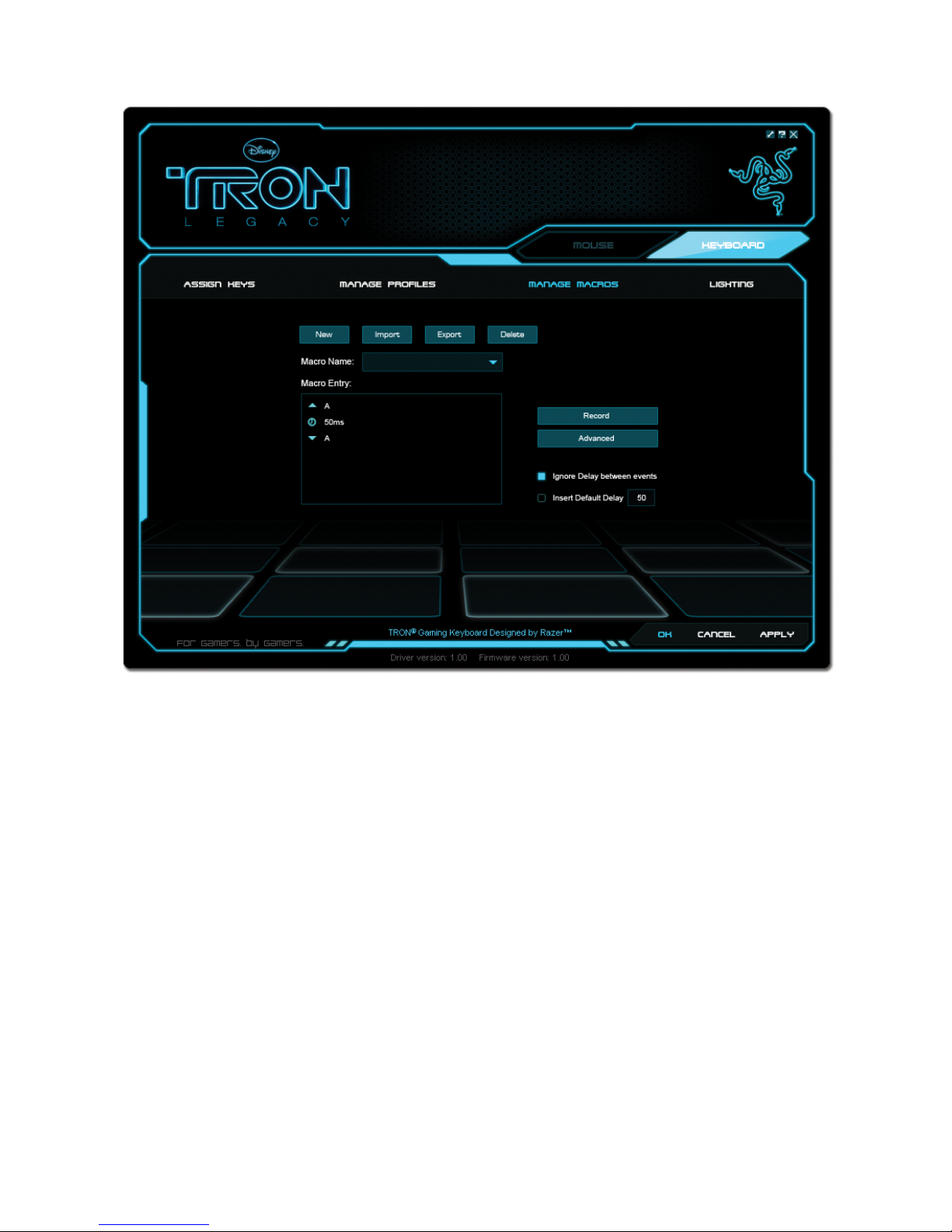
MANAGE MACROS TAB
A macro is a sequence of keystrokes executed in a particular order and timing. It allows you to execute a
chain of commands, with the press of just one button, to optimize your gameplay.
In the Manage Macros tab, you can record unlimited keystrokes (dependent on your system resources).
These macros can also be imported and exported onto your hard disk for future usage.
a. Macro Entry:
Enter your macro in the Macro Entry box. You can even choose to insert a delay time and/or a mouse-
button press.
b. Delay (ms):
Choose the amount of delay to be inserted between keystrokes of your macro.
c. Basic Commands:
A list of basic commands in Windows OS that can be inserted between keystrokes of your macro.
d. Additional Commands:
Another list of basic commands in Windows OS that can be inserted between keystrokes of your macro.
You can ignore delays between events of a macro by clicking on the respective checkbox before recording.
You can specify a fixed default delay timing to be used in between events of a macro by clicking on the
respective checkbox before recording.
Right-clicking inside the Macro window allows you quick access to a list of extra commands for inserting or
editing in-between the keystrokes of your macro.
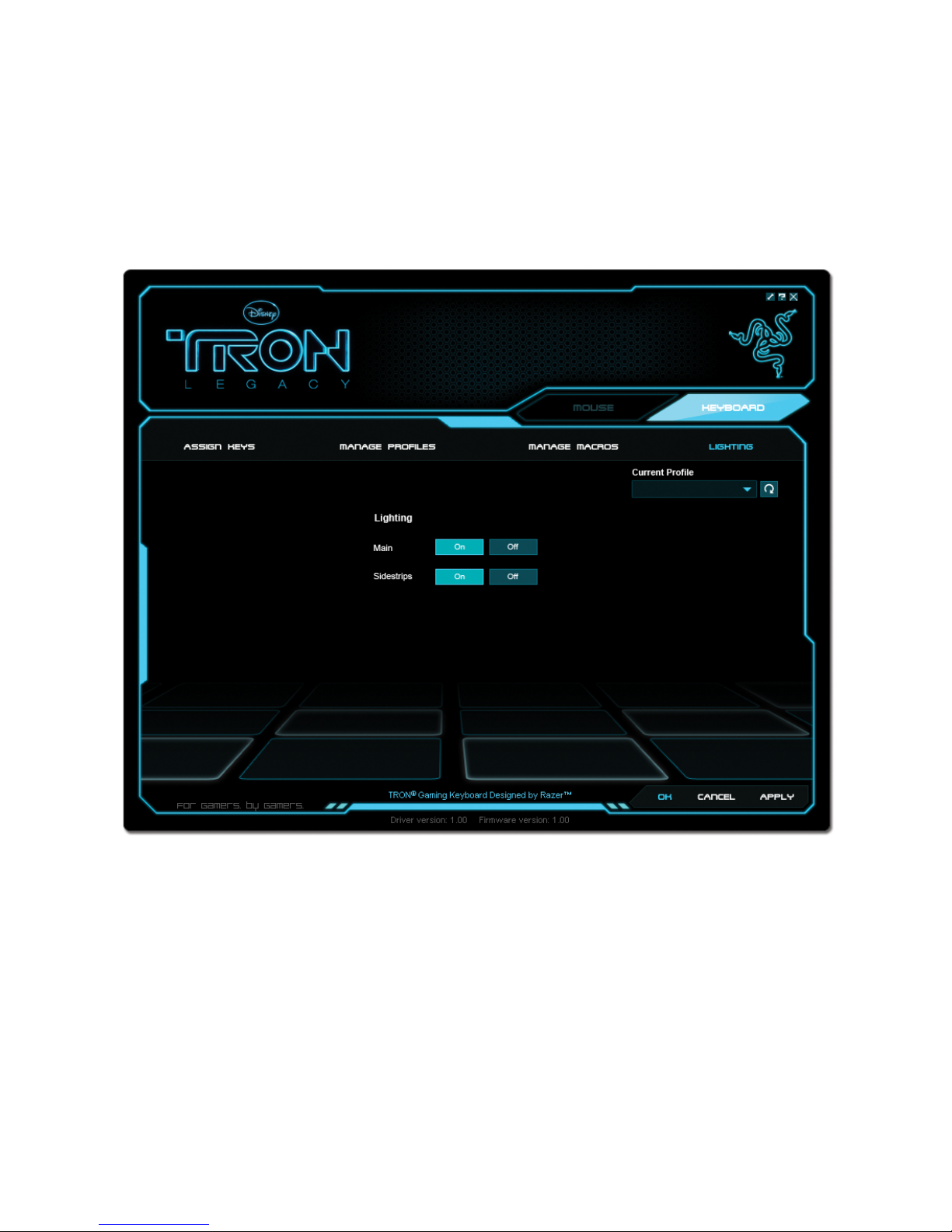
LIGHTING TAB
The lighting tab allows you to customize the look of the TRON Gaming Keyboard by giving you the ability to
turn on/off the:
• Keyboard backlight
• Sidestrips
7. USING YOUR TRON GAMING KEYBOARD
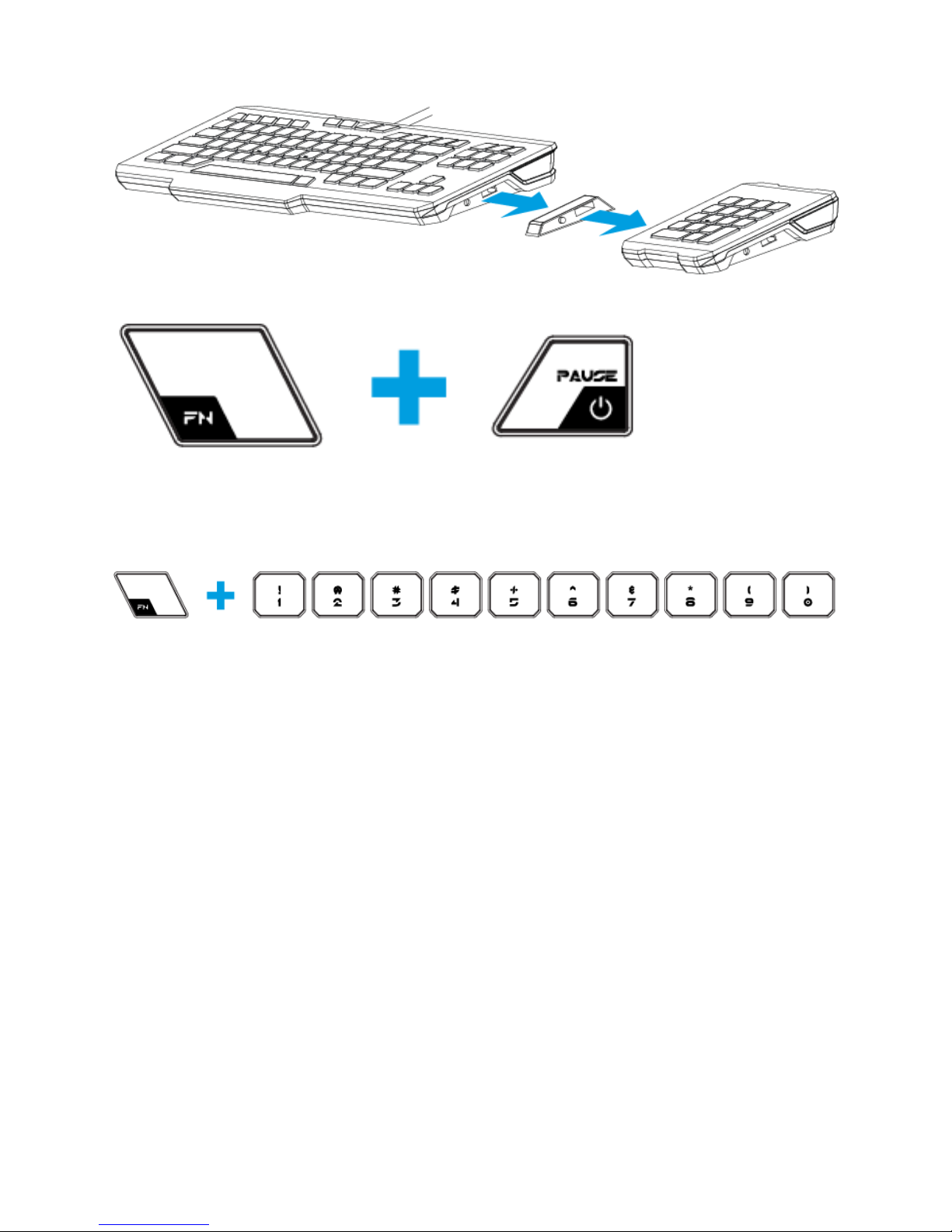
USING THE NUMBER PAD (Attachable on the right or left)
POWERING DOWN (Derez Lighting Effect)
You can switch off your PC by holding the FN button and pressing the power button.
SWITCHING PROFILES
You can switch between profiles in five ways:
a. By pressing the ‘FN’ button + Number key (1 –9 & 0).
Example:
To select Profile 4, hold on to ‘FN’ button and press ‘4’. Up to 10 profiles may be preconfigured.
Note: The profile switching does not work using the NumKeys.
b. By changing the Current Profile in the TRON Gaming Keyboard Configurator.
Example:
1. Open up the TRON Gaming Keyboard Configurator.
2. Click on the Current Profile name on the Assign Keys tab.
3. Choose the profile you will like to change to from the dropdown list.
4. Click OK.
c. By selecting the Current Profile radio button in the Manage Profiles tab in the TRON Gaming Keyboard
Configurator.
Example:
1. Open up the TRON Gaming Keyboard Configurator.
2. Click on the Manage Profiles tab.
3. Click on the Current Profile radio button you will like to activate or right click and choose “Set Active”
to switch profile.
4. Click OK.
d. By activating auto-switching profile in the TRON Gaming Keyboard Configurator.
Example:
Selecting Profile 6 to be activated upon loading of Program A
1. Open up the TRON Gaming Keyboard Configurator.
2. Click on the Manage Profiles tab.
3. Select Profile 6.
4. Right-click the row, select ‘Rename’ and enter a name for the profile.
5. Right-click the row, select ‘Assign Application’ to open up the directory browser and locate the
executable file for Program A
6. Check the auto-switching option for Profile 6 to activate auto-switching.
7. Click OK.
e. By programming a key in the TRON Gaming Keyboard Configurator to activate a particular Profile.
PROGRAMMING KEYS
You can record macros in two ways:
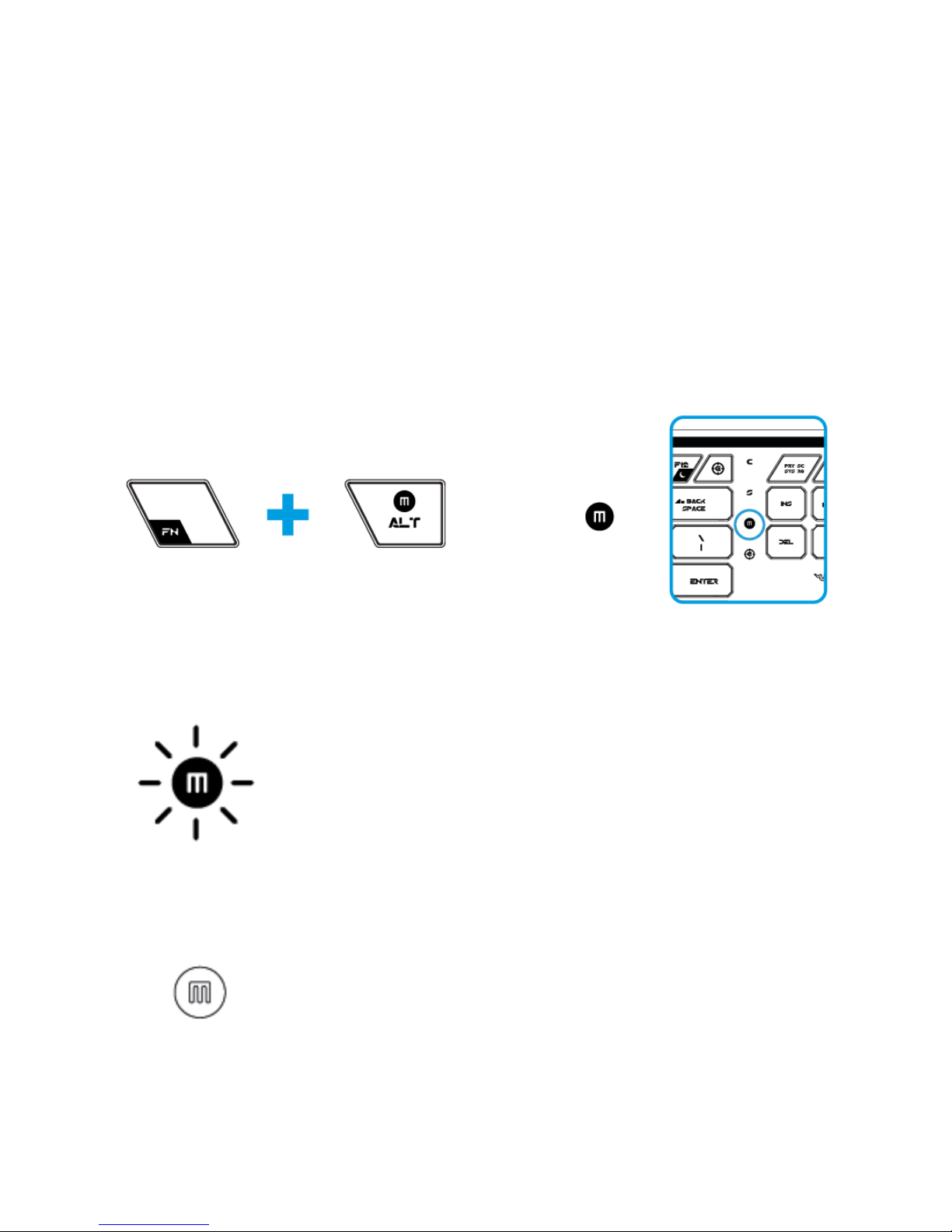
a. By using the On-The-Fly (OTF) Macro Recording function of the TRON Gaming Keyboard
Example: To configure Key “Q” to “Save” in Notepad.
1. Press ‘FN’ button with Alt-Macro button to start the recording of the macro.
The Macro Recording indicator lights up.
2. Press “Ctrl” and “S” (this command is the “Save” function) to define the keystrokes for the macro.
3. Press “FN” button with Alt-Macro button again to stop recording the macro.
The Macro Recording indicator starts blinking.
4. Press “Q” to assign the recently recorded macro to the “Q” button.
The Macro Recording indicator turns off.