manuals.online logo
Brands
  1. Home
  2. •
  3. Brands
  4. •
  5. Razer
  6. •
  7. Mouse
  8. •
  9. Razer Naga Epic User manual

Razer Naga Epic User manual

Other Razer Mouse manuals

Razer PeathAdder Use and care manual

Razer

Razer PeathAdder Use and care manual

Razer ABYSSUS 1800 Use and care manual

Razer

Razer ABYSSUS 1800 Use and care manual

Razer Abyssus Use and care manual

Razer

Razer Abyssus Use and care manual

Razer Naga Trinity Use and care manual

Razer

Razer Naga Trinity Use and care manual

Razer Saga Use and care manual

Razer

Razer Saga Use and care manual

Razer Imperator Use and care manual

Razer

Razer Imperator Use and care manual

Razer PeathAdder User manual

Razer

Razer PeathAdder User manual

Razer GOLIATHUS CHROMA Use and care manual

Razer

Razer GOLIATHUS CHROMA Use and care manual

Razer RZ01-04630 Use and care manual

Razer

Razer RZ01-04630 Use and care manual

Razer RC30-021702 User manual

Razer

Razer RC30-021702 User manual

Razer DeathAdder User manual

Razer

Razer DeathAdder User manual

Razer Orochi Use and care manual

Razer

Razer Orochi Use and care manual

Razer Salmosa User manual

Razer

Razer Salmosa User manual

Razer MAMBA Instruction Manual

Razer

Razer MAMBA Instruction Manual

Razer Viper Mini Use and care manual

Razer

Razer Viper Mini Use and care manual

Razer VIPER V2 PRO Use and care manual

Razer

Razer VIPER V2 PRO Use and care manual

Razer Naga User manual

Razer

Razer Naga User manual

Razer RZ02-02500300-R3U1 Use and care manual

Razer

Razer RZ02-02500300-R3U1 Use and care manual

Razer RZ01-0155 User manual

Razer

Razer RZ01-0155 User manual

Razer MAMBA Use and care manual

Razer

Razer MAMBA Use and care manual

Razer RZ01-0462 Technical manual

Razer

Razer RZ01-0462 Technical manual

Razer RZ010133 User manual

Razer

Razer RZ010133 User manual

Razer taipan User manual

Razer

Razer taipan User manual

Razer DEATHADDER V2 X HYPERSPEED Use and care manual

Razer

Razer DEATHADDER V2 X HYPERSPEED Use and care manual

Popular Mouse manuals by other brands

Viper V570 user manual

Viper

Viper V570 user manual

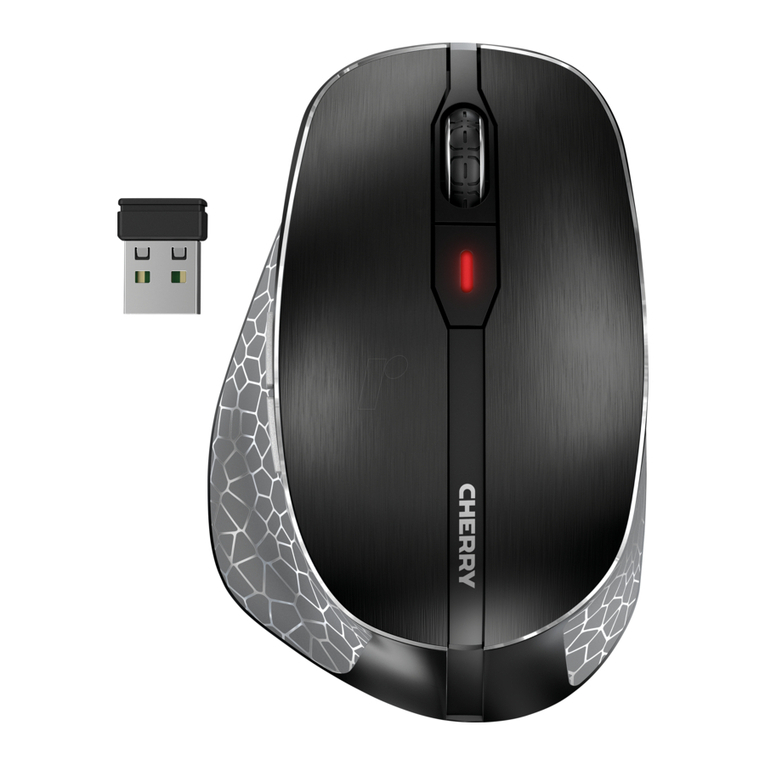
Cherry MC 2.1 user manual

Cherry

Cherry MC 2.1 user manual

Sven RX-G720 user manual

Sven

Sven RX-G720 user manual

Sharkoon Light2 180 manual

Sharkoon

Sharkoon Light2 180 manual

Cherry MW 8C ERGO user manual

Cherry

Cherry MW 8C ERGO user manual

Vantec NBW-100U user manual

Vantec

Vantec NBW-100U user manual

NGS HIT RB manual

NGS

NGS HIT RB manual

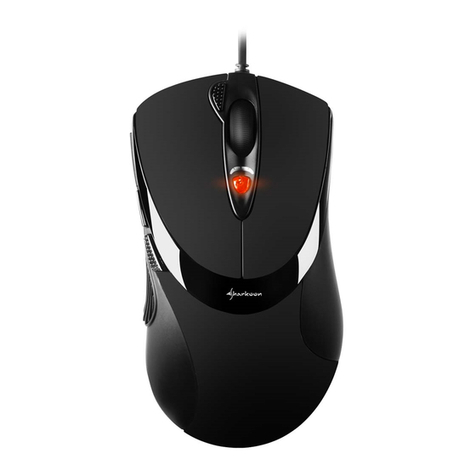
Sharkoon FireGlider manual 

Sharkoon

Sharkoon FireGlider manual 

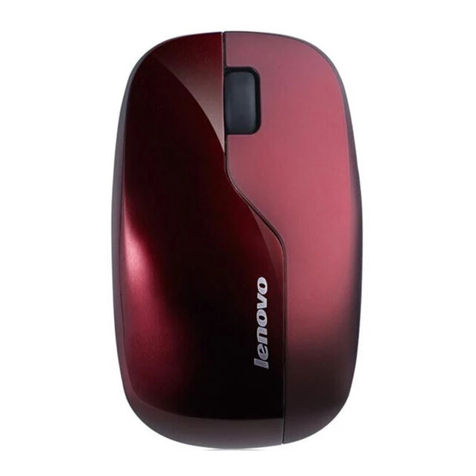
Lenovo Wireless Mouse N3902 quick start guide

Lenovo

Lenovo Wireless Mouse N3902 quick start guide

BASETech BN-S11 operating instructions

BASETech

BASETech BN-S11 operating instructions

Dell WM326 user guide

Dell

Dell WM326 user guide

Areson B213 user guide

Areson

Areson B213 user guide

Targus AMU83EU operating instructions

Targus

Targus AMU83EU operating instructions

HP M17587-371 manual

HP

HP M17587-371 manual

Chatpen CHA-30 user manual

Chatpen

Chatpen CHA-30 user manual

GAMDIAS DEMETER GMS5000 Quick installation guide

GAMDIAS

GAMDIAS DEMETER GMS5000 Quick installation guide

HP KJ453AA - Wireless Laser Mouse datasheet

HP

HP KJ453AA - Wireless Laser Mouse datasheet

Trust GRAPHIN GXT 960 user guide

Trust

Trust GRAPHIN GXT 960 user guide

manuals.online logo
manuals.online logoBrands
  • About & Mission
  • Contact us
  • Privacy Policy
  • Terms and Conditions

Copyright 2025 Manuals.Online. All Rights Reserved.

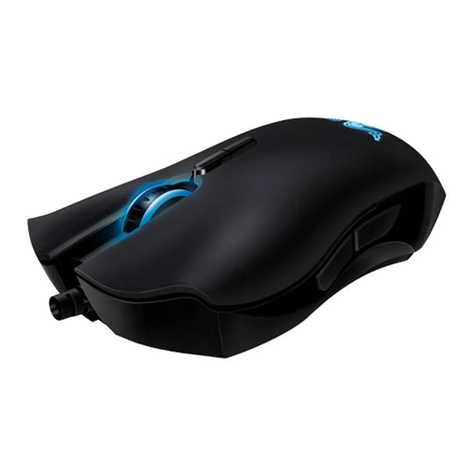
The Razer™ Naga Epic MMO Gaming Mouse is the upgrade to the original award-winning and massively
popular Razer Naga™ that shifts the balance between the keyboard and mouse with its 17 MMO-
optimized buttons.
The Razer Naga Epic takes it one step further by combining this with the dual mode wired/wireless
functionality and interchangeable side panels, designed by the world-acclaimed Razer ergonomics team,
which provides an optimal fit for various hand sizes and grip styles so you can raid in comfort for hours on
end. With the Razer Naga Epic, prepare to Get Imba again.
From the casual MMO gamer to the serious hardcore raider, the Razer Naga Epic will take you to the
head of the pack in both PVE and PVP action.
Buff it with the Razer Anansi MMO gaming keyboard to use the Razer Naga Epic's 12-button mouse
keypad seamlessly with the keyboard's 7 thumb modifier keys, giving you an unprecedented level of
battle control while dual-wielding the world's most phenomenal weapons for MMO gaming dominance.
MASTER GUIDE
CONTENTS
1. System Requirements
2. Installation / Registration / Technical Support
3. Key Features
4. Configuring Your Razer Naga Epic
5. Using Your Razer Naga Epic
6. Legalese
1. SYSTEM & HARDWARE REQUIREMENTS:
- PC with USB port
- Windows® 7 / Windows Vista® / Windows® XP
- Internet connection (for driver installation)
- 75MB of free hard disk space
2. INSTALLATION / REGISTRATION / TECHNICAL SUPPORT
For best results, please charge the battery fully the first time you use the Razer Naga Epic. Do check that
the left-side switch on the bottom of the Razer Naga Epic is switched to the Wired/Charging position. A
depleted battery will be fully charged in about 5 hours.

WIRELESS MODE
1. Connect the Cable Connector Jack to the Charging Dock.
2. Remove the side panel of the Razer Naga Epic.
3. Slide the lock switch and insert the battery into the battery compartment. (Sliding the lock switch again
will allow you to remove the battery).
4. Replace the side panel.
5. Slide the shown switch to the Wireless position. To conserve battery power, always move the switch to
the Wired / Charging position when not using your mouse in wireless mode.
6. Press the pairing buttons on the Razer Naga Epic and Charging Dock. The lights on the Razer Naga
Epic will start flashing to indicate the pairing process.

7. When the pairing process is completed, the lights on the Razer Naga Epic will stop blinking. Your
Razer Naga Epic is then ready for use in wireless mode.
8. To charge the Razer Naga Epic in wireless mode, ensure that the shown switch is set to the
Wired/Charging position and place it on the Charging Dock.
Alternatively, the Razer Naga Epic can be charged by plugging it directly into a PC USB port.
WIRED MODE
1. Do ensure that the shown switch is set to the Wired/Charging position.
2. Connect the Cable Connector Jack to the Razer Naga Epic.
3. Plug mouse into the USB port of your computer. The Razer Naga Epic is then ready for use as a high
performance wired mouse. In addition, its battery will start charging automatically in this wired mode.
4. To remove the cable, pull out the Cable Connector Jack.
WINDOWS® 7 / WINDOWS VISTA® / WINDOWS® XP INSTALLATION INSTRUCTIONS
Step 1: Plug your Razer Naga Epic into the USB port of your computer.
Step 2: Download the Driver Installer from www.razersupport.com.
Step 3: Run the installer and follow the onscreen instructions.
REGISTERING YOUR RAZER NAGA EPIC
Please visit www.razerzone.com/registration/ for online product registration.
What you’ll get:
- 2 years limited manufacturer’s warranty
- 6 months battery warranty
- Free online technical support at www.razersupport.com
3. KEY FEATURES
A. Click
B. Menu
C. Scroll Wheel and Universal scrolling
D. Backward
E. Forward
F. Thumb Grid–12 buttons (Action Bar for MMO games)
G. Razer Precision 3.5G Laser Sensor
H. Wireless and Wired/Charging Switch *
I. Pairing Button
J. Basic [123] / Advanced [Num] Switch
K. Ultraslick Mouse Feet
* For optimum battery life, always move the switch to the Wired/Charging position when not using your
Razer Naga Epic in wireless mode.
L. Rechargeable Battery
M. Cable Connector Jack
N. Battery Charging Connector
O. Connector Jack (Charging Dock)
P. 3 Interchangeable Side Panels –Classic Grip, Claw Grip, Palm Grip (default)
4. CONFIGURING YOUR RAZER NAGA EPIC
The features listed here require the Razer Naga Epic software driver to be installed. Each setting will be
saved to the current Profile on the current machine only.
ASSIGN BUTTONS TAB
TOP VIEW
In the Assign Buttons tab, you can assign various functions to each of the buttons based on your own
preferences.
The following functions are possible:
Click:
Perform a left mouse click.
Menu:
Open a context-sensitive menu.
Universal Scrolling:
Click once on the assigned button to activate universal scrolling. Drag your Razer Naga Epic to scroll in
the direction of the mouse movement.
Double Click:
Perform a double click with the assigned button.
Macro:
If the button function or key is not listed, or if you would like to assign a macro to a button, select "Macro"
from the dropdown menu. In addition, all saved macros will be shown on a sub dropdown menu for quick
selection when you mouse over the "Macro" option.
Sensitivity Stage Up:
Switch the current sensitivity stage to the next stage.
Sensitivity Stage Down:
Switch the current sensitivity stage to the previous stage.
Profile Settings:
Switch to a profile on the fly and immediately load all your pre-configured mouse settings. When you
select "Profile Settings" from the dropdown menu, a sub-menu will appear that allows you to choose your
desired profile.
Forward:
Assign a "Forward" command in Windows Explorer / Internet Explorer.
Backward:
Assign a "Back" command in Windows Explorer / Internet Explorer.
On-The-Fly Sensitivity:
Enable change of sensitivity settings on the fly without the need to enter the configuration menu.
Refer to 'Using Your Razer Naga Epic' for more details.
Single Key:
Activate a key on your keyboard.
Scroll Up:
Scroll up the page you are currently viewing.
Scroll Down:
Scroll down the page you are currently viewing.
Button Off:
Disable any function on the assigned button.
THUMB GRID VIEW
Choose the THUMB GRID VIEW to gain access to the 12 buttons Thumb Grid. All 12 buttons can be
assigned to various functions based on your own preferences. In addition, you can switch between the
Basic [123] and Advanced [Num] configuration to assign a different set of functions to your Thumb Grid.
TWEAK PERFORMANCE TAB
1. Current DPI
The current DPI setting is shown.
2. Sensitivity
The current sensitivity of your Razer Naga Epic can be easily adjusted by moving the arrow along the
slider.
a. Sensitivity Stage
Click on this to adjust the Sensitivity Stage settings.
Refer to 'Using Your Razer Naga Epic' for more details.
b. To set a different sensitivity level in the X and Y axis, you can select the "Enable independent X-Y
sensitivity" option and move the individual X and Y arrows along the slider.
c. To display the On-The-Fly Sensitivity indicator onscreen whenever you make changes on the fly, select
the "Enable On-The-Fly sensitivity on-screen display" option.
3. Acceleration
You can activate acceleration by checking the "Enable Acceleration" box and moving the arrow along the
slider.
4. Polling Rate
You can switch between 125Hz (8ms), 500Hz (2ms) and 1000Hz (1ms) by clicking on the individual
polling rate buttons.