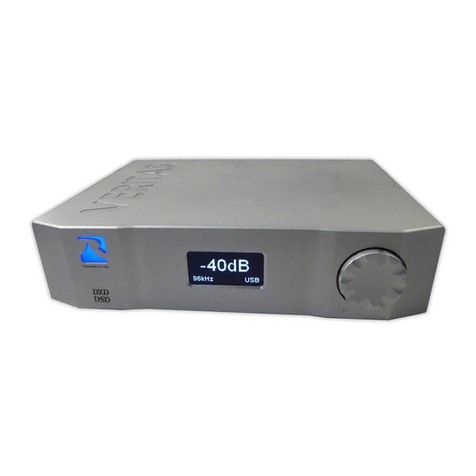
Using Headphones (INVICTA)
Connect the Headphone into the
“A” or “B” headphone port on the front
panel. To activate the headphone output,
press the button above the socket to
illuminate the LED. Each headphone
output has a “trim level” - used to reduce
the output to a sensitive headphone so
that the perceived level is similar when
both headphone outputs are used at the
same time. To adjust the trim level, press
and hold the A or B button to activate the
trim control feature and turn the volume
knob. (A default trim level may be stored
in the User Settings menu.) Significant
power can be output to the headphones,
take care to ensure that the volume level
is set to a reasonable level before
activating the headphone output.
For advanced users, the headphone
output may be switched to differential
mode. In this configuration the 'A' output
becomes a differential drive to the Left
headphone and the 'B' output becomes a
differential drive to the Right headphone.
Amplifier with Loudspeakers
Connect the power amplifier input
to either the balanced XLR outputs or to
the single-ended RCA output terminals.
The output amplitudes are designed to
drive the power amplifier input section of
commercial and professional amplifiers.
If the input must be provided to the
preamplifier input terminals, ensure the
volume level is set to -30dB initially, after
which you may increase the level if
needed. (Refer to resonessencelabs.com/?
page_id=314 for more details. An
appropriate default start-up level may
then be stored in the User Settings menu).
Selection of Data Sources
To select the Digital Data source,
press the “Pop / Back” button on the
front panel or remote to return to the top
most menu. That menu contains BNC1,
BNC2, TOSLINK, AES, USB, SD Card
and INVICTA Options. Rotate the knob
or press Up and Down on the remote to
select the desired data source and either
press the knob or the Next button on the
remote. That data source is now active
and if the choice was to use USB, the
INVICTA will initiate the enumeration
sequence to connect to the host computer
in the USB Audio 1.0 or USB Audio 2.0
mode.
Please read the notes below on the
use of USB Audio 2.0 on a indows PC.
USB Digital Data
If you plan to use the Resonessence
SB Audio 2.0 driver on your Windows
PC, please refer to Appendix A for
installation instructions. Without this
driver, Windows only has SB Audio 1.0
capability.
Begin by ensuring that the
INVICTA USB is set to use the audio
specification that you wish to use. USB
Audio 1.0 or 2.0 is selected in the “User
Settings”, see the section below for
instructions on how to change settings.
The Mac computer can use USB
Audio 2.0 without any further
configuration, and the best performance
will result when USB 2.0 is selected in
the user settings.
The indows OS natively only
supports USB Audio 1.0, and
consequently, third-party drivers are
needed to support USB Audio 2.0 on
indows. (Resonessence supplies such a