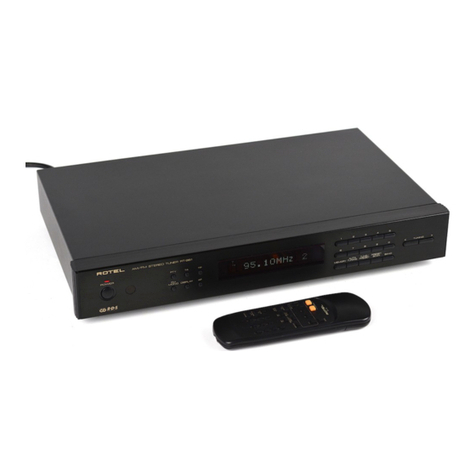
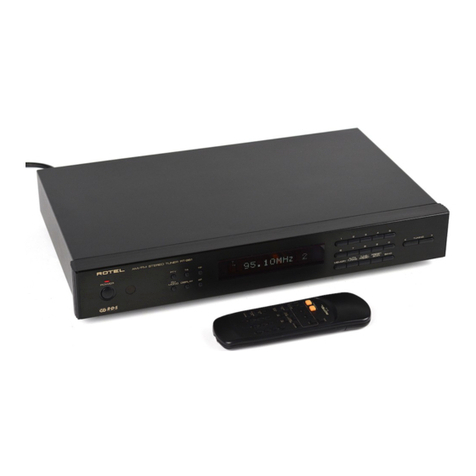
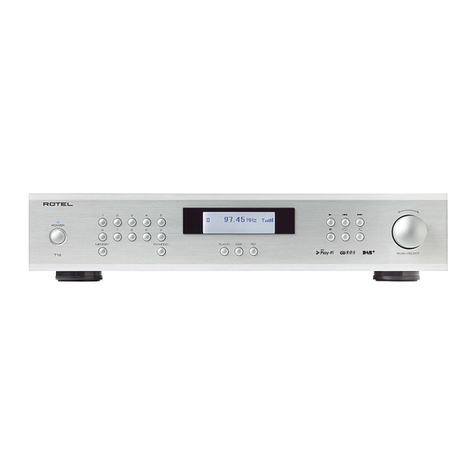
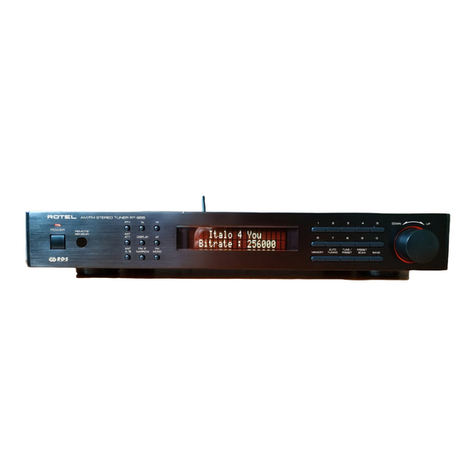
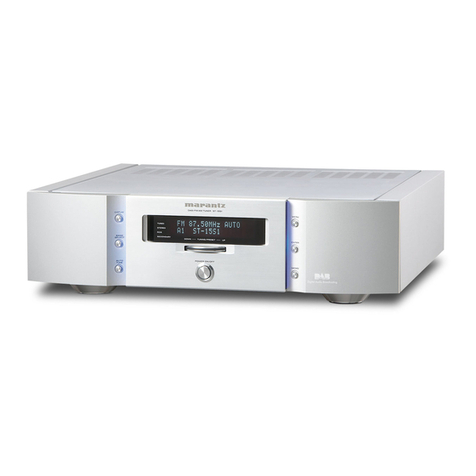
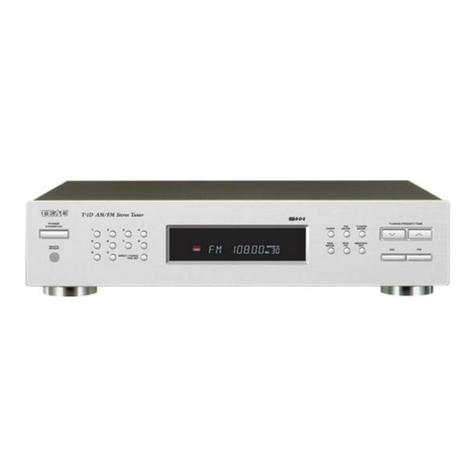
10 RT-11 DAB/FM STEREO TUNER
RDS Broadcast Reception
This Rotel unit is equipped with RDS (Radio Data Systems) reception
capabilities. The RDS broadcast system provide additional functionality
to FM radio reception by transmitting encoded information along with
the radio signal. This signal is decoded by an RDS receiver and can
provide a range of informational features including:
1. A display of the station’s identifying name (e.g. BBC1)
2. A display of the station’s program content (e.g. ROCK or NEWS).
3. Traffic information broadcasts.
4. A scrolling text display for announcements or information.
5. Current time and date.
RDS broadcasting has been widely available in many European markets
for years. There are a large number of RDS stations and most users will
be familiar with the features and operation.
Note: The RDS features are entirely dependent on the broadcaster
sending properly encoded signals. Thus, they will only be available
in markets where RDS is currently implemented and where stations are
broadcasting these data signals.
RDS Button O
The RDS button on the remote control can step through the various
displays. Press the RDS button on the remote to step through the following
displays.
1. Radio Text
2. PTY, or the type of content.
3. Name of station.
4. Stereo or Mono station.
5. Current time.
6. Today’s date.
MONO Button O
The MONO button on the remote control changes the FM mode from
stereo reception to mono reception. In stereo mode, a stereo signal
will be heard if the station is broadcasting a stereo signal and there is
sufficient signal strength.
Note: Switching to mono mode can be a useful way to improve
the reception of weak or distant FM signals. Less signal strength is
required for clean mono reception than for stereo reception.
DAB RADIO
Make sure that your local area can receive Digital Audio Broadcast
(DAB) broadcasting signal.
Press the DAB 7 button on the front of the panel, or remote N.
DAB channels are categorized into ensembles, which are also known
as multiplexes. Each multiplex provides a number of stations and each
service contains a primary service that can contain secondary services.
DAB technology allow broadcasters to transmit additional data along
with the audio, which can include other audio channels, text and even
images and computer data in the future.
DAB Radio Station Playing
1. Select DAB Button from the front panel and the unit will scan for available
stations. After scanning you will see the following menu.
DAB
<Station list>
Push the ENTER key 0to see available stations.
Storing a DAB station in a preset
While a DAB station is playing, hold down the memory button 9I,
then press the number of preset assigned from numeric pad 4H. Up
to 30 preset DAB radio stations may be stored.
Playing a preset DAB station
When a DAB station is playing, you can switch to a preset station in one
of the following ways.
1. From the numeric pad 4H, press preset number of the desired
station.
2. Press PRESET +/- Kon the remote to call out preset numbers and
corresponding station. Turn the knob to choose the desired station, then
press ENTER 0to select, or press the ENT key on the remote.
DAB Settings Menu
Press the DAB 7N on the front panel or remote to toggle to the DAB
settings Menu. There are 6 sub-menus. Turn the knob on the front panel or
use the UP/DOWN keys on the remote to go through each sub-menu.
1. <Station List>, shows station list.
2. <Full Scan> Start a full range scan by pressing the ENT key.
3. <Manual Scan> Press ENT and select stations manually by using
the Up/Down keys.
4. <DRC> Dynamic Range Control Select between “off”, “high” and
“low”. Press ENT and select Up/Down keys to change.
5. <Prune> Select between “Yes” or “No”. The Prune setting allows you
to remove stations that are not active or can not be received.
6. <System>, Select the Factory Default and show Software Version.