manuals.online logo
Brands
  1. Home
  2. •
  3. Brands
  4. •
  5. Sakar
  6. •
  7. Digital Camera
  8. •
  9. Sakar 11199 User manual

Sakar 11199 User manual

Other Sakar Digital Camera manuals

Sakar Wrist Cam Watch User manual

Sakar

Sakar Wrist Cam Watch User manual

Sakar 16381 User manual

Sakar

Sakar 16381 User manual

Sakar 98379 User manual

Sakar

Sakar 98379 User manual

Sakar 87480 User manual

Sakar

Sakar 87480 User manual

Sakar 89379 User manual

Sakar

Sakar 89379 User manual

Sakar 98309v2 User manual

Sakar

Sakar 98309v2 User manual

Sakar 26480 User manual

Sakar

Sakar 26480 User manual

Sakar 84379 User manual

Sakar

Sakar 84379 User manual

Sakar 72480 User manual

Sakar

Sakar 72480 User manual

Sakar 5.1 Mega Pixel User manual

Sakar

Sakar 5.1 Mega Pixel User manual

Sakar 16382 User manual

Sakar

Sakar 16382 User manual

Sakar 87480 User manual

Sakar

Sakar 87480 User manual

Sakar 59097 User manual

Sakar

Sakar 59097 User manual

Sakar 14099 User manual

Sakar

Sakar 14099 User manual

Sakar 52379 User manual

Sakar

Sakar 52379 User manual

Sakar 98379 User manual

Sakar

Sakar 98379 User manual

Sakar 88379 User manual

Sakar

Sakar 88379 User manual

Sakar 81379 User manual

Sakar

Sakar 81379 User manual

Sakar 57490 User manual

Sakar

Sakar 57490 User manual

Sakar 16380 User manual

Sakar

Sakar 16380 User manual

Sakar 94044 User manual

Sakar

Sakar 94044 User manual

Sakar 28290 User manual

Sakar

Sakar 28290 User manual

Sakar 24280 User manual

Sakar

Sakar 24280 User manual

Sakar 76379 User manual

Sakar

Sakar 76379 User manual

Popular Digital Camera manuals by other brands

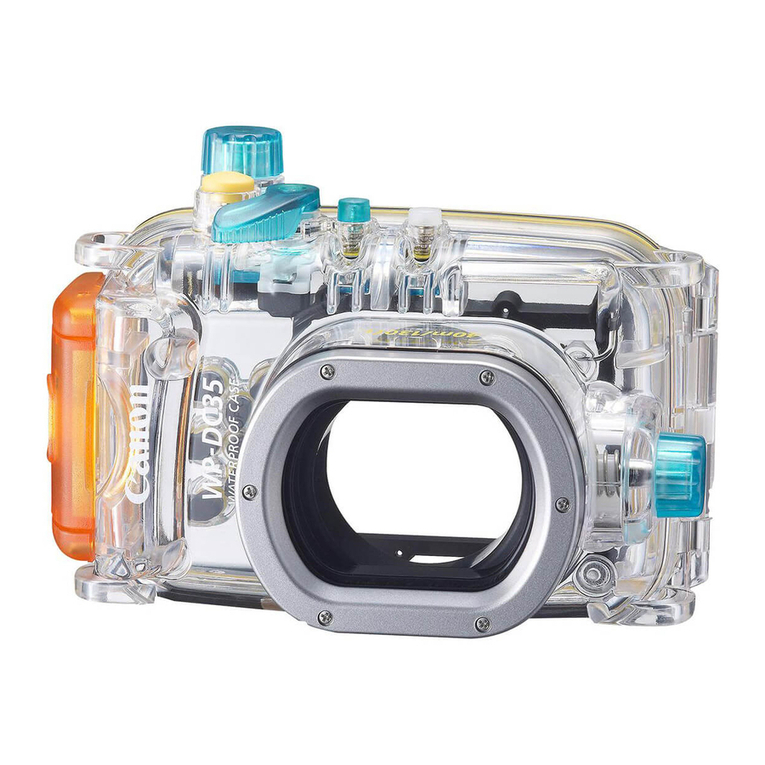
Canon WP-DC35 user guide

Canon

Canon WP-DC35 user guide

Xiaomi 70mai Dash Cam Lite user manual

Xiaomi

Xiaomi 70mai Dash Cam Lite user manual

Samsung PL70 Quick start manual

Samsung

Samsung PL70 Quick start manual

GE E1680W user manual

GE

GE E1680W user manual

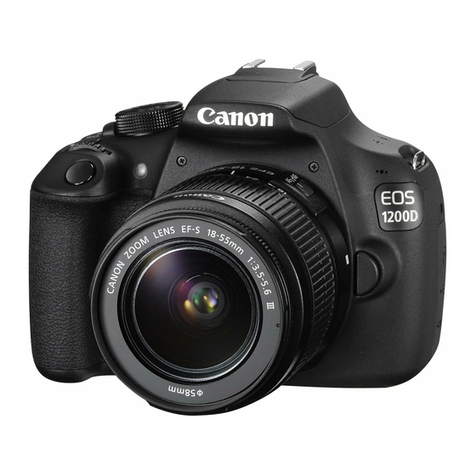
Canon EOS 1200D instruction manual

Canon

Canon EOS 1200D instruction manual

Tevion MD 86497 user guide

Tevion

Tevion MD 86497 user guide

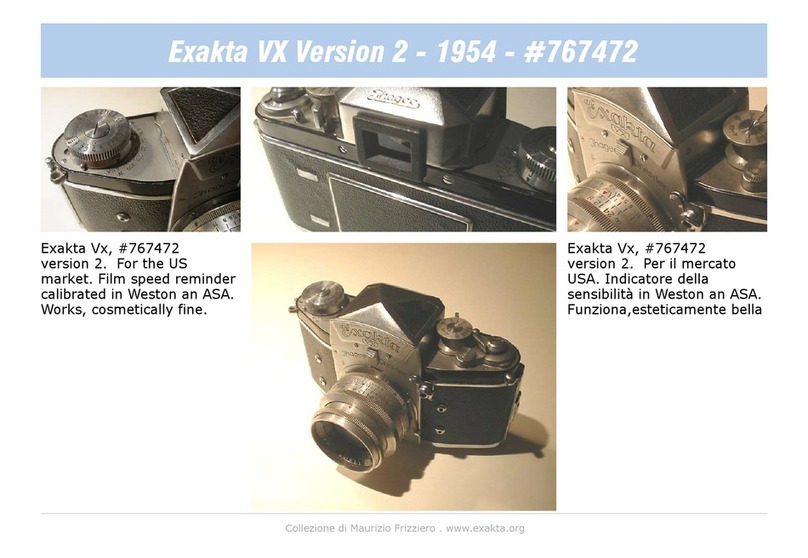
Exakta VX Features

Exakta

Exakta VX Features

Kodak Digital Science DC120 user guide

Kodak

Kodak Digital Science DC120 user guide

Nikon FM3A Specifications

Nikon

Nikon FM3A Specifications

Vectra Fitness H1 Quick reference guide

Vectra Fitness

Vectra Fitness H1 Quick reference guide

Nikon COOLPIX 775 quick start guide

Nikon

Nikon COOLPIX 775 quick start guide

Olympus IR 500 - 4MP Digital Solutions Camera Manuel de Référence

Olympus

Olympus IR 500 - 4MP Digital Solutions Camera Manuel de Référence

Samsung EC-L100ZBBA brochure

Samsung

Samsung EC-L100ZBBA brochure

FujiFilm FINEPIX BL01124-201 owner's manual

FujiFilm

FujiFilm FINEPIX BL01124-201 owner's manual

Panasonic DMC-L10KPP Service manual

Panasonic

Panasonic DMC-L10KPP Service manual

Hyundai Electric HYU-CC-CHBF12001 Quick installation guide

Hyundai Electric

Hyundai Electric HYU-CC-CHBF12001 Quick installation guide

Sony DSC-WX80 specification

Sony

Sony DSC-WX80 specification

Nikon Nuvis S - Point & Shoot instruction manual

Nikon

Nikon Nuvis S - Point & Shoot instruction manual

manuals.online logo
manuals.online logoBrands
  • About & Mission
  • Contact us
  • Privacy Policy
  • Terms and Conditions

Copyright 2025 Manuals.Online. All Rights Reserved.

- 1 -
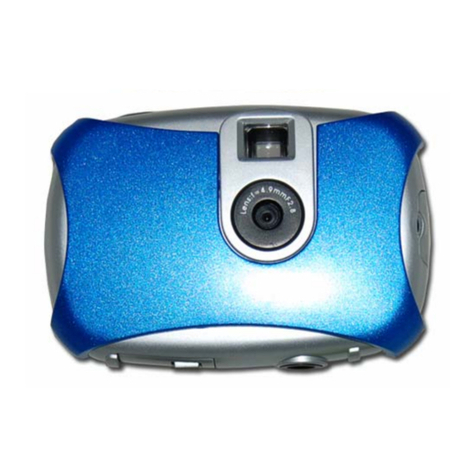
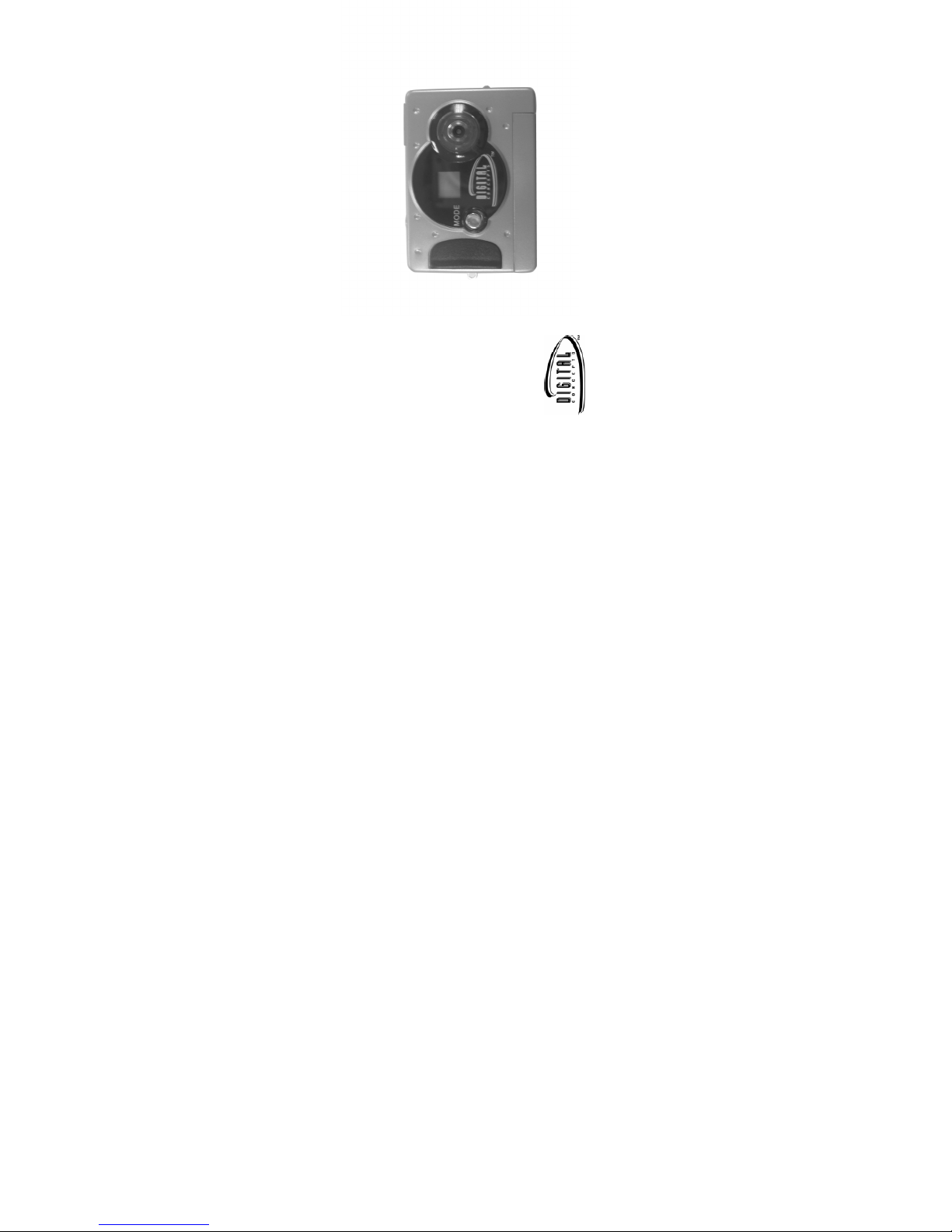
11199 KeyChain Digital Camera
Owner’s Manual
© 2006 Sakar International, Inc. All rights reserved.
Windows and the Windows logo are registered trademarks of Microsoft Corporation.
All other trademarks are the property of their respective.
- 2 -
Contents
Profile 2
Overview 2
Product Package Contents 2
System Requirements 2
To know Digital Camera 2
Install Battery 3
Software Installation 4
Take Photos 8
Camera Functions Control 9
Download Photos 11
CapturingAVI 16
Video Conference 18
Appendix1: Specifications 18
Appendix2: Answers of frequent asked questions 19
- 3 -
Profile
Overview
Thank you for purchasing the11199 Keychain digital camera. It not only can
take photos but also has the built-in PC camera functions. This camera is
equipped with a 16MB SDRAM: if you want the photos in the camera to be
download to your computer, you are only required to connect the USB cable to
your computer and your camera; It is also possible to use the built-in PC camera
to hold a video conference via the internet, enabling you to have a face to face
online conversation with others.
Product Package Contents
●Digital Camera ●User’s Manual
●Software CD ●USB cable
System Requirements
Win98SE/2000/XP
125MB free hard disk space or above, 32MB or more RAM
Available USB Interface and CD-ROM
Color Monitor (Suggest at least 800*600 24 bit or above)
To Know Digital Camera
A. Shutter button
B. LCD
C. Lens
D. Viewfinder Button
E. USB Socket
F. Hanging Strap Hole
- 4 -
G. Start/Function Key
H. Battery Box
Install Battery
1. Open the battery box.
2. Load the batteries correctly: when you load the batteries, please place one
battery according to the pole directions for batteries on the battery box;
3. Close the battery box cover.
Note:
1. When you use the USB cable to connect the camera with a computer, is
unnecessary to use the batteries because the camera use the power provided by
the computer through the USB interface.
2. Before you use the PC camera functions, please download all photos in
the camera to your computer, which will avoid pictures missing
3. Please pay attention to that the reasonable distance between you eyes and
viewfinder is about 30cm
Warning
1. Don’t open the battery box at will, and the power cut will cause the photos
in the camera missing.
2. If you don’t use the camera for a long time, please take out of the batteries
for fear of the discharging or corrosion of the batteries;
3. Please don’t put the battery into fire for fear of explosion to cause
4. When the power of battery lower 1.2V,the symbols in LCD will flash
indicating the power shortage
- 5 -
Automatically enter the energy saving status
In order to save the energies of batteries, if the camera is not used in 30s,the
camera will auto enter the energy saving status.
Software Installation
IMPORTANT: Before attempting to install the software, make sure that
you do not have the camera or the USB cable attached to your computer.
This will affect the install process and will cause your installation to fail.
Do not connect the cable to the computer until the entire installation
process has been completed. We suggest you follow the step by step
instructions that will appear on your screen during the installation process.
SECTION ONE- Software & Camera Driver Installation
1. Insert the CD into your CD-Rom drive. Make sure that your camera is not
connected to the computer.
2. For WIN 2000 or WIN XP operating systems - On the “Install your
camera software” screen, select your camera model from the drop down
list and click the “Install” button to install PhoTags Express followed by
the installation of PhoTags WebCam Express and your camera driver.
For WIN 98SE operating system- On the “Install your camera software”
screen and follow these instructions:
1. Click the “DirectX” button and follow the installation instructions,
restart your computer after the installation
2. Insert the CD into your CD-Rom drive. Make sure that your camera

- 6 -
is not connected to the computer.
3. On the “Install your camera software” screen, select your camera
model from the drop down list and click the “Install” button to install
PhoTags Express followed by the installation of PhoTags WebCam
Express and
3. On the “PhoTags Express" screen, click the “Next” button.
4. Please review the license terms and click the “Agree” button to continue.
- 7 -
5. Let the “PhoTags Express” installer create the folder where the program
will be installed to, and then click “Install”
6. Click “Finish” to let the “PhoTags Express” installer finish the installation
program.
- 8 -
7. This will automatically launch the Install shield for the camera driver.
Click “Next” to continue.
8. Once the program has finished installing you will have to restart your
computer.
- 9 -
9. Congratulations!!You have successfully installed the “PhoTags Express”
software, the “PhoTags WebCam Express” and the Camera driver.
SECTION TWO: Take photos
Please be sure that the power of the batteries is enough before you use this
camera to take photos. If you want to take photos, please:
1. Press function button to open the camera and the LCD will be lightened.
2. Use the viewfinder to find the things for which you desire to take photos;
3. Hold the camera steadily, and press the shutter button to take photos
4. When you hear the buzzer beeps once, which indicates you have already
taken a photo, and you can go on taking photos;
5. When the camera is fully loaded with photos, the buzzer will give out

continuous beeps sound for alarm.
Prompt:
1. When taking photos, please hold camera steadily
2. The shortage of rays will reduce the quality of picture
- 10 -
Camera Functions Operation
The function operation of the camera shall be conducted under the working state.
If the camera is in energy saving mode, please press Function button once to
start the camera and let it into the working state, and then conduct the following
operation.
Auto-shoot mode
1. Press the Function button to select shown on LCD display;
2. Press the shutter button within 5 seconds to activate the 10 seconds timer.
The digital camera will beep once every second.
3. After 10 seconds, the camera will beep twice indicate that the photos has
been taken.
Continuous Shoot Mode
AVI Capture
1. Press the Function button to select shown on the LCD display;
2. Press shutter button within 5 seconds activate the continuousAVI capture
mode and do not release the shutter button until you want to stop shooting.
3. The camera will beep once for each photo taken till shutter button
released or the memory is full.
Continuous 3 Capture
1. Press the Function button to select “C5” shown on the LCD display;