manuals.online logo
Brands
  1. Home
  2. •
  3. Brands
  4. •
  5. Samsung
  6. •
  7. Keyboard
  8. •
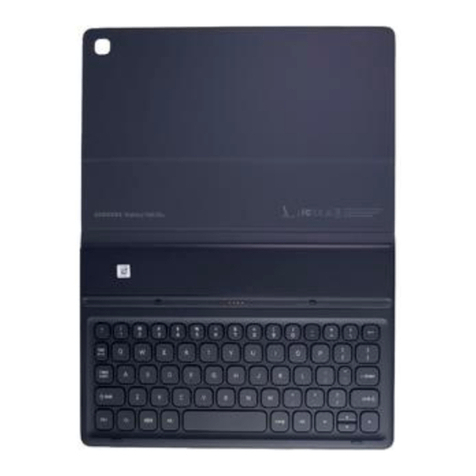
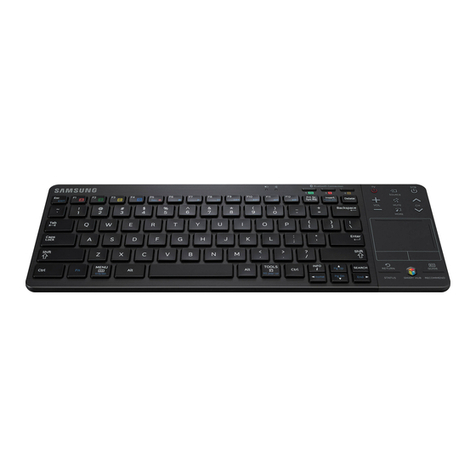
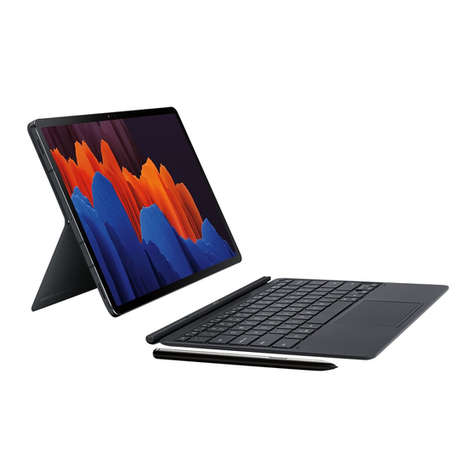
  9. Samsung Galaxy Tab S6 Lite User manual

Samsung Galaxy Tab S6 Lite User manual

Other manuals for Galaxy Tab S6 Lite

5

Other Samsung Keyboard manuals

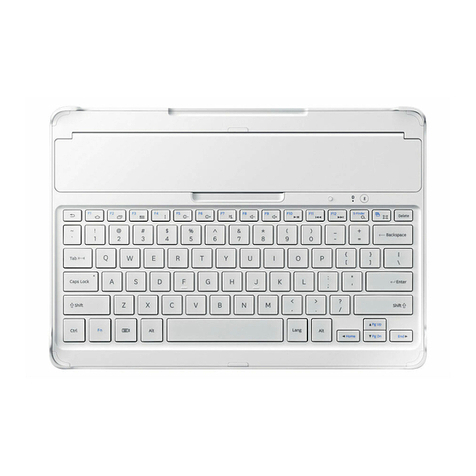
Samsung EJ-FT820 User manual

Samsung

Samsung EJ-FT820 User manual

Samsung VG-KBD1000 User manual

Samsung

Samsung VG-KBD1000 User manual
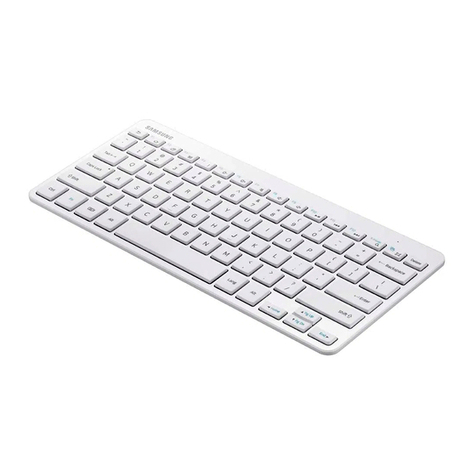
Samsung EBE0388137D7 User manual

Samsung

Samsung EBE0388137D7 User manual

Samsung SSC-5000 User manual

Samsung

Samsung SSC-5000 User manual

Samsung EF-DT970 User manual

Samsung

Samsung EF-DT970 User manual

Samsung EJ-CT810 User manual

Samsung

Samsung EJ-CT810 User manual

Samsung AA-SK8PWUW User manual

Samsung

Samsung AA-SK8PWUW User manual

Samsung Galaxy Note PRO User manual

Samsung

Samsung Galaxy Note PRO User manual

Samsung A3LBKB-A User manual

Samsung

Samsung A3LBKB-A User manual

Samsung Galaxy SIII GT-9300 User manual

Samsung

Samsung Galaxy SIII GT-9300 User manual

Samsung EJ-CG955 User manual

Samsung

Samsung EJ-CG955 User manual

Samsung EE-BT550 User manual

Samsung

Samsung EE-BT550 User manual

Samsung EJ-FT720 User manual

Samsung

Samsung EJ-FT720 User manual

Samsung VG-KBD2000 User manual

Samsung

Samsung VG-KBD2000 User manual

Samsung EJ-BT230 User manual

Samsung

Samsung EJ-BT230 User manual
Samsung VG-KBD2000 User manual

Samsung

Samsung VG-KBD2000 User manual

Samsung EE-BT550 User manual

Samsung

Samsung EE-BT550 User manual

Samsung EE-CP905 User manual

Samsung

Samsung EE-CP905 User manual

Samsung VG-KBD2000 User manual

Samsung

Samsung VG-KBD2000 User manual

Samsung EF-DT870 User manual

Samsung

Samsung EF-DT870 User manual

Samsung EF-DX900 User manual

Samsung

Samsung EF-DX900 User manual

Samsung EJ-BT230 User manual

Samsung

Samsung EJ-BT230 User manual

Samsung EF-DT500 User manual

Samsung

Samsung EF-DT500 User manual

Samsung EJ-CT800 User manual

Samsung

Samsung EJ-CT800 User manual

Popular Keyboard manuals by other brands

Man & Machine Really Cool + user guide

Man & Machine

Man & Machine Really Cool + user guide

SteelSeries APEX PRO TKL Product information guide

SteelSeries

SteelSeries APEX PRO TKL Product information guide

Vortexgear POK3R user manual
Vortexgear

Vortexgear POK3R user manual
Logitech RUGGED LITE quick start guide

Logitech

Logitech RUGGED LITE quick start guide

Honeywell ADEMCO 5839 Installation and setup guide

Honeywell

Honeywell ADEMCO 5839 Installation and setup guide

PROZIS EZ user manual
PROZIS

PROZIS EZ user manual

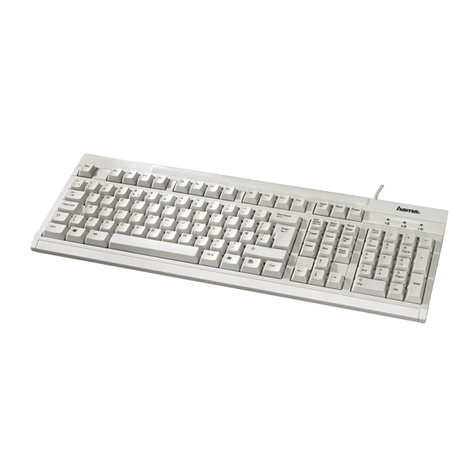
Hama AK-120 Operating	 instruction

Hama

Hama AK-120 Operating instruction

Rodgers RK-76 owner's manual

Rodgers

Rodgers RK-76 owner's manual

Logic Controls KB5000 Series user manual

Logic Controls

Logic Controls KB5000 Series user manual

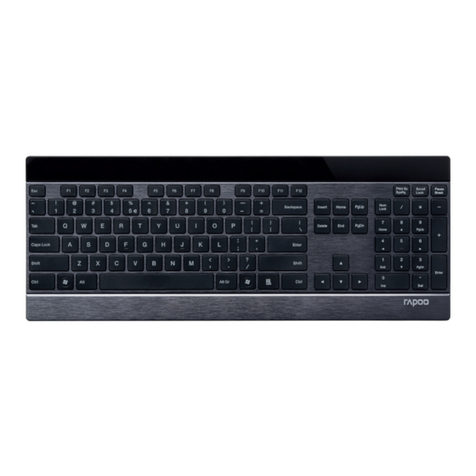
Rapoo E9270P quick start guide

Rapoo

Rapoo E9270P quick start guide

AbleNet Chester Creek USB Keyboard quick start guide

AbleNet

AbleNet Chester Creek USB Keyboard quick start guide

iKey DP-88 Specifications

iKey

iKey DP-88 Specifications

Logitech G413 TKL SE Complete Setup Guide

Logitech

Logitech G413 TKL SE Complete Setup Guide

Ultimate Technology 500 POS user guide

Ultimate Technology

Ultimate Technology 500 POS user guide

Mace MACALLY MERGOKEY user guide

Mace

Mace MACALLY MERGOKEY user guide

iKey KYB-42-KIOSK Specifications

iKey

iKey KYB-42-KIOSK Specifications

Akko MX108 user manual

Akko

Akko MX108 user manual

Viper V770 user manual

Viper

Viper V770 user manual

manuals.online logo
manuals.online logoBrands
  • About & Mission
  • Contact us
  • Privacy Policy
  • Terms and Conditions

Copyright 2025 Manuals.Online. All Rights Reserved.

USER MANUAL
www.samsung.com09/2019. Rev.1.0
EF-DT860
BOOK COVER KEYBOARD
Table of Contents
English (UK)
Français
Deutsch
Italiano
Español
Magyar
Polski
Română
Български
Hrvatski
Srpski
Português
Latviešu
Lietuvių kalba
Eesti
Nederlands
Svenska
Norsk
Suomi
Dansk
Ελληνικά
Slovenščina
Slovenčina
Čeština
Türkçe


Русский
Українська
Қазақ тілі
Español (Castellano)
Français (Canada)
简体中文
繁體中文 (台灣)
한국어
1
1
English (UK)
Read me first
•
Please read this manual before using the device to ensure safe and proper use.
•
Images may differ in appearance from the actual product.
•
Some content may differ from your device depending on the region, and is subject to
change without prior notice.
•
For the latest version of the manual, refer to the Samsung website, www.samsung.com.
•
The keyboard is optimised to connect with the SAMSUNG Galaxy Tab S6 and may not be
compatible with other devices. Before connecting the keyboard with devices other than
the SAMSUNG Galaxy Tab S6, make sure they are compatible with the keyboard.
•
This product includes certain free/open source software. To see the instructions for
viewing the open source licence, go to the Samsung website (opensource.samsung.com).
Instructional icons
Warning: situations that could cause injury to yourself or others
Caution: situations that could cause damage to your device or other equipment
Note: notes, usage tips, or additional information
2
2
English (UK)
Getting started
Package contents
•
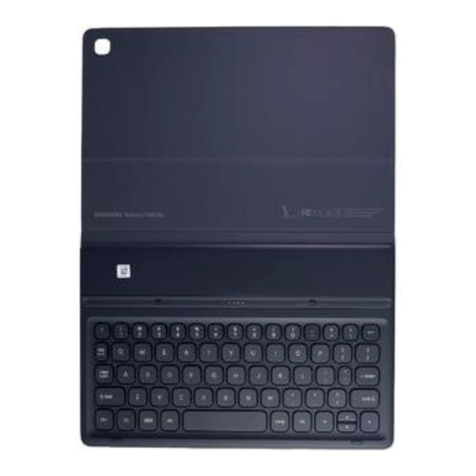
Stand cover
•
Keyboard
•
The items supplied with the device and any available accessories may vary
depending on the region or service provider.
•
Appearances and specifications are subject to change without prior notice.
Device layout
►
Stand cover:
Camera hole
Stand
Adhesive padS Pen cover
►
Keyboard:
Touchpad
Keys
Connector
3
3
English (UK)
Using the Keyboard
Attaching the keyboard
1 Remove the protective film from the adhesive pad.
2 Check the location of the camera and the camera hole, and then align each corner of the
S Pen cover with the tablets.
3 Attach the S Pen cover first, and then press down the rest part of the stand cover.
•
To improve adhesive strength, make sure to clean the back of the tablet before
attaching the stand cover.
•
The stand cover will be fixed firmly after an hour.
Using the Keyboard
4
4
English (UK)
4 Line up the connectors of the tablet and the keyboard, and then attach the keyboard to
the tablet.
You can use the keyboard instantly.
You can use the keyboard as a screen cover. The screen turns off when you cover it
with the keyboard, and it turns on when you open the keyboard.
Do not apply excessive pressure on the keyboard while covering the tablet’s screen.
Doing so may cause screen damage.
Using the Keyboard
5
5
English (UK)
Adjusting the tablet angle
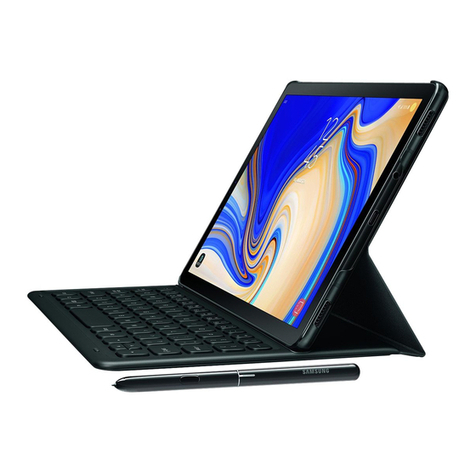
You can adjust the tablet angle with the stand cover. Flip out and adjust the stand until you
find the desired angle.
Do not tilt the stand cover excessively. Doing so may cause damage to the hinge.
Using the Keyboard
6
6
English (UK)
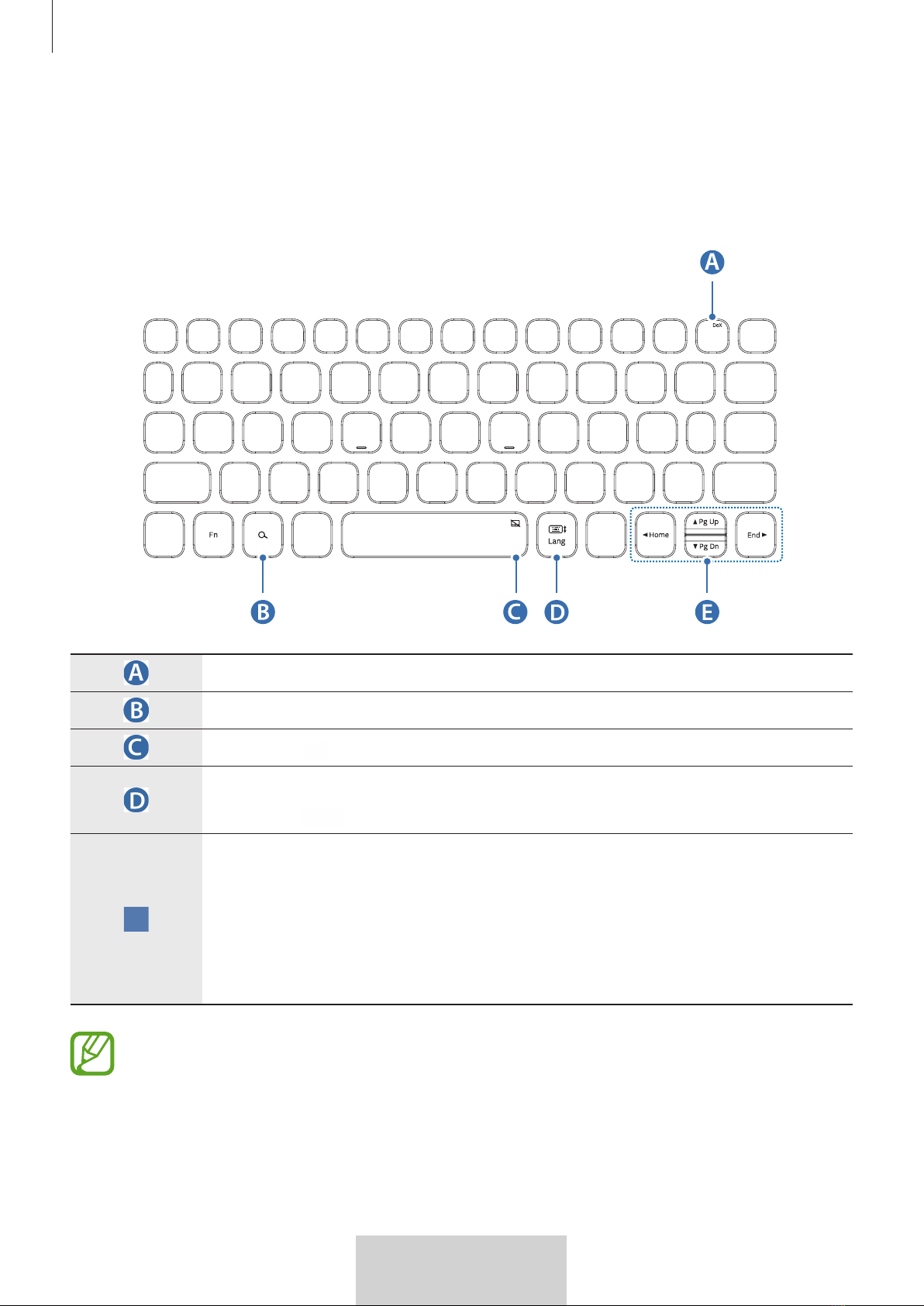
Using the keys
Set the input language on the tablet before you use the keyboard. For more information
about setting the input language, refer to the tablet's user manual.
•
[
Fn
] + [
Dex
]: Launch or close Samsung DeX.
•
Search the contents.
•
[
Fn
] + : Enable or disable the touchpad.
•
[
Lang
]: Change between input languages.
•
[
Fn
] + : Enable or disable the on-screen keyboard.
•
▲
/
▼
/
◄
/
►
: Move cursor or system caret;
•
[
Fn
] + [
▲
]: Page Up
•
[
Fn
] + [
▼
]: Page Down
•
[
Fn
] + [
◄
]: Home
•
[
Fn
] + [
►
]: End
For more information about Samsung DeX, refer to the tablet's user manual.
Using the Keyboard
7
7
English (UK)
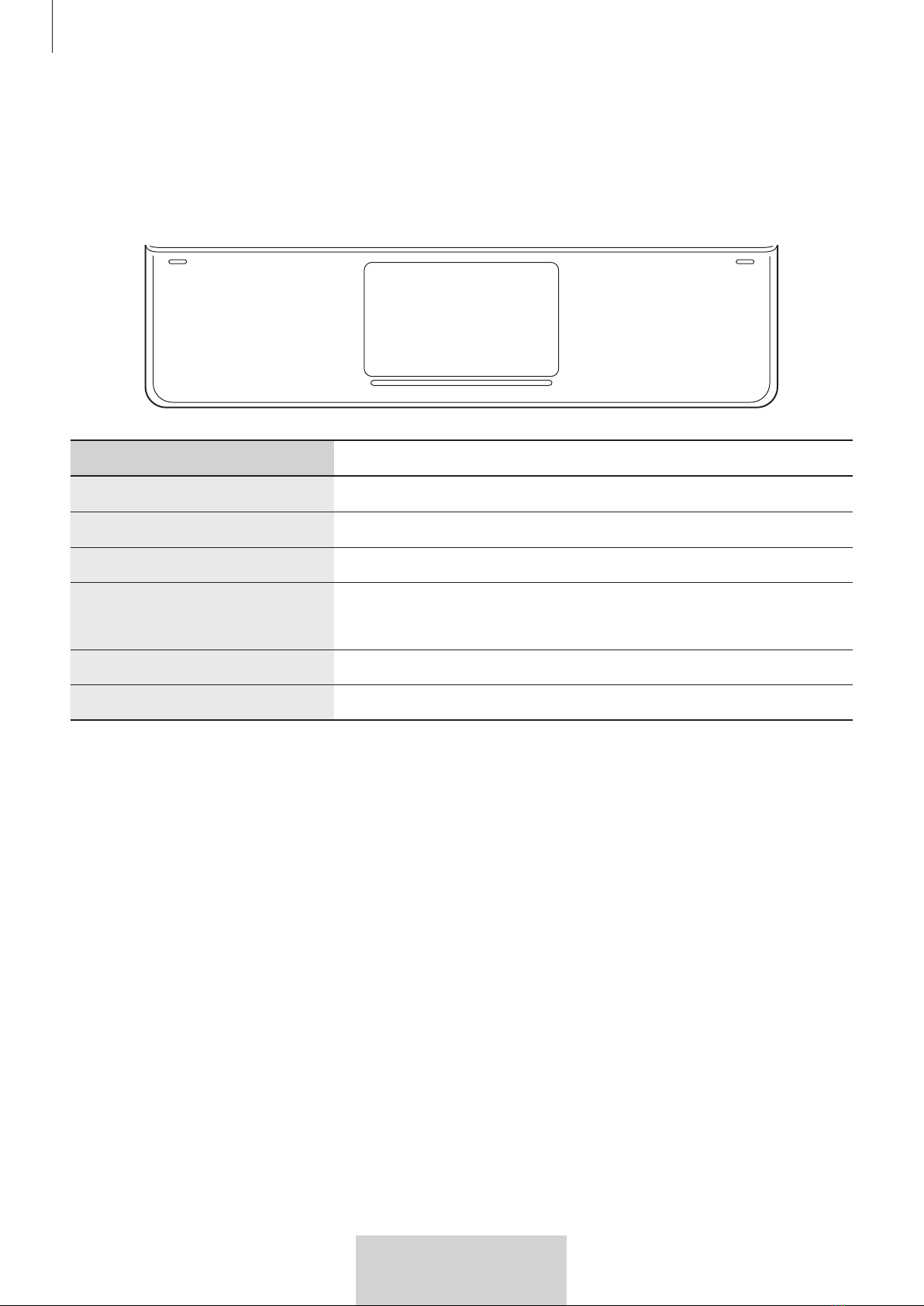
Using the touchpad
You can use the touchpad to control the cursor on the tablet screen or use the additional
features.
Actions Functions
Clicking/ Tapping
•
Click
Tapping with two fingers
•
Open the context menu.
Dragging
•
Move the cursor.
Dragging with two fingers
•
Scroll the page.
•
Write in the handwriting mode.
Spreading/ Pinching
•
Zoom in/ Zoom out
Holding and dragging
•
Move the selected object.
Using the Keyboard
8
8
English (UK)
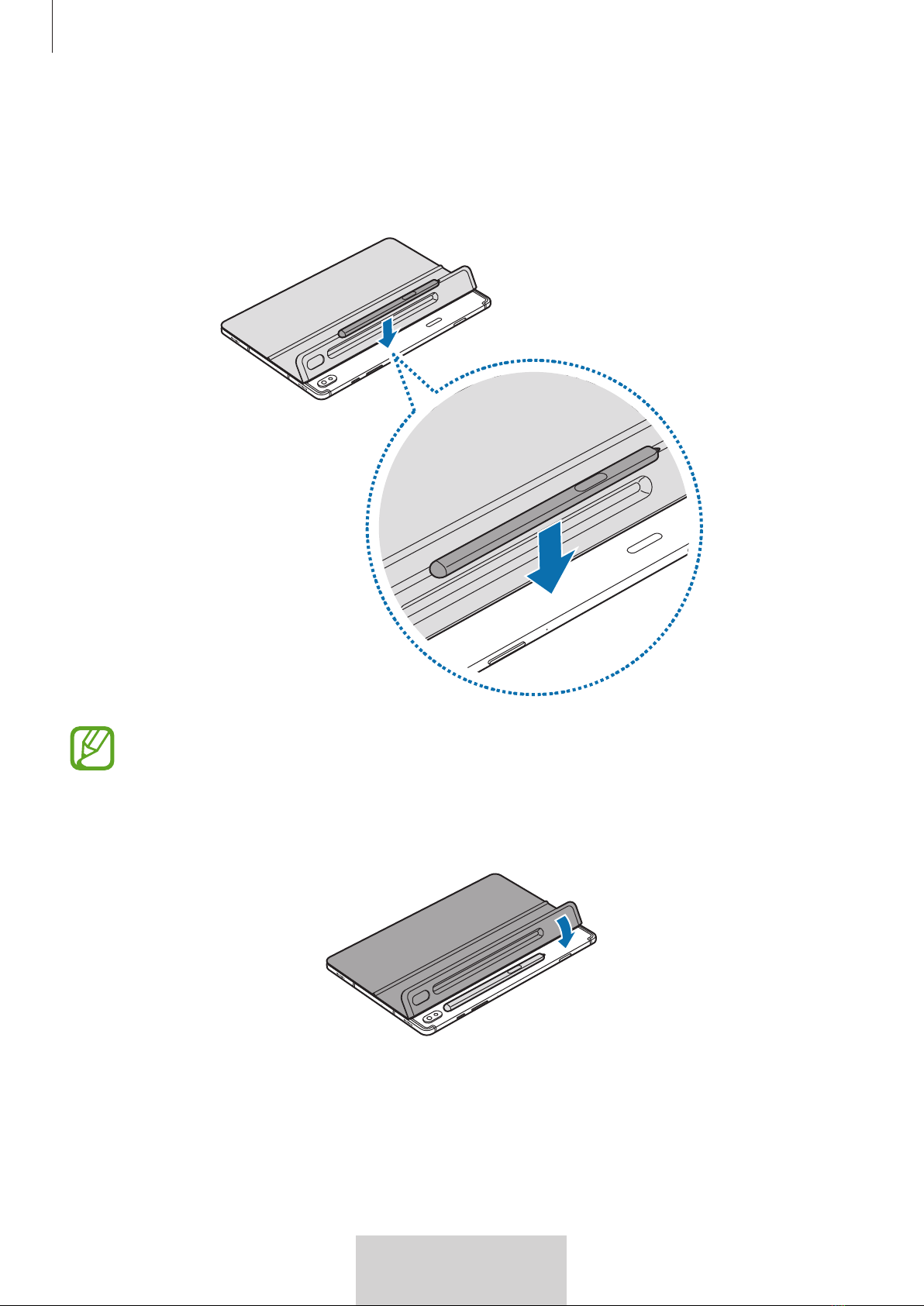
Storing the S Pen
1 Attach the S Pen to the tablet as shown in the image below.
Make sure to place the nib of the S Pen to face the opposite side of the camera. The
S Pen will not charge if it is misplaced.
2 Cover the S Pen with the S Pen cover.