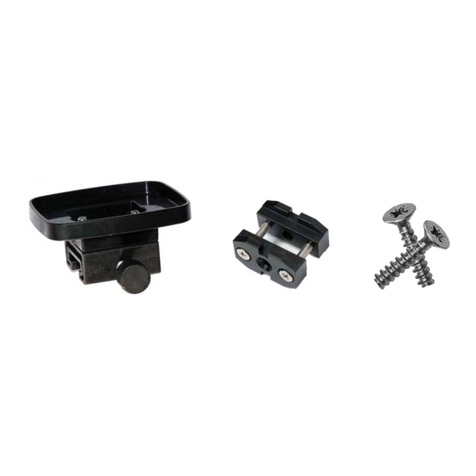
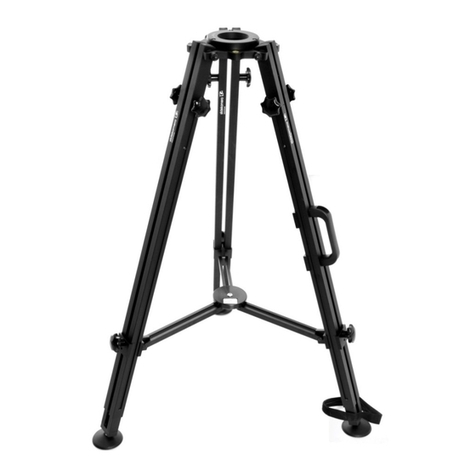
Sanyo VA-82LAN User manual
Other Sanyo Camera Accessories manuals
Sanyo
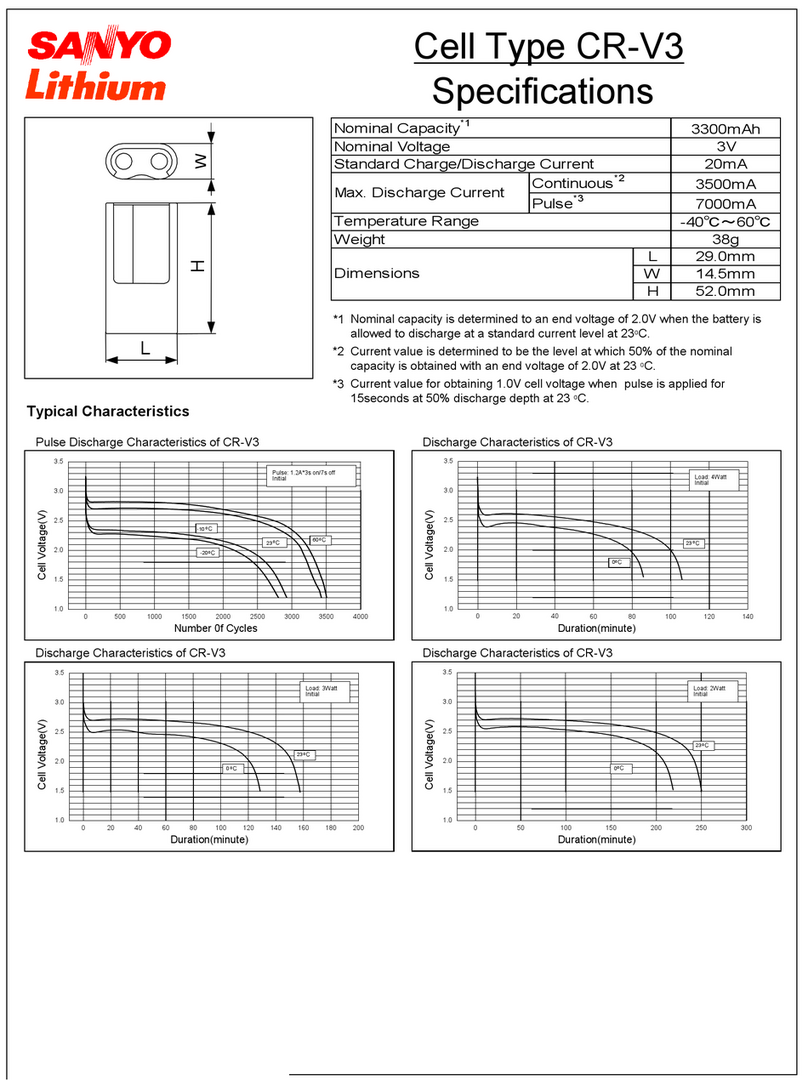
Sanyo CR-V3 User manual
Sanyo
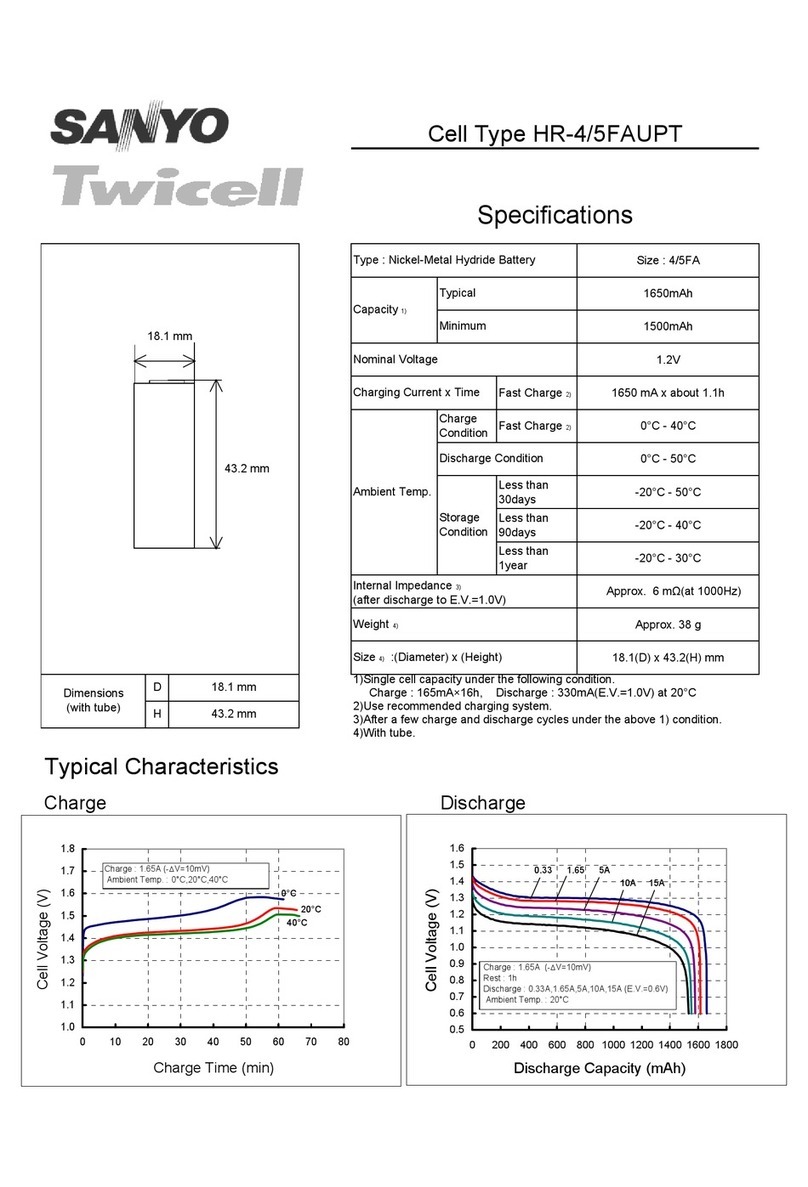
Sanyo Twicell HR-4/5FAUPT User manual
Sanyo
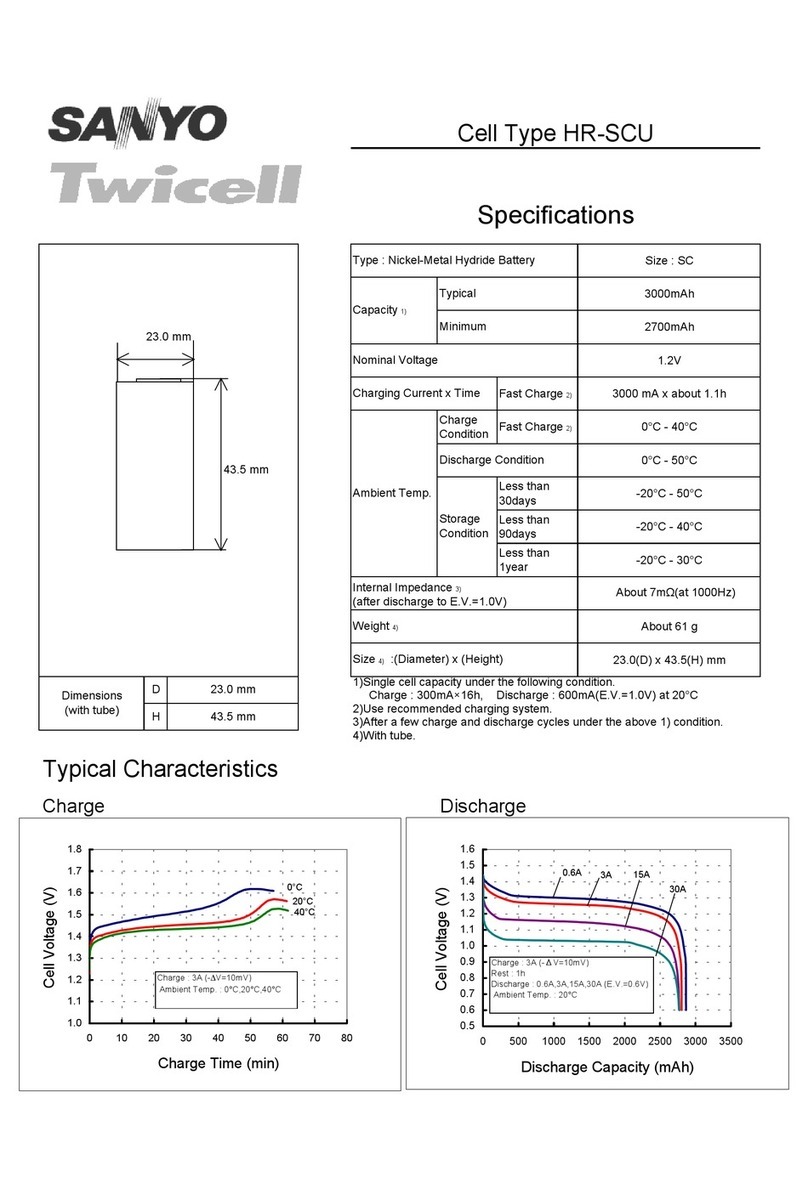
Sanyo Twicell HR-SCU User manual
Sanyo
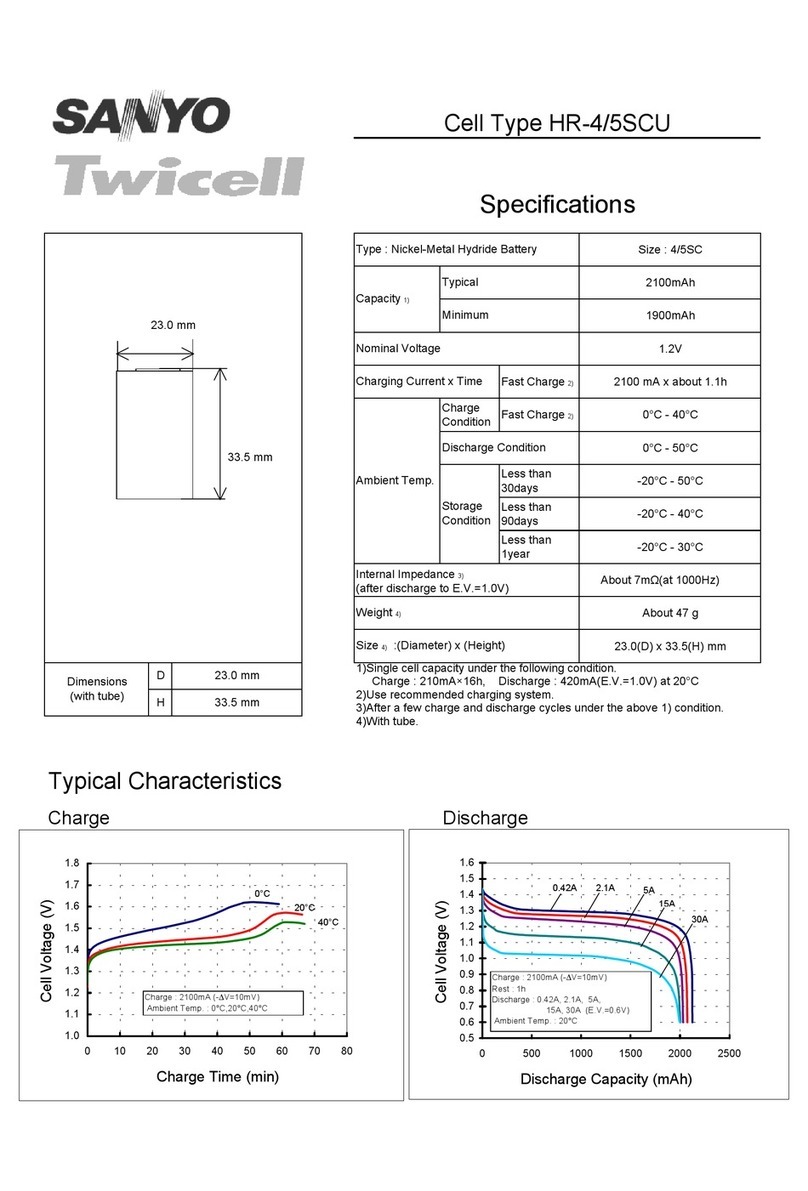
Sanyo Twicell HR-4/5SCU User manual
Sanyo
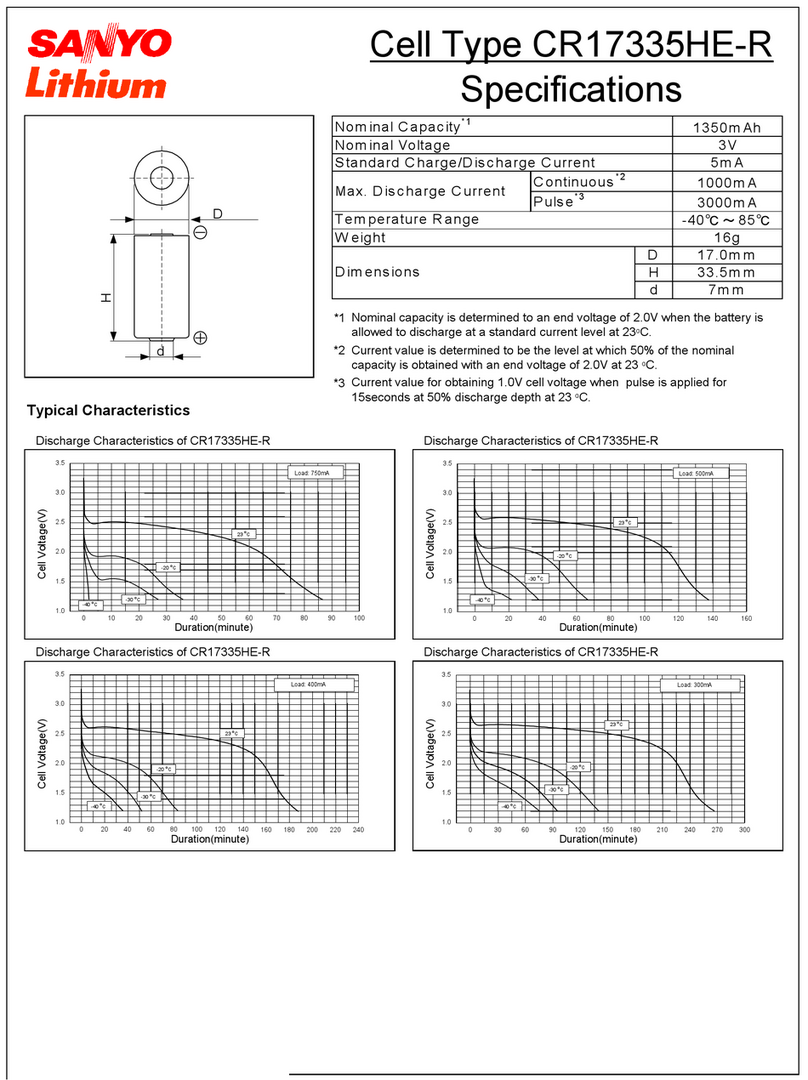
Sanyo CR17335HE-R User manual

Sanyo
Sanyo N-250AAA Cadnica User manual
Sanyo
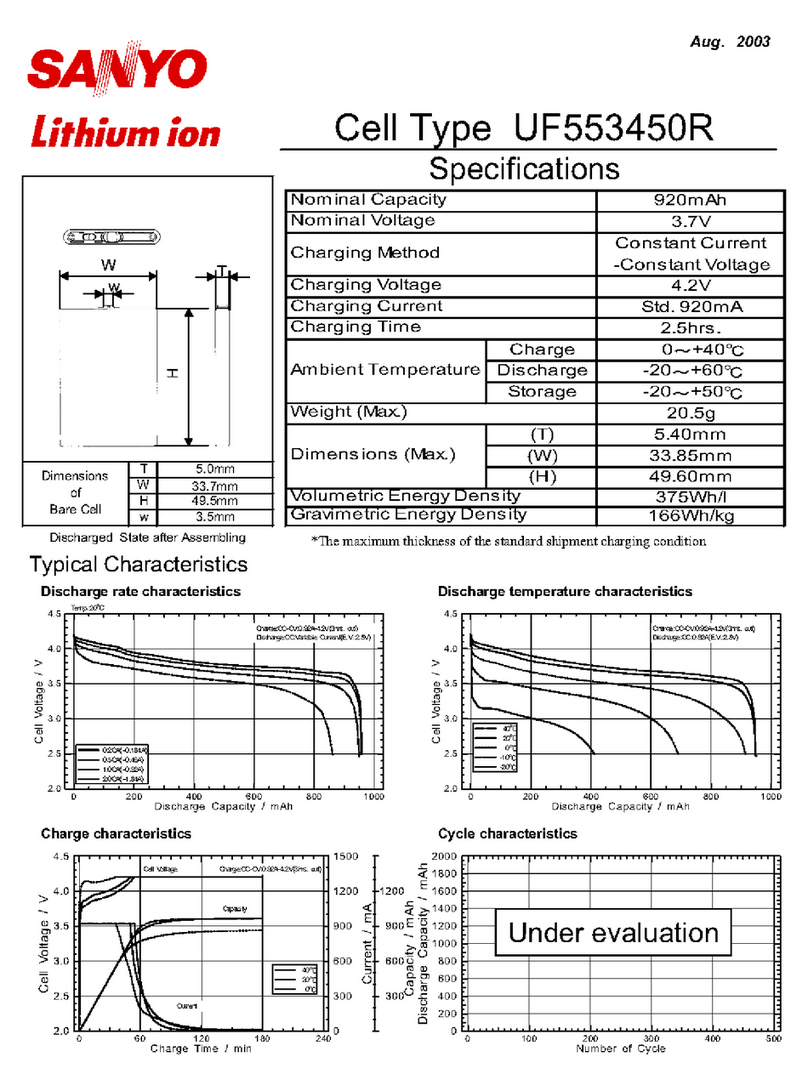
Sanyo UF553450R User manual
Sanyo
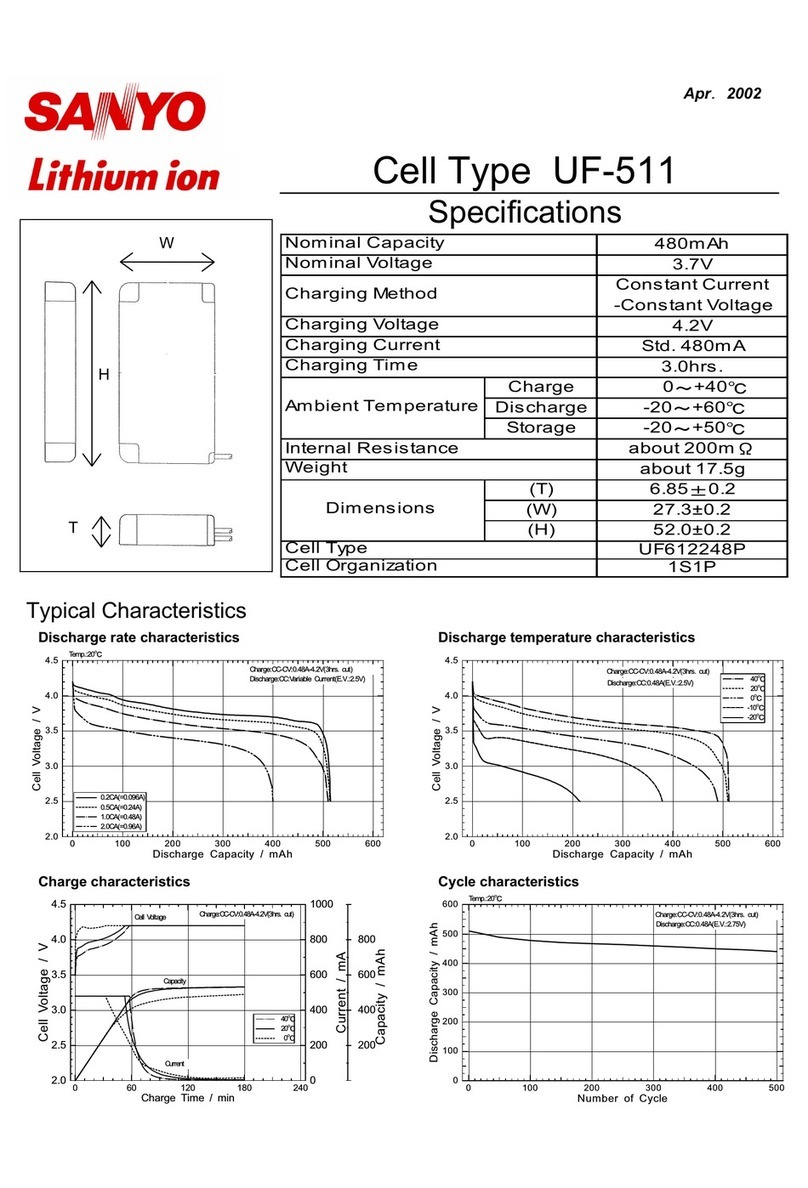
Sanyo UF-511 User manual

Sanyo
Sanyo Twicell HR-3URS User manual
Sanyo
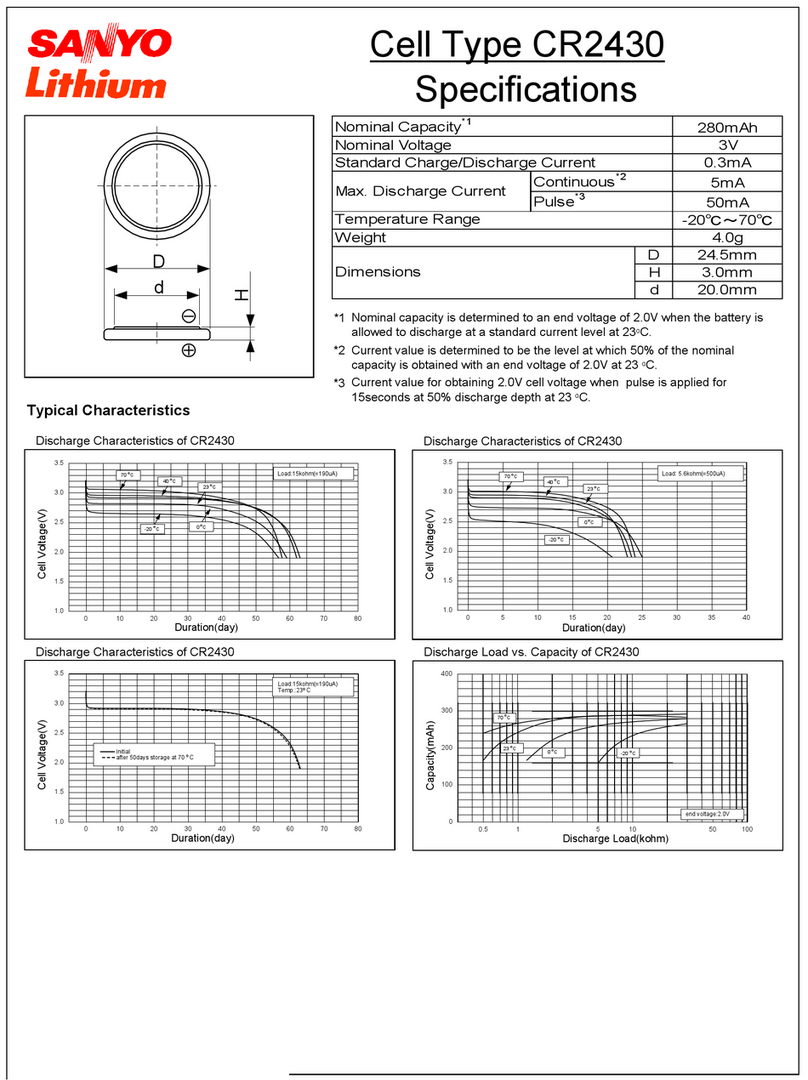
Sanyo CR2430 User manual
Sanyo
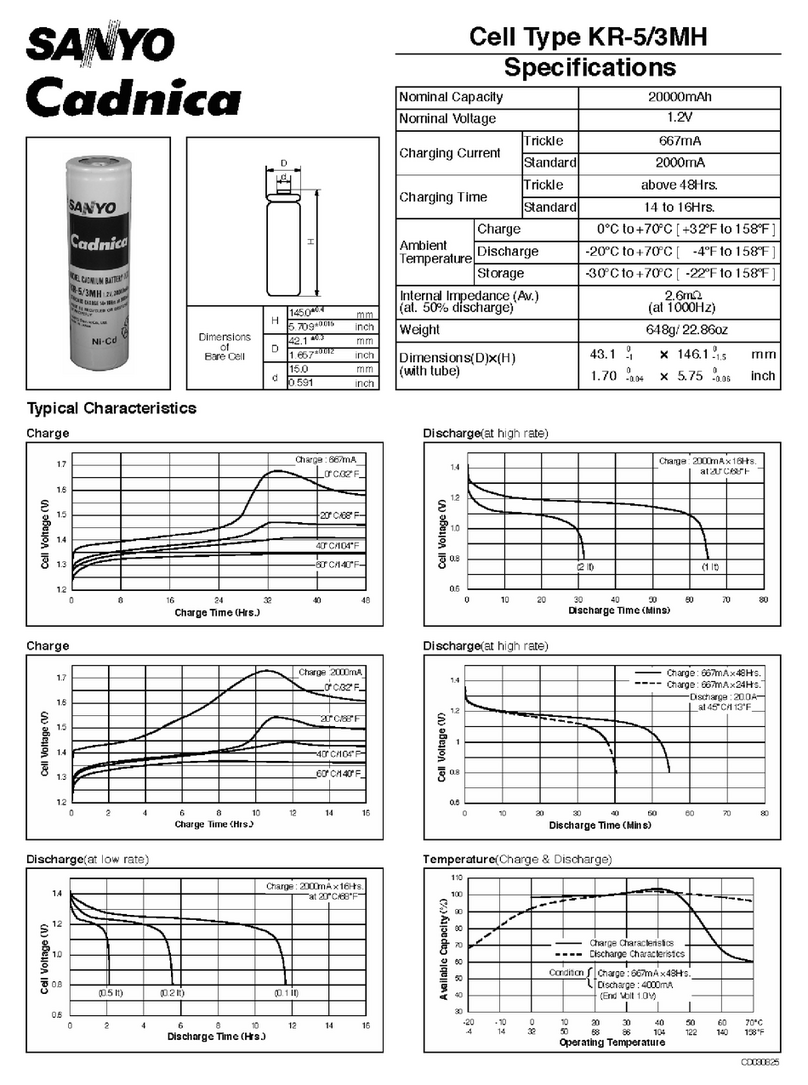
Sanyo KR-5/3MH Cadnica User manual

Sanyo
Sanyo KR-1700AU Cadnica User manual

Sanyo
Sanyo Cadnica KR-10000M User manual
Sanyo
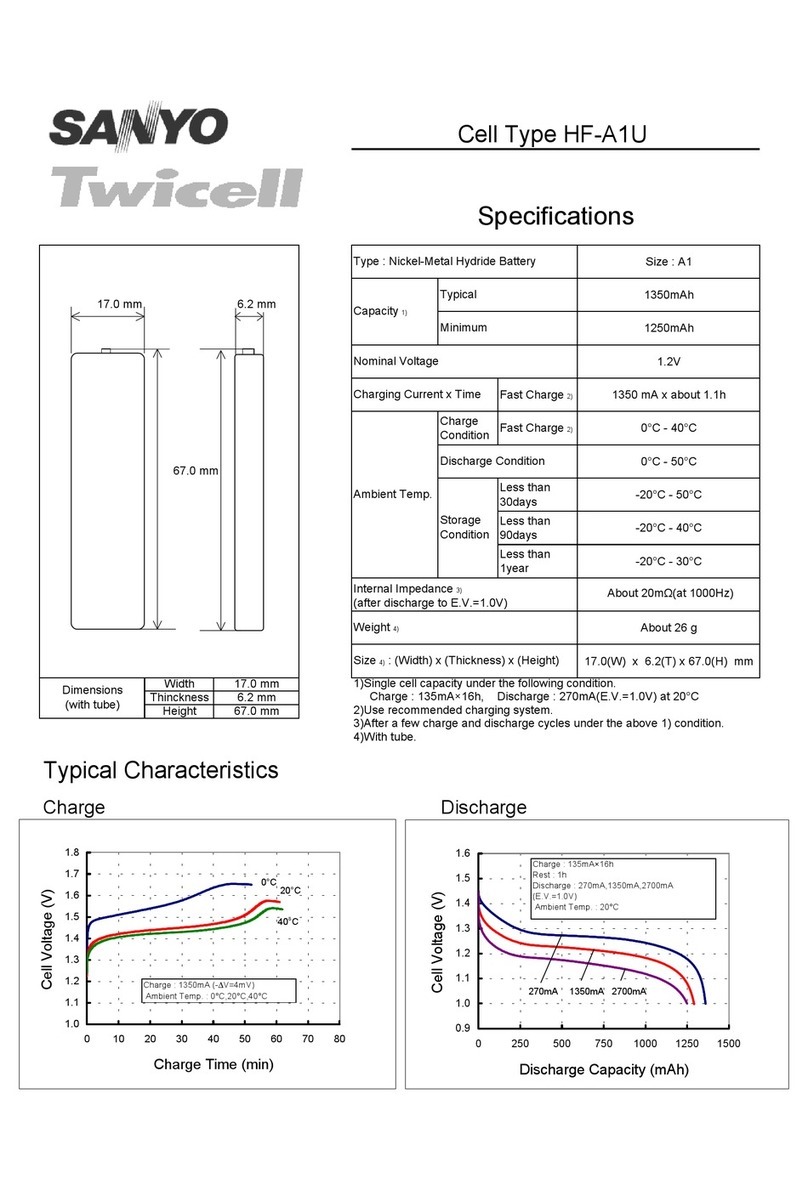
Sanyo Twicell HF-A1U User manual
Sanyo
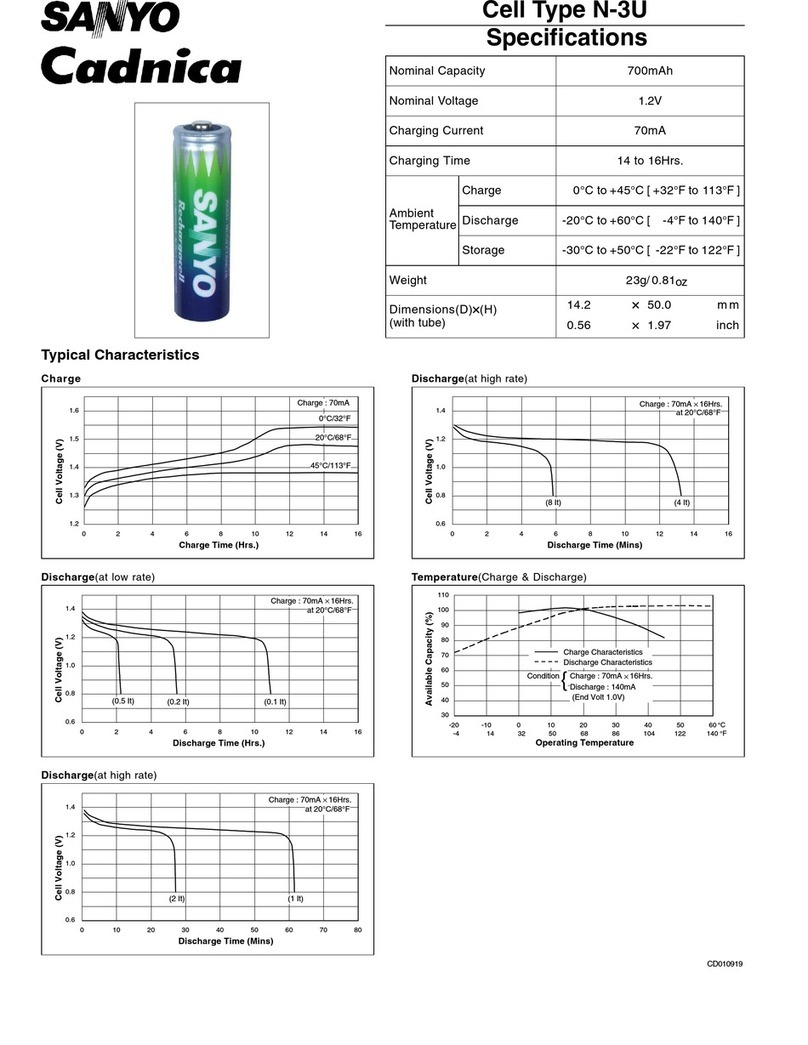
Sanyo Cadnica N-3U User manual
Sanyo
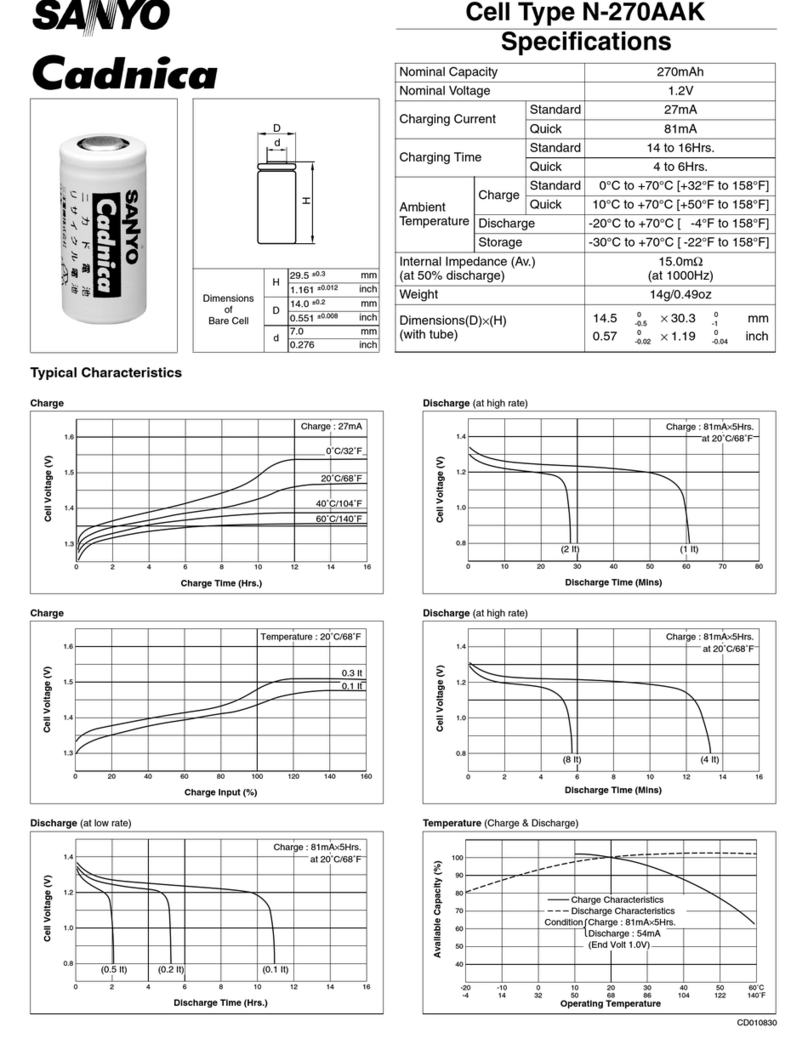
Sanyo Cadnica N-270AAK User manual

Sanyo
Sanyo Twicell HR-4/5AAU User manual
Sanyo
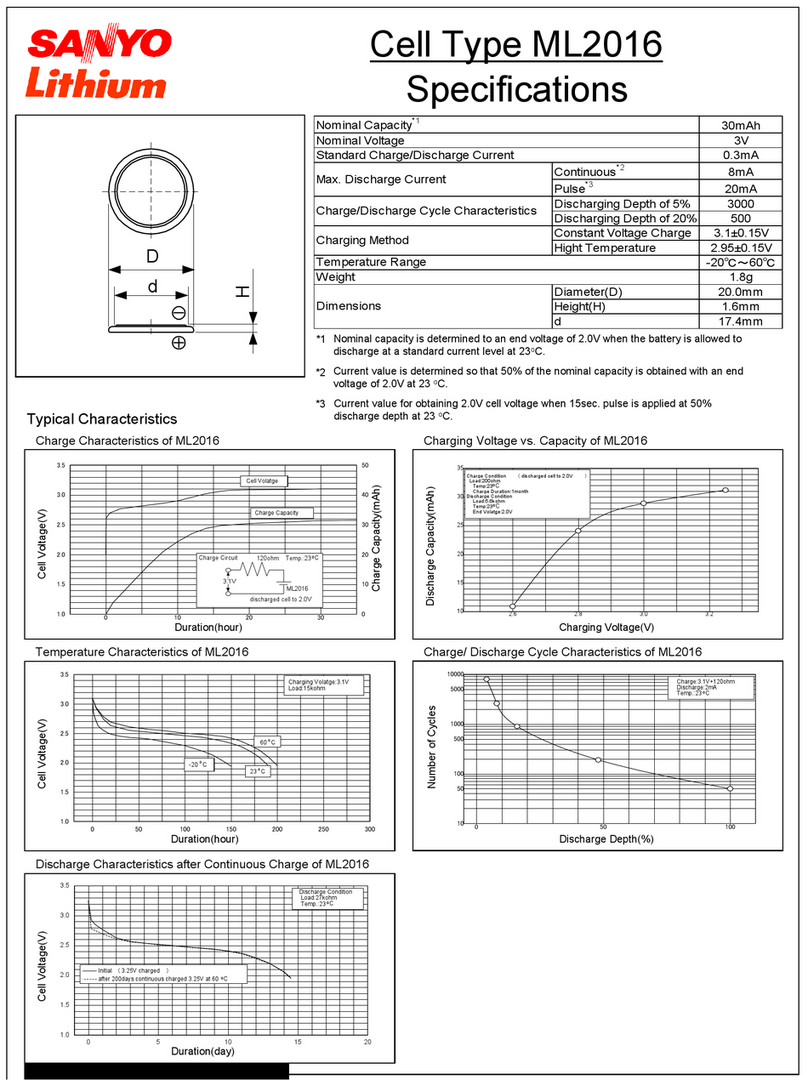
Sanyo ML2016 Lithium User manual
Sanyo
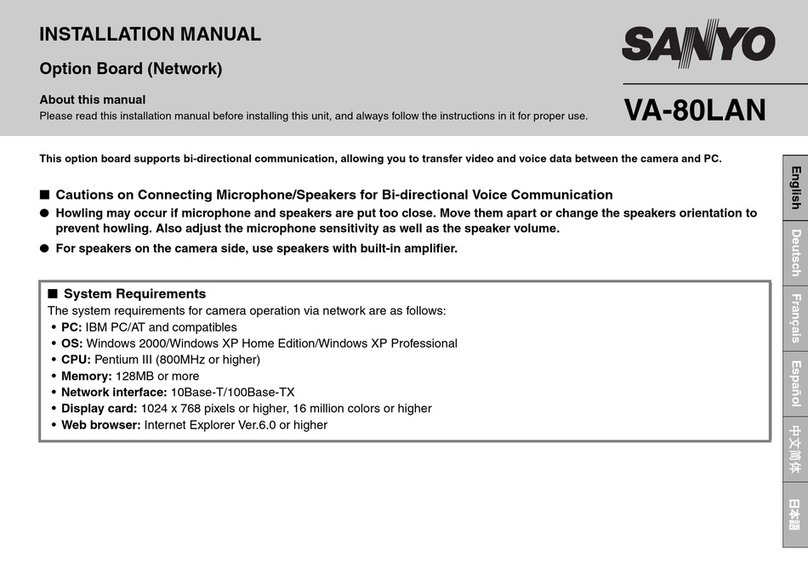
Sanyo VA-80LAN User manual
Sanyo
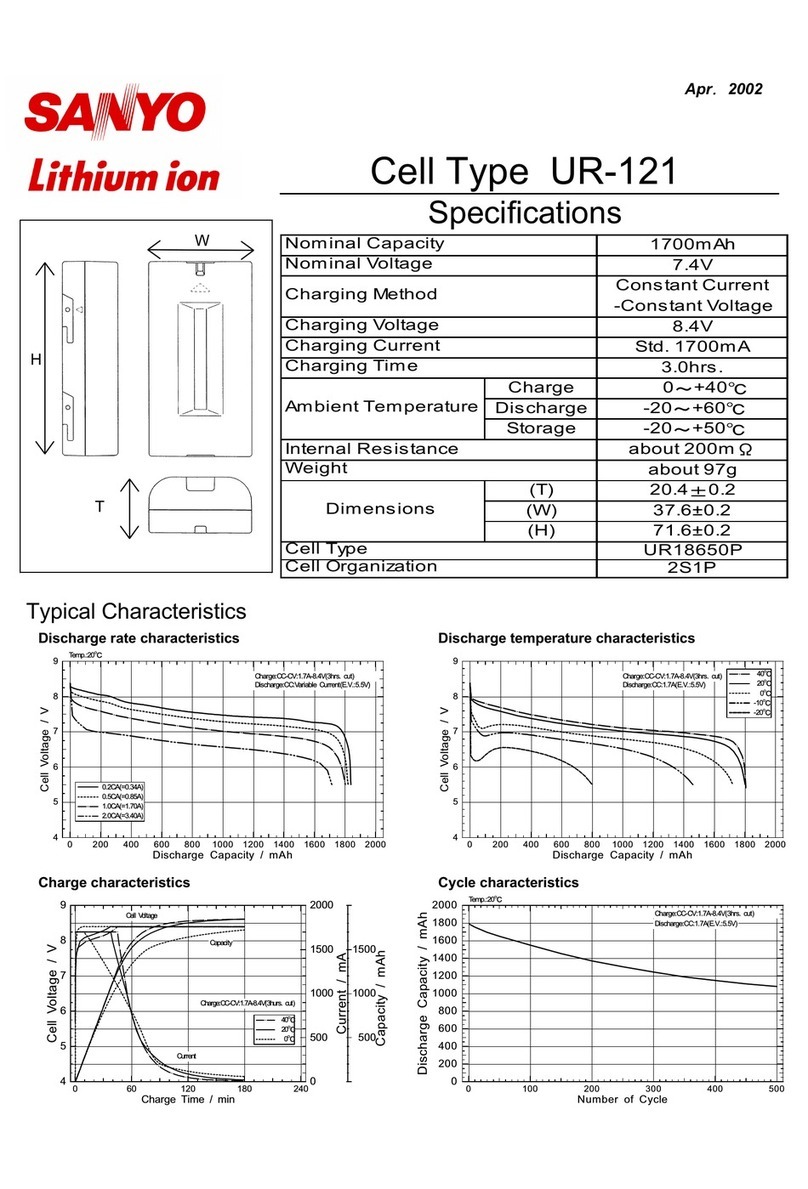
Sanyo UR-121 User manual