logo
Brands
  1. Home
  2. •
  3. Brands
  4. •
  5. Sanyo
  6. •
  7. TV
  8. •
  9. Sanyo PDP-42XS1 User manual

Sanyo PDP-42XS1 User manual

Other manuals for PDP-42XS1

1

Other Sanyo TV manuals

Sanyo CR14SR8-00 User manual

Sanyo

Sanyo CR14SR8-00 User manual

Sanyo C29LF34 User manual

Sanyo

Sanyo C29LF34 User manual

Sanyo LCD-46XZ10FH User manual

Sanyo

Sanyo LCD-46XZ10FH User manual

Sanyo HT32744 Product information sheet

Sanyo

Sanyo HT32744 Product information sheet

Sanyo DP19640 - 18.5" Diagonal LCD HDTV 720p User manual

Sanyo

Sanyo DP19640 - 18.5" Diagonal LCD HDTV 720p User manual

Sanyo CE14AT3-GB User manual

Sanyo

Sanyo CE14AT3-GB User manual

Sanyo C29LK41S User manual

Sanyo

Sanyo C29LK41S User manual

Sanyo CTP3618N User manual

Sanyo

Sanyo CTP3618N User manual

Sanyo LCD-37XR1 User manual

Sanyo

Sanyo LCD-37XR1 User manual

Sanyo DP42740 - 42"Class 720p Plasma User manual

Sanyo

Sanyo DP42740 - 42"Class 720p Plasma User manual

Sanyo CE25DN3-B User manual

Sanyo

Sanyo CE25DN3-B User manual

Sanyo CE27LD5-B User manual

Sanyo

Sanyo CE27LD5-B User manual

Sanyo CP21MF2 User manual

Sanyo

Sanyo CP21MF2 User manual

Sanyo CZP2141TX User manual

Sanyo

Sanyo CZP2141TX User manual

Sanyo C29ZK80 User manual

Sanyo

Sanyo C29ZK80 User manual

Sanyo CPP2930 User manual

Sanyo

Sanyo CPP2930 User manual

Sanyo CPP2186TX User manual

Sanyo

Sanyo CPP2186TX User manual

Sanyo DS35224 User manual

Sanyo

Sanyo DS35224 User manual

Sanyo HT30746 Product information sheet

Sanyo

Sanyo HT30746 Product information sheet

Sanyo CE21DN4-F User manual

Sanyo

Sanyo CE21DN4-F User manual

Sanyo CW21CF1 User manual

Sanyo

Sanyo CW21CF1 User manual

Sanyo CA21XS2 User manual

Sanyo

Sanyo CA21XS2 User manual

Sanyo DS25520 User manual

Sanyo

Sanyo DS25520 User manual

Sanyo CP14SW1Z User manual

Sanyo

Sanyo CP14SW1Z User manual

Popular TV manuals by other brands

Philips 32PFL7403D null

Philips

Philips 32PFL7403D null

Philips 19PFL3403D null

Philips

Philips 19PFL3403D null

Philips 19PFL5403D null

Philips

Philips 19PFL5403D null

Philips 32PFL7605C null

Philips

Philips 32PFL7605C null

Philips 32PFL7603D - annexe 1 null

Philips

Philips 32PFL7603D - annexe 1 null

Haier HS-2190 null

Haier

Haier HS-2190 null

Philips 19PFL3404D null

Philips

Philips 19PFL3404D null

Toshiba 27A10 owner's manual

Toshiba

Toshiba 27A10 owner's manual

Philips 42PF9630A/37 user manual

Philips

Philips 42PF9630A/37 user manual

Hitachi 32FX48B operating guide

Hitachi

Hitachi 32FX48B operating guide

DAEWOO ELECTRONICS DTQ-14V1FC Service manual

DAEWOO ELECTRONICS

DAEWOO ELECTRONICS DTQ-14V1FC Service manual

Changhong Electric uhd55b6000is Operation manual

Changhong Electric

Changhong Electric uhd55b6000is Operation manual

Philips Matchline 21CE7551 operating instructions

Philips

Philips Matchline 21CE7551 operating instructions

Panasonic Genus TX-G10 operating instructions

Panasonic

Panasonic Genus TX-G10 operating instructions

Toshiba 19A20 Service manual

Toshiba

Toshiba 19A20 Service manual

Philips 25PT4523-16 manual

Philips

Philips 25PT4523-16 manual

Sony XBR-100Z9D reference guide

Sony

Sony XBR-100Z9D reference guide

Philips PR0930X3 owner's manual

Philips

Philips PR0930X3 owner's manual

https://manuals.online logo
https://manuals.online logoBrands
  • About & Mission
  • Contact us
  • Privacy Policy
  • Terms and Conditions

Copyright 2026 Manuals.Online. All Rights Reserved.

Before connecting, operating or adjusting this product, please read the manual completely.
Please keep this manual for future reference.
PDP TV
Operating Manual
PDP-42XS1
Table of Contents
Important Safety Precautions..........................................................................................................................1
Preparations....................................................................................................................................................3
Using the Remote Control .....................................................................................................................3
Batteries for the Remote Control ..........................................................................................................3
Power connection ..................................................................................................................................4
Speaker Connection...............................................................................................................................4
Antenna Connection...............................................................................................................................5
Identification of Controls ...............................................................................................................................6
Main unit.................................................................................................................................................6
Remote Control .....................................................................................................................................8
Connections ................................................................................................................................................ 10
Cautions before connecting..................................................................................................................10
Connect a VCR .................................................................................................................................... 10
Connect a Decoder..............................................................................................................................11
Connect AV or S-Video inputs..............................................................................................................12
Connect a DVD Player ........................................................................................................................13
Connect a PC .......................................................................................................................................14
Connect a Product to HDMI................................................................................................................15
Turning the Unit On and Off.........................................................................................................................16
Turning the Unit On and Off ................................................................................................................16
Viewing the Menus and Displays ..........................................................................................................16
Viewing TV Programs ...................................................................................................................................17
Select a Region .....................................................................................................................................17
Setting APS Function On or Off ...........................................................................................................17
Auto Search..........................................................................................................................................17
Manual Fine Tuning ...............................................................................................................................17
Manual Search ......................................................................................................................................18
Skipping Channel ..................................................................................................................................18
Editing Channels...................................................................................................................................18
Setting Favourite Channel ....................................................................................................................19
Editing Program Name.........................................................................................................................19
Locking TV Channels ....................................................................................................................................20
Locking or Unlocking TV Channels......................................................................................................20
Setting Locking Function On or Off .....................................................................................................20
Changing Password ..............................................................................................................................20
Basic Operations...........................................................................................................................................21
Changing Channels ...............................................................................................................................21
Adjusting the Volume ...........................................................................................................................21
Muting the Sound .................................................................................................................................21
Select Input Source Signal.....................................................................................................................21
Setting Picture...............................................................................................................................................22
Using the Preset Picture Mode ............................................................................................................22
Customizing the Picture.......................................................................................................................22
Reducing Picture Noise ........................................................................................................................22
Selecting the Preset Color Temperature..............................................................................................22
Freezing picture...................................................................................................................................22
Setting Sound ................................................................................................................................................23
Setting System ..............................................................................................................................................25
Changing Screen Layout...............................................................................................................................27
Selecting Screen Layout
Viewing the Picture-in-Picture
Adjustment in D-Sub Mode..........................................................................................................................30
Adjusting Image Horizontal Size
Changing the Position of Image
Adjusting the Phase..............................................................................................................................30
Adjusting the Screen Automatically......................................................................................................30
Loading Default Setting........................................................................................................................30
Teletext.........................................................................................................................................................31
Adjusting the Volume...........................................................................................................................23
Adjusting the Sound Balance................................................................................................................23
Adjusting the Headphone Volume .......................................................................................................23
Adjusting Equalizer...............................................................................................................................23
Using the Auto Volume Function..........................................................................................................24
Stereo/Bilingual Selection.....................................................................................................................24
Setting Colour System .........................................................................................................................25
Setting Sound System...........................................................................................................................25
Selecting Menu Language.....................................................................................................................25
Setting Menu Background....................................................................................................................25
Setting WSS..........................................................................................................................................26
Setting Sleep Timer..............................................................................................................................26
Setting Current Time ...........................................................................................................................26
Setting On/Off Timer...........................................................................................................................26
Setting Turn On Program.....................................................................................................................26
.......................................................................................................................27
Changing Screen Aspect Ratio .............................................................................................................28
PIP Operations .............................................................................................................................................29
.............................................................................................................29
Using the PIP-POS button ....................................................................................................................29
Using the ACT.WIN button..................................................................................................................29
Swap the Contents of the PIP Image and Main Image..........................................................................29
.........................................................................................................30
............................................................................................................30
What is Teletext ...................................................................................................................................31
Turning on and off Teletext ..................................................................................................................31
Button functions...................................................................................................................................31
Troubleshooting............................................................................................................................................32
Care and Maintenance..................................................................................................................................33
Specifications ................................................................................................................................................34
Table of Contents (continued)
Important Safety Precautions
Electrical energy can perform many useful functions, but it can also cause personal injuries and property damage if improperly
handled. This product has been engineered and manufactured with the highest priority on safety. But IMPROPER USE CAN
RESULT IN POTENTIAL ELECTRICAL SHOCK OR FIRE HAZARD. In order to prevent potential danger, please observe
the following instructions when installing, operating and cleaning the product. To ensure your safety and prolong the service
life of your PDP TV product, please read the following precautions carefully before using the product.
1. Read these instructions---All operating instructions must be read and understood before the product is operated.
2. Keep these instructions---These safety and operating instructions must be kept in a safe place for future reference.
3. Heed all warnings---All warnings on the product and in the instructions must be observed closely.
4. Follow all instructions---All operating instructions must be followed.
7.Power cord protection---Protect the power cord from being walked on or pinched particularly at plugs, convenience
receptacles, and the point where they exit from the apparatus.
5.Attachments---Only use attachments/accessories specified by the manufacturer. Do not use attachments not
recommended by the manufacturer. Use of improper attachments can result in accidents.
6. Power source---This product is intended to be supplied by a listed power supply indicated on the marking label. If you are
not sure of the type of power supply to your home, consult your product dealer or local power company. For added
protection for this product during a lightning storm, or when it is left unattended and unused for long periods of time, unplug it
from the wall outlet and disconnect the cable system.
8.Overloading---Do not overload wall outlets, extension cords, or convenience receptacles on other
equipment as this can result in a risk of fire or electric shock.
9.Entering of objects and liquids---Never insert an object into the product through vents or openings. High voltage flows
in the product, and inserting an object can cause electric shock and/or short internal parts. For the same reason, do not spill
water or liquid on the product.
10. Servicing---Refer all servicing to qualified service personnel. Servicing is required when the apparatus has been damaged
in any way, such as power-supply cord or plug is damaged, liquid has been spilled or objects have fallen into the apparatus, the
apparatus has been exposed to rain or moisture, does not operate normally, or has been dropped.
11.Damage requiring service---If any of the following conditions occurs, unplug the power cord from the AC outlet, and
request a qualified service person to perform repairs.
a. When the power cord or plug is damaged.
b. When a liquid is spilled on the product or when objects have fallen into the product.
c. When the product has been exposed to rain or water.
d. When the product does not operate properly as described in the operating instructions.
Do not touch the controls other than those described in the operating instructions. Improper adjustment of controls not
described in the instructions can cause damage, which often requires extensive adjustment work by a qualified technician.
e. If the product has been dropped or the cabinet has been damaged in any way.
f. When the product displays an abnormal condition or exhibits a distinct change in performance. Any noticeable abnormality
in the product indicates that the product needs servicing.
12. Replacement parts---In case the product needs replacement parts, make sure that the service person uses
replacement parts specified by the manufacturer, or those with the same characteristics and performance as the
original parts. Use of unauthorized parts can result in fire, electric shock and/or other danger.
13. Safety checks---Upon completion of service or repair work, request the service technician to perform safety
checks to ensure that the product is in proper operating condition.
14. Wall or ceiling mounting---When mounting the product on a wall or ceiling, be sure to install the product according to
the method recommended by the manufacturer. This is a safety feature.
1

Important Safety Precautions (continued)
15. Stand---Use only with the cart, stand, tripod, bracket, or table specified by the
manufacturer, or sold with the apparatus. Do not place the product on an unstable
trolley, stand, tripod or table. Placing the product on an unstable base can cause the
product to fall, resulting in serious personal injuries as well as damage to the product.
When mounting the product on a wall, be sure to follow the manufacturer’s instructions.
Use only the mounting hardware recommended by the manufacturer.
16.Careful move---When a cart is used, use caution when moving the cart/apparatus
combination to avoid injury from tip-over. Sudden stops, excessive force and uneven
floor surfaces can cause the product to fall from the trolley.
17. Lightning---Unplug this apparatus during lightning storms or when unused for long
periods of time.
For added protection for this television equipment during a lightning storm, or when it is
left unattended and unused for long periods of time, unplug it from the wall outlet and
disconnect the antenna. This will prevent damage to the equipment due to lightning and
power-line surges.
18. Do not use this apparatus near water---for example, near a bathtub, washbowl,
kitchen sink, or laundry tub, in a wet basement, or near a swimming pool, and the like.
Do not use immediately after moving from a low temperature to high temperature
environment, as this causes condensation, which may result in fire, electric shock, or
other hazards.
19. Clean only with dry cloth---Unplug this product from the wall outlet before
cleaning. Do not use liquid cleaners or aerosol cleaners. Use a damp cloth for cleaning.
20. Ventilation---Do not block any ventilation openings. Install in accordance with the
manufacturer instructions. The vents and other openings in the cabinet are designed for
ventilation. Do not cover or block these vents and openings since insufficient ventilation
can cause overheating and/or shorten the life of the product. Do not place the product on
a bed, sofa, rug or other similar surface, since they can block ventilation openings. This
product is not designed for built-in installation; do not place the product in an enclosed
place such as a bookcase or rack, unless proper ventilation is provided or the
manufacturer’s instructions are followed.
21.Heat sources---Do not install near any heat sources such as radiators, heat registers,
stoves, or other apparatus (including amplifiers) that produce heat.
22.Panel protection---The PDP panel used in this product is made of glass. Therefore,
it can break when the product is dropped or impacted upon by other objects. Be careful
not to be injured by broken glass pieces in case the PDP panel breaks.
23.Pixel defect---The PDP panel is a very high technology product, giving you finely detailed pictures. Occasionally, a few
non-active pixels may appear on the screen as a fixed point of blue, green or red. Please note that this does not affect the
performance of your product.
2
Preparations
Using the Remote Control
<Use the remote control by pointing it towards the remote sensor window of the set.
Objects between the remote control and sensor window may prevent proper operation.
Cautions regarding use of remote control
<Do not expose the remote control to shock. In addition, do not expose the remote
control to liquids, and do not place in an area with high humidity.
<Do not install or place the remote control under direct sunlight. The heat may cause deformation of the unit.
<The remote control may not work properly if the remote sensor window of the main unit is under direct sunlight or strong
lighting. In such a case, change the angle of the lighting or PDP TV set, or operate the remote control closer to the remote
sensor window.
Batteries for the Remote Control
If the remote control fails to operate the PDP TV functions, replace the batteries in the remote control.
<(Place the batteries with their terminals
corresponding to the (+) and (–)
indications in the battery compartment.)
Precaution on battery use
Improper use of batteries can result in a leakage of chemicals and/or explosion. Be sure to follow the instructions below.
<Place batteries with their terminals corresponding to the (+) and (–) indications.
<Different types of batteries have different characteristics. Do not mix batteries of different types.
<Do not mix old and new batteries. Mixing old and new batteries can shorten the life of new batteries and/or cause old
batteries to leak chemicals.
<Remove batteries as soon as they are non-operable. Chemicals that leak from batteries can cause a rash. If chemical leakage
is found, wipe with a cloth.
<The batteries supplied with the product may have a shorter life expectancy due to storage conditions.
<If the remote control is not used for an extended period of time, remove the batteries from the remote control.
Open the battery cover.
1
Insert two size-AAA batteries.
2
Replace the cover and slide in
reverse until the lock snaps.
3
3
0
3
30
5m
Preparations (continued)
4
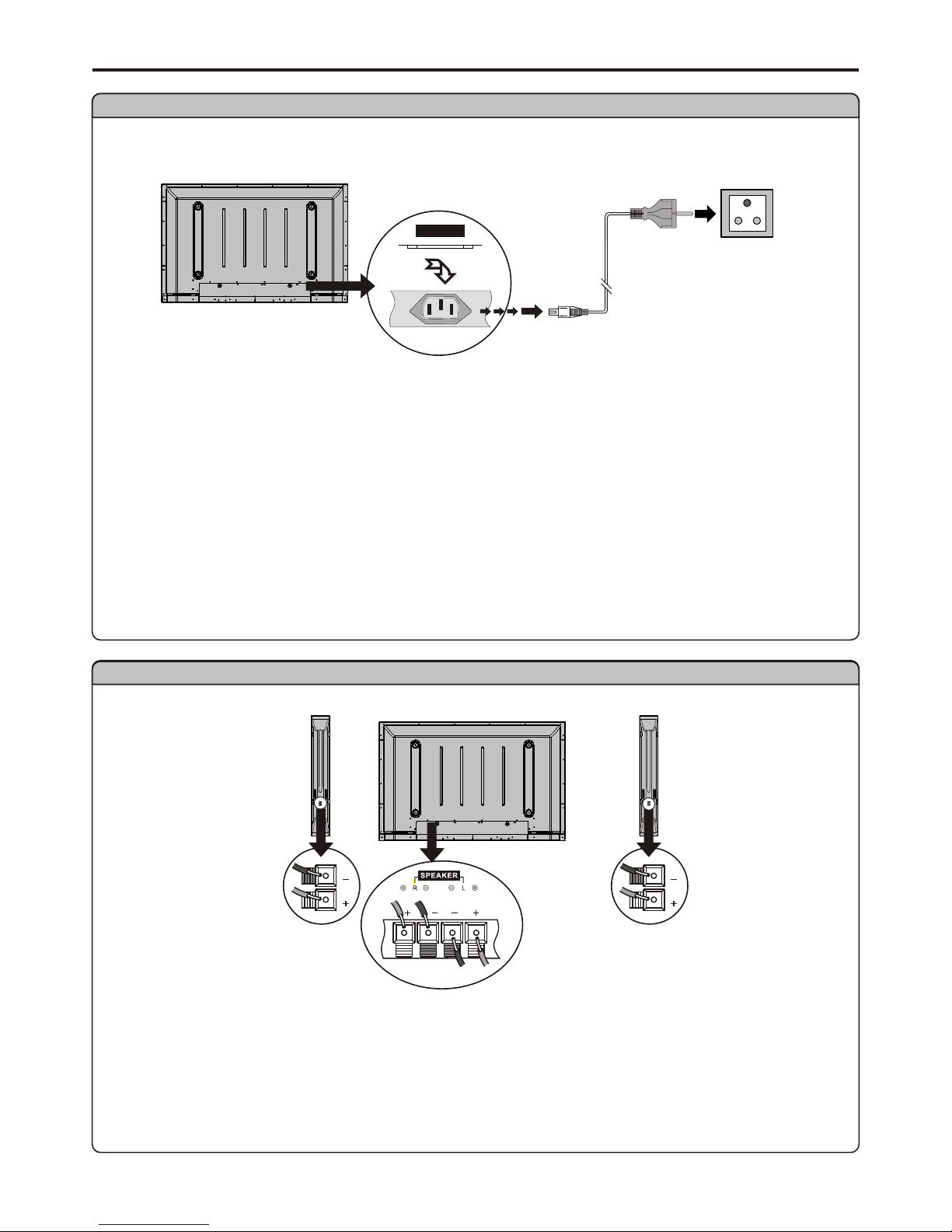
Speaker connection
Connect the speaker audio cable
to the external speaker output
jack on the unit matching the "+"
and "-" ends of the cable.
Power connection
1. Connecting the female plug to the AC socket on the unit.
2. Connecting the male plug to the wall outlet as illustrated.
Note:
<This product should be operated only from the type of power source indicated on the marking label.
<Always unplug the AC cord from power outlet when not using for a long period of time.
<The illustration of the AC plug and AC outlet may be different depending on your area.
speaker
(Black)
(Red)
(Black)
(Red)
Right Left
speaker
Note: the illustration may be different depending on model.
AC cord
Plug into AC outlet.
Household
power outlet
-
AC INPUT
Preparations (continued)
Antenna Connection
RF
INSTALL the unit in a room where direct light will not fall upon the screen. Total darkness or a reflection on the picture
screen may cause eyestrain. Soft and indirect lighting is recommended for comfortable viewing.
Optimum reception of colour requires a good signal and will generally mean that an outdoor aerial must be used. The
exact type and position of the aerial will depend upon your particular area.
It is recommended that the 75-ohm coaxial cable be used to eliminate interference and noise which may occur due to radio
wave conditions.
The aerial cable should not be bundled with the power cord and the like.
Note:
5
Identification of Controls
6
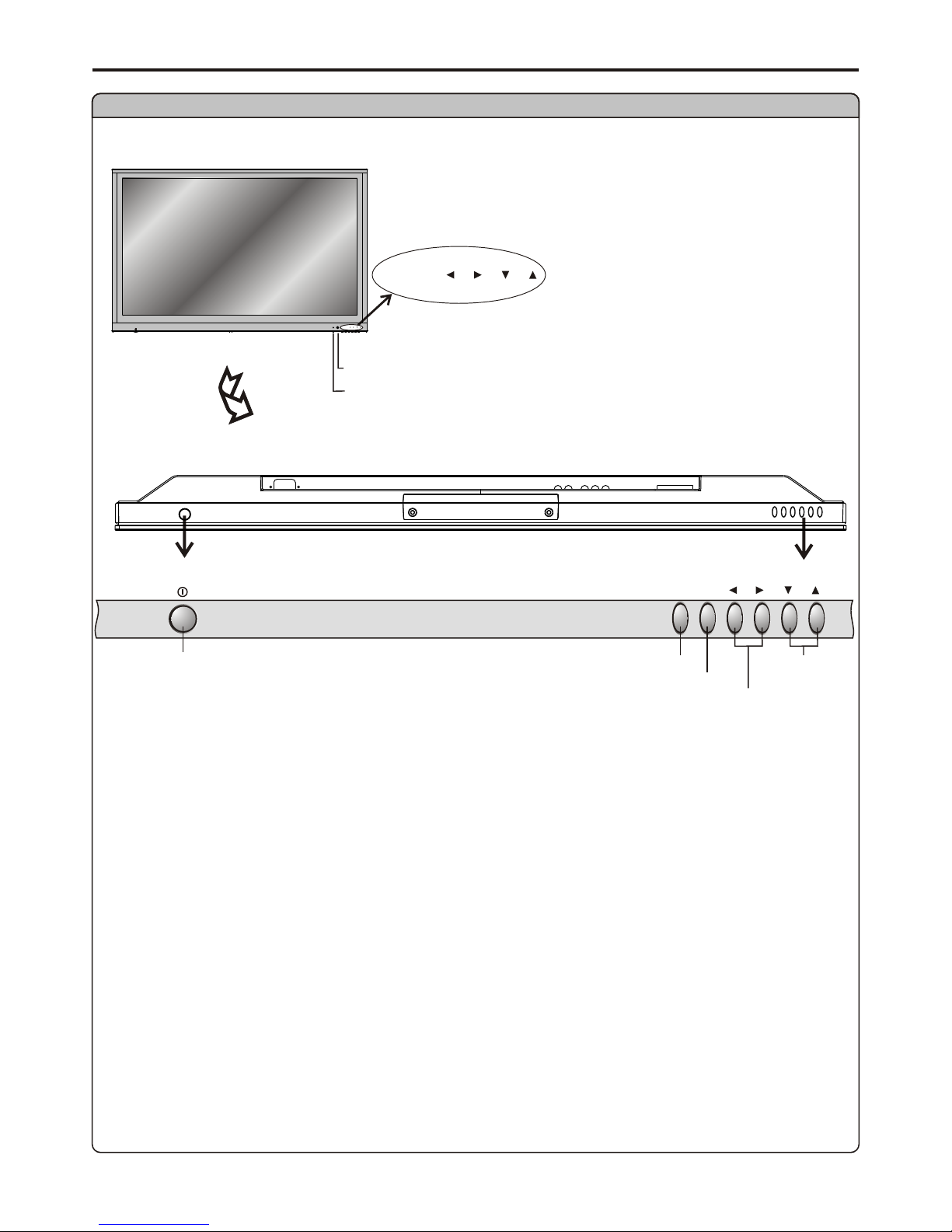
Main unit (front view)
POWER INDICATOR
REMOTE SENSOR
Note:
1. SOURCE
2. MENU
Press this button to access the MENU main page.
3. Volume 3/4
Press the VOL 4 or VOL3 button to directly increase or decrease the sound volume level.
4. Channel 5/6
Press these two buttons to directly change the TV channel.
Press this button to display SOURCE select menu.
Functions of SOURCE, MENU, VOL3/4 and CH5/6 are also provided to the remote control.
This operation manual provides a description based on operating functions with the remote control.
SOURCE MENU VOL CH
MENUSOURCE
VOL
CH
MENUSOURCE
VOL
CH
SOURCE SELECTPOWER SWITCH
MENU
VOLUME DOWN/UP
CHANNEL
DOWN/UP
BOTTOM VIEW
UPDATE
R L
SPEAKE R -
AC INPUT
1 12
RF
11
AV INPUT
VIDEO RL AUDIO
10
HE AD PH ONE
S- VIDEO
9
8
7
6
()
SCART2 V ID EO /S -V ID EO ()
SCART1 V ID EO /R GB
VGA AUD IO IN HDMI
25
COMPONENT INPUT
R-AUD IO- L
C /P
r r
C /P
b b
Y
34
Identification of Controls (continued)
7
Main unit (rear view)
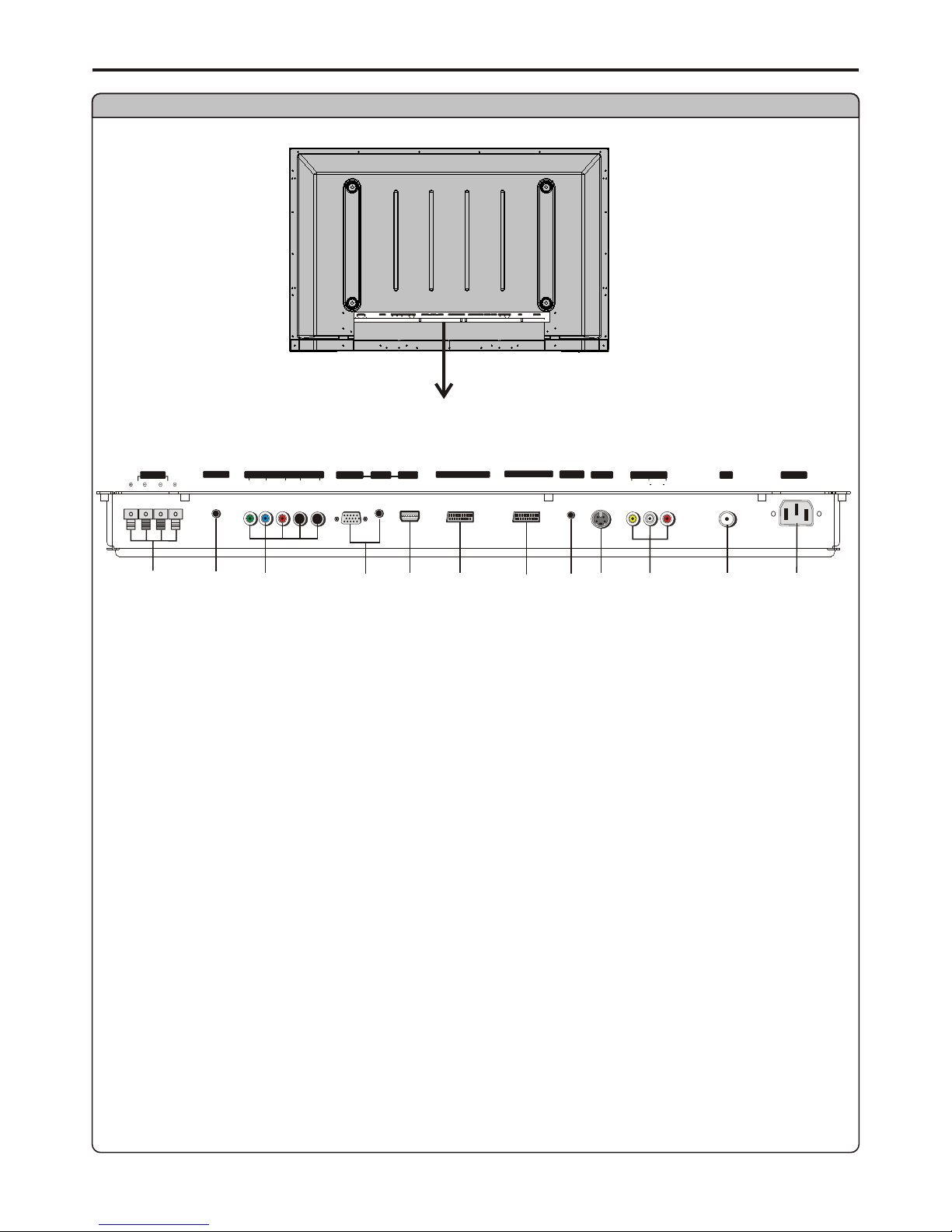
1. Speaker output jacks
2. UPDATE terminal
For service use only. The user cannot operate the unit through the UPDATE terminal.
3. Component inputs (Y, Pb/Cb, Pr/Cr, Audio L/R)
Connect to the audio and component output jacks of a DVD player or Set-Top Box.
4. VGA input /Audio in
Connect to the VGA/audio output jacks on your PC.
5. HDMI terminal
6. 21-pin Euro-SCART2 (VIDEO/S-VIDEO) interface
7. 21-pin Euro-SCART1 (VIDEO/RGB) interface
8. Headphone jack
9. S-VIDEO terminal
Receive a S-Video signal from external source such as VCR or DVD player.
10. AV inputs(VIDEO, AUDIO L/R)
Receive video/audio signals from external sources such as VCR or DVD player.
11. Antenna input
Allows you to connect cable or outdoor antenna.
12. AC Power input socket
- T
2N
O
FR
HEADPHONE
RF
R L
SPEAKER AV INPUT
S-VIDE O
UPDATE COMPON ENT INP UT
r r
C/P
b b
C /P
YVIDEO RL AUDIOLR AUDIO
SCART2 VIDEO/ S-V IDE O
()SCART1 VIDEO/ RGB
()AC INP UT
-
VGA AUDIO IN HDM I