manuals.online logo
Brands
  1. Home
  2. •
  3. Brands
  4. •
  5. Satechi
  6. •
  7. Docking Station
  8. •
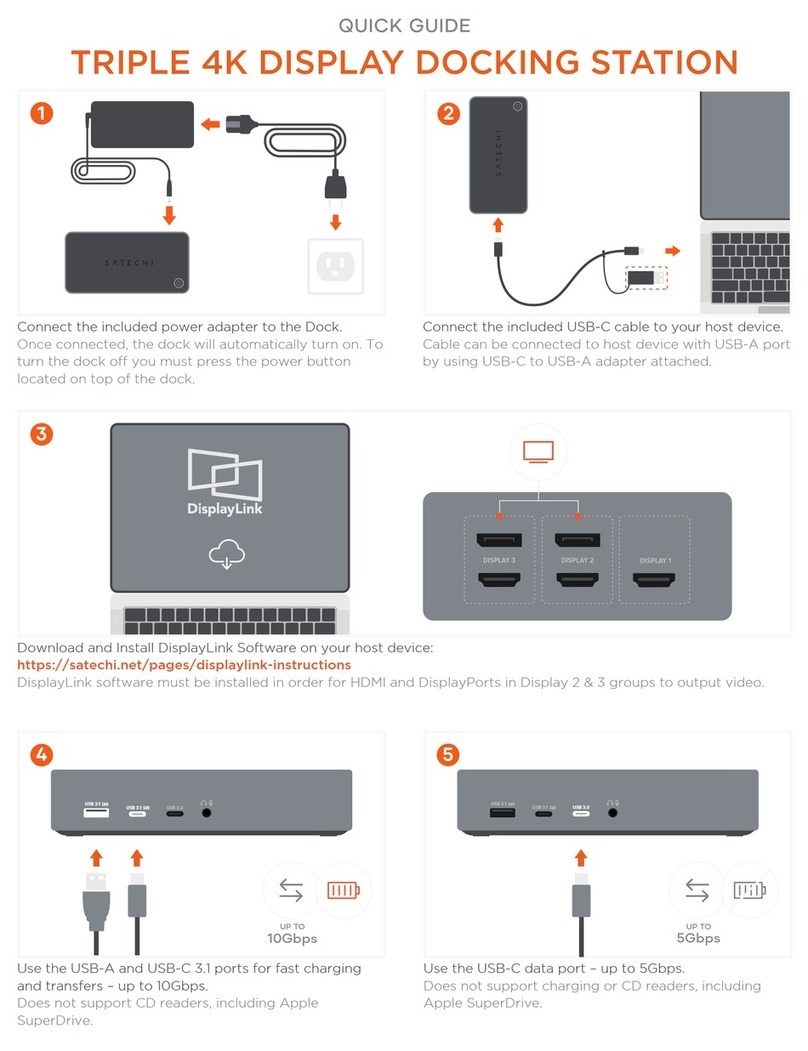
  9. Satechi TRIPLE 4K DISPLAY DOCKING STATION User manual

Satechi TRIPLE 4K DISPLAY DOCKING STATION User manual

Other Satechi Docking Station manuals

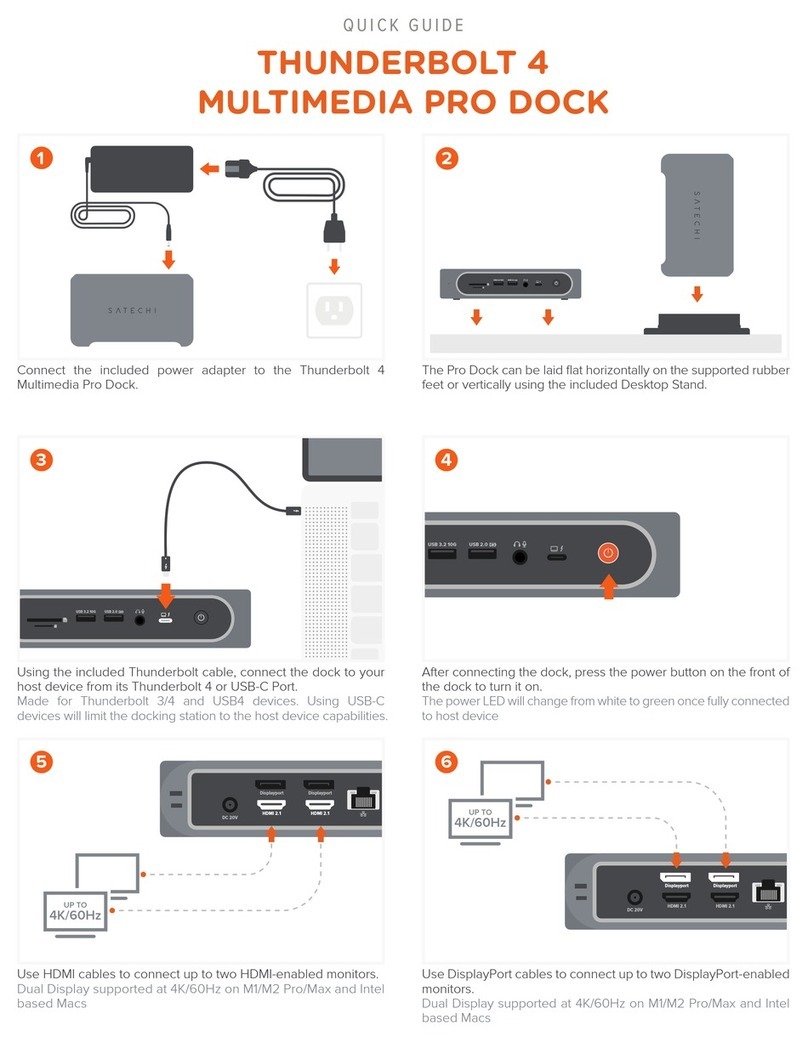
Satechi THUNDERBOLT 4 MULTIMEDIA PRO DOCK User manual

Satechi

Satechi THUNDERBOLT 4 MULTIMEDIA PRO DOCK User manual

Satechi TRIPLE User manual

Satechi

Satechi TRIPLE User manual

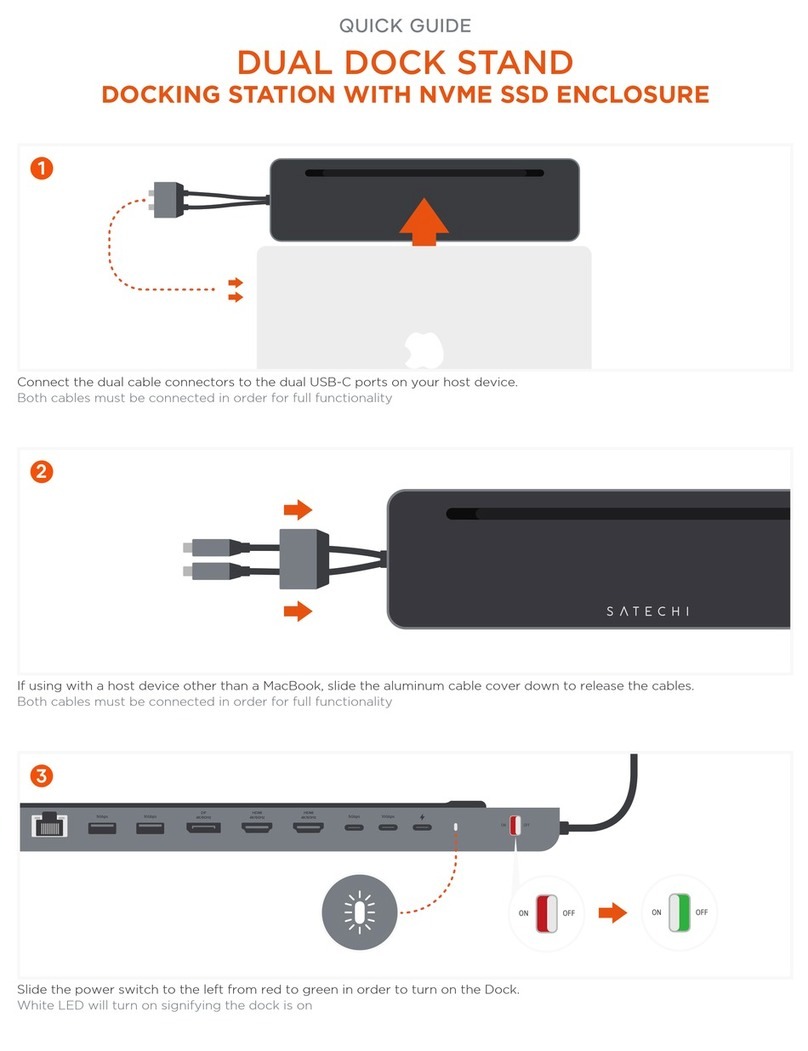
Satechi DUAL DOCK STAND User manual

Satechi

Satechi DUAL DOCK STAND User manual

Popular Docking Station manuals by other brands

Durr Dental VISTACAM2 Installation and operating instructions

Durr Dental

Durr Dental VISTACAM2 Installation and operating instructions

DLO TransDock Direct user manual

DLO

DLO TransDock Direct user manual

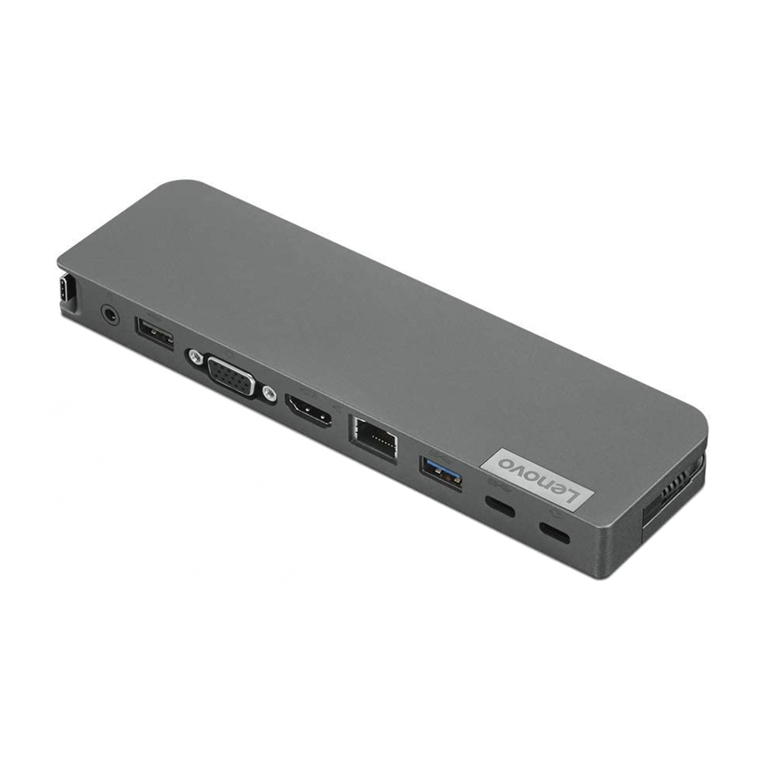
Lenovo USB-C Mini Dock user manual

Lenovo

Lenovo USB-C Mini Dock user manual

Sony Dream Machine XDR-DS12iP user manual

Sony

Sony Dream Machine XDR-DS12iP user manual

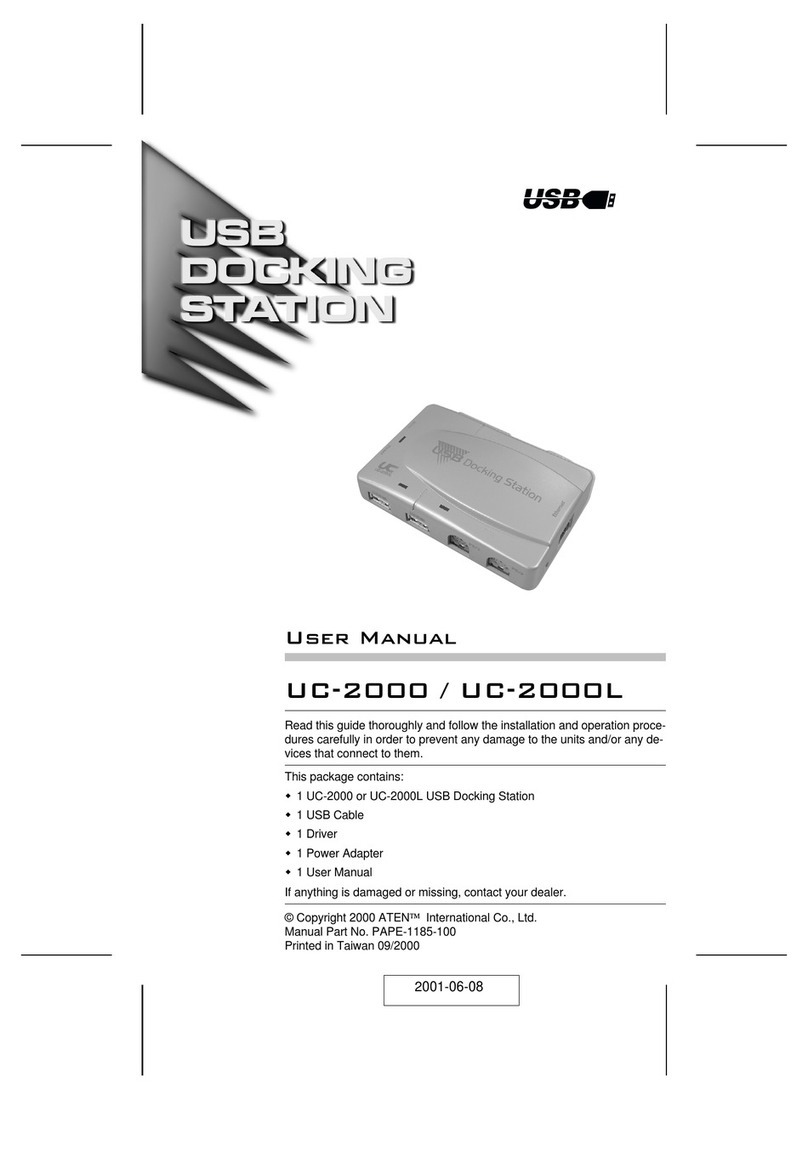
ATEN UC-2000 user manual

ATEN

ATEN UC-2000 user manual

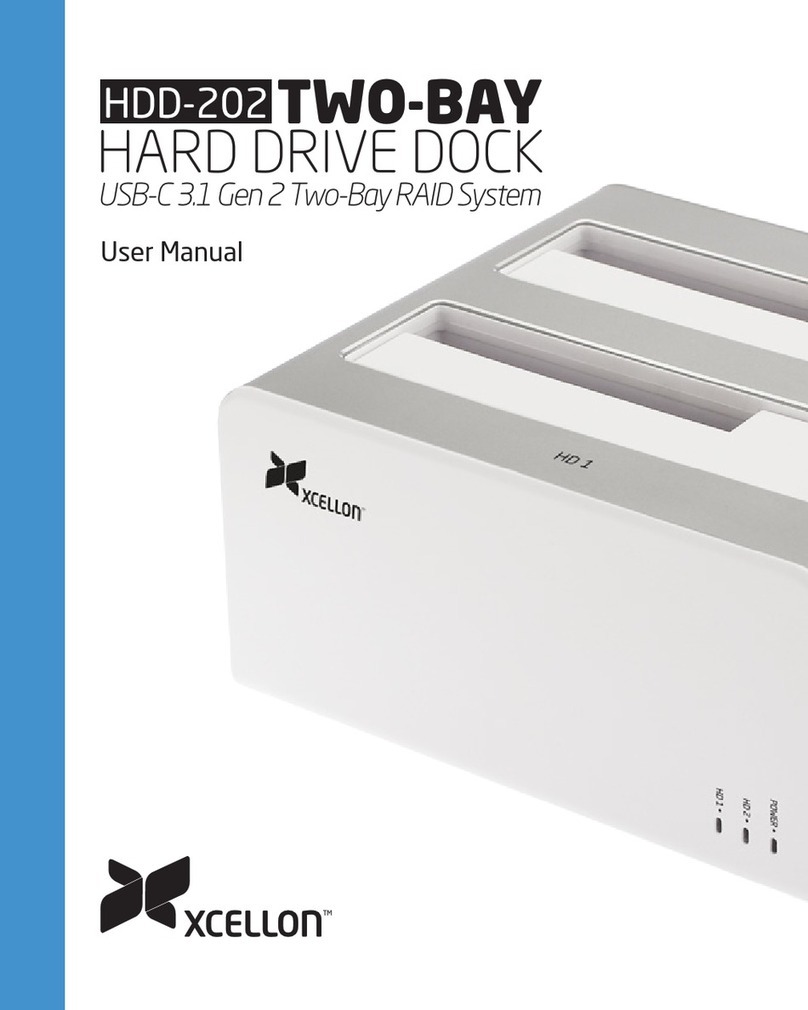
Xcellon HDD-202 user manual

Xcellon

Xcellon HDD-202 user manual

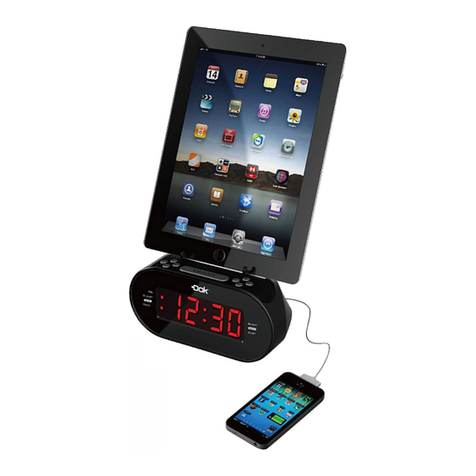
Dok CR09 user guide

Dok

Dok CR09 user guide

Philips BTM630/12 quick start guide

Philips

Philips BTM630/12 quick start guide

IOGear Travel Pro GUD3C09 quick start guide

IOGear

IOGear Travel Pro GUD3C09 quick start guide

iHome iP15 instruction manual

iHome

iHome iP15 instruction manual

VITURE ONE MOBILE DOCK quick start guide

VITURE ONE

VITURE ONE MOBILE DOCK quick start guide

CipherLab 8001 quick guide

CipherLab

CipherLab 8001 quick guide

Pyle PIPDSP2 owner's manual

Pyle

Pyle PIPDSP2 owner's manual

Targus DOCK315EUZ user guide

Targus

Targus DOCK315EUZ user guide

Philips DC190/79 user manual

Philips

Philips DC190/79 user manual

Akasa DuoDockX3 AK-DK08U3-BK user manual

Akasa

Akasa DuoDockX3 AK-DK08U3-BK user manual

Sirius Satellite Radio SUBX2082808a Installation and user guide

Sirius Satellite Radio

Sirius Satellite Radio SUBX2082808a Installation and user guide

OWC Thunderbolt Dock user guide

OWC

OWC Thunderbolt Dock user guide

manuals.online logo
manuals.online logoBrands
  • About & Mission
  • Contact us
  • Privacy Policy
  • Terms and Conditions

Copyright 2025 Manuals.Online. All Rights Reserved.

Use the USB-C data port – up to 5Gbps.
Does not support charging or CD readers, including Apple
SuperDrive.
5
USB 3.1 USB 3.1 USB 3.0
UP TO
5Gbps
USB 3.1 USB 3.1 USB 3.0
UP TO
10Gbps
Use the USB-A and USB-C 3.1 ports for fast charging and transfers
– up to 10Gbps.
Does not support CD readers, including Apple SuperDrive.
4
DISPLAY 3 DISPLAY 2 DISPLAY 1
Download and Install DisplayLink Software on your host device.
DisplayLink software must be installed in order for HDMI and DisplayPorts in Display 2 & 3 groups to output video.
3
2
Connect the included USB-C cable to your host device.
Cable can be connected to host device with USB-A port by using
USB-C to USB-A adapter attached.
Connect the included power adapter to the Dock.
Once connected, the dock will automatically turn on. To turn the
dock o you must press the power button located on top of the
dock.
1
QUICK GUIDE
TRIPLE 4K DISPLAY DOCKING STATION
Use DisplayPort cables to connect up to two DisplayPort-enabled
monitors using DisplayLink.
9
DISPLAY 3 DISPLAY 2
USB 3.0 5GBPs
DC 24V
USB 3.0 5GBPs
DISPLAY 1
Use HDMI cables to connect up to three HDMI-enabled monitors.
You must connect one HDMI via Display 1 (DP Alt mode) and the others using HDMI in Display 2 & 3 via DisplayLink.
10
DISPLAY 3 DISPLAY 2
USB 3.0 5GBPs
DC 24V
USB 3.0 5GBPs
DISPLAY 1
DP Alt mode
DisplayLink
DisplayLink
DISPLAY 3 DISPLAY 2
USB 3.0 5GBPs
DC 24V
USB 3.0 5GBPs
DISPLAY 1
UP TO
5Gbps
Use the two USB-A 3.0 ports for file transfers – up to 5Gbps.
Does not support charging or CD readers, including Apple
SuperDrive.
8
DISPLAY 3 DISPLAY 2
USB 3.0 5GBPs
DC 24V
USB 3.0 5GBPs
DISPLAY 1
Connect an RJ45 Ethernet cable to the dock’s Gigabit Ethernet
port.
Up to 1Gbps.
7
DisplayLink software must be installed to achieve up to three external displays.
When connecting to USB-A host device using included adapter, only video groups 2 and 3 will function via DisplayLink software. Video group 1 will
not function when using USB-A host device.
Prior to powering o Docking Station, ensure all external storage devices are properly ejected. If you don't eject external storage devices properly,
data on them may be damaged or corrupted.
Attention:
USB 3.1 USB 3.1 USB 3.0
Attach audio device to 3.5mm Audio I/O jack.
You will need to change sound output/input settings when
connecting headphones/mic. (System Preferences > Sound >
Output/Input > USB Audio).
6