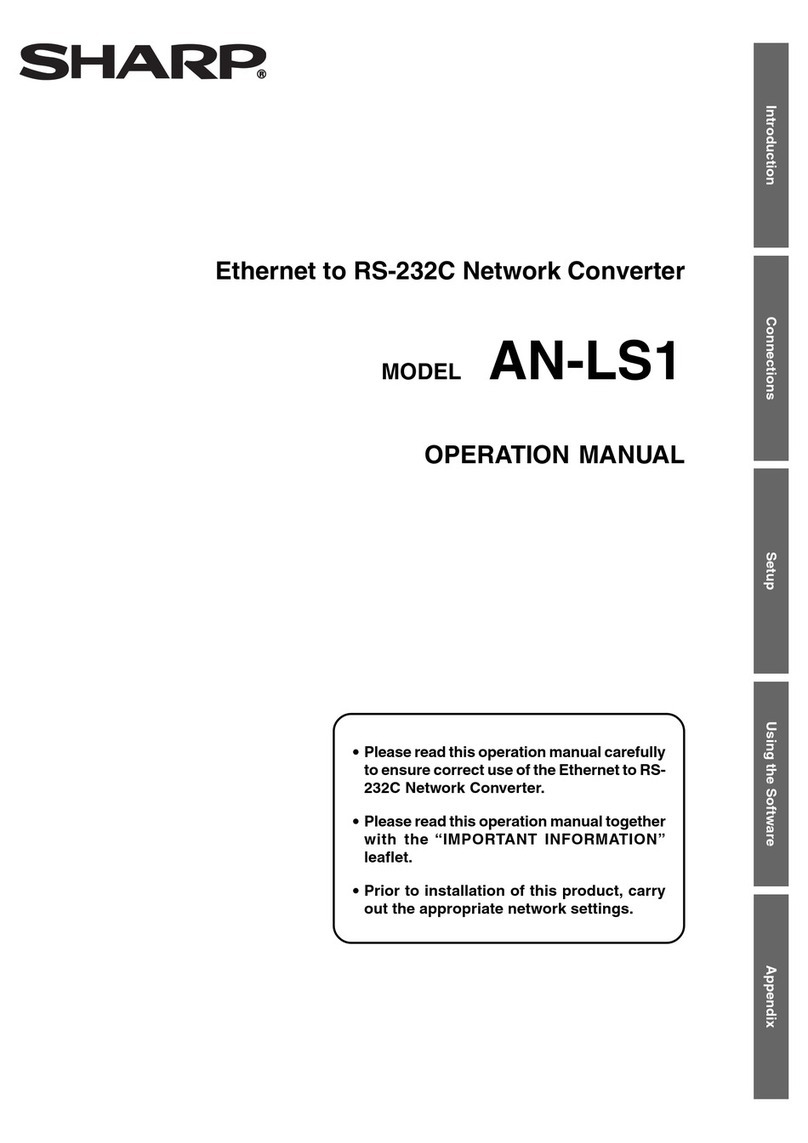
Sharp AN-LS1 User manual

Introduction Connections Setup Using the Software Appendix
MODEL AN-LS1
OPERATION MANUAL
Ethernet to RS-232C Network Converter
•Please read this operation manual carefully
to ensure correct use of the Ethernet to RS-
232C Network Converter.
•Please read this operation manual together
with the “IMPORTANT INFORMATION”
leaflet.
•Prior to installation of this product, carry
out the appropriate network settings.
Downloaded from: http://www.usersmanualguide.com/

2
Outstanding Features
AN-LS1 is a network converter for converting TCP/IP protocol on Ethernet to serial (RS-232C).
■AN-LS1 enables Sharp projectors with RS-232C terminals to be controlled via
Ethernet.
■Since AN-LS1 is provided with an RS-232C terminal as well as an Ethernet terminal,
control using a commercially available locally installed controller is possible as
well as via a network.
Control via network
Local control
Computer
Controller
Projector
Ethernet
LAN
In this operation manual, the illustration and the screen display are simplified for explanation,
and may differ slightly from actual display.
Accessories
Supplied Accessories
■■AC Adaptor
■■CD-ROM (Driver software and PDF operation manual)
■■IMPORTANT INFORMATION (Leaflet)
■■USA/Canada warranty card
■■International Software license (Paper)
•Microsoft and Windows are registered trademarks of Microsoft Corporation in the United States and/or other
countries.
•All other company or product names are trademarks or registered trademarks of their respective companies.
Downloaded from: http://www.usersmanualguide.com/

3
Introduction
Contents
Introduction
Outstanding Features ......................................................................................................................... 2
Accessories ........................................................................................................................................ 2
Part Names and Functions................................................................................................................. 4
Main Body ................................................................................................................................ 4
LED Indicators.......................................................................................................................... 5
Wall Mount .......................................................................................................................................... 6
Connections
Overview ............................................................................................................................................ 7
Connecting to an Ethernet LAN ......................................................................................................... 8
Connecting to a Hub or Switch ................................................................................................ 8
Connecting to a Computer ....................................................................................................... 8
Connecting Devices ........................................................................................................................... 9
Connecting a Controller or a Computer ................................................................................... 9
Connecting a Projector ............................................................................................................ 9
Connecting the AC Adaptor .............................................................................................................. 10
Setup
Entering SETUP MENU ....................................................................................................................11
When Connecting Using RS-232C .........................................................................................11
When Connecting Using Telnet .............................................................................................. 12
SETUP MENU Description ............................................................................................................... 13
SETUP MENU (Main Menu) .................................................................................................. 13
ADVANCED SETUP MENU ................................................................................................... 14
Basic Procedure ............................................................................................................................... 15
Setting of Each Item ......................................................................................................................... 18
Using the Software
About Sharp COM Redirection Software ......................................................................................... 25
Installation ........................................................................................................................................ 26
Starting ............................................................................................................................................. 29
Explanation of the Screen ................................................................................................................ 30
Operations ........................................................................................................................................ 31
Search and Add...................................................................................................................... 31
Selecting Virtual COM Port .................................................................................................... 33
Add (Manual).......................................................................................................................... 35
Refresh ................................................................................................................................... 37
Delete ..................................................................................................................................... 38
Password ............................................................................................................................... 40
Setting .................................................................................................................................... 42
OK/Cancel .............................................................................................................................. 43
Changing / Removing the Software ................................................................................................. 44
Appendix
Connecting Pin Assignments ........................................................................................................... 46
Troubleshooting ................................................................................................................................ 47
Specifications ................................................................................................................................... 52
Index ................................................................................................................................................. 53
Downloaded from: http://www.usersmanualguide.com/

4
Part Names and Functions
Main Body
TX/RX LED indicator (Page 5)
Lit when transmitting data.
10BASE-T Ethernet terminal (Page 8)
To connect to an Ethernet LAN.
LINK LED indicator (Page 5)
Lit when link is active.
RS-232C terminal for controller (Page 9)
To connect a commercially available
controller or computer.
AN-LS1
POWER
RS-232C(CONTROLLER)
RS-232C(PROJECTOR) INIT. DC IN
TX/RX 10BASE-T LINK
POWER LED indicator (Page 5)
Lit when the power supply is on.
Wall mount screw holes (Page 6)
To be used for mounting AN-LS1 on a wall.
DC power input (Page 10)
To connect an AC adaptor.
Initialize (INIT.) button (Page 51)
To initialize the settings for AN-LS1 to the
factory default settings.
RS-232C terminal for projector (Page 9)
To connect a projector.
• To initialize the settings for AN-LS1
to the factory default settings,
connect the plug for the AC adapter
to a wall outlet to supply the power
while pressing the Initialize (INIT.)
button using a pointed tool.
Downloaded from: http://www.usersmanualguide.com/

5
Introduction
LED Indicators
The LED indicators at the side and on the top of AN-LS1 represent the contents in the following
table.
POWER
LINK
TX/RX
Name LED Color LED Function
POWER Green Power is on.
Off Power is off.
TX/RX Orange Network packets are being transmitted or received.
Off No network packet is being transmitted or received.
LINK Green AN-LS1 is connected to the network.
Off Ethernet cable is disconnected.
Downloaded from: http://www.usersmanualguide.com/

6
Wall Mount
You will find it convenient to mount AN-LS1 on the wall, using two screws, as indicated below.
1Screw two screws (not included) into the wall 96.5 mm apart.
The heads of the screws should be 5-7 mm in diameter, and the shafts should be 3 mm in diameter.
(It is recommended to use screws of 12 mm or more in length.) Do not screw the screws in all the
way—leave a space of about 4 mm to allow room for sliding AN-LS1’s ears between the wall and
the screws.
5-7 mm
96.5 mm
2Insert the two screw heads through the large parts of the keyhole shaped apertures,
and then slide AN-LS1 downwards, as indicated.
3For added stability, simply tighten the two screws.
AN-LS1
POWER
RS-232C(CONTROLLER)
RS-232C(PROJECTOR) INIT. DC IN
TX/RX 10BASE-T LINK
AN-LS1
POWER
RS-232C(CONTROLLER)
RS-232C(PROJECTOR) INIT. DC IN
TX/RX 10BASE-T LINK
•To remove AN-LS1 from the wall mount, simply reverse steps 2 and 3 above.
Downloaded from: http://www.usersmanualguide.com/

7
Connections
Overview
Use the following procedure for connection of AN-LS1.
1Connect AN-LS1 to an Ethernet LAN. (Page 8)
2Connect devices to AN-LS1. (Page 9)
•Connect a commercially available controller or computer.
•Connect a projector.
3Connect the AC adaptor. (Page 10)
Ethernet
LAN
12
32
Computer
or
Controller
Projector
Downloaded from: http://www.usersmanualguide.com/

8
Connecting to an Ethernet LAN
Connect AN-LS1 to a hub or a computer using a Category 5 cable.
•It is necessary to perform computer setting according to the network environment in advance.
•Default IP address and subnet mask of AN-LS1 are as follows:
IP address : 192.168.150.2
Subnet mask : 255.255.255.0
•When using AN-LS1 by connecting to an existing Ethernet LAN, and if there is any problem with
the above settings, change settings such as IP address by creating an independent network
without connecting to the existing Ethernet LAN or by connecting a computer to the RS-232C
(CONTROLLER) terminal.
After that, connect to the existing Ethernet LAN.
Category 5 cable (sold separately)
To Ethernet 10BASE-T or
100BASE-TX terminal
Hub
or
Computer
Connecting to a Hub or Switch
For most applications, you will simply plug one end of your Category 5 cable into the10BASE-T
terminal of AN-LS1. In this case, you should use a standard straight-through Category 5 cable, which
is readily available from many commercial vendors. If necessary, however, you can make your own
cable by referring to the following cable wiring diagram.
Straight-Through Cable
AN-LS1
RJ-45 Jack
Connector
Tx+
Tx-
Rx+
Rx-
1
2
3
6
1
2
3
6
Hub
RJ-45 Jack
Connector
Tx+
Tx-
Rx+
Rx-
Cable Wiring
RJ-45 Plug
Connecting to a Computer
In some cases, such as when configuring drivers and software, you will find it convenient to hook AN-
LS1 directly to your computer’s Ethernet terminal. To do this, you will need to use a cross-over Category
5 cable. This type of Category 5 cable is harder to find, although you can make your own cable by
referring to the following cable wiring diagram.
Cross-Over Cable
AN-LS1
RJ-45 Jack
Connector
Tx+
Tx-
Rx+
Rx-
1
2
3
6
1
2
3
6
PC Network adaptor
RJ-45 Jack
Connector
Tx+
Tx-
Rx+
Rx-
Cable Wiring
RJ-45 Plug
Downloaded from: http://www.usersmanualguide.com/
9
Connections
Connecting Devices
Connect a commercially available controller or computer and a projector to AN-LS1.
Connecting a Controller or a Computer
In the case of controlling a projector via RS-232C as well as via the Ethernet LAN, connect a
commercially available controller or computer to the RS-232C (CONTROLLER) terminal.
RS-232C (CONTROLLER)
Controller
(commercially available)
or
Computer
To RS-232C terminal
RS-232C serial control
cable
(commercially available)
•For connection procedures for each device, please refer to the operation manual for each device.
•Make sure not to connect a controller or a computer to the RS-232C (PROJECTOR) terminal.
•Set as follows for the Port settings for RS-232C.
Baud Rate : Set the same value as AN-LS1. (Page 11)
Data Length : 8 bits
Parity Bit : None
Stop Bit : 1 bit
Flow Control : None
•In the case of connecting to a controller, use a suitable cable for the RS-232C cable.
•In the case of connecting to a computer, use a cross-over type cable for the RS-232C cable.
Connecting a Projector
Connect a projector to the RS-232C (PROJECTOR) terminal.
RS-232C (PROJECTOR)
To RS-232C terminal
RS-232C serial control
cable
(commercially available)
Projector
•For connection procedures for a projector, please refer to the operation manual for the projector.
•In the case of connecting to a projector, use a cross-over type cable for the RS-232C cable.
Downloaded from: http://www.usersmanualguide.com/
10
Connecting the AC Adaptor
Take the following steps to connect AN-LS1’s AC adaptor.
1Plug the AC adaptor’s DC plug into AN-LS1’s DC IN jack.
2Plug the AC adaptor into wall outlet.
To wall outlet
•There is no on/off switch. AN-LS1 turns on as soon as the connected AC adaptor is plugged into
a wall outlet. The POWER LED indicator on AN-LS1’s top panel will light green to indicate that it
is receiving power.
CAUTION
•The AC adaptor may interfere with reception if used near a radio.
•Prevent flammables, liquids, and metal objects from entering the AC adaptor.
•The AC adaptor is a sealed unit. Do not attempt to open or modify it.
•Do not damage, drop, or subject the AC adaptor to vibration.
•Do not leave the AC adaptor in direct sunlight.
•Avoid using the AC adaptor in humid or extremely hot places.
Downloaded from: http://www.usersmanualguide.com/
Other manuals for AN-LS1
1
Table of contents
Other Sharp Media Converter manuals

Sharp
Sharp DK-AP7P - Portable Speakers With Digital Player... User manual

Sharp
Sharp CE-133T User manual

Sharp
Sharp TU-DTV1000/A User manual

Sharp
Sharp AN-LS1 User manual

Sharp
Sharp CD-BP2000W User manual

Sharp
Sharp RT-XV300H B C User manual

Sharp
Sharp CE-130T User manual

Sharp
Sharp DK-AP8P User manual

Sharp
Sharp CD-BK1600V User manual

Sharp
Sharp DK-A10P User manual