DDC LEARNING
FRONT PANEL
DDC provides plug-and-play capability to your displays.
When you plug a display into your computer, the DDC table
in the display tells the computer the optimal resolution to
use. In order to preserve this plugand-play capability, we
have integrated DDC learning into all of our DVI Solutions.
DDC Learning Menu
Connect 1 monitor only to Output 1.
To access the DDC learning feature of the DVR4X4, press
and hold both the Input Select and Output Select buttons
simultaneously for 3 seconds to enter learning mode. The
red LEDs will read LErn.
MENU Options
To cycle through the menu items, press Input Select. To
select a menu item, press Output Select and you will exit
the DDC menu. To exit the DDC menu, you must select a
menu option.
“LE-S” indicates Screen Mode, which learns the type of
display connected to the [Out 1] output port. If no screen is
detected the display will read Err. This DDC will be used by
all the connected computers.
“LE-P” indicates Personal Computer Mode and
automatically selects the standard display characteristics
of a PC display, which typically works for any PC/Display
combination. This DDC is stored in the SmartAVI device and
when selected will be used by all the connected computers.
“LE-A” indicates Apple Mode and selects the best display
mode to accommodate an Apple Mac. This DDC is stored in
the SmartAVI device and when selected will be used by all
the connected computers.
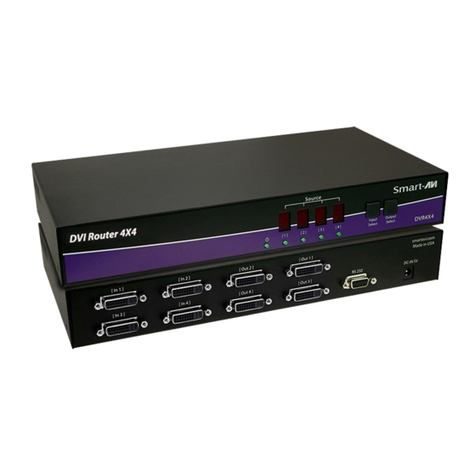
During normal operation, the unit will display the status
of each output with four red LED number. The number
indicates the current INPUT or source for each OUTPUT or
display indicated by the green LED.
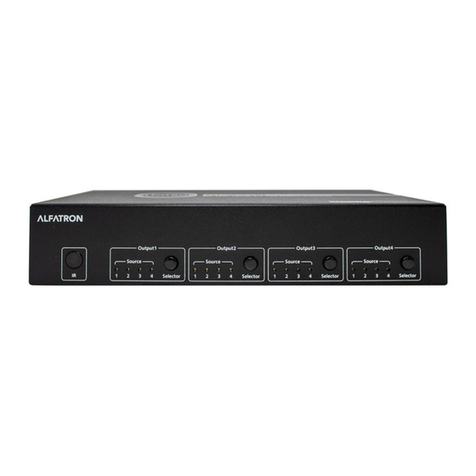
Switching Between Ports
To select an output press Output Select.
The green LEDs will change to indicate the selected output.
Then press Input Select and the LED number will change to
reect the selected input. A few seconds later
the selected input or source will display on the selected
output or display.
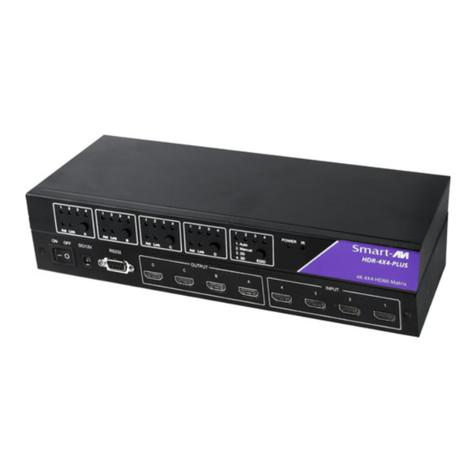
Front panel Back panel
1. Power off the computers and displays.
2. Connect the DVI video cables from the computers to the DVI-D inputs on the rear of the DVR-4X4.
3. Connect the DVI displays to the DVI-D outputs on the rear of the DVR-4X4.
4. Optionally connect a computer to the RS-232 port on the DVR-4X4 for additional remote control.
5. Power on the DVR-4X4.
6. Power on the computers and displays. If the monitors don’t display correctly see DDC Learning.
HARDWARE INSTALLATION
DVR-4X4
VIDEO IN
VIDEO OUT
RS232