manuals.online logo
Brands
  1. Home
  2. •
  3. Brands
  4. •
  5. SMART-AVI
  6. •
  7. Switch
  8. •
  9. SMART-AVI HKM-04 User manual

SMART-AVI HKM-04 User manual

Other SMART-AVI Switch manuals

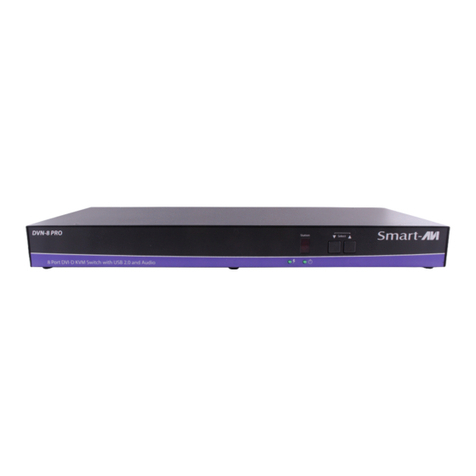
SMART-AVI DV-SW4 User manual

SMART-AVI

SMART-AVI DV-SW4 User manual

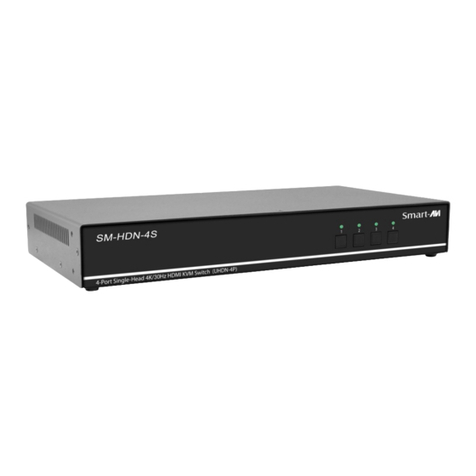
SMART-AVI SM-MST-4Q User manual

SMART-AVI

SMART-AVI SM-MST-4Q User manual

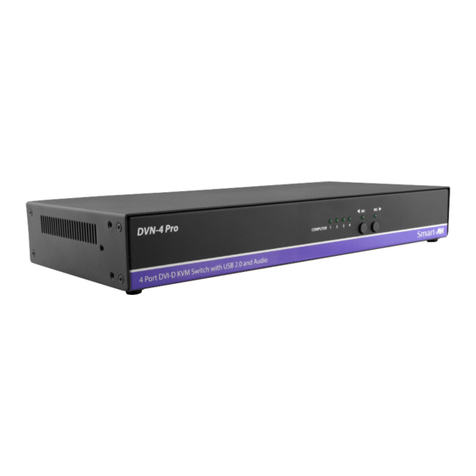
SMART-AVI HDN-8P User manual

SMART-AVI

SMART-AVI HDN-8P User manual

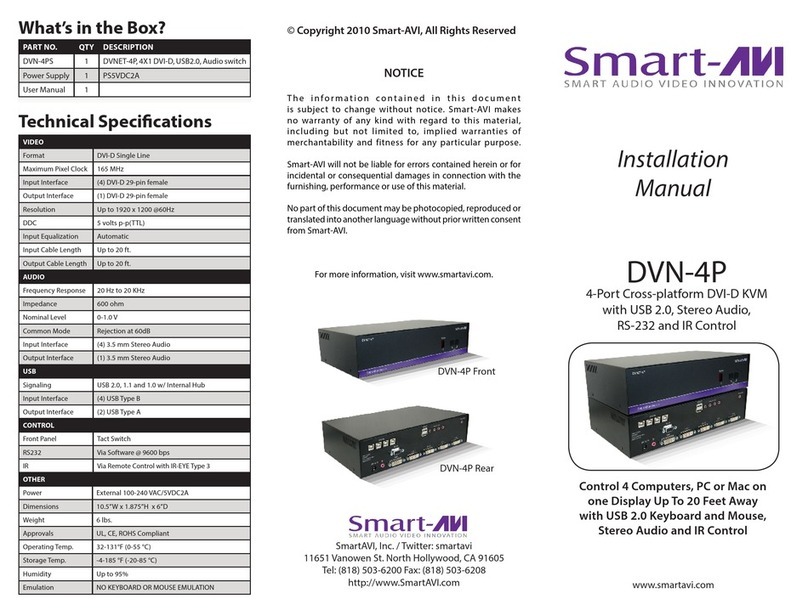
SMART-AVI SM-DVN-84X User manual

SMART-AVI

SMART-AVI SM-DVN-84X User manual

SMART-AVI HDR-4X4-PLUS-V2 User manual

SMART-AVI

SMART-AVI HDR-4X4-PLUS-V2 User manual

SMART-AVI SM-DPN-4S-S User manual

SMART-AVI

SMART-AVI SM-DPN-4S-S User manual

SMART-AVI SPS-1000 User manual

SMART-AVI

SMART-AVI SPS-1000 User manual

SMART-AVI HDNET-4PS User manual

SMART-AVI

SMART-AVI HDNET-4PS User manual

SMART-AVI HDN-4QUAD User manual

SMART-AVI

SMART-AVI HDN-4QUAD User manual

SMART-AVI DVR4X4S User manual

SMART-AVI

SMART-AVI DVR4X4S User manual

SMART-AVI UHDN-4P Duo User manual

SMART-AVI

SMART-AVI UHDN-4P Duo User manual

SMART-AVI SM-DVN-4D User manual

SMART-AVI

SMART-AVI SM-DVN-4D User manual

SMART-AVI DVN-2P User manual

SMART-AVI

SMART-AVI DVN-2P User manual

SMART-AVI HDR8x8 LP User manual

SMART-AVI

SMART-AVI HDR8x8 LP User manual

SMART-AVI D2H-4P-Quad User manual

SMART-AVI

SMART-AVI D2H-4P-Quad User manual

SMART-AVI DVN-4DUO User manual

SMART-AVI

SMART-AVI DVN-4DUO User manual

SMART-AVI SM-DVN-8S-S User manual

SMART-AVI

SMART-AVI SM-DVN-8S-S User manual

SMART-AVI QKVM4K User manual

SMART-AVI

SMART-AVI QKVM4K User manual

SMART-AVI DPN-4P User manual

SMART-AVI

SMART-AVI DPN-4P User manual

SMART-AVI HDMV-8X User manual

SMART-AVI

SMART-AVI HDMV-8X User manual

SMART-AVI HDMV-8X User manual

SMART-AVI

SMART-AVI HDMV-8X User manual

SMART-AVI DVNET-4Duo-DL User manual

SMART-AVI

SMART-AVI DVNET-4Duo-DL User manual

SMART-AVI DVN-4P User manual

SMART-AVI

SMART-AVI DVN-4P User manual

SMART-AVI HDN-4QUAD User manual

SMART-AVI

SMART-AVI HDN-4QUAD User manual

Popular Switch manuals by other brands

TRENDnet TK-401R null

TRENDnet

TRENDnet TK-401R null

TRENDnet TK-200K null

TRENDnet

TRENDnet TK-200K null

TRENDnet TE100-S8 null

TRENDnet

TRENDnet TE100-S8 null

URC Total Control MFS-8 installation manual

URC

URC Total Control MFS-8 installation manual

Azbil HPQ-D11 user manual

Azbil

Azbil HPQ-D11 user manual

Sony DFS-900M operating instructions

Sony

Sony DFS-900M operating instructions

SICK i17S operating instructions

SICK

SICK i17S operating instructions

F&F SZR-277 quick start guide

F&F

F&F SZR-277 quick start guide

Shure UAMS/BK user guide

Shure

Shure UAMS/BK user guide

Dräger X-zone Switch Off Instructions for use

Dräger

Dräger X-zone Switch Off Instructions for use

Asco Joucomatic 349 Series manual

Asco

Asco Joucomatic 349 Series manual

BT Mini Hub user guide

BT

BT Mini Hub user guide

D-Link DES-1226G manual

D-Link

D-Link DES-1226G manual

Johnson Controls FS80-C installation instructions

Johnson Controls

Johnson Controls FS80-C installation instructions

MicroNet SP1200A user manual

MicroNet

MicroNet SP1200A user manual

Ruijie RG-PF2920 Series Hardware  installation and reference guide

Ruijie

Ruijie RG-PF2920 Series Hardware installation and reference guide

Altinex DA1914SX user guide

Altinex

Altinex DA1914SX user guide

RJM MASTERMIND PBC/6X user manual

RJM

RJM MASTERMIND PBC/6X user manual

manuals.online logo
manuals.online logoBrands
  • About & Mission
  • Contact us
  • Privacy Policy
  • Terms and Conditions

Copyright 2025 Manuals.Online. All Rights Reserved.

4-Port Cross-platform
HDMI KVM
CONTROL 4 COMPUTERS,
PC OR MAC ON ONE DISPLAY
WITH USB KEYBOARD AND
MOUSE, AND STEREO AUDIO
Quick Start Guide
VIDEO
Format HDMI 1.3b [Deep Color, xvYcc color
space supported]
DVI Compliance Single-link DVI-D 1.1
HDCP Compliance 1.0/1.1
Video Bandwidth Single-link 340MHz [10.2Gbps]
Resolution 480i,480p,720i,720p,1080i,1080p
Input Interface (4) HDMI [7.1ch audio & video]
Output Interface (1) HDMI [7.1ch audio & video]
Connector Type A[19-pin female]
Maximum Distance 25 ft.
AUDIO
Frequency Response 20 Hz to 20 KHz
Impedance 600 ohm
Nominal Level 0-1.0 V
Common Mode Rejection at 60dB
Input Interface (4) 3.5 mm Stereo Audio
Output Interface (1) 3.5 mm Stereo Audio
USB
Signaling USB 1.1 and 1.0
Input Interface (4) USB Type B
Output Interface (2) USB Type A
CONTROL
Front Panel Tact Switch
OTHER
Power External 100-240 VAC/5VDC2A
@10W
Dimensions 5”W x 1.25”H x 2.875”D
Weight 0.8 lbs.
Approvals UL, CE, ROHS Compliant
Operating Temp. 32-131°F (0-55 °C)
Storage Temp. -4-185 °F (-20-85 °C)
Humidity Up to 95%
NOTICE
The information contained in this document is
subject to change without notice. SmartAVI makes
no warranty of any kind with regard to this material,
including but not limited to, implied warranties of
merchantability and tness for particular purpose.
SmartAVI will not be liable for errors contained
herein or for incidental or consequential damages in
connection with the furnishing, performance or use of
this material.
No part of this document may be photocopied,
reproduced, or translated into another language
without prior written consent from SmartAVI
Technologies, Inc.
800.AVI.2131, 702.800.0005
2455 W Cheyenne Ave, Suite 112
North Las Vegas, NV 89032
SmartAVI.com
TECHNICAL SPECIFICATION
HKM-04
WHAT’S IN THE BOX
PART NO. Q-TY DESCRIPTION
HKM-04-S 1 4 Port KVM HDMI, USB,
Audio switch
PS5VD4A 1 PS5VD4A Power Supply
Quick Start Guide 1

OVERVIEW
The HKM-04 is a cross-platform KVM capable of sharing
a WUXGA Display, USB Keyboard and Mouse, and Stereo
Audio between four computers.
FEATURES
• Compatible with Mac, PC, Linux and Sun
• Supports High Denition HDMI
• Supports USB keyboard and mouse
• Balanced stereo audio output
• Front panel tactile switch with LED indicator
• Supports Auto-scan mode for simple discovery
1. Turn off all computers and the display
2. Connect the HDMI extension cables, USB cables, and audio cables (not included) to the computers and to the “IN” ports
on the HKM-04
3. Connect the display to the “OUT” HDMI connector on the HKM-04
4. Connect USB mouse and keyboard to the “OUT” USB connector on the HKM-04
5. Connect speakers to the “OUT” audio connector on the HKM-04
6. Connect the power cord and power-on the HKM-04
7. Power on the computers, speakers and the display
8. Use the front panel buttons to select the desired input port
HKM-04 FRONT HKM-04 BACK
HARDWARE INSTALLATION