4-Port KM Switch with USB 2.0 Support and Audio 7
Note: Display Topology species the number of horizontal columns. The number of vercal rows is
calculated in the soware by 4/n columns.
Custom Hotkey Triggers
Users can customize the keys that trigger hotkeys. The default trigger for hotkey funcon on the
keyboard is Ctrl + Ctrl. The trigger funcon can be used to change to the following keys:
Ctrl (Le / Right), Alt, Shi (Le / Right), Caps Lock, Scroll Lock, F1-F12
To view the current hotkey trigger seng:
Use the RS-232 command: /+ /+ ?+ ?+ Enter to view the current hotkey trigger. To reset the Hotkey
Trigger, use the “Factory Defaults” command.
To change the hotkey trigger seng:
[hotkey] + [hotkey] + X+ [desired hotkey]
Example: If the user’s current hotkey trigger is Shi and they want to change it to Scroll Lock, the user
would type Shi + Shi + X+ Scroll Lock.
COMMANDS HOTKEY
Display Topology (mulple rows) [CTRL][CTRL] H [1-4]
Limit Input Ports (one row only) [CTRL][CTRL] W[1-4]
Cursor Rolling (roll past display borders
up, down, le, and right) [CTRL][CTRL] O[0(OFF), 1(ON)]
# STATUS DESCRIPTION
1 OFF Non-selected port
2 ON Selected port
System operation
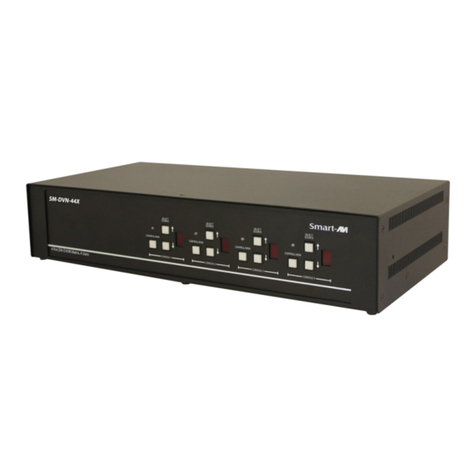
There are four ways to control the SKM-04-PRO: front panel buons, keyboard hotkeys, RS-232 serial
commands, and through the included graphical user interface (GUI).
Front Panel Control
To switch to an input port, simply push the buon on the front-panel of the KM. If an input port is
selected, the LED of that port will turn on.
Front Panel - Port Selecon LEDs:
Hotkey Commands
A Hotkey command is a keyboard sequence used to trigger an acon on the SKM-04-PRO via the
keyboard connected to the USB port of the SKM-04-PRO. To acvate the hotkey sequence, press the
CTRL key twice and then enter the desired hotkey commands.
Note: All commands can use upper and/or lower case characters.