Page 3
The root directory of the CD-ROM includes a readme.txt file that
contains information for the different software components and other
information that became available after this guide
went to press.
The subdirectory entitled Docs contains .pdf versions of the product
documentation. Release notes for each operating system are lo-
cated in that operating system’s directory in a file called release.txt.
If you find that any item is missing, contact SonicWALL, Inc. imme-
diately via the Web <http://www.sonicwall.com/support/> or
phone (408) 745-9600.
INSTALLING THE HARDWARE
Locating the SSL-IA
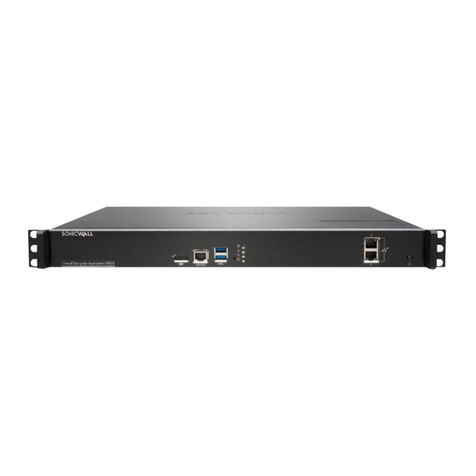
Place the SSL-IA on a level surface in an area with access to your
network cabling and close enough to the configuring computer to
allow serial access. Allow at least an inch of space around the
SSL-IA for adequate ventilation.
Locating the SSL-R
If you are placing the SSL-R in a standard rack, use the included screws
to attach the appliance securely. If you are placing the SSL-R on a shelf,
you may remove the rack-mounting “ears”. Allow at least an inch of
space around the SSL-R sides for adequate ventilation.
Connecting the SSL Appliance to Ethernet
1. Use Category 5 UTP cables with RJ-45 connectors. SonicWALL
SSL appliance Ethernet interfaces are configured as NIC ports.
— Use a
straight-through
cable to connect the SSL appli-
ance to a hub or switch.
— Use a
crossover
cable to connect the SSL appliance to a
NIC.
2. The connection to the Internet must use the “Network” port;
the connection to the server(s) must use the “Server” port.
Push the connector into the jack until it clicks into place.
3. Check the Link LEDs on the equipment. The green Link (LK)
LED should be solidly lit on the networking equipment. The
green Receive (RX) and amber Transmit (TX) LEDs on the SSL
appliance will flash as packets travel to and from the SSL
appliance. If the Link LED does not light, see the Appendix
B - Troubleshooting in the User Guide for suggestions.