2
Install Software… First!
C. ALL USERS—Install or Upgrade to Mac OS X
Version 10.3.5 or Later, If Necessary
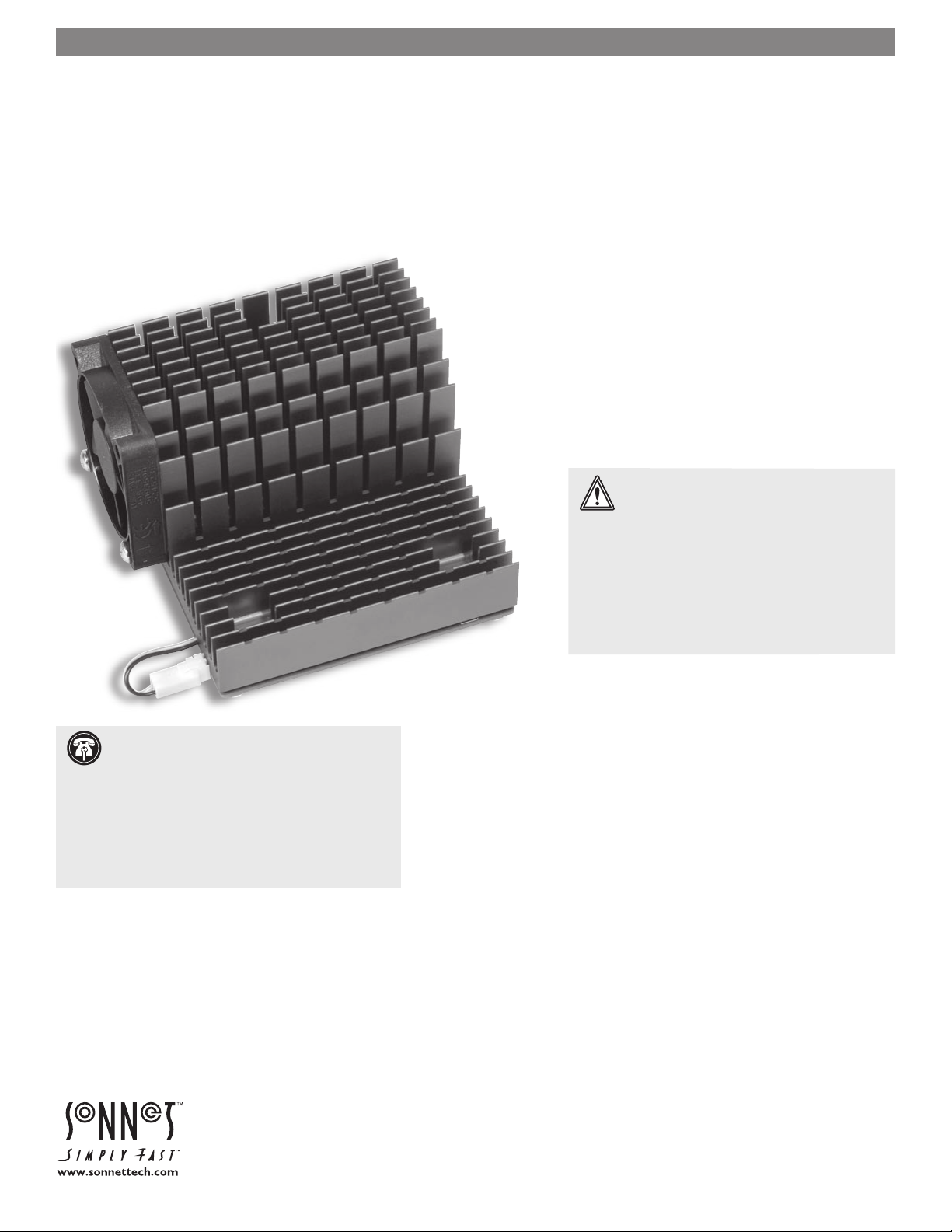
For Mac OS X compatibility, this Encore/ST G4 card requires
Mac OS X Version 10.3.5 or later. If you are upgrading to Mac
OS X as part of this installation, or need to update Mac OS X to
the latest version, do so now; complete the Mac OS upgrade, and
then restart your computer.
D. ALL USERS—Sonnet Software Installation
This section describes the installation of software required to sup-
port this Encore/ST G4 in your computer. Please note you MUST
run the Crescendo/Encore Installer before you install this
Encore/ST G4 card. If you do not run the installer, your com-
puter will not operate with the processor upgrade installed.
1. If your system is booted in Mac OS X, switch back to
OS 9.2; otherwise, skip to the next step. From the Apple
menu, select System Preferences…, and then click on the
Startup Disk icon. When the System Folders appear, select
the Mac OS 9.2 System Folder in which you will install the
Sonnet software.
2. Insert the Sonnet Installer CD into the CD-ROM drive.
Double-click the Mac OS 7-9 ONLY, not Classic folder, and
then double-click the Crescendo/Encore Install icon. By
default, with “Easy Install” selected from the pop-up menu,
the required software will be installed into the active System
Folder on the boot drive. If this is okay, click the Install but-
ton; otherwise, select “Custom Install” from the pop-up
menu for more options or to select another drive to install
the software. The installer will install the appropriate soft-
ware into your computer’s System Folder.
3. If the installation was successful, a dialog box will appear;
the program will then install a firmware patch that enables
the use of this Encore/ST G4 in your computer. (The Sonnet
firmware patch may be uninstalled. However, doing so pre-
vents your system from working with this Encore/ST G4.)
Read the instructions in the dialog box, and click OK to shut
down your computer.
4. Press and hold down the Programmer’s button (the button
on the right, beneath the Power button) on the front of your
computer.
5. While holding down the Programmer’s button, press and
release the Power button on your computer or keyboard;
continue to hold down the Programmer’s button until you
hear a tone play through the speaker.
6. When the tone is heard, release the Programmer’s button; a
progress bar will appear at the bottom of the screen.
7. Once the firmware update is complete, your system will
restart. If an error occurred, a message will appear; you must
rerun the installer. Otherwise, a dialog box will appear, stat-
ing it is okay to install the Encore/ST G4; click OK.
E. Mac OS X Users Only—Additional Software
Installation
This section describes the installation of software used to enable
Mac OS X to correctly identify the Encore/ST G4 card’s processor
speed, and cache sizes and speeds.
1. If your system is booted in Mac OS 9.2, switch back to
OS X; otherwise, skip to the next step. From the Apple
menu, select Control Panels > Startup Disk X. When the
Startup Disk X window opens, select the Mac OS X System
Folder in which you will install the Sonnet software.
2. If it is not already inserted, insert the Sonnet Installer CD
into the CD-ROM drive. Double-click the Mac OS X ONLY
folder, and then double-click the SonnetCache.pkg file to
start the built-in Mac OS X install program. Follow the
directions to complete the installation, and then turn off
your computer.
Mac OS X Alert: Due to technical issues that arise from
the operation of the latest G4 processor (used on this
Encore/ST G4 card) in an older system, you must use Mac OS X
Version 10.3.5 or later to ensure compatibility; earlier versions of
Mac OS X lack the proper processor support.
WARNING: Before running the Crescendo/Encore
Install application, you must ensure your system is
booted in Mac OS 9.2; do not attempt to run this installer in
Mac OS X (Classic mode).