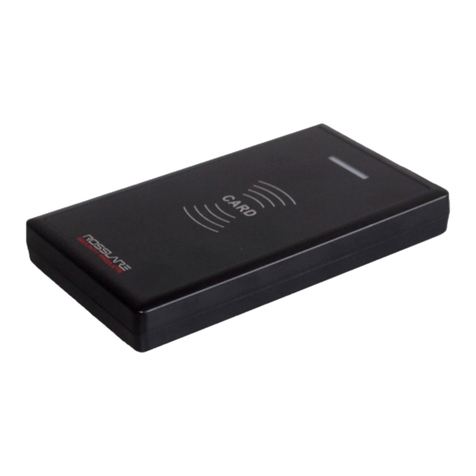
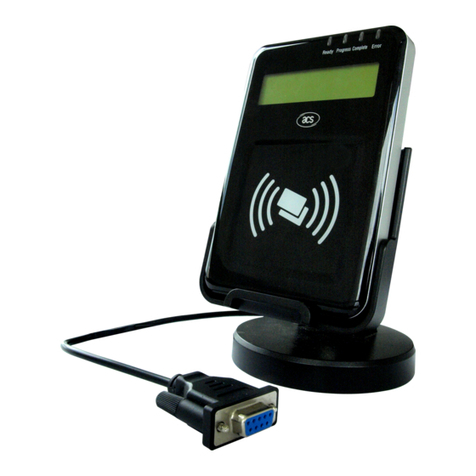
SUNLIT TECH SLC-10200 User manual

-1
RFID CF Type Reader User’s Guide
Model Name: SLC-10200
Version: 1.0
Date: 2006.09.20

-2
Content
No. Item Page
1 Hardware environment 3
2 Demo software environment 4
3 How to contact us 12
Notice:
In order to avoid misuse or any unexpected damage, please read this
guide first.

-11
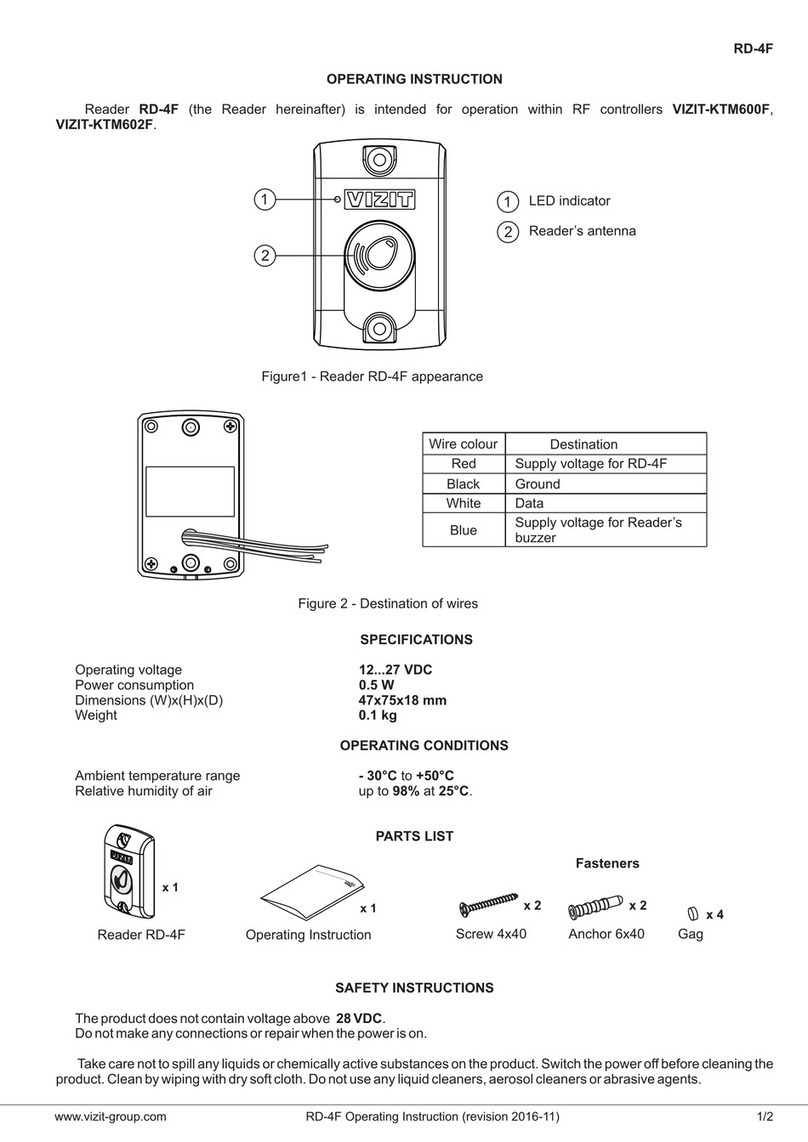
1. Hardware environment
(1)Product introduction
Sunlit’s RFID CF type reader is based on Hitachi µ-solution to develop.
It was operated at microwave 2.45GHz frequency band.
This is small and light, can be easily install to PDA, tablet PC.
(2)Specification
Power Supply DC 3.3V +/-5%
Operating Environment 0°C ~45°C
Storage Environment 0°C ~60°C
Storing Humidity 5-85% RH
Static Consumption 90 mW
Dimensions 130 x 60 x 47 (mm)
Interface CF Type II
RF Output Power 20dBm
Frequency Range 2435-2465 MHz
Total Channel 31 channels
Modulation FHSS
Reading Distance 5 - 7 cm @PVC card
Connector U.FL connector
Frequency Range 2.4-2.4835 GHz
Impedance 50 ohm nominal
Gain 0dBi
Radiation Direction
Polarization Semi circular
Antenna
Beam Degree 90°

-4
(3)System requirement
Item Condition Quantity
Hardware requirement PDA support CF interface 1
Platform requirement Windows Pocket PC 2003 1
(4)How to install reader
Face the side with LED up, and insert it into PDA CF slot as shown in picture.
Normally always insert CF reader by put LED side up, but some PDA put CF slot at
reverse side, it means user needs to insert CF reader at back side. (LED down)

-5
2. Demo software environment
(1)Demo software introduction
This demo program can build a database include TAG ID、TAG information and
picture. It can be use to demo ex. material manager、In/out control for people… etc.
(2)Block diagram
Main Program
Tag ID
Data base
Picture Information
(3)Demo program operation
System requirement
Item Condition Quantity
PDA Support CF interface
64MB Flash ROM
64 MB RAM
1
System platform Windows Pocket PC 2003 1
RFID CF reader 1
Tag Include Hitachi µ-chip inlet 1

-6
Demo software contents
Item Description
Development
tool Microsoft Visual Studio 2005 Traditional Edition
WinceDEMO.exe Main program
sunlitrfidppc.dll Dynamic Link Library file
Database.txt ID database file after ID saved
File contents
PIC [Folder] A picture file includes different pictures
which correlated with each individual ID
Main Program Window
Function Description Function Description
ID Display Tag ID when Tag be
read. Delete Delete registered database
Information Edit information about Tag ID Mode Select scan mode
ON/OFF Open/Close comport of
reader Picture Select picture correct with
ID
Mute ON/Off reading sound Clear Clear text of ID & Message
window
Read Trigger reader to scan Tag
Database Display registered database
Save Save registered database Message Display status of reader

-7
Demo program operation
(a) Copy demo program files “WinceDEMO.exe” & “sunlitrfidppc.dll”to PDA and
store at same directory.
(b) Plug reader in CF slot of PDA

-8
(c) Click file “WinceDEMO.exe” and click “ON/OFF” to open device(Reader)
(d) Create a ID data base
Be sure the Mode is “Passive”
Put the tag on front side of reader, click “Read” to scan Tag ID and checking ID number
is showing on ID window.
Click “Picture”→“Folder” to open location of picture that you want to correct with Tag
ID.Click ”Type” to select file type that you want than click picture file
※ Operation mode:
Passive: Click Read once and reader will scan once.
Active: Click Read once and reader will scan continuously.
It mean open device
successful
1
2
Cancel
Folder
File type
3
4
5

-9
(e) Editing information about the ID number on “Information” window.
Click “Save” and check “Tag DataBase” window to complete the data base
created procedure.
(f) You can follow the step (d) (e) to create some data base that you want.
(g) When you created the data base, the system was created 1 folder and 1 text file:
Item Description
Database.txt [text file] ID database file after ID saved
PIC [Folder] A picture file storage folder about correlate
with ID database after picture saved.
Caution: Every PDA are different resolution so the picture is showed different size. If
you want it to be matched, you should modify the source code of the project. And
showing picture is Windows API,but it is not stable. Showing picture seveval times
may cause the Demo AP crashes.
1
2
It mean
database
created
successful

-11
DataBase.txt
(h) Set Mute function
Follow the figure click the” Mute” function check box, the mute function will enable.