IG-20-08-003-A 7
3. Using the EDGE Connect
3.1 Device Overview
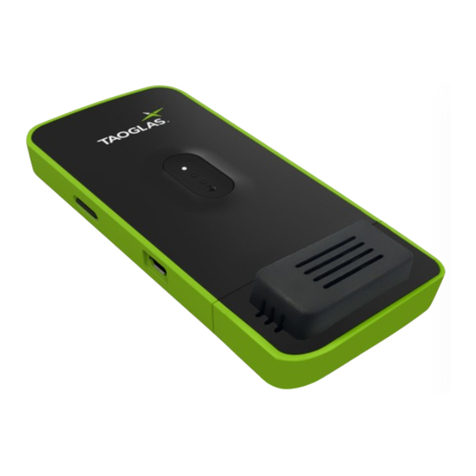
The EDGE Connect has 2 buttons and 3 LED’s. See the diagram below for an overview of the LED’s and buttons.
• To power on the EDGE Connect, push the Power Button once. When the EDGE Connect is powered on and has
successfully initialised, the User LED will flash white 3 times in quick succession.
• To power o the EDGE Connect, hold the Power Button, while the EDGE Connect is powering down the User LED will
blink red continuously. The User LED will stop blinking when the EDGE Connect has completely powered o.
• When you plug the EDGE Connect into the provided USB Power supply, the USB Power LED will illuminate. If the EDGE
Connect requires charging, the Charge Status LED will illuminate, otherwise the Charge Status LED will remain o.
• Once powered, the EDGE Connect will automatically connect to EDGE insights to gather configuration information.
The EDGE Connect will continue to operate at the sampling and upload intervals set on EDGE Insights, for more
information on these intervals see Device Management Section.
• The EDGE Connect can be forced into making a connection with EDGE Insights outside of the upload interval using
either of the following methods:
• A single press of the Power Button, followed by a single press of the User Button will trigger the EDGE Connect
to connect to EDGE Insights and gather new configuration information.
• A single press of the Power Button, followed by a longer push of the User Button (more than 4 seconds) will
trigger the EDGE Connect to sample all configured sensors and upload them to EDGE Insights.
• The EDGE Connect uploads its battery level to EDGE Insights, however, the battery status can also be checked by
pushing the Power Button once. This will cause the User LED to flash red a number of times according to the battery
level, as per the table below:
20% 1 Flash
40% 2 Flashes
60% 3 Flashes
80% 4 Flashes
100% 5 Flashes
User Button
Power
Button
USB Power LED
Light Sensor
USB Port
Charge Status LED
User LED