manuals.online logo
Brands
  1. Home
  2. •
  3. Brands
  4. •
  5. Topcom
  6. •
  7. Cordless Telephone
  8. •
  9. Topcom Butler 1.1 User manual

Topcom Butler 1.1 User manual

This manual suits for next models

1

Other Topcom Cordless Telephone manuals

Topcom Webt@lker 6000 User manual

Topcom

Topcom Webt@lker 6000 User manual

Topcom BUTLER 2511 Deluxe User manual

Topcom

Topcom BUTLER 2511 Deluxe User manual

Topcom MAGIO 105 User manual

Topcom

Topcom MAGIO 105 User manual

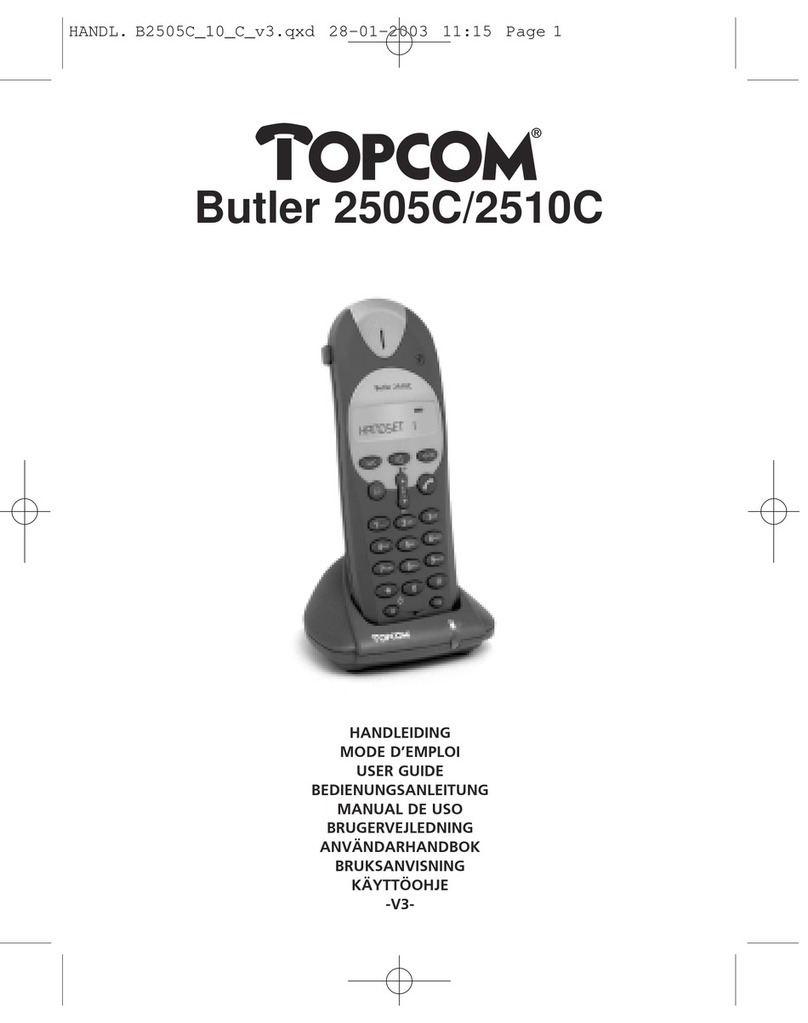
Topcom Butler 2505 C User manual

Topcom

Topcom Butler 2505 C User manual

Topcom ULTRA SR1250 ECO Product information sheet

Topcom

Topcom ULTRA SR1250 ECO Product information sheet

Topcom BUTLER 3300 User manual

Topcom

Topcom BUTLER 3300 User manual

Topcom BUTLER M1250 User manual

Topcom

Topcom BUTLER M1250 User manual

Topcom BUTLER 2511 Deluxe User manual

Topcom

Topcom BUTLER 2511 Deluxe User manual

Topcom BUTLER 4112 User manual

Topcom

Topcom BUTLER 4112 User manual

Topcom BUTLER E2100 User manual

Topcom

Topcom BUTLER E2100 User manual

Topcom BUTLER 3300 User manual

Topcom

Topcom BUTLER 3300 User manual

Topcom BUTLER 920 User manual

Topcom

Topcom BUTLER 920 User manual

Topcom Butler 170 User manual

Topcom

Topcom Butler 170 User manual

Topcom Butler E350 User manual

Topcom

Topcom Butler E350 User manual

Topcom BUTLER 3450 User manual

Topcom

Topcom BUTLER 3450 User manual

Topcom Butler 800 User manual

Topcom

Topcom Butler 800 User manual

Topcom SOLOGIC B921 User manual

Topcom

Topcom SOLOGIC B921 User manual

Topcom WEBT@LKER 100 User manual

Topcom

Topcom WEBT@LKER 100 User manual

Topcom Butler 5750 User manual

Topcom

Topcom Butler 5750 User manual

Topcom BUTLER 920 User manual

Topcom

Topcom BUTLER 920 User manual

Topcom BUTLER 2562 User manual

Topcom

Topcom BUTLER 2562 User manual

Topcom TE-5735 How to use

Topcom

Topcom TE-5735 How to use

Topcom COCOON 50 User manual

Topcom

Topcom COCOON 50 User manual

Topcom BUTLER 3501 User manual

Topcom

Topcom BUTLER 3501 User manual

Popular Cordless Telephone manuals by other brands

3Com NBX Guide

3Com

3Com NBX Guide

Panasonic KX-TGK210HK operating instructions

Panasonic

Panasonic KX-TGK210HK operating instructions

Panasonic KX-TCA181EX installation manual

Panasonic

Panasonic KX-TCA181EX installation manual

BT FREESTYLE 3200 user guide

BT

BT FREESTYLE 3200 user guide

AT&T CL84102 user manual

AT&T

AT&T CL84102 user manual

BREZZICNI CL-3622 user manual

BREZZICNI

BREZZICNI CL-3622 user manual

Panasonic KX-TG1831NZ operating instructions

Panasonic

Panasonic KX-TG1831NZ operating instructions

Panasonic KX-TG7301E operating instructions

Panasonic

Panasonic KX-TG7301E operating instructions

Sanyo CLT-J70 instruction manual

Sanyo

Sanyo CLT-J70 instruction manual

Amplicomms BigTel 201 user manual

Amplicomms

Amplicomms BigTel 201 user manual

GE 26992 user guide

GE

GE 26992 user guide

AT&T E1812B user manual

AT&T

AT&T E1812B user manual

Sanyo CLT-670 instruction manual

Sanyo

Sanyo CLT-670 instruction manual

GE 15432970 user guide

GE

GE 15432970 user guide

Curtis TC595 owner's manual

Curtis

Curtis TC595 owner's manual

Gigaset Gigaset 3000 Micro operating instructions

Gigaset

Gigaset Gigaset 3000 Micro operating instructions

Poly VVX D230 Quick start user guide

Poly

Poly VVX D230 Quick start user guide

AT&T 7625 user manual

AT&T

AT&T 7625 user manual

manuals.online logo
manuals.online logoBrands
  • About & Mission
  • Contact us
  • Privacy Policy
  • Terms and Conditions

Copyright 2025 Manuals.Online. All Rights Reserved.

BUTLER OUTDOOR 2000
USER GUIDE
1.1
Important
To use ‘Caller ID’ (display caller), this service has to be activated on your phone line.
Normally you need a separate subscription from your telephone company to activate this
function. If you don’t have the Caller ID function on your phone line, the incoming telephone
numbers will NOT be shown on the display of your telephone.
To be connected to the public analogue telephone network.
The features described in this manual are published with reservation to modifications.
This product is in compliance with the essential requirements and other relevant provisions of the R&TTE directive 1999/5/EC.
The Declaration of conformity can be found on :
http://www.topcom.net/support/cedeclarations.php
7
4
2
5
8
0
3
6
9
1
Butler Outdoor 2000
R
C/
INT
/
OK
ABC DEF
GHI JKL MNO
PQRS TUV WXYZ
1
2
3
4
5
6
7
8
9
10
11
12
14
13
Butler Outdoor 2000
15 16
17
+-
-+
1
2
3
2Topcom Butler Outdoor 2000
Topcom Butler Outdoor 2000
1 Description of telephone (see folding page) 5
1.1 Handset and base Butler Outdoor 2000 5
1.2 Display 5
2 Telephone installation 6
2.1 Connections 6
2.2 Rechargeable batteries 6
3 Using the telephone 7
3.1 Setting menu language 7
3.2 Handset ON/OFF 7
3.3 Receiving a call 7
3.4 Making an external call 7
3.5 Making an internal call 7
3.6 Internal call transfer 8
3.7 Conference Call 8
3.8 Handsfree mode 8
3.9 Display of call duration 8
3.10 Microphone mute 8
3.11 Pause Key 8
3.12 Caller Identification 8
3.13 Redial memory 9
3.14 Calling from the phonebook 10
3.15 Using the alphanumerical keypad 10
3.16 Using the menu 11
3.17 LED Light 11
4 Personalisation 11
4.1 adjusting the ring volume 11
4.2 Choosing the ring melody 11
4.3 Speaker volume during call 12
4.4 Activation / Deactivation of beeps 12
4.5 Handset name 13
4.6 Changing the PIN code 13
4.7 Setting the dialling mode 13
4.8 Flash time duration 14
4.9 Automatic answer 14
4.10 Reset 14
4.11 Keypad lock 15
4.12 Setting the time 15
4.13 Setting the date 16
4.14 Setting the alarm 16
5 Advanced functions 16
5.1 Phonebook 16
5.2 Searching a handset from the base 17
Topcom Butler Outdoor 2000 3
Topcom Butler Outdoor 2000
ENGLISH
6 Managing multiple handsets 18
6.1 Setting up an additional handset 18
6.2 Removing a handset 19
6.3 Setting up a handset on another base 19
6.4 Selecting a base 19
7SMS 20
7.1 How to write an SMS 20
7.2 Sending an SMS 20
7.3 Read and view the list of received messages (Inbox) 20
7.4 Multiple users 21
7.5 SMS Settings 22
7.6 Memory full 23
8 Troubleshooting 23
9 Technical characteristics 24
10 Topcom warranty 24
10.1 Warranty period 24
10.2 Warranty handling 24
10.3 Warranty exclusions 24
4Topcom Butler Outdoor 2000
Topcom Butler Outdoor 2000
Safety Instructions
• Only use the charger plug supplied. Do not use other chargers, as this may damage the
battery cells.
• Only insert rechargeable batteries of the same type. Never use ordinary, non-
rechargeable batteries. Insert rechargeable batteries so they connect to the right poles
(indicated in the battery compartment of the handset).
• Do not touch the charger and plug contacts with sharp or metal objects.
• The operation of some medical devices may be affected.
• The handset may cause an unpleasant buzzing sound in hearing aids.
• Do not place the basic unit in a damp room or at a distance of less than 1.5 m away from
a water source. Keep water away from the handset.
• Do not use the telephone in environments where there is a risk of explosions.
• Dispose of the batteries and maintain the telephone in an environment-friendly manner.
• As this telephone cannot be used in case of a power cut, you should use a mains-
independent telephone for emergency calls, e.g. a mobile phone.
Disposal of the device (environment)
At the end of the product lifecycle, you should not throw this product into the normal
household garbage but bring the product to a collection point for the recycling of electrical
and electronic equipments. The symbol on the product, user guide and/or box indicate this.
Some of the product materials can be re-used if you bring them to a recycling point. By re-
using some parts or raw materials from used products you make an important contribution to
the protection of the environment.
Please contact your local authorities in case you need more information on the collection
points in your area.
Cleaning
Clean the telephone with a slightly damp cloth or with an anti-static cloth. Never use cleaning
agents or abrasive solvents.
The CE symbol indicates that the unit complies with the essential requirements
of the R&TTE directive.
Topcom Butler Outdoor 2000 5
Topcom Butler Outdoor 2000
ENGLISH
1 Description of telephone (see folding page)
1.1 Handset and base Butler Outdoor 2000
1. Earpiece
2. Display
3. Handsfree key
4. Menu/OK
5. Up key/Redial/Pause key
6. Phonebook
7. Down key/Call log key
8. Internal call INT
9. Microphone
10. Flash key/Power ON/OFF R/
11. Line key
12. Mute/Delete key/Escape key
13. LED Light (High intensity LED’s)
14. Torch key
15. Paging key
16. Power indicator/Incoming call LED
17. Charge indicator
1.2 Display
Each operation has an associated icon
Icon: Meaning:
You are online
EXT You are in external communication
INT You are in internal communication
New numbers in call list
Indicate answered call
Indicate unanswered call
You are opening your address book.
You are in the menu.
rechargeable battery level indicator
1 segment: weak, 2 segments: medium, 3 segments: full.
The antenna indicates the quality of reception.
The antenna flashes when the handset is not registered on the base.
Handset keypad locked
or Indicates that the displayed number is longer than the screen (12 digits)
Alarm set and ON
SMS message received
/
O
K
<
6Topcom Butler Outdoor 2000
Topcom Butler Outdoor 2000
1.2.1 Standby display
In standby mode, the display shows the time and the handset name and number:
12:05
B2000 1
2 Telephone installation
2.1 Connections
Back view of base/charger Butler Outdoor 2000
2.2 Rechargeable batteries
To change or insert a rechargeable battery (see folding page):
1. Unscrew the battery door and belt-clip
2. Remove the belt-clip
3. Lift the battery door
4. Insert the batteries respecting the (+ and -) polarity
5. Replace the battery cover.
Power cable
TEL
Telephone cord
Before you use your Butler Outdoor 2000 for the first time, you must first
make sure that the batteries are charged for 6-8 hours. The telephone will
not work optimally if not properly charged.
Topcom Butler Outdoor 2000 7
Topcom Butler Outdoor 2000
ENGLISH
3 Using the telephone
3.1 Setting menu language
1. Enter the menu by pressing /OK
2. Select HANDSET using the up and down keys
3. Press OK
4. Select LANGUAGE using the up and down keys
5. Press OK
6. Select the language of choice by means of the up and down keys.
7. Press OK to validate
3.2 Handset ON/OFF
• Turn ON handset: Press the key on the handset. The handset will search the base.
• Turn OFF handset: Press for 3 sec. The display will go OFF.
3.3 Receiving a call
When the handset rings, press to answer. You are then connected to your correspondent.
If the hand-set is on the base when the telephone rings, you just need to pick up the hand-
set to answer the call (if the option autoanswer is activated: See 4.9. Automatic answer).
3.4 Making an external call
3.4.1 Normal:
1. Press
2. Enter telephone number
3.4.2 Block dialling:
1. Dial your correspondents number
2. Press
To correct a number use the key to delete an entered digit
3.5 Making an internal call
1. Press INT
2. Enter the number of the internal handset (1 to 5)
The maximum standby time of the batteries is approx. 100 hours and the
maximum talk time is 10 hours! In the course of time the batteries will start
to drain faster. The batteries must be replaced. 2 rechargeable batteries,
type AAA NiMH!
8Topcom Butler Outdoor 2000
Topcom Butler Outdoor 2000
3.6 Internal call transfer
When you want to transfer an external call to another handset:
1. During a conversation, press INT
2. Select the number of the internal handset, the external caller is put on hold.
3. When the other handset picks up, press to hang up and transfer the call.
If the internal corespondent does not pick-up, press INT again to reconnect to the external
caller on line.
3.7 Conference Call
Only possible when more then one handset are registered to the base!!
You can converse simultaneously with an internal correspondent and an external
correspondent.
When you are on line with an external correspondent:
1. Press INT
2. Enter the number of the internal handset that you want to call
3. When the internal correspondent picks- up, press and hold #
4. If the internal correspondent does not answer, press INT again to reconnect to the
external correspondent on-line.
3.8 Handsfree mode
You can speak with your correspondent without picking up the handset. To activate or
deactivate the handsfree mode, press the key during a call. To adjust the volume, See 4.3
“Speaker volume during call” on page 12.
3.9 Display of call duration
The call duration is displayed after 15 seconds, in minutes - seconds.
At the end of each call, the total call duration is displayed for 5 seconds.
3.10 Microphone mute
It is possible to mute the microphone during a conversation.
Press during the conversation, the microphone is then deactivated, you can talk freely
without being heard by the calling party.
“MUTE” is displayed. Press again to return to normal mode.
3.11 Pause Key
When dialling a number you can add a pause between two digits by pressing the redail
key.
3.12 Caller Identification
Caller identification is only available if you have subscribed to this service with your
telephone operator.
When you receive an external call, the callers number will appear on the display as the
telephone rings.
Topcom Butler Outdoor 2000 9
Topcom Butler Outdoor 2000
ENGLISH
If the network sends it, or if the name of the caller is in the address book, the caller is identified
by his or her name.
The caller identity is replaced by the call duration after 15 seconds in communication. It is still
possible to display the caller’s identity after this time by pressing OK-key repeatedly for the
name and number.
3.12.1 List of calls
Your telephone keeps a list in memory of the last 40 calls received. This function is only
available if your are subscribed to the caller ID information. The correspondents that have
called are identified by their telephone number or name in the same way as in caller
identification.
The presence of new / unanswered calls is indicated by the flashing -icon on the display.
To consult the list of calls:
1. Press . If there are no calls in the list ‘EMPTY’ will appear.
2. Scroll through the calls using the up or down arrows. The callers names will be
shown if the name is send by the network or is stored in the phonebook. When is
shown, this call is been aswered. When is shown, the call is unaswered. If you are
at the end of the list you will hear a beep tone.
3. If you press OK, the telephone number will be shown. Note: if the telephone number is
longer then 12 digits, press OK again to see the complete number.
4. Press OK again to see the time and date when the call is received
5. Pressing OK again will give you the option to add this entry in the phonebook if it’s not
already stored:
– Press OK when ‘ADD’ is shown on the display. Enter or modify the name and
press OK. Enter or modify the telephonenumber and press OK. Select the
melody (1-10) which will be heard when this number is calling by means of the
up/down keys and press OK. The entry will be stored in the phonebook.
6. To call back a correspondent, simply press the key when their telephone number or
name are displayed.
If a caller is in the phonebook, they are identified by their name in the list of calls.
3.12.2 Delete an entry or all entries in the call list
You can delete each entry separately or all entries at ones:
• When scrolling through the calls, press:
– the mute key short to delete this entry only. DELETE appears on the screen.
– the mute key long (2 sec.) to delete all entries: DELETE ALL appears on the
screen.
• Press OK to delete current/all entr(y)(ies), or to cancel the delete operation.
3.13 Redial memory
Your telephone keeps a list of the 10 last calls (of 32 digits) you have made in memory; The
correspondents called are identified by their telephone number or by their name if they
appear in the phonebook.

10 Topcom Butler Outdoor 2000
Topcom Butler Outdoor 2000
To consult the redial list:
1. Press

2. Scroll through the calls with the up and down arrows.
3. To call by the selected correspondent, simply press when their telephone number
or name is displayed.
3.14 Calling from the phonebook
To call a correspondent whose name you have saved in the phonebook:
1. Press to enter the phonebook
2. Press the first letter of the name. The first name that starts with this letter or the
nearest letter in the alphabet will be displayed.
3. Go through the list of names with the up and down keys. The list scrolls in an
alphabetical order.
4. Press to dial the number of the correspondent whose name is displayed.
To see the number before dialling, carry out steps 1 to 3 from before and press OK.
3.15 Using the alphanumerical keypad
With your telephone you can also enter alphanumeric characters. This is useful for entering
a name into the phonebook, giving a name to a hand-set, …
To select a letter, press the corresponding key as many times as is necessary. For example
to select an ‘A’, press ‘2’ once, to select a ‘B’, press ‘2’ twice and so on. To select ‘A’ and then
B consecutively, select ‘A’, wait until the cursor moves on to the next character, then press
‘2’ twice.
To select a space, press ‘0’.
To switch between small letters and capitals, press the ‘#’-key.
The keypad characters are as follows:
When name is displayed, you can toggle between name and number by
pressing the OK key!
1.,-?!\Ø:;1
2ABC2ÄÅÆ
3DEF3ÉΔΦ
4GHI 4Γ
5JKL5Λ
6MNO6ÑöØΩ
7PQRS7πψΣ
8TUV8ÜΘ
9WXYZ9
0 Ø~&%¤€£¥§¿( ) ¡
* * =+\ <>#