manuals.online logo
Brands
  1. Home
  2. •
  3. Brands
  4. •
  5. TP-Link
  6. •
  7. Network Router
  8. •
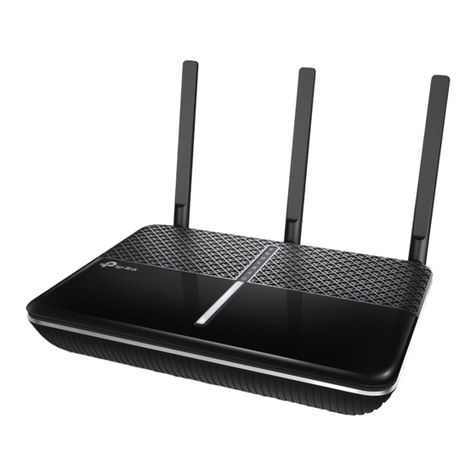
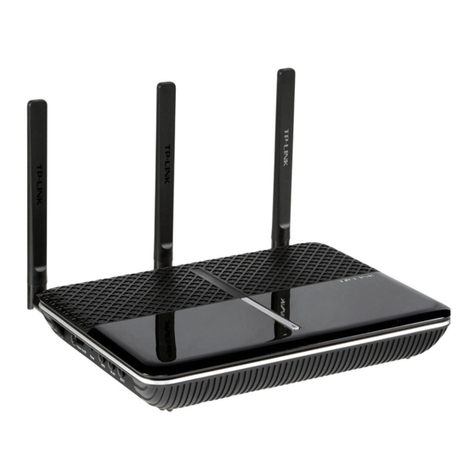
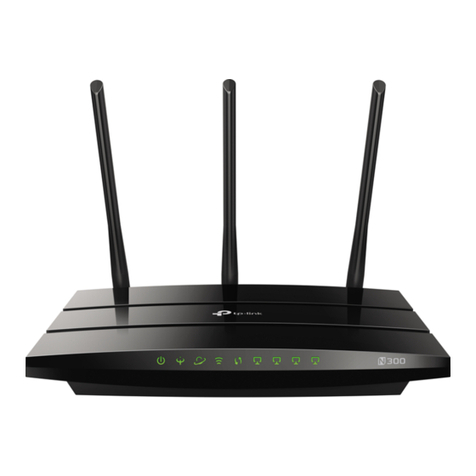
  9. TP-Link Archer VR400 User manual

TP-Link Archer VR400 User manual

Other manuals for Archer VR400

4

Other TP-Link Network Router manuals

TP-Link TD-8816 User manual

TP-Link

TP-Link TD-8816 User manual

TP-Link TL-MR6400 User manual

TP-Link

TP-Link TL-MR6400 User manual

TP-Link Archer C7 User manual

TP-Link

TP-Link Archer C7 User manual

TP-Link TD-W9970B User manual

TP-Link

TP-Link TD-W9970B User manual

TP-Link deco AX7800 User manual

TP-Link

TP-Link deco AX7800 User manual

TP-Link TL-WR842ND User manual

TP-Link

TP-Link TL-WR842ND User manual

TP-Link TL-SF1005D User manual

TP-Link

TP-Link TL-SF1005D User manual

TP-Link Omada Pro 4G+ User manual

TP-Link

TP-Link Omada Pro 4G+ User manual

TP-Link TL-SG1008 User manual

TP-Link

TP-Link TL-SG1008 User manual

TP-Link TL-WA850RE User manual

TP-Link

TP-Link TL-WA850RE User manual

TP-Link Archer VR600 User manual

TP-Link

TP-Link Archer VR600 User manual

TP-Link Archer AX3000 User manual

TP-Link

TP-Link Archer AX3000 User manual

TP-Link TL-MR3020 User manual

TP-Link

TP-Link TL-MR3020 User manual

TP-Link Omada ER706W User manual

TP-Link

TP-Link Omada ER706W User manual

TP-Link Archer C59 User manual

TP-Link

TP-Link Archer C59 User manual

TP-Link ARCHER C3150 User manual

TP-Link

TP-Link ARCHER C3150 User manual

TP-Link TL-WR810N User manual

TP-Link

TP-Link TL-WR810N User manual

TP-Link Archer C50 User manual

TP-Link

TP-Link Archer C50 User manual

TP-Link Archer Air R5 User manual

TP-Link

TP-Link Archer Air R5 User manual

TP-Link TD-VG5612 Specification sheet

TP-Link

TP-Link TD-VG5612 Specification sheet

TP-Link AC1600 User manual

TP-Link

TP-Link AC1600 User manual

TP-Link Archer AX55 User manual

TP-Link

TP-Link Archer AX55 User manual

TP-Link Archer C59 User manual

TP-Link

TP-Link Archer C59 User manual

TP-Link TL-SG105E User manual

TP-Link

TP-Link TL-SG105E User manual

Popular Network Router manuals by other brands

TRENDnet TEW-435BRM - 54MBPS 802.11G Adsl Firewall M Quick installation guide

TRENDnet

TRENDnet TEW-435BRM - 54MBPS 802.11G Adsl Firewall M Quick installation guide

Siemens SIMOTICS CONNECT 400 manual

Siemens

Siemens SIMOTICS CONNECT 400 manual

Alfa Network ADS-R02 Specifications

Alfa Network

Alfa Network ADS-R02 Specifications

Barracuda Networks Link Balancer quick start guide

Barracuda Networks

Barracuda Networks Link Balancer quick start guide

ZyXEL Communications ES-2024PWR Support notes

ZyXEL Communications

ZyXEL Communications ES-2024PWR Support notes

HPE FlexNetwork 5510 HI Series Openflow configuration guide

HPE

HPE FlexNetwork 5510 HI Series Openflow configuration guide

Allied Telesis AT-AR236E quick start guide

Allied Telesis

Allied Telesis AT-AR236E quick start guide

ADTRAN NetVanta 3458-PoE quick start

ADTRAN

ADTRAN NetVanta 3458-PoE quick start

C&H Technologies EM405-8 manual

C&H Technologies

C&H Technologies EM405-8 manual

Huawei WiFi Mesh 3 Product description

Huawei

Huawei WiFi Mesh 3 Product description

Addonics Technologies ISC8P2G-S Quick install guide

Addonics Technologies

Addonics Technologies ISC8P2G-S Quick install guide

Atel W02 Arch+ Faqs

Atel

Atel W02 Arch+ Faqs

Allnet ALL0333AU user guide

Allnet

Allnet ALL0333AU user guide

Sercomm Genesis OC3505D Quick installation guide

Sercomm

Sercomm Genesis OC3505D Quick installation guide

Billion BIPAC 5102 Series user manual

Billion

Billion BIPAC 5102 Series user manual

Motorola MR1900 user guide

Motorola

Motorola MR1900 user guide

Cisco SOHO Series Regulatory compliance and safety information

Cisco

Cisco SOHO Series Regulatory compliance and safety information

NETGEAR WGE101 Reference manual

NETGEAR

NETGEAR WGE101 Reference manual

manuals.online logo
manuals.online logoBrands
  • About & Mission
  • Contact us
  • Privacy Policy
  • Terms and Conditions

Copyright 2025 Manuals.Online. All Rights Reserved.

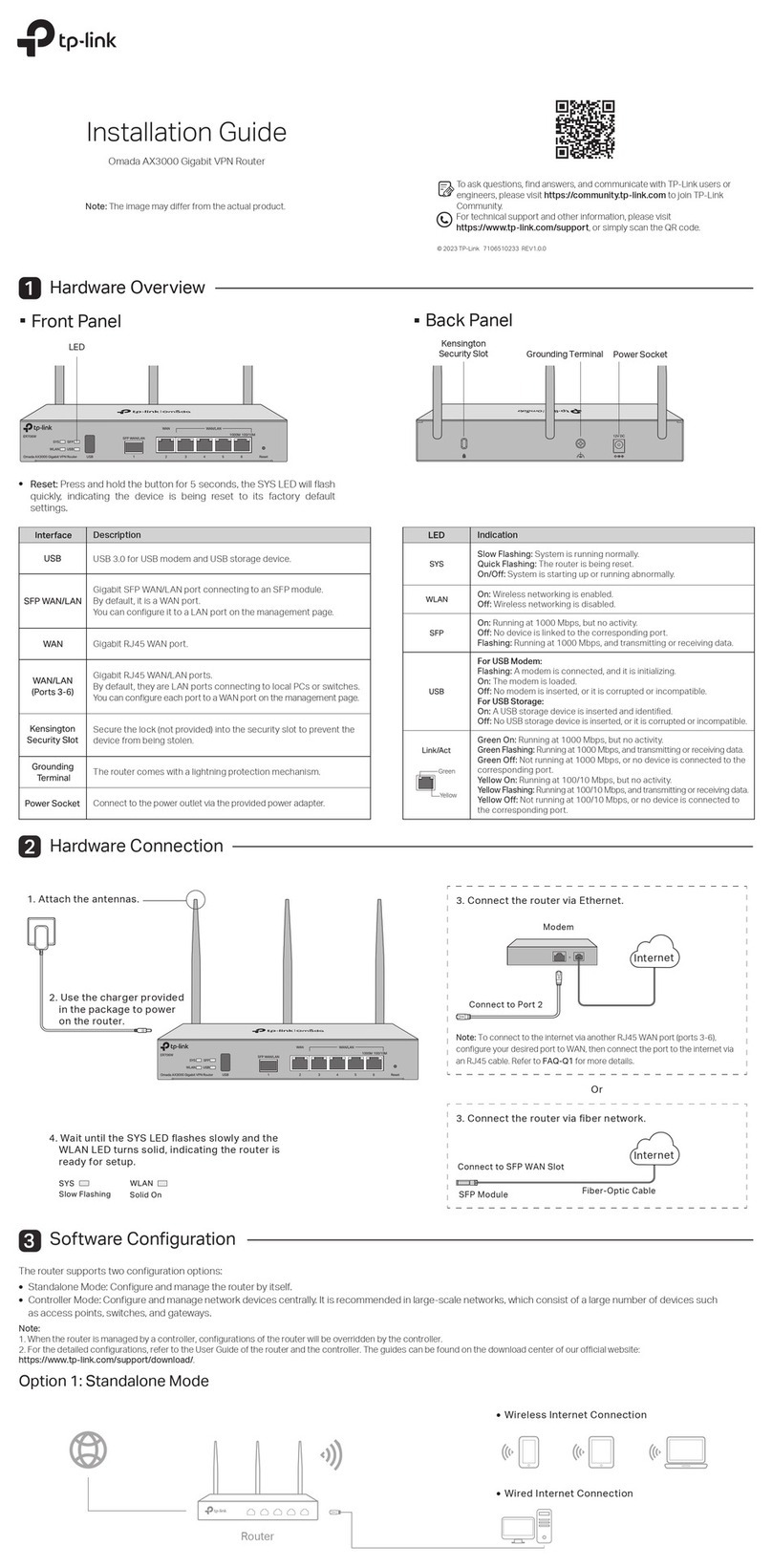
Quick Installation Guide
VR400
AC1200 Wireless VDSL/ADSL
Modem Router
1.Connect the Hardware
2.Configure the Modem Router
SSID (network name) and Wireless Password are on the product label at the
bottom of the modem router.
Method 2: Via TP-Link Tether App
1. Download the TP-Link Tether app.
or
2. Connect your smartphone to the router.
3. Launch the Tether app and select Archer VR400.
4. Follow the steps to connect to the internet and register the
TP-Link Cloud service.
Scan to download
Device
Local Device
Archer VR400
50-C7-BF-02-EA-DC
Ethernet Cable
Method 1: Via Web Browser
1. Connect your device to the router using an Ethernet cable or wirelessly.
SSID (network name) and Wireless Password are on the product label at the bottom of the
modem router.
http://tplinkmodem.net
HighMiddleLow
Let’s Get Started
Conrm Password
New Password
Note: If the login page does not appear, please refer to FAQ > Q1.
2. Launch a web browser and type in http://tplinkmodem.net or 192.168.1.1.
Create a password and get started.
Now you can enjoy your internet. Now you can enjoy your internet.
3. Follow the step-by-step instructions to set up an internet connection
and register the TP-Link Cloud service.
Before You Start
1. You'll usually need an internet service username and password,
given to you by your internet service provider (ISP) when you first
signed up with them. If you are unsure, please check with your ISP.
Phone Cable
Phone Jack Power Adapter
Phone Cable
DSL Splitter
Phone (Optional)
Modem Router
1
Note: The DSL LED takes about 1 to 2
minutes to stabilize.
Power On DSL On
2
If you don’t need the phone service, just directly
connect the modem router to the phone jack
with the provided phone cable, then follow steps
3 and 4 to complete the hardware connection.
Push in to turn on the
modem router.
3
Verify that the following LEDs turn
stable before continuing with the
conguration.
4
PHONE
LINE
MODEM
2. Find the SSID (network name) and Wireless Password printed on
the product label at the bottom of the modem router.
7106507460 REV2.1.0
©2017 TP-Link
FAQ (Frequently Asked Questions)
If there is no Operation Mode selection page in the Quick Setup, go to the
Advanced > Operation Mode page and switch to Wireless Router Mode,
then go to Basic > Internet to nish the set up.
4. Follow the Quick Setup and select Wireless Router Mode to connect to
the internet.
LED Indicators
Remote Access
via FTP Server Printer Sharing
Local Storage
Sharing
Media Sharing
USB Applications
The USB port can be used for printer, le and media sharing, both locally
over your home network and remotely over the internet using the router's
built-in FTP server capability.
To learn more about the USB features, visit
http://tp-link.com/app/usb or scan the QR code.
If you already have a modem or your internet comes directly from an Ethernet
wall outlet, you can switch to Wireless Router mode. Follow the steps below
to set up.
Already have a modem?
1. Connect the hardware and wait until the Power LED becomes stable.
2. Connect your device to the router via an Ethernet cable or wirelessly.
SSID (network name) and Wireless Password are on the product label at the bottom of
the modem router.
http://tplinkmodem.net
Note: If the login page does not appear, please refer to FAQ > Q1.
3. Launch a web browser and type in http://tplinkmodem.net or 192.168.1.1.
Create a password for router management and get started.
Support
For detailed conguration instructions and more supported features
(including TP-Link Cloud service, Guest Network, Parental Controls and
QoS) please refer to the User Guide available from this product's support
page at www.tp-link.com.
For technical support and other information, please visit
http://www.tp-link.com/support.
Now you can enjoy the internet.
Power Adapter
Ethernet Cable
Modem
Modem Router
USB Port
LED Status Indication
LAN
DSL
Internet
Power
System initialization is complete.
The system is initializing or the firmware is being upgraded.
Do not disconnect or power off the modem router.
Power is off.
DSL synchronization is complete.
DSL synchronization is in progress.
DSL synchronization failed.
Internet connection is available.
No internet connection or the modem router is operating in
Bridge mode.
The 2.4GHz wireless radio band is enabled.
The 2.4GHz wireless radio band is disabled.
The 5GHz wireless radio band is enabled.
The 5GHz wireless radio band is disabled.
The corresponding LAN port is connected.
No LAN port is connected.
The USB device is ready to use.
A new USB device is being identified.
No USB device is plugged into the USB port.
Turns On when a WPS synchronization is established and
automatically turns Off about five minutes later.
A wireless device is trying to connect to the network via
WPS. This process may take up to 2 minutes.
On
Flashing
O
On
Flashing
O
On
O
On
O
On
O
On
O
On
Flashing
O
On/O
Slow Flashing
USB
Wireless
5GHz
Wireless
2.4GHz
WPS
Reset Button: Press & Hold for 8 Seconds
Q1. What should I do if I cannot access the web management page?
A1. If the computer is set to a static IP address, change its settings to obtain an IP address
automatically.
A2. Make sure http://tplinkmodem.net or http://192.168.1.1 is correctly entered in the web

browser.
A3. Use another web browser and try again.
A4. Reboot your modem router and try again.
A5. Disable then enable the network adapter in use.
Q2. What should I do if the DSL LED does not turn solid on?
A1. Check your cables and make sure they are all plugged in correctly, including the
telephone lines and power adapter.
A2. Restore your modem router to its factory default settings.
A3. Remove the DSL splitter, directly connect the modem router to the phone jack and
follow this guide to reconfigure the modem router.
A4. Contact your ISP (internet service provider) to check the status of your DSL line.
A5. If the problem persists, contact our Technical Support.
Q3. What should I do if I cannot access the internet?
A1. Make sure all telephone and Ethernet cables are correctly and securely connected to the
modem router.
A2. Try to log in to the web management page of the modem router using the default address
at http://tplinkmodem.net or http://192.168.1.1. If you cannot, change your computer
settings to obtain an IP address automatically from the modem router. If you can, try the
steps below.
A3. Ask your internet service provider for the VPI/VCI (or VLAN ID), Connection Type, internet
service username and password, and make sure all are correctly entered into your router's
management page.
A4. Restore the modem router to its factory default settings and reconfigure it by following the
instructions in this guide.
A5. Please contact our Technical Support if the problem persists.
Q4. What should I do if I forget my password?
For the web management page:
A1. If you are using a TP-Link ID to log in, click Forgot password on the login page and then
follow the instructions to reset it.
A2. Alternatively, restore the modem router to its factory default settings and then set a
new password.
For the Wi-Fi network:
A1. The default Wi-Fi Password/PIN can be found on the product label at the bottom of the
modem router.
A2. If the default wireless password has been changed, log in to the web management
page and go to Basic > Wireless to retrieve or reset your password.
Q5. How do I restore the modem router to its factory default settings?
A1. With the modem router powered on,
press and hold the Reset button on the
rear panel of the modem router for
approximately 8 seconds until all LEDs
turn back on, then release the button.
A2. Log in to the web management page of the modem router. Go to Advanced > System
Tools > Backup & Restore and click Factory Restore. The modem router will restore
and reboot automatically.