manuals.online logo
Brands
  1. Home
  2. •
  3. Brands
  4. •
  5. T+A Elektroakustik
  6. •
  7. Amplifier
  8. •
  9. T+A Elektroakustik DD 1535 R User manual

T+A Elektroakustik DD 1535 R User manual

Other T+A Elektroakustik Amplifier manuals

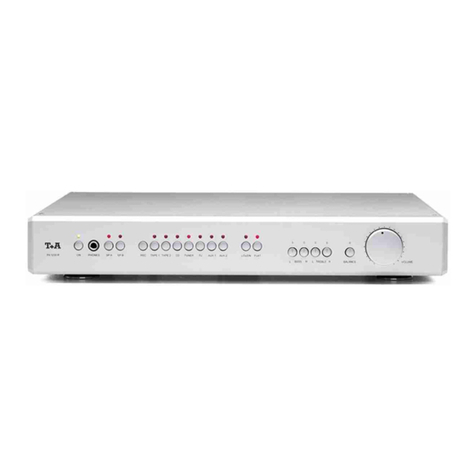
T+A Elektroakustik P 1230 R User manual

T+A Elektroakustik

T+A Elektroakustik P 1230 R User manual

T+A Elektroakustik P 10 User manual

T+A Elektroakustik

T+A Elektroakustik P 10 User manual

T+A Elektroakustik AMP 8 User manual

T+A Elektroakustik

T+A Elektroakustik AMP 8 User manual

T+A Elektroakustik MP1260R User manual

T+A Elektroakustik

T+A Elektroakustik MP1260R User manual

T+A Elektroakustik PT 820 M User manual

T+A Elektroakustik

T+A Elektroakustik PT 820 M User manual

Popular Amplifier manuals by other brands

Magnat Audio EDITION FOUR Owner's manual/warranty document

Magnat Audio

Magnat Audio EDITION FOUR Owner's manual/warranty document

Inter-m PA-2000A Operation manual

Inter-m

Inter-m PA-2000A Operation manual

Yamaha TX6n owner's manual

Yamaha

Yamaha TX6n owner's manual

Peavey TNT 150 user guide

Peavey

Peavey TNT 150 user guide

Bosch LBB 1903/10 Installation and user instructions

Bosch

Bosch LBB 1903/10 Installation and user instructions

Avocent Emerge DA1200D Installer/user guide

Avocent

Avocent Emerge DA1200D Installer/user guide

Redgum RGi35 operating instructions

Redgum

Redgum RGi35 operating instructions

Cambridge Audio AXA25 user manual

Cambridge Audio

Cambridge Audio AXA25 user manual

Alpine MRP-M200 owner's manual

Alpine

Alpine MRP-M200 owner's manual

Technical Pro H1502UrBT user manual

Technical Pro

Technical Pro H1502UrBT user manual

FMS EMGZ307 operating manual

FMS

FMS EMGZ307 operating manual

Racal Instruments 5601 user manual

Racal Instruments

Racal Instruments 5601 user manual

Valcom V-1094A Technical specifications

Valcom

Valcom V-1094A Technical specifications

Cambridge Audio 851D user manual

Cambridge Audio

Cambridge Audio 851D user manual

QSC 3800 Specifications

QSC

QSC 3800 Specifications

NAD C300 owner's manual

NAD

NAD C300 owner's manual

Rotel RMB-1077 owner's manual

Rotel

Rotel RMB-1077 owner's manual

Peavey Monitor 300 Series operating guide

Peavey

Peavey Monitor 300 Series operating guide

manuals.online logo
manuals.online logoBrands
  • About & Mission
  • Contact us
  • Privacy Policy
  • Terms and Conditions

Copyright 2025 Manuals.Online. All Rights Reserved.

V 1.3 Order No. 9103-0321

OPERATING INSTRUCTIONS
DD 1535 R
2
Welcome.
We are delighted that you have decided to purchase a  product. With the addition of the digital surround decoder to
your 

 Hi- i system you are expanding it to embrace a completely new dimension: Audio-Vision.
With the digital surround decoder you can play Dolby Surround, Dolby Digital
1)
and dts
2)
encoded television
programmes, video films and DVDs and experience a genuine “live” atmosphere, complete with exciting sound effects.
The digital surround decoder is also capable of generating artificial sound fields, which enhance the apparent reality of
non-encoded programme material. or example, if you are watching a sports programme, you can allow yourself to be
transported into the stadium, or listen to a jazz concert in an authentic simulation of the atmosphere of a typical jazz
club.
Of course, it is essential that all these new facilities should have no detrimental effect on the excellent sound qualities of
your Hi- i system, and the design of your new machine has been carefully thought-through from start to finish to ensure
that this is the case.
As you would expect, the digital surround decoder features five high-quality output stages of discrete construction,
offering outstanding sound characteristics and generous reserves of power, and they can cope with impedance-critical
loudspeakers and complex surround effects covering a very wide dynamic range without turning a hair. The unit
includes a high-precision digital signal processor which is responsible for precise decoding of the surround material as
well as generating the sound fields.
Naturally, we have remained faithful to our basic design and manufacturing principles in developing the digital surround
decoder. This design philosophy includes an insistence on durability and reliability, the avoidance of materials which are
environmentally harmful, the use of metals instead of plastics, and the exclusive exploitation of high-quality, thoroughly
tested materials. To ensure consistently high product quality we subject everything we make to a comprehensive
monitoring process, terminating in a fully automatic computer-controlled final quality check and acceptance procedure.
Optional accessories for this unit include high-quality cables and connectors, together with a range of specialised
furniture designed to match the design of our equipment.
We have gathered some basic information on the subject of surround sound and video connections in the
sections
Surround systems - explanatory notes
,
Loudspeaker configuration for the DD 1535 R
and
Picture norms, connecting V devices to the DD 1535 R
. If you are not familiar with these subjects,
please read these sections first, as they will help you understand how to install and operate the equipment.
We are grateful to you for placing your faith in us, and hope that you will enjoy many hours of pleasure with your 
digital surround decoder.
Note:
The DD 1535 R is designed specifically for use with a  R-series stereo pre-amplifier, amplifier or receiver with an
R
LINK
socket!

elektroakustik GmbH & Co KG
1) Manufactured under licence from Dolby Laboratories. “Dolby”,”Pro Logic”, “Surround EX”, and the double-D
symbol are trademarks of Dolby Laboratories.
2) “dts” is a trademark of Digital Theater Systems, Inc.

All components used in this device meet the current German and European safety norms and standards. or
your own safety please be sure to read right through these operating instructions. It is especially important to
observe the instructions regarding setting up and operating the equipment, and the safety notes.
3
Contents
Operation
ront panel controls ........................................................................................................................ 4
Remote control ............................................................................................................................... 8
Menu control system ..................................................................................................................... 10
Main menu .................................................................................................................................... 11
System Configuration ................................................................................................................. 15
• Configuration menu ................................................................................................................. 16
• Loudspeaker menu .................................................................................................................. 17
- Loudspeaker size menu ..................................................................................................... 18
- Loudspeaker position menu ............................................................................................... 21
- Loudspeaker balance menu ............................................................................................... 22
- Tone adjust menu .............................................................................................................. 23
- Auto-Setup ......................................................................................................................... 24
• Video Inputs menu ................................................................................................................... 25
• YUV Inputs menu ..................................................................................................................... 26
• Sound Inputs menu .................................................................................................................. 27
• Special unctions menu .......................................................................................................... 28
Connections, using the unit for the first time
Back panel connections ................................................................................................................ 30
Safety notes ................................................................................................................................... 33
CC Information to the user ......................................................................................................... 34
Installation, using the surround receiver for the first time .............................................................. 35
Wiring diagrams
1. Connecting the decoder to a 

 pre-amplifier ...................................................................... 38
2. Video monitor with additional Component input ....................................................................... 41
3. Connecting a DVD/CD player (digital picture source) .............................................................. 42
4. Connecting a DVD player with YUV Component Video output to the DD 1535 R ................... 45
5. Connecting a set-top box (digital sound and picture source) ................................................... 46
6. Connecting an analogue recorder ........................................................................................... 48
Miscellaneous
Optimising the system ................................................................................................................... 49
Surround systems - explanatory notes .......................................................................................... 50
Loudspeaker configuration for the DD 1535 R .............................................................................. 56
Picture norms, connecting AV devices to the DD 1535 R ............................................................. 56
Additional YUV connection ............................................................................................................ 57
Recording with the DD 1535 R ...................................................................................................... 57
Trouble-shooting ............................................................................................................................ 58
Restoring the works default settings / Switching the remote control address ............................... 58
Glossary ........................................................................................................................................ 61
Specifications ................................................................................................................................ 63
4
Front panel controls
ON DVD STB AV VCR TV
DD 1535 R
AMP
MENU
RECPHONES CAM
OK
DIGITAL
PRO LOGIC II
x
DTS
OTHERS
SOUND IELD
Opening and closing the flap
The flap is fitted with a snap closure.
To open the flap press lightly at the marked point
(



); the flap will then
spring open.
To close the flap raise it and press it lightly against
the machine until
the snap closure engages.






The decoder’s mains On / Off switch.
• Switching on and off
Pressing the mains button 

 switches the
decoder on and off. When the machine is switched on
and ready to use, the green LED glows.
• Standby and record ready mode
If you hold the 

 button pressed in for about one
second when the decoder is already switched on, the
machine switches to stand-by mode. Video recorder
recordings can be made with the unit in stand-by
mode; the screen displays the recording source you
have selected (see section VCR recordings using
the digital surround decoder ).



AV source devices
(viewing and listening source)


 

 

 

 


You can select one of the AV signal sources (DVD,
SETTOPBOX, AUX/AV1, AUX/AV2, VCR1, VCR2 or TV)
as viewing and listening source by briefly pressing one of
the AV source device buttons.
Press the appropriate source button repeatedly to switch
between VCR1 and VCR2 or AUX/AV1 and AUX/AV2.
Notes:
A form of surround sound can also be obtained with
analogue audio devices which are connected to the
stereo amplifier or receiver. Select the desired device on
your stereo amplifier, and switch the system to Surround
mode (

-button). The sound signals from the
source are now automatically passed from the stereo
amplifier to the DD 1535 R via the TASI interface, and
can be reproduced using ProLogic, NEO:6 or a
simulated sound field..



Cursor block
(multi-function buttons)





 

 





These multi-function buttons are used to control all the
menus, and also operate the tuner.






Select button
(see section Menu control system )






Change button
(see section Menu control system')



Confirm button
(see section Menu control system')
5



Display of decoder mode



PRO LOGIC IIx
The decoder automatically switches to this mode for any
analogue stereo source if it detects that the sound
material is Dolby Surround encoded. or digital stereo
sources or 2.0 programme material the machine
automatically selects PRO LOGIC II if the recorded
material permits it. The corresponding LED lights up.
Note:
The LED only glows if NEO:6 is not selected.



DIGITAL
The decoder automatically selects this mode if it
detects at the input a digital multi-channel signal which is
encoded using Dolby Digital. The corresponding LED
glows.
Note:
Some Dolby Digital encoded CDs contain sound signals
encoded with Dolby Surround. The decoder
automatically detects this, and uses Dolby Pro Logic II or
NEO:6 for playback.
The decoder automatically selects this mode if it detects
at the input a digital multi-channel signal which is dts
encoded. The corresponding LED lights up.
OTHERS
This display is provided for possible expanded functions
which may be developed in the future.
SOUND FIELD (simulated sound fields)
You can switch on this mode manually whenever you
wish to generate a simulated sound field to give spatial
effects to any stereo source material. The corresponding
LED lights up.
Note:
With 96 kHz encoded programme material the only
operating modes possible are: Stereo, Mono, Mono 1,
Mono 2 and Disco; see Main Menu .



Integral screen
The display elements of the digital surround decoder are
grouped together in a clearly laid out screen:
a
Alpha-numeric display field.
Context-sensitive messages are displayed
here, e. g. when using the Setup menus.
b
Alpha-numeric display area for showing pre-
amplifier and decoder messages (source
device, volume etc.).
D
Digital input
The assigned digital input is switched on.



Loudness
The volume-dependent tone control is
switched on - see 

 button.
The symbols listed below light up if the input signal
contains information on the corresponding surround
channel, and a loudspeaker has been assigned to this
channel in the Loudspeaker Menu .
L
Main speaker, front left
C
Centre speaker, front centre
R
Main speaker, front right
LS
Surround speaker, left
S
Left and right back loudspeaker
RS
Surround speaker, right
LF
Low Frequency Effects channel (low bass
channel / subwoofer)



on the 

 stereo amplifier
Toggles volume-dependent tone correction
(LOUDNESS) of the DD 1535 R on and off. The display
area of the decoder always shows the current status
briefly in text form; the 

 symbol in the display window
is the permanent indicator that loudness is switched on.



on the 

 stereo amplifier
In surround mode switches the tone controls of the
DD 1535 R on and off.
The display area of the decoder always shows the
current status briefly in text form. The disabled tone
control is indicated by the
=
-symbol.



on the 

 stereo amplifier
In surround mode also switches the loudspeaker outputs
of the DD 1535 R on and off.
6






Adjusting screen brightness
The brightness of the alpha-numeric lines of the screen
can be set to suit your personal preference by repeatedly
pressing the 

 button. Three brightness levels are
available:
1. Normal setting:
DISP
DISPDISP
DISP NORM
NORM NORM
NORM
clearly legible, even in sunlight
2. Darker setting:
DISP SOFT
DISP SOFTDISP SOFT
DISP SOFT
subdued setting, for dark locations
3. Display off:
DISP OFF
DISP OFFDISP OFF
DISP OFF
the screen is completely switched off
If you set brightness level 3, the screen switches briefly
to normal brightness every time you give a command, so
that you can check the settings easily even from a
distance. After about four seconds the screen
automatically switches back to your preferred brightness
level. If you change the brightness level, this also means
that the new value only becomes effective after about
four seconds.






If Loudspeaker A is on:
Switches from surround mode to stereo mode and vice
versa.
If Loudspeaker A is off:
Briefly pressing the 

 button displays the current
Dolby Headphone mode. Every time you press the


 button again, you cycle through to the next Dolby
Headphone room type (
PH
PHPH
PH
DH-1
DH-1 DH-1
DH-1
,
PH
PHPH
PH
DH-2
DH-2 DH-2
DH-2
,
PH
PHPH
PH
DH-3
DH-3 DH-3
DH-3
).
Holding the 

 button pressed in switches back
from the Dolby Headphone room types to stereo mode
(
PH
PHPH
PH STEREO
STEREO STEREO
STEREO
).
or more information on Dolby Headphone please see
the section entitled Dolby Headphone .



– 

 +
The decoder features a digital volume control: every time
you press one of the volume buttons the volume
increases 

 or decreases 

 by 1.5 dB.
If you hold one of the volume buttons pressed in for
longer than a second, the volume continues to rise or fall
until you release the button again.
The screen displays
VOLUME
VOLUMEVOLUME
VOLUME
briefly.
Note:
The volume and tone controls of the decoder are
completely independent of the corresponding controls on
your  stereo pre-amplifier. This allows you to select
the optimum volume setting for each mode.



DIGITAL OUTPUT
Digital recording output (optical), designed for connecting
a digital recorder temporarily (e. g. for transferring
material to a portable MD recorder).
The signal of the source you last listened to is present at
this output as a stereo signal (also where the input signal
is Dolby Digital or dts). Dolby Headphone mode must be
switched off during the recording.



DIGITAL INPUT 6
Digital input (optical), designed for connecting a digital
sound source (e. g. MD recorder) temporarily.
CAM INPUT
(VIDEO and AUDIO CINCH)
Video input and stereo sound input for temporary
connection of an additional AV source device (e. g.
camcorder).



MIC
This socket is for the measuring microphone when you
are using an automatic loudspeaker calibration process
(see the section entitled uto Setup ).



CAM
Source select button for the CAM input.






(Select recording source)
Hold the 

 button pressed in to switch recording
sources; briefly pressing a source button (

,


, ...) then selects the recording source you wish to
use. The current recording source is displayed on the
screen while you press the button.
or more information on recording, especially in Multi-
Room mode, please read the chapter Recording with
the SR 1535 R .
7






(Amplifier Menu)
• Opening the Main Menu .
Pressing this button briefly opens the Main Menu .
This is where you can change the surround receiver
settings which are only occasionally required in
normal daily listening: perhaps to allow for temporary
changes in the listening room, or to compensate for
unusual characteristics of a special listening source
(see Main Menu ).
• Opening the Configuration Menu .
Holding the 

- button pressed in for about
one second opens the Configuration Menu . This
menu contains the settings and decoder functions
which are rarely needed, such as level and tone
adjustments. Dedicated buttons for functions of this
sort are not present, as it is important that the front
panel should be uncluttered. (see Configuration
Menu ).



PHONES
(headphone volume control)
In normal use the headphone volume knob is recessed
into the front panel. If you press the knob once, it extends
from the front panel and can then easily be rotated.
You can now adjust the volume of the headphones
independently of the loudspeaker output stages.
When you are satisfied with the level, push the knob
back into the front panel under light pressure. It will
automatically engage in the recessed position.



PHONES
(headphone socket)
Socket for stereo headphones with a 3.5 mm Ø barrel
plug and an impedance of at least 50 Ω. The DD 1535 R
features a separate high-quality headphone amplifier,
independent of the loudspeaker output stages.
Note:
If the loudspeakers are switched on, the headphones
always supply a STEREO signal, regardless of the
selected mode of operation.
If the loudspeakers are switched off, a simulated
surround signal (DOLBY Headphone) is available at the
headphone output if a surround mode is selected.
VCR recordings with the DD 1535 R
The overall design of the SR 1535 R enables you to
select an recording source regardless of the viewing /
listening source currently selected.
This facility make it possible to record one AV source
device (e. g. SAT receiver), while you simultaneously
view and listen to another AV source device (e. g. DVD
player).
If you wish to make a timer-controlled VCR recording,
you must first select the appropriate recording source
(e. g. SAT receiver).
At the time the recording is to take place, the decoder
must not be completely switched off (i. e. it must be
switched on or in stand-by mode).
In stand-by mode the decoder confirms its actions by
displaying the selected recording source on its screen in
dimmed form: REC and source name.
Automatic power-off:
Normally the decoder switches itself off in parallel with
the master device. If the system is switched to stereo
mode, the screen shows:
PREAMP
PREAMPPREAMP
PREAMP
After two minutes in stereo mode the decoder
automatically switches to stand-by mode, as it is
redundant in stereo mode.
You can switch on the decoder again at any time by
pressing the 

 button briefly; it then reverts to
stereo mode.

8
Remote control of the Surround Decoder
General information
The digital surround decoder can be controlled using the
F6, F12 remote control handset, or the F1 system
remote control unit. If you are using the F1 handset, it
must first be switched to Hi- i mode.
The decoder receives its remote control commands via the
R
LINK
master device. Press the 

 button to switch it
on; it switches itself off when the Master device is turned off.
In the drawings some of the buttons are filled in
(

); these are the ones which are required for
remote control of the decoder. The other buttons have no
effect on this unit.
CD/DVD
AUX
TAPE
OK
STOP
PLAY
M
E
N
U
PRE
AMP
LD FLAT
/
SRND
TUNER
TV / STB
VCR
F12
A
O
V
L
+

9
F1 F12 F6



Switch the handset to Hi- i mode.
Source select button




 


Switches between CD input (on the stereo amplifier) and DVD input on the
DD 1535 R


 

 


Selects the tuner input (stereo amplifier)




 


Switches between TV and STB input


 

 


Selects TAPE 1 on the stereo amplifier




 


Switches between TAPE 2 / VCR 2 and VCR 1 inputs


 

 


Switches between the AUX inputs on the stereo amplifier and the AUX/AV inputs
on the DD 1535 R








 

 


Volume control rocker


 




Switches all loudspeaker outputs on and off alternately.



Switches all loudspeaker outputs off.


 

 


Switches between surround mode and PRE AMP mode (stereo mode)


 


Brief press in surround mode
Switches over to stereo mode


 


Toggles volume-dependent tone correction (LOUDNESS) on and off. The display
area of the decoder always shows the current status briefly in text form; the 


symbol in the display window is the permanent indicator that loudness is switched
on.
The Loudness function can be operated using the 

 button on the stereo
amplifier.






Short
press
Switches LOUDNESS on and off






Long
press
Switches LAT mode on and off


















Select button in the decoder’s menu control system


















Change button in the decoder’s menu control system


 

 


Confirmation button in the decoder’s menu control system




 


Call up menu function
Brief press: Main menu
Long press: Configuration Menu
during menu control processes
closes the menu
10
Menu control system
To keep the control panel of the digital surround decoder
as compact and uncluttered as possible, the panel does
not include dedicated buttons for controlling the decoder
functions of tone and level adjustment directly; instead a
menu control system ( Main Menu ) is used.
The Main Menu contains all the functions you will need
for everyday use of the decoder. You can call it up at any
time by briefly pressing one of the remote control buttons


 or 

, or the 

 button on the front
panel of the decoder.
When you install your surround system, it is important to
set up all the audio and video components and adjust
them to match each other correctly, and to match the
acoustic qualities of your listening room. These tasks are
carried out in the Configuration Menu .
If a television is connected to the decoder, all the menus
are displayed page by page on the television screen; at
the same time they are displayed line by line on the
decoder’s integral screen.
The following table shows how the menu control system
is operated using the remote control buttons, or the
buttons on the decoder’s front panel.
Open Configuration Menu
(hold button pressed in)
F6/F12 F1 Front panel


 





Open Main Menu
(press button briefly)
F6/F12 F1 Front panel


 




Closing the menu
F6/F12 F1 Front panel


 




Select buttons
F6/F12 F1 Front panel


 / 

 

 / 

 

 / 


Change buttons
F6/F12 F1 Front panel


 / 

 

 / 

 

 / 


Confirmation buttons
F6/F12 F1 Front panel


 




• The select buttons are used to move to the input
positions provided.
• The change buttons alter the value at the input
position.
All menus are displayed page by page on the screen of a
television connected to the system, as well as line by line
on the machine’s integral screen.
The following description of the menu points provides
details of the adjustment facilities and their effects.