manuals.online logo
Brands
  1. Home
  2. •
  3. Brands
  4. •
  5. Triplett
  6. •
  7. Measuring Instrument
  8. •
  9. Triplett LT68 User manual

Triplett LT68 User manual

Other Triplett Measuring Instrument manuals
Triplett EM400 User manual

Triplett

Triplett EM400 User manual

Triplett CamView IP Pro User manual

Triplett

Triplett CamView IP Pro User manual

Triplett 9325 User manual

Triplett

Triplett 9325 User manual

Triplett CM1050 User manual

Triplett

Triplett CM1050 User manual

Triplett RHT45 User manual

Triplett

Triplett RHT45 User manual

Triplett 630 User manual

Triplett

Triplett 630 User manual

Triplett MS245 User manual

Triplett

Triplett MS245 User manual

Triplett CableRater User manual

Triplett

Triplett CableRater User manual

Triplett MS300 User manual

Triplett

Triplett MS300 User manual

Triplett UTG300 User manual

Triplett

Triplett UTG300 User manual

Triplett LT68-NIST User manual

Triplett

Triplett LT68-NIST User manual

Triplett LT75 User manual

Triplett

Triplett LT75 User manual

Triplett CM1050 User manual

Triplett

Triplett CM1050 User manual

Triplett BR500 User manual

Triplett

Triplett BR500 User manual

Triplett FOX User manual

Triplett

Triplett FOX User manual

Triplett CM450 User manual

Triplett

Triplett CM450 User manual

Triplett The Hound 2 User manual

Triplett

Triplett The Hound 2 User manual

Triplett PQC300 User manual

Triplett

Triplett PQC300 User manual

Triplett DPR302 User manual

Triplett

Triplett DPR302 User manual

Triplett TSC-MC1 User manual

Triplett

Triplett TSC-MC1 User manual

Triplett SONICHEK PRO 3550 User manual

Triplett

Triplett SONICHEK PRO 3550 User manual

Triplett 630-APL User manual

Triplett

Triplett 630-APL User manual
Triplett CamView W35 User manual

Triplett

Triplett CamView W35 User manual

Triplett hotwire fox User manual

Triplett

Triplett hotwire fox User manual
Popular Measuring Instrument manuals by other brands

Suaoki D40 user manual

Suaoki

Suaoki D40 user manual

Elster BK-G1.6 operating instructions

Elster

Elster BK-G1.6 operating instructions

Endress+Hauser Deltabar FMD71 technical information

Endress+Hauser

Endress+Hauser Deltabar FMD71 technical information

Duratool D03128 manual

Duratool

Duratool D03128 manual

Vega VEGAPULS 65 Quick setup guide

Vega

Vega VEGAPULS 65 Quick setup guide

Tonghui TH2618B Operation manual

Tonghui

Tonghui TH2618B Operation manual

Tenmars TM-801 user manual
Tenmars

Tenmars TM-801 user manual

MSR 145 user manual

MSR

MSR 145 user manual

TPS WP-82 manual

TPS

TPS WP-82 manual

PCB Piezotronics 003C30 Installation and operating manual

PCB Piezotronics

PCB Piezotronics 003C30 Installation and operating manual

Tenma 72-10465 manual

Tenma

Tenma 72-10465 manual

Endress+Hauser Proline Promag 50 Brief operating instructions

Endress+Hauser

Endress+Hauser Proline Promag 50 Brief operating instructions

Siemens SITRANS F Coriolis FCT030 Function manual

Siemens

Siemens SITRANS F Coriolis FCT030 Function manual

KLINGER CMF V Series instruction manual

KLINGER

KLINGER CMF V Series instruction manual

Keysight M8290A Getting started guide

Keysight

Keysight M8290A Getting started guide

Acterna MS1400 Operation manual

Acterna

Acterna MS1400 Operation manual

R&S ZPH manual

R&S

R&S ZPH manual

Datacolor ColorReader DC10-2 user guide

Datacolor

Datacolor ColorReader DC10-2 user guide

manuals.online logo
manuals.online logoBrands
  • About & Mission
  • Contact us
  • Privacy Policy
  • Terms and Conditions

Copyright 2025 Manuals.Online. All Rights Reserved.

User Manual
LT68
Datalogging Light Meter
5 Commonwealth Ave5 Commonwealth Ave
Woburn, MA 01801Woburn, MA 01801
Phone 781-665-1400Phone 781-665-1400
TollToll Free 1-800-517-8431Free 1-800-517-8431
Visit us at www.TestEquipmentDepot.com
Introduction
Congratulations on your purchase of the Triplett LT68 Digital Light
Meter. The LT68 measures illuminance in Lux and Foot candles (Fc).
The LT68 is a Datalogger and includes a PC interface and WindowsTM
compatible software for downloading data. Up to 16,000 readings can
be stored on the meter for download to a pc and 99 readings can be
stored and viewed directly on the meter’s LCD display. This meter is
shipped fully tested and calibrated and, with proper use, will provide
years of reliable service.
Description
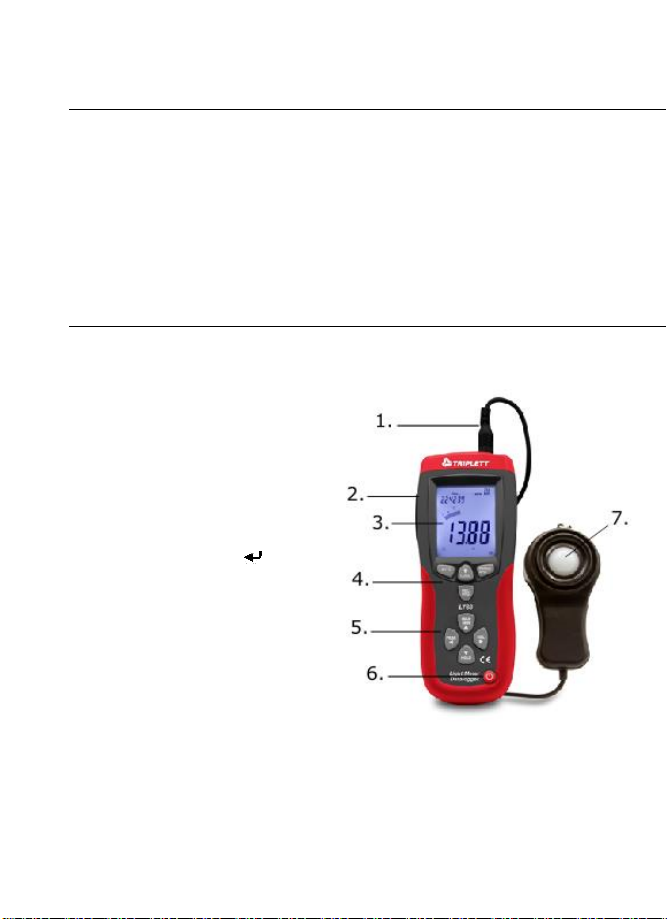
Meter Description
1. Sensor Cable Plug
2. Micro USB Port
3. LCD Display
4. Upper Function Button Set
5. Lower Function Button Set
6. Power Button
7. Light Sensor
Note: Battery compartment on rear of meter
Display Description
1. Clock Setting Modes
2. Clock Display
3. Relative Mode Icon
4. Auto Power OFF (APO) Icon
5. Low Battery Icon
6. Data Hold Icon
7. Peak Hold Modes
8. Range Indicators
9. Unit of Measure
10. Digital Display
11. Bargraph Display
12. Data Download to PC Icon
13. PC Serial Connection Established
14. Memory Address Number
15. USB PC Connection Icon
16. Memory Icon
Operation
Meter Power
1. Press the Power button to turn the meter ON or OFF
2. If the meter does not switch on when the power button is pressed
or if the low battery icon is displayed on the LCD, replace the
battery.
Auto Power Off (APO)
1. The meter is equipped with an automatic power off (APO) feature
that turns the meter off after 20 minutes of inactivity. The icon
appears while APO is enabled.
2. To disable the APO feature, simultaneously press and
release the RANGE/APO and REC/SETUP buttons. Press
and release again to re-activate the APO feature.
Unit of Measure
Press the UNITS button to change the unit of measure from Lux to Fc or
from Fc to Lux
Range Selection
Press the RANGE button to select the measurement range. There are
four (range) selections for each unit of measure. The range icons will
appear to identify the range selected.
Taking a Measurement
1. Remove the sensor’s protective cap to expose the white sensor dome
2. Place the sensor in a horizontal position under the source of light to be
measured
3. Read the light level on the LCD display (numerically or with the
bargraph).
4. The meter will display ‘OL’ when the measurement is outside of the
meter’s specified range or if the meter is set to the wrong range.
Change the range by pressing the RANGE button to find the best
range for the application.
5. Replace the protective sensor cap when the meter is not in use.
Data Hold
To freeze the LCD display, momentarily press the HOLD button. 'MANU
HOLD' will appear on the LCD. Momentarily press the HOLD button
again to return to normal operation.
Peak Hold
The Peak Hold function allows the meter to capture short duration
light flashes. The meter can capture peaks down to 10mS in
duration.
1 Press the PEAK button to activate the Peak Hold feature. “Manu”
and “Pmax’’ will appear on the display. Press the PEAK button
again and “Manu” and “Pmin” will appear. Use ‘Pmax’ to capture
positive peaks. Use ‘Pmin’ to capture negative peaks.
2 When the peak has been captured, the value and associated time
will remain in the display until a higher peak is recorded. The
bargraph display will remain active displaying the current light
level.
3 To exit the Peak Hold mode and return to the normal operating
mode, press the PEAK button a third time.
Maximum (MAX) and Minimum (MIN) Reading Memory
The MAX-MIN function allows the meter to store the highest (MAX) and
lowest (MIN) readings.
5. Press the MAX-MIN button to activate the feature. “Manu”
and “MAX” will appear on the display and the meter will only
display the highest reading encountered.
6. Press the MAX-MIN button again. “Manu” and “MIN’ will appear on
the display and the meter will only display the lowest reading
encountered.
7. When the MAX or MIN has been captured, the value and
associated time will remain in the display until a higher value is
recorded. The bargraph display will remain active displaying the
current light level.
8. To exit this mode and return to the normal operating mode, press
the MAX-MIN button a third time.
Relative Mode
The Relative Mode function allows the user to store a reference value
in the meter. All displayed readings will be relative to the stored
reading.
1. Take the measurement, and when the desired reference value is
displayed, press the REL button.
2. “Manu” will appear on the LCD display.
3. All subsequent readings will be offset by the by an amount equal to
the reference level. For example, if the reference level is 100 Lux, all
subsequent readings will equal the actual reading minus 100 Lux.
4. To exit the Relative Mode, press the REL button.
LCD Backlight
The meter is equipped with a backlight feature that lights up the LCD display.
c. Press the backlight button to activate the backlight.
d. Press the backlight button again to switch the backlight off. Note
that the backlight will turn off automatically after a short period of
time in order to save battery energy.
e. The backlight function uses extra battery energy. To conserve
energy, use the backlight feature sparingly.
Clock and Sample Rate Setup
In this mode, the ▲and ▼arrow buttons will allow adjustment of the
selected (flashing) digits.
The ◄and ►buttons will scroll to the next or previous selection.
1. Power the meter, then press and the REC/SETUP and UNITS
buttons simultaneously to enter the Setup mode. The hours display
will flash.
2. Adjust and step through each selection as needed.
3. Press and hold the REC/SETUP and UNITS buttons
simultaneously to exit the Setup mode. The order of selection with the
flashing (icon) is:
Hour (0 to 23)
12:13:14
(Time)
Minute (0 to 59)
12:13:14
(Time)
Second (1 to 59)
12:13:14
(Time)
Sample Rate (00 to 99
seconds)
02
(Sampling)
Month (1 to 12)
10310
(Day)
Day (1 to 31)
10310
(Day)
Day of the week (1 to 7
10310
(Day)
(Sunday =
1)
Year (00 to 99)
2013
(Year)
99 Point Memory
Up to 99 readings can be stored manually for later viewing directly on the
meter’s LCD. This data can also be transferred to a PC using the supplied
software program.
1. With the meter ON, press the REC button momentarily to store a
reading
2. The MEM display icon will appear with the memory address number
(01 -99)
3. If the 99-reading memory is full, the MEM icon and memory location
number will not appear
4. To view stored readings, press and hold the LOAD button until the
MEM display icon appears alongside the memory address number.
5. Use the up and down arrow buttons to scroll through the stored
readings.
6. To clear the data, press and hold the REC/SETUP and LOAD
buttons simultaneously until ‘CL’ appears in the memory location
field on the LCD
16,000 Point Datalogger
The LT68 can automatically record up to 16,000 readings in its internal
memory. To view the data, the readings must be transferred to a PC via
the supplied software.
1. Using the SETUP mode, set the time and sample rate. The default
sample rate is 1 sec.
2. To begin recording, Press and Hold the REC button until the MEM
display icon begins blinking. Data will store at the sample rate while
the MEM icon is blinking.
3. To stop recording. Press and Hold the REC button until the MEM
icon disappears.
4. If the memory is full, OL will appears as the memory number.
5. To clear the memory, with the meter off, press and hold the REC
button and then press the power button. “dEL” will appear in the
display. Release the REC button when “MEM” appears in the
display, the memory has been cleared.
USB PC Interface
Description
The LT68 meter can be connected to a PC via its USB interface. A USB
cable, along with
WindowsTM software, is included with the meter. The software allows the
user to:
Transfer previously stored readings from the meter’s internal
memory to a PC
View, plot, analyze, store, and print readings data
Remotely control the meter via virtual software buttons
Record readings as they are taken. Subsequently, printing, storing,
analyzing, etc. the readings data
Meter to PC Connection
The supplied USB cable is used to connect the meter to a PC. Connect
the smaller connector end of the cable to the meter’s interface port
(located under the tab at the left-hand side of the meter). The larger
connector end of the cable connects to a PC USB port.
Maintenance
Cleaning
The Meter and its sensor can be cleaned with a damp cloth. A mild
detergent may be used but avoid solvents, abrasives, and harsh
chemicals.
Battery Installation / Replacement
The battery compartment is located on the back of the meter. The
compartment is easily accessed by pressing and sliding the rear battery
compartment cover off of the meter in the direction of the arrow.
Replace or install the 9V battery and close the battery compartment by
sliding the compartment cover back onto the meter.
Never dispose of used batteries or rechargeable
batteries in household waste. As consumers, users
are legally required to take used batteries to
appropriate collection sites, the retail store where the
batteries were purchased, or wherever batteries are
sold.
Disposal: Do not dispose of this instrument in household waste. The user
is obligated to take end-of-life devices to a designated collection point for
the disposal of electrical and electronic equipment.
Other Battery Safety Reminders
1. Never dispose of batteries in a fire. Batteries may explode or leak.
1. Never mix battery types. Always install new batteries of the same type.
Storing
When the meter is to be stored for a period of time, please remove the
battery and affix the sensor’s protective cover. Avoid storing the meter in
areas of extreme temperature and humidity.
Specifications
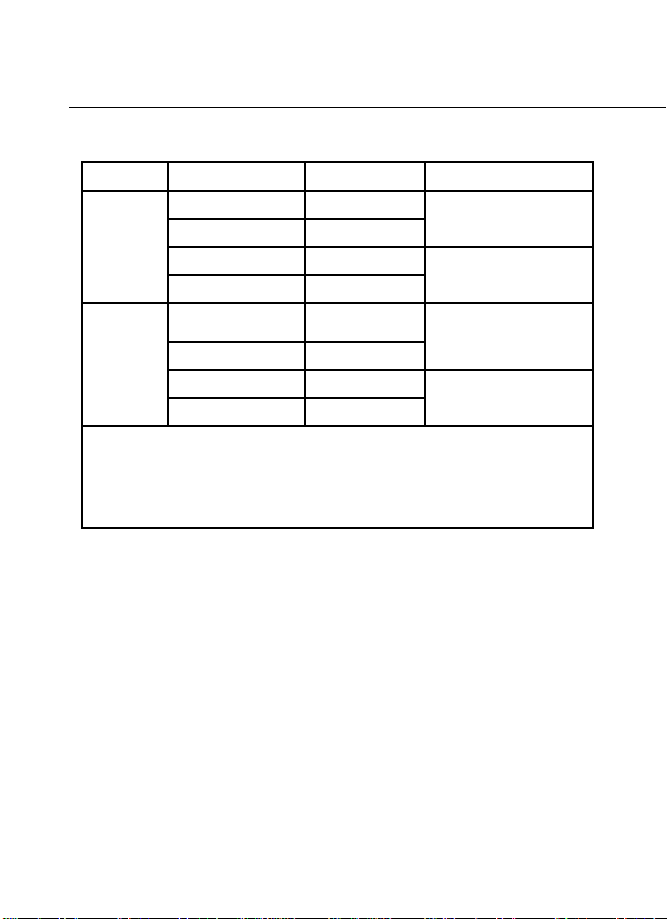
Range Specifications
Units
Range
Resolution
Accuracy
Lux
400.0
0.1
± (5% rdg + 10
digits)
4000
1
40.00k
0.01k
± (10% rdg + 10
digits)
400.0k
0.1k
Foot
candles
40.00
0.01
± (5% rdg + 10
digits)
400.0
0.1
4000
1
± (10% rdg + 10
digits)
40.00k
0.01k
Notes:
1. Sensor Calibrated to standard incandescent lamp (color temperature:
2856K)
2. 1Fc =
10.76 Lux
General
Specifications
Display
4000 count LCD display with 40 segment
bargraph
Ranging
Four ranges, manual
selection
Over range
indication
LCD displays ‘OL’
Spectral
response
CIE photopic (CIE human eye response curve)
Spectral
accuracy
Vλfunction (f’1≤6%)
Cosine response
f’2≤2%; Cosine corrected for angular incidence
of light
Measurement Repeatability
±3%