2. Setting the IP Address of the AP
The first step in using the WL-3111 AP is to set its IP Address. This procedure can be done
through the Ethernet/Wireless port by using a combination of ARP/Ping commands and the
SNMP Manager, or by the network DHCP server.
2.1 Using the Ethernet Port/Wireless Port
You can set the Access Point IP Address using the ARP/ping commands or by the network
DHCP server.
2.1.1 Using ARP/Ping commands
In order to set the Access Point IP address you need to know the Access Point MAC address.
Follow the steps below giving the Access Point a temporary address at the beginning (Step A)
and saving the IP address through the SNMP Manager application (Step B).
Step A:
1. Connect an Ethernet station and the Access Point on the same subnet. The simplest way to
accomplish that is to connect the Access Point and the Ethernet station to the same hub. You
need to check if the station IP address and the Subnet mask are configured properly. Also the
new IP address for the Access Point must correspond to the Subnet mask.
2. Open an MS-DOS Prompt window and enter a static route in the ARP table for the new IP
address you want to assign. Use the ARP -s command to do that:
ARP -s "new-IP-address" "AP-MAC-address" (The MAC-address of the Access Point is indicated
in the back of the Access Point board.
For example: ARP-s 10.170.254.27 00-04-25-02-00-10
3. Ping the Access Point, using its new IP address.
For example: ping 10.170.254.27
If you get a ping reply, then the IP address has been temporarily set. In order to set it
permanently you need to proceed to Step B without powering off the Access Point.
Step B:
1. Open the SNMP Manager application. In order to install the SNMP Manager application,
please refer to paragraph 3.1.1 “How to Install the SNMP Manager”.
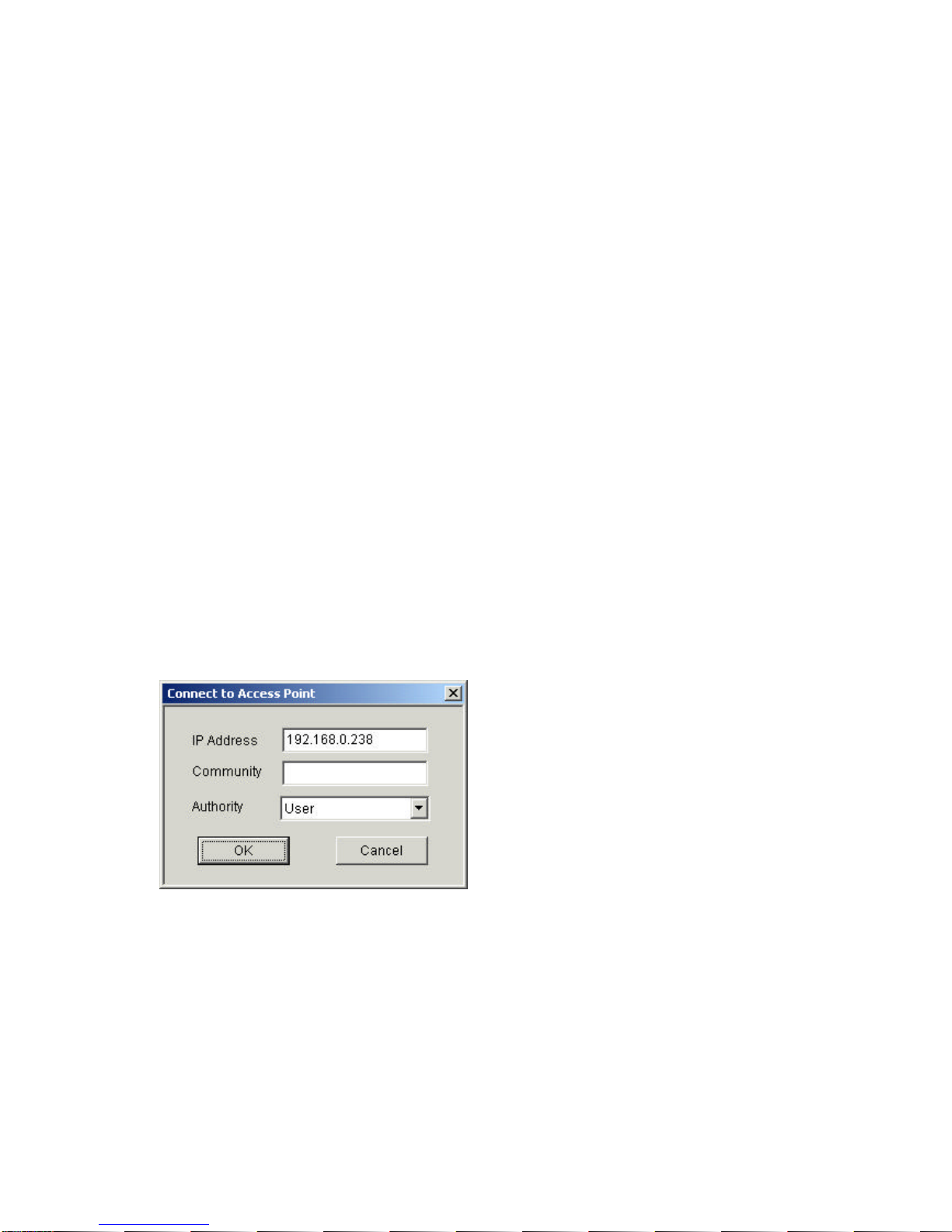
2. Connect to the access point by selecting the “Connect AP”submenu under the “File”menu.
Type the IP address of the access point (which has been temporarily set in Step A) in the panel
which appears, type “public”at the Community field, select “Administrator”in the Authority
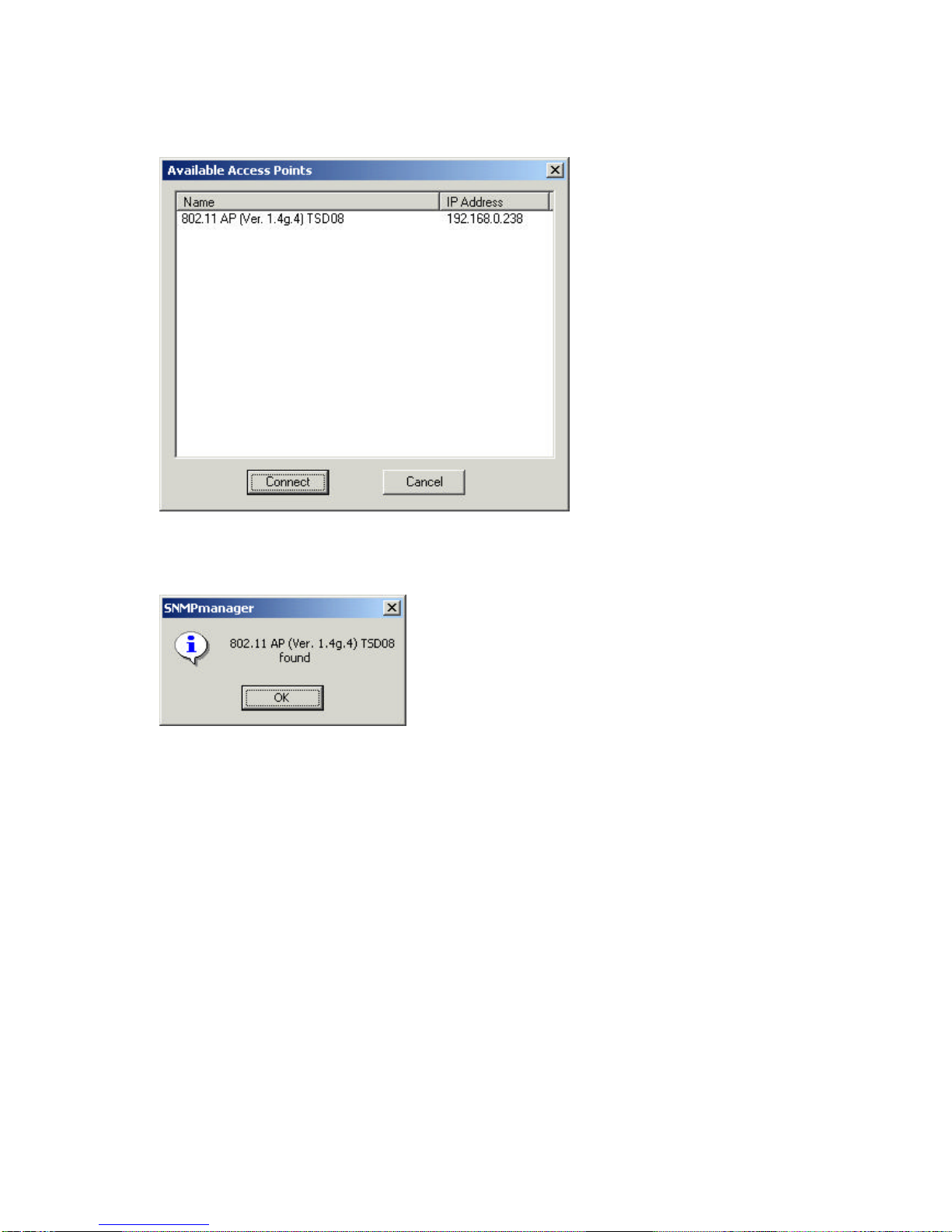
combo-box and then press OK. The SNMP Manager will inform you that the access point has
been found and that all the configuration values have been retrieved.