Unitech MS912 User manual

Unitech electronics co., ltd.
5F., No.135, Ln. 235, Baoqiao Rd., Xindian Dist., New Taipei City 231, Taiwan (R.O.C.)
Tel: + 886 2 89121122
Fax: +886 2 89121810
website: www.ute.com
Wireless CCD Scanner
- MS912 -
User’s Manual
Version 1.0

Unitech electronics co., ltd.
5F., No.135, Ln. 235, Baoqiao Rd., Xindian Dist., New Taipei City 231, Taiwan (R.O.C.)
Tel: + 886 2 89121122
Fax: +886 2 89121810
website: www.ute.com

i
Unitech electronics co., ltd.
5F., No.135, Ln. 235, Baoqiao Rd., Xindian Dist., New Taipei City 231, Taiwan (R.O.C.)
Tel: + 886 2 89121122
Fax: +886 2 89121810
website: www.ute.com
Table of Contents
Table of Contents ...................................................................................................................... i
Chapter 1................................................................................................................................... 1
Overview ................................................................................................................................... 1
Package Contents
.......................................................................................................... 2
Chapter 2................................................................................................................................... 3
Installation and Connection .................................................................................................... 3
Connecting (Pairing) the Scanner to a Host PC
...................................................... 3
Connecting via Serial Port Profile (SPP) Mode
....................................................... 8
Connecting via Human Interface Device (HID) Mode
............................................ 3
Connecting via Human Interface Device (HID) Mode (Non-Pincode)
................ 6
Smartphone Connection (Android)
............................................................................. 8
Smartphone/ Tablet PC Connection (iOS)
................................................................ 9
Set Bluetooth Device ID
................................................................................................ 9
Power Management
..................................................................................................... 10
Scanner LED & Beeper Indication
............................................................................ 10
Charging the Battery
.................................................................................................... 11
Chapter 3................................................................................................................................. 13
Specification........................................................................................................................... 13
Chapter 4................................................................................................................................. 15
User Preferences.................................................................................................................... 15
Chapter 5................................................................................................................................. 23
Appendix A ............................................................................................................................. 29
Setup Chart............................................................................................................................. 29
Appendix B ............................................................................................................................. 55
Smartphone Connection (Android)
........................................................................... 55
Smartphone/ Tablet PC Connection (iOS)
.............................................................. 60
Appendix C ............................................................................................................................. 65
Worldwide Support ................................................................................................................ 65

1
Unitech electronics co., ltd.
5F., No.135, Ln. 235, Baoqiao Rd., Xindian Dist., New Taipei City 231, Taiwan (R.O.C.)
Tel: + 886 2 89121122
Fax: +886 2 89121810
website: www.ute.com
Chapter 1
Overview
Introducing the MS912
The MS912 scanner combines miniaturized barcode scan engine and wireless technology to
provide the best value in a wireless handheld scanner. Featuring lightweight and ease-of-use,
the MS912 scanner ensures the productivity and mobility of your business application.
The MS912 is the smallest wireless scanners in the market and is compatible with all major OS
on the nowadays popular smartphones and tablet PCs via both HID and SPP profiles.
Enjoy the benefits of accelerated productivity, lower cost of ownership, and freedom of
movement. The MS912 is a multipurpose scanner from a partner you can trust.
Thank you for choosing Unitech products.
Application:
Warehouse
Pharmacy
Healthcare Services
Retail
Point of Sale (POS)
Inventory Management
Smartphone & Tablet PC

2
Unitech electronics co., ltd.
5F., No.135, Ln. 235, Baoqiao Rd., Xindian Dist., New Taipei City 231, Taiwan (R.O.C.)
Tel: + 886 2 89121122
Fax: +886 2 89121810
website: www.ute.com
Package Contents
Please make sure the following contents are in the MS912 box. If something is missing or
damaged, please contact your Unitech representative.
MS912 scanner Product Resource CD
Quick Guide
USB Charging Cable
Hand Strap Quick Connection Card
Note:
1. The scanner’s default power off (idle mode) time is 3 minutes.
2. Please charge scanner for at least 2 hours prior to initial use.
[Scanner Detail]
1 Mini USB port 4 Exit Window
2 Trigger 5 Hard Reset Button
3 LED Indicator

3
Unitech electronics co., ltd.
5F., No.135, Ln. 235, Baoqiao Rd., Xindian Dist., New Taipei City 231, Taiwan (R.O.C.)
Tel: + 886 2 89121122
Fax: +886 2 89121810
website: www.ute.com
Chapter 2
Installation and Connection
Connecting (Pairing) the Scanner to a Host PC
Please make sure your PC or Smartphone has a built-in wireless adaptor; the MS912 supports
both HID and SPP wireless profiles. If you are connecting it to an iOS (Apple) smartphone,
please follow the instruction of “Connecting via Human Interface Device (HID) Mode”; if you are
connecting it to an Android smartphone, please follow the instruction of “Connecting via Serial
Port Profile (SPP) Mode” or the instruction of “Human Interface Device (HID) Mode”.
Note: Android 2.x devices can work with MS912 in the SPP mode ONLY. The SPP mode
or/and the HID mode are not definitely compatible with each version of Android OS, and thus
depends on the Android-based hardware specifications defined by the Android device
manufacturers.
Connecting via Human Interface Device (HID) Mode (Recommanded)
1. Turn on the wireless device on your host (PC, Smartphone, or Tablet).
2. Press the scanner trigger for 1 second to activate the scanner.
3. Scan the [Disconnect] barcode.
Disconnect
4. Press the trigger for 1 second to activate the scanner.
5. Scan the [HID] barcode below:
HID
6. The scanner will emit several short beeps and then stop beeping. The green LED light will
flash continually during the pairing process.
7. On your host device, in the settings section where you can see Bluetooth settings and
manage your connections.
a. You will see the MS912 listed as [Wireless Scanner] under Bluetooth devices.
b. You will see a message under that [Pair with this device].
c.
Select this device on your host and begin to pair.
8. Your Host device will ask you to type in a pin code.
a. Use your host device keypad to enter this pin code.
b. The pin code can be any set of numbers.

4
Unitech electronics co., ltd.
5F., No.135, Ln. 235, Baoqiao Rd., Xindian Dist., New Taipei City 231, Taiwan (R.O.C.)
Tel: + 886 2 89121122
Fax: +886 2 89121810
website: www.ute.com
c. We suggest using 4 numbers.
9. Once you have entered the pin code on the Host device, you need to set up the pin code
on the MS912 to match.
a. With the MS912, scan the Pincode Start barcode below.
Pincode Start
b. Refer to the barcode table below, and scan the same numbers that you used as the pin
code on your Host device. For example, if your pin code is “241657”,
scan [2] – [4] – [1] – [6] – [5] – [7] in sequential order:
c. Scan the [Enter] barcode below:
Enter
d. Scan the [Pincode-Stop] barcode:
Pincode-Stop
10. On your Host device you will see the message under [Wireless Scanner] saying
[connecting...].
11. Once that message turns to [Paired and Connected], the scanner will beep twice to verify
a successful connection, and you are ready to start scanning bar code date into your Host
device.
a. To do a test, open up Word or Note Pad or even a new E-mail [anything that will allow

5
Unitech electronics co., ltd.
5F., No.135, Ln. 235, Baoqiao Rd., Xindian Dist., New Taipei City 231, Taiwan (R.O.C.)
Tel: + 886 2 89121122
Fax: +886 2 89121810
website: www.ute.com
you to type in data].
b. Scan a number bar code from this manual.
c. That number should appear on your Host device in the application you opened.
d. If not, please scan [Disconnect] barcode below and repeat steps 1 to 9 above.
Note. To disconnect the scanner from the host or to switch the wireless profile from one to another, please scan
the [Disconnect] barcode:
Disconnect
After scanning the [Disconnect] barcode, the MS912 will emit 3 beeps.

6
Unitech electronics co., ltd.
5F., No.135, Ln. 235, Baoqiao Rd., Xindian Dist., New Taipei City 231, Taiwan (R.O.C.)
Tel: + 886 2 89121122
Fax: +886 2 89121810
website: www.ute.com
Connecting via Human Interface Device (HID) Mode (Non-Pincode)
1. Press the trigger for 1 second to activate the scanner.
2. Scan [DISCONNECT]
Disconnect
3. Scan [BT mode - HID non-pincode]; the scanner will emit 8 beeps.
BT mode - HID non-pincode
.E040$
4. Search for the scanner nearby around by
using the Bluetooth module of your host
PC.
5. Click Add a device to search for a wireless
scanner nearby around.

7
Unitech electronics co., ltd.
5F., No.135, Ln. 235, Baoqiao Rd., Xindian Dist., New Taipei City 231, Taiwan (R.O.C.)
Tel: + 886 2 89121122
Fax: +886 2 89121810
website: www.ute.com
6. Click Wireless Scanner to add to the
computer. Then, click Next.
7. In this step, the computer is connecting the
wireless scanner. When it connects, click
Next.
8. Click Pair without using a code. Then,
click Next.
Other manuals for MS912
7
Table of contents
Other Unitech Barcode Reader manuals
Unitech
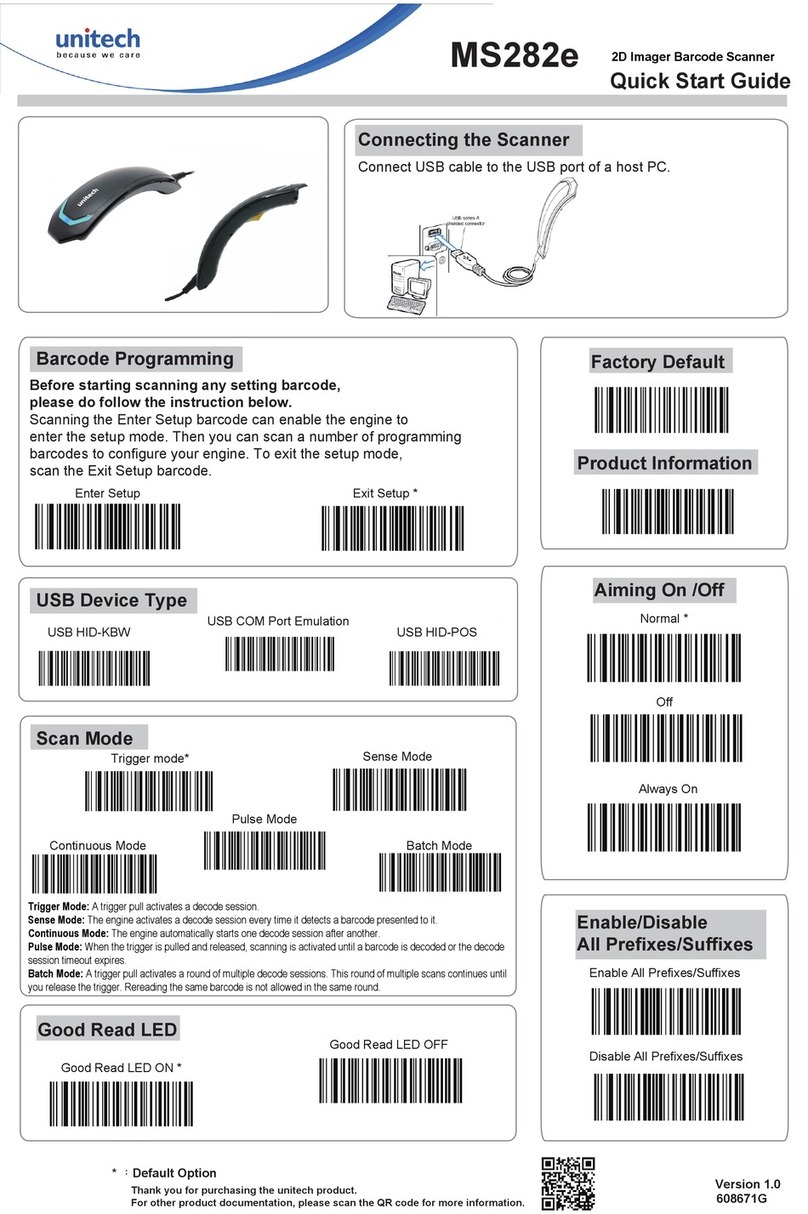
Unitech MS282e User manual
Unitech
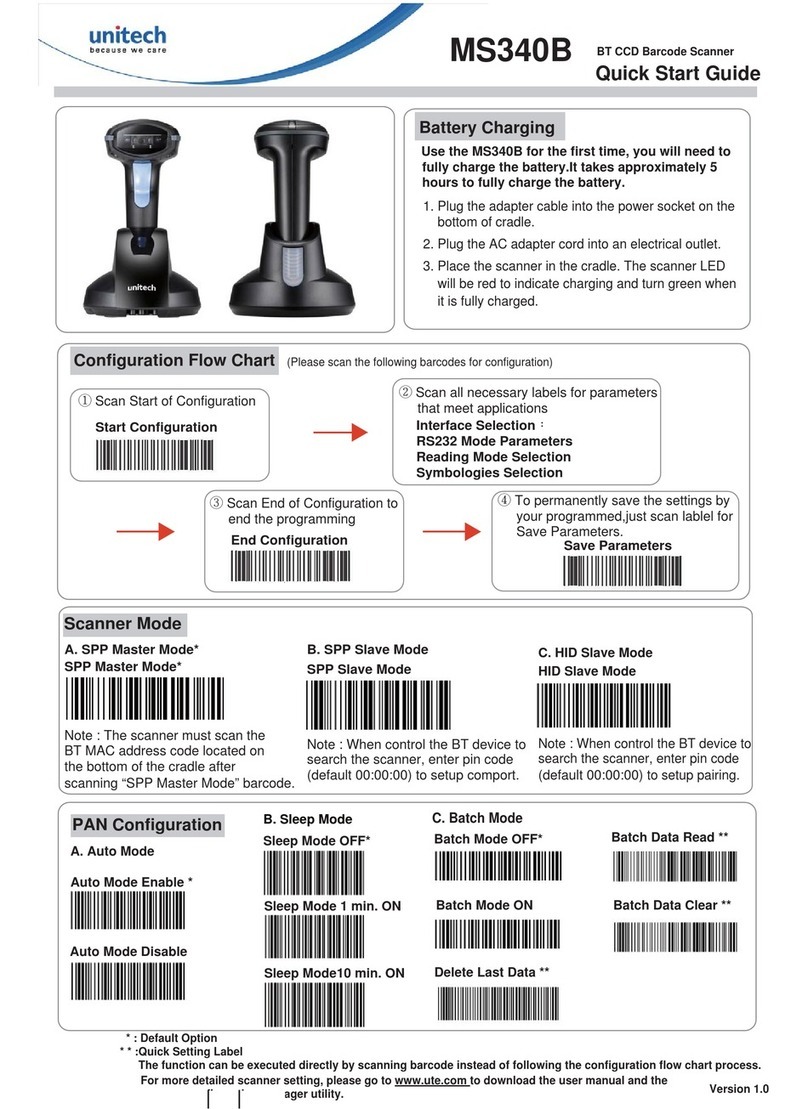
Unitech MS340B User manual
Unitech
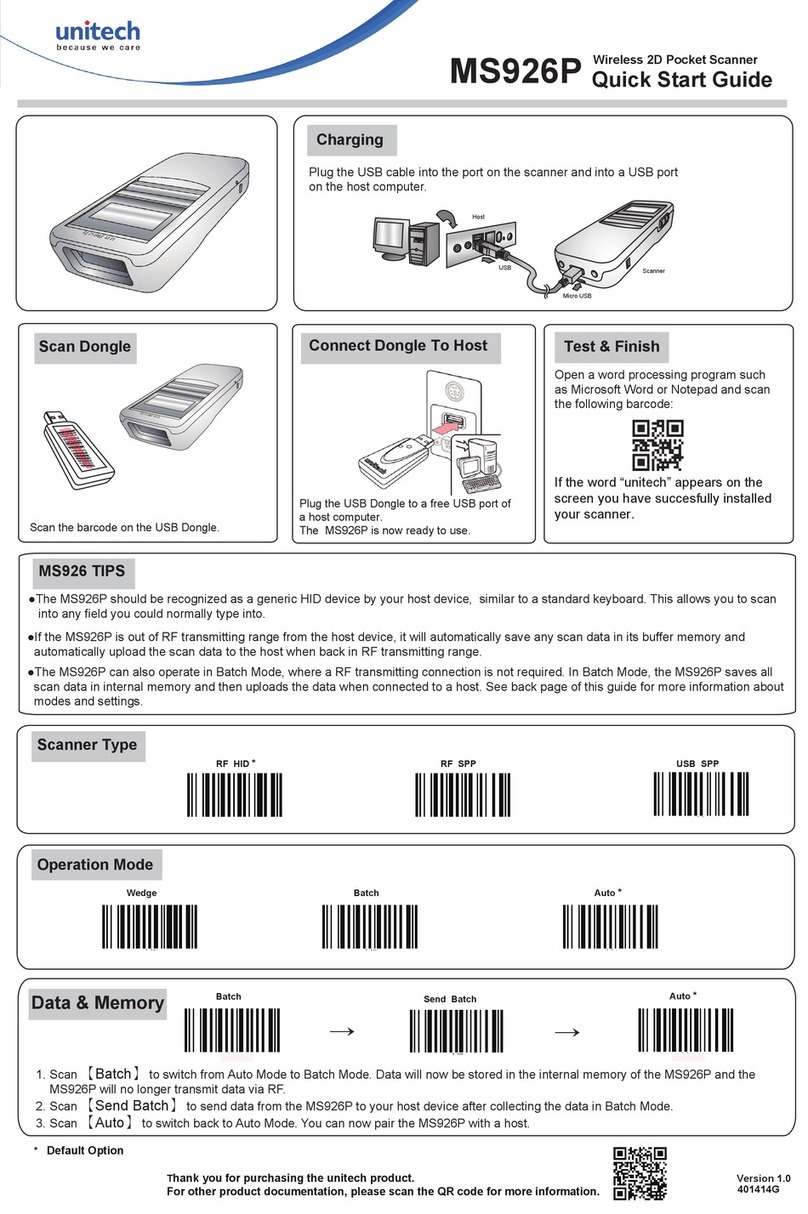
Unitech MS926P User manual
Unitech
Unitech MS650 User manual
Unitech
Unitech MS250 User manual
Unitech
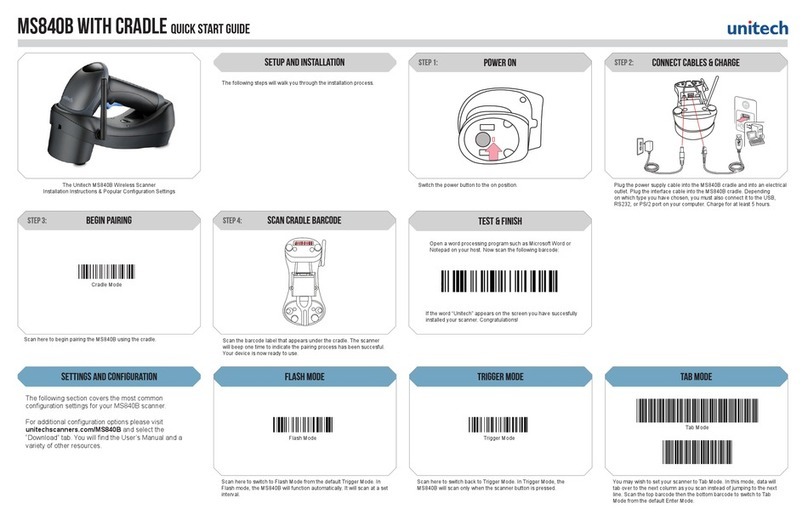
Unitech MS840B User manual
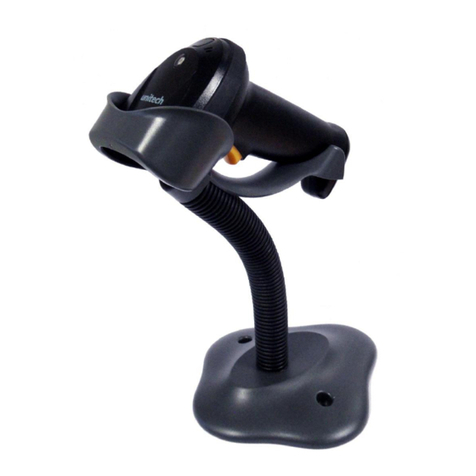
Unitech
Unitech MS338 User manual

Unitech
Unitech ES910 User manual
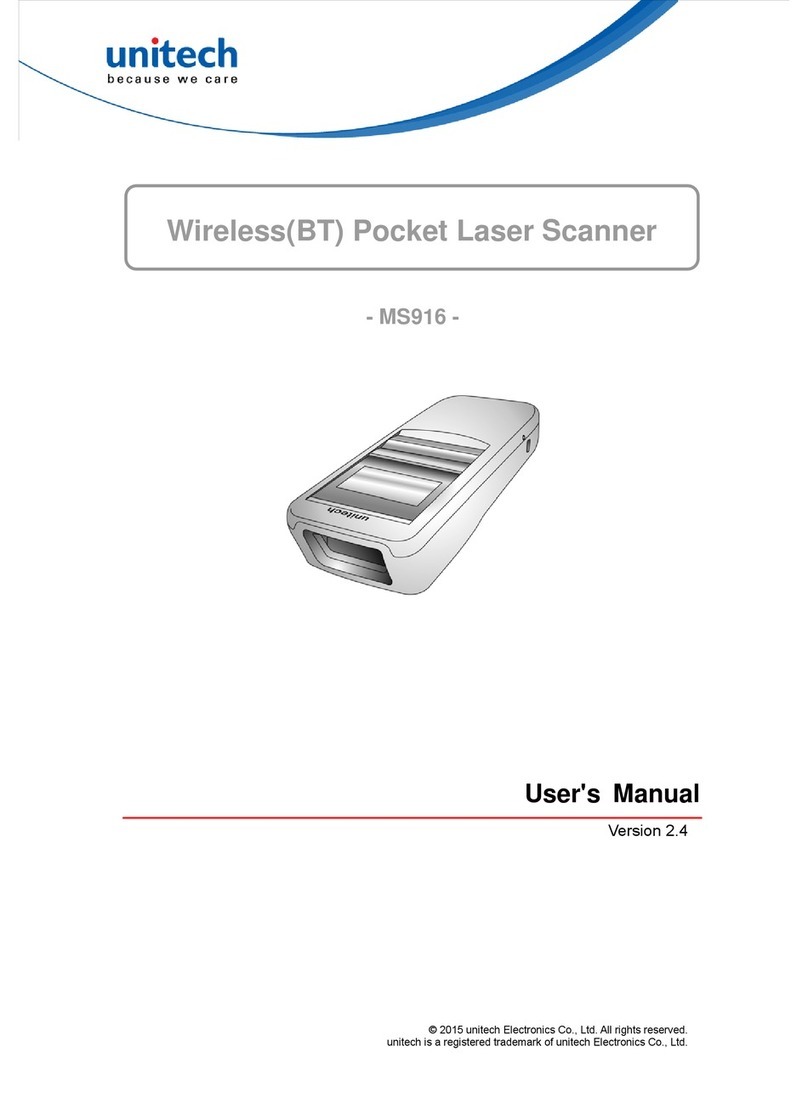
Unitech
Unitech MS916 User manual
Unitech
Unitech MS650BT User manual
Unitech
Unitech Hand Held Scanner User manual
Unitech
Unitech MS146 User manual

Unitech
Unitech MS836B User manual
Unitech
Unitech MS340 User manual
Unitech
Unitech MS140 User manual
Unitech
Unitech MS842 User manual
Unitech
Unitech MS852B User manual

Unitech
Unitech MS830 User manual
Unitech
Unitech HT630 User manual
Unitech
Unitech MS340 User manual