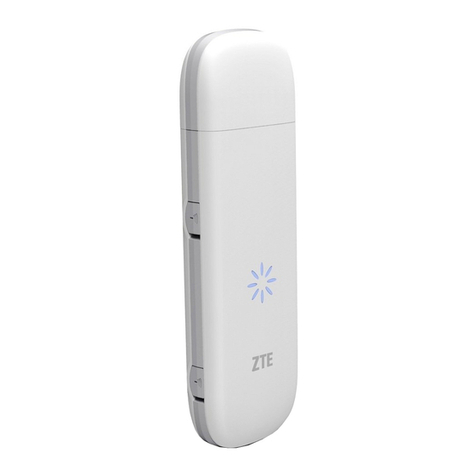
Unitel MF193A User manual


1
LEGAL INFORMATION
Copyright © 2013 ZTE CORPORATION.
All rights reserved.
No part of this publication may be excerpted, reproduced, translated or utilized in any
form or by any means, electronic or mechanical, including photocopying and microfilm,
without the prior written permission of ZTE Corporation.
The manual is published by ZTE Corporation. We reserve the right to make modifications
on print errors or update specifications without prior notice.
Version No. : R1.0

2
Introduction
The Unitel USB modem is a multi-mode USB modem, working in HSUPA/HSDPA/
WCDMA/EDGE/GPRS/GSM networks. With USB interface connecting to a laptop or
a desktop PC, it integrates the functionality of a modem and a mobile phone (SMS),
and combines mobile communication with Internet perfectly. It supports data and SMS
services through the mobile phone network, enabling you to communicate anytime and
anywhere.
Specification
The following table shows the specification of your device.
Interface Type USB 2.0 HIGH SPEED
Systems supported Supports most types of laptop and desktop PC.
Operating systems
supported
Windows XP(32bit), Vista, Windows 7, Windows 8
MAC 10.5, 10.6, 10.7, 10.8
Functions SMS service, Data service, Applications management,
support microSD card, etc.

3
Network Standards HSUPA/HSDPA/WCDMA/EDGE/GPRS/GSM
Transmission speed
(Max) HSUPA: 5.76Mbps UL HSDPA: 7.2Mbps DL
Temperature Storage: -40℃~ +80℃ Operation:-10℃~ +60℃
Dimension 88.7mm×27.2mm×10.5mm
microSD capability Support up to 32GB microSD card
Notes: microSD s a trademark of SD-3C, LLC.
Getting to know your device
The following figure shows the appearance of the MF193A. It is only for your reference.
The actual product may be different.
1. USB Connector 2. SIM/USIM card slot
3. Indicator 4. microSD card slot
5. Front Cover 6. Modem Cap

4
Hardware Installation
1. Put finger on the bottom finger grip, and then lift the front cover
of the modem to release and remove.
Notes: Do not open the front cover rudely so as to avoid the damage
of the front cover.
2. Insert the SIM/USIM card into the SIM/USIM card slot.
Insert the SIM/USIM card with the metal contact area facing downwards into the slot,
and then push SIM/USIM card as far as possible, shown as the following picture.
3. Insert the microSD card into the microSD card slot.

5
Notes:This modem only supports microSD card.
4. Put the front cover of the modem flatly upon the body of modem. Direct the front
cover towards the locking catches on the sides of the modem and push the front
cover of the modem to lock the front cover into its place.

6
5. Connect the Modem to your laptop or desktop PC.
Plug the USB connector into your computer’s USB port and make sure that it is
tightly inserted.
The OS automatically detects and recognizes new hardware and starts the
installation wizard.
Software Installation Guide
On different operating systems, the installation procedures may be difference. Follow the
system prompts during operation.
For Windows OS
Your system will start the software setup process automatically when you connect the

7
modem to your computer correctly. Follow the system prompts to complete the software
installation.
Notes:
If the system does not launch installation automatically, you can run the installation
program in path of My Computer > (Unitel 3G)
For Mac OS
The system will automatically display a (Unitel 3G) CD-ROM icon on the desktop, when
you connect the modem to your computer correctly. Double click the installation software
package in the (Unitel 3G), and follow the system prompts to complete the software
installation.
Safe removal from your system
Please close the application software, and then you can pull out the USB Modem safely.
How to use your modem
Various icons are presented to enable quick operation of the following functions:
Connection Connect to the Internet.

8
Static Function to view related information for your internet
operation.
Call Function to call Phone Number.
Text Send SMS or read SMS.
Phonebook Save and view the information of contacts.
Check Balance Function to check Balance.
Refill Function to recharge Balance.
Active SIM Function to active Sim card.
Call Log Function to view call records.

9
Warning and Notice
To the owner
• Some electronic devices are susceptible to electromagnetic interference sent by
modem if inadequately shielded, such as the electronic system of vehicles. Please
consult the manufacturer of the device before using the modem if necessary.
• Operating of laptop and desktop PCs and the modem may interfere with medical
devices like hearing aids and pacemakers. Please always keep them more than
20 centimeters away from such medical devices when they are turned on. Turn the
modem off if necessary. Consult a physician or the manufacturer of the medical
device before using the modem.
• Be aware of the usage limitation when using a modem at places such as oil
warehouses or chemical factories, where there are explosive gases or explosive
products being processed. Turn off your modem if required.
• The use of electronic transmitting devices is forbidden in aircrafts, at petrol stations
and in hospitals. Please observe and obey all warning signs and switch off your
modem in these conditions.
• Store the modem out of the reach of little children. The modem may cause injury if
Table of contents
Languages: