manuals.online logo
Brands
  1. Home
  2. •
  3. Brands
  4. •
  5. Uplink
  6. •
  7. Wireless Access Point
  8. •
  9. Uplink 5300 User manual

Uplink 5300 User manual

Popular Wireless Access Point manuals by other brands

TRENDnet TPL-410AP user guide

TRENDnet

TRENDnet TPL-410AP user guide

EnGenius EWS377-FIT quick start guide

EnGenius

EnGenius EWS377-FIT quick start guide

D-Link DWL-6700AP Quick installation guide

D-Link

D-Link DWL-6700AP Quick installation guide

Aerohive Networks Aerohive AP121 Hardware reference guide

Aerohive Networks

Aerohive Networks Aerohive AP121 Hardware reference guide

Vonets VAP11G Step-by-step guide

Vonets

Vonets VAP11G Step-by-step guide

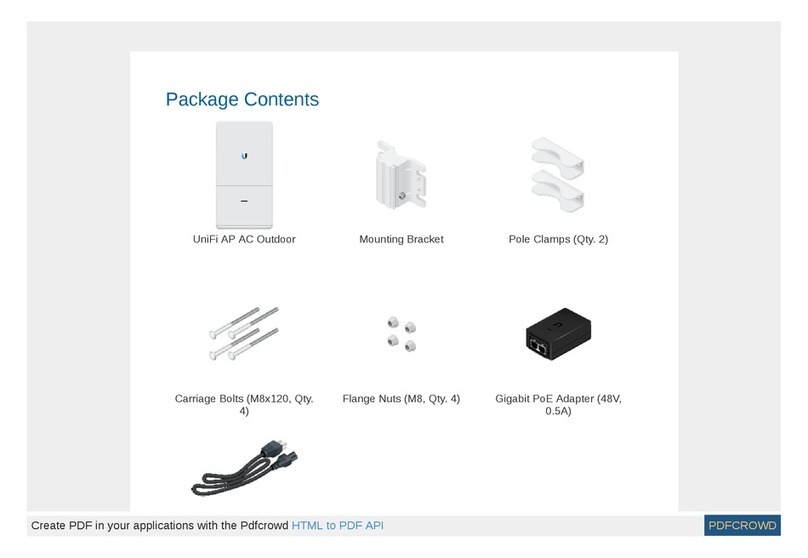
Ubiquiti UniFi AP AC Outdoor quick start guide

Ubiquiti

Ubiquiti UniFi AP AC Outdoor quick start guide

Monoprice MW301A user guide

Monoprice

Monoprice MW301A user guide

D-Link DWL-2700AP - AirPremier Outdoor Wireless Access... user manual

D-Link

D-Link DWL-2700AP - AirPremier Outdoor Wireless Access... user manual

D-Link DWL-2100AP - AirPlus Xtreme G Quick installation guide

D-Link

D-Link DWL-2100AP - AirPlus Xtreme G Quick installation guide

TP-Link Auranet EAP225 Quick installation guide

TP-Link

TP-Link Auranet EAP225 Quick installation guide

D-Link DWL-2100AP - AirPlus Xtreme G Quick installation guide

D-Link

D-Link DWL-2100AP - AirPlus Xtreme G Quick installation guide

Ubiquiti NanoStation NSM2 quick start guide

Ubiquiti

Ubiquiti NanoStation NSM2 quick start guide

Aruba IAP-335 user guide

Aruba

Aruba IAP-335 user guide

Advantek Networks AWN-AP-54MR user manual

Advantek Networks

Advantek Networks AWN-AP-54MR user manual

IP-COM AP355 user guide

IP-COM

IP-COM AP355 user guide

Buffalo AirStation WLA-L11G user manual

Buffalo

Buffalo AirStation WLA-L11G user manual

EnGenius EnStationACv2 user manual

EnGenius

EnGenius EnStationACv2 user manual

D-Link DAP-3662 Quick installation guide

D-Link

D-Link DAP-3662 Quick installation guide

manuals.online logo
manuals.online logoBrands
  • About & Mission
  • Contact us
  • Privacy Policy
  • Terms and Conditions

Copyright 2025 Manuals.Online. All Rights Reserved.

INSTALLATION &
USER’S GUIDE
®
WiFi BRIDGE
5300
®
PRODUCT ID # 2033325300XX00
FOR SALES, PRODUCT
INFORMATION &
TECHNICAL SUPPORT
Uplink
3330 Cumberland Blvd.
Suite 700
Atlanta, GA 30339
1-(888) 9-UPLINK, 1-(888)-987-5465
Fax 1-(888)-542-9105
[email protected]
www.uplink.com
®5300
2
WiFi BRIDGE
®5300
© 2013 Uplink Security, LLC. All rights reserved. Uplink is a trademark of Uplink Security, LLC.
No part of this publication may be reproduced or used in any form without permission
in writing from Uplink. This includes electronic or mechanical means, such as
photocopying, recording, or information storage and retrieval systems. The material in
this manual is subject to change without notice.
Uplink reserves the right to make changes to any software or product to improve
reliability, function or design.
Uplink is a registered trademark of Uplink Security, LLC. All other trademarks are the
property of their respective owners.
PRODUCT ID # 2033325300XX00
WiFi BRIDGE
TABLE OF CONTENTS
Table of Contents ....................................................................................2
Introduction .............................................................................................3
SetUp ......................................................................................................5
SetUpWizard ..........................................................................................6-13
WiFi BRIDGE
®5300
3 4
INTRODUCTION
Thanks for choosing Uplink 5300 WiFi Bridge. With this portable device, IP
Camera and other IT products with Ethernet. RJ45 port can access wireless
network easily. Two kinds of application topology of Uplink 5300 are shown as
below.
Uplink 5300 provides users a combination of Ethernet network
and power cable, Uplink 5300 uses the original power supply of
IP Camera or some other IT products’ power supply which has
DC 2.0 power jack (5-15V, 1.5W). One power supply can power
Uplink 5300, as well as the IPCamera adapter.
Correct Power Adapter Polarity
Please use power supply with the polarity as shown below. Power
supply with different polarity will damage Uplink 5300 and the
devices which the power supply belongs to. Seller will NOT be
responsible for the loss caused by using the incorrect power supply.
(Both Power Jack and Power Port are compatible with this polarity)
WiFi BRIDGE
®5300
5 6
SETUP
Please set this Uplink 5200 before using it, you can connect it to PC and run the
VAP11G_Setup.exe in the CD. The Physical
Connection for Setup as below:
RUNNING THE SETUP WIZARD
Please put into the CD-ROM, the systerm will automatically eject the disk and
guide page, please refer to the right picture and click the corresponding label.
Please click Install Software label to run the set up program, if it’s shown the
right picture, please click Next, Click Cancel to exit the installation Wizard.
WiFi BRIDGE
®5300
7 8
RUNNING THE SETUP WIZARD
If it’s shown the right picture, please click Yes to install
WINPCAP program.
Please click Next, don’t need to do other settings until Finish.
RUNNING THE SETUP WIZARD
After the installation is complete, please double click the desktop icon , the right
picture shows it is searching the product MAC.
The right picture shows it is complete to search MAC, please Click Next.
WiFi BRIDGE
®5300
9 10
Click Next to proceed, or click Back to return to the previous screen.
WEP (128-Bit) or WEP (64-Bit)
Next. If you want to manually
Next.
Key 1-4 
you have selected. The WEP key you enter must match the WEP key of your
wireless network. For 64-bit WEP encryption, enter exactly 10 hexadecimal
characters. For 128-bit WEP encryption, enter exactly 26 hexadecimal characters.
Valid hexadecimal characters are “0” to “9” and “A” to “F”.
Key Index - The default transmit key number is 1. If your network’s access point
or wireless router uses transmit key number 2, 3, or 4, select the appropriate
number from the Key Index drop-down menu.
Click Next to proceed, or click Back to return to the previous screen.
RUNNING THE SETUP WIZARD
The right picture shows the product has searched the WiFi network, please
choose the correct WiFi Network.
WPA
WPA automatically uses TKIP with dynamic encryption keys. Enter a passphrase
on this screen.
Encryption - TKIP is automatically selected as the encryption method.
Click Next to proceed, or click Back to return to the previous screen.
WPA2
WPA2 automatically uses AES with dynamic encryption keys (AES is a stronger
encryption method than TKIP).
Enter a passphrase on this screen.
Encryption - AES is automatically selected as the encryption method.
RUNNING THE SETUP WIZARD

WiFi BRIDGE
®5300
11 12
RUNNING THE SETUP WIZARD
Uplink 5300 will attempt to connect the wireless network with the new settings.

has connected to the wireless network. If the attempt succeeds, proceed to screen 12.
If the attempt fails, you have two options offered by a pop-up screen. Click the Ye s button
to save the new settings and proceed, or click the No button to return to the Choose a
Wireless
The product is shown on the picture to obtain a gateway router.
RUNNING THE SETUP WIZARD

The New settings will be shown.
Click Next to save your new settings.
®5300
13
RUNNING THE SETUP WIZARD

The right picture shows the product to obtain the gateway router successfully
 
wireless icon, then click Exit to exit the installation Wizard.
To make sure Uplink 5300 is working, cut off all other internet connection to the PC
(only reserve the connection between the PC and Uplink 5300). If you setup Uplink 5300
successfully, the PC can view internet now.