Verizon Digital Signage LTE Media Player User manual

User guide
Whatever your industry, we can help make
your signage as dynamic as your audience.
Verizon Digital
Signage LTE
Media Player

2
User guide
Contents
Review your hardware................................................................................................................................................................................3
Box contents ...........................................................................................................................................................................................3
Connect the parts.........................................................................................................................................................................................4
Helpful tips before connecting:......................................................................................................................................................4
Antenna setup ........................................................................................................................................................................................4
HDMI cable...............................................................................................................................................................................................4
Power ..........................................................................................................................................................................................................4
Mount the Media Player.............................................................................................................................................................................5
Choose from two options to mount the Media Player to sthe display........................................................................5
Confirm Media Player setup. ..................................................................................................................................................................6
On-Player status....................................................................................................................................................................................6
About the Media Player......................................................................................................................................................................6

3
User guide
Review your hardware.
Open the box and make sure you have all of the components.
Box contents
Required parts:
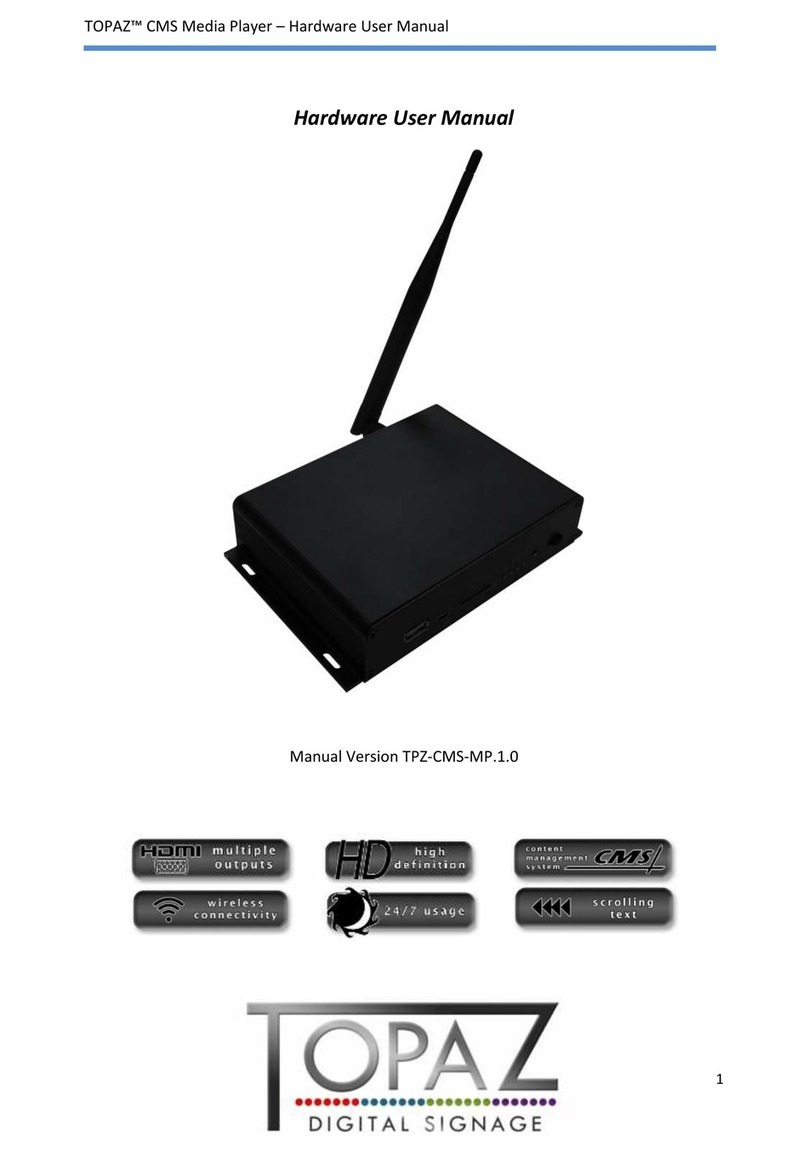
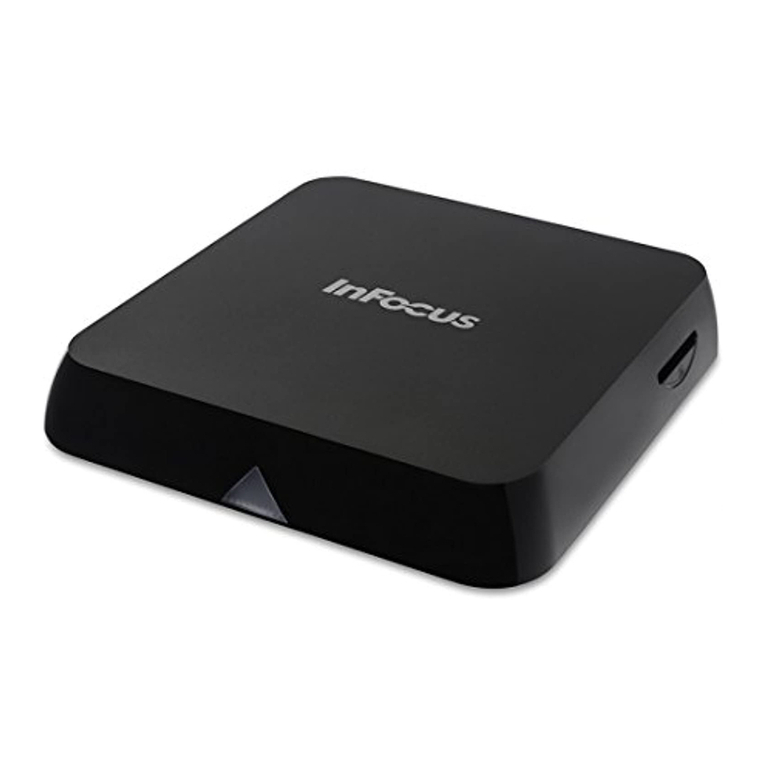
1. LTE Media Player with embedded 4G LTE SIM
2. HDMI cable
3. USB-C power adapter with cable
4. Micro USB cable
5. Two LTE monopole antennas
Optional parts:
6. Wi-Fi monopole antenna*
1
2
4 5 6
3
2
Ports and connections
1. Reset key, microSD slot and micro USB connector
2. RJ45 port, USB-C and HDMI connector
1
* Wi-Fi antenna included.

4
User guide
Connect the parts.
Helpful tips before connecting:
• Determine a suitable location to mount the player. The Media
Player needs to be protected from water and extreme dust,
and placed in a well-ventilated area
• Make sure the antennas are easily accessible
• Finally, make sure the Media Player is secure and protected
against theft or tampering
Antenna setup
1. Screw the first orange antenna into the LTE port
2. Screw the second orange antenna into the DIV port
3. Screw the green antenna into the Wi-Fi port
12
3
HDMI cable
1. Insert the HDMI cable into the Media Player
2. Insert the HDMI cable into the HDMI port on the display*
Power
1. Plug the USB-C cable into the Media Player
2. Plug the USB-C cable into the power adapter
3. Plug the USB-C adapter into a power outlet
12
12
* Make sure your display is set to the corresponding HDMI setting.

5
User guide
Mount the Media Player.
Attach the Media Player at the predeterminded location that is
within four feet of the HDMI port.
Choose from two options to mount the Media Player to
the display.
1. Use two M3 or 0.1181" or smaller screws to attach the Media
Player. Brackets are included; screws are not included*
2. With nonpermanent adhesive, attach the Media Player.
Nonpermanent adhesives not included. A good
nonpermanent adhesive is industrial-strength Velcro®**
* Insert screws through the brackets on the sides of the Media Player as shown in the
image, so as to not damage the Media Player.
** Any adhesive that can withstand heat is acceptable.

User guide
6
Confirm Media Player setup.
On-Player status
The Media Player status light will light up, indicating status.
Color Meaning
Blue Excellent coverage
Green Good coverage
Yellow Bad coverage
Red No coverage
About the Media Player
User must first purchase an LTE Media Player.
verizonenterprise.com/products/internet-of-things/ mobile-
commerce/digital-signage/
For the Media Player to work properly, 4G LTE wireless
connectivity is required. Please refer to 4G LTE Coverage on
vzw.com for more information.
If you experience any setup issues, contact support at
1.800.525.0481.
Network details & coverage maps at vzw.com. © 2019 Verizon. UG2910119
Table of contents