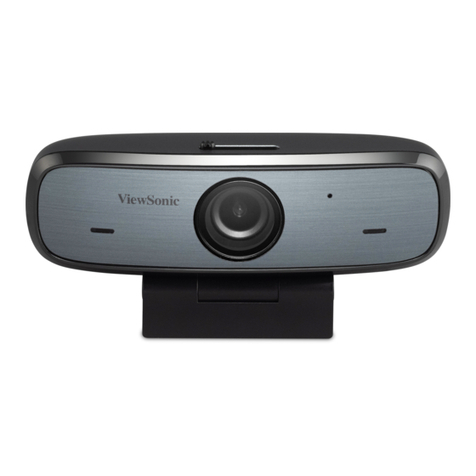
ViewSonic VIEWMATE W2201 User manual

ViewSonic®
- User Guide
- Guide de l’utilisateur
- Bedienungsanleitung
- Guía del usuario
- Guida dell’utente
- Guia do usuário
- Руководство пользователя
- 使用手冊
- 使用手冊
ViewSonic®
W2201
ViewMate 330K Web Cam

ViewSonic W2201
Contents
Compliance Information .................................................................................. 1
warning ............................................................................................................ 1
Copyright Information ...................................................................................... 2
Product Registration ........................................................................................ 2
Getting Started
Package Contents ........................................................................................... 3
Power Source Adjustment ............................................................................... 3
Software Installation
System Requirements ..................................................................................... 5
W2201 Installation ........................................................................................... 5
VP-EYE Installation ......................................................................................... 7
Hardware Installation
Other Information
Specifications .................................................................................................. 9
Customer Support ........................................................................................... 10
Limited Warranty ............................................................................................. 11

ViewSonic W2201 1
Compliance Information
For U.S.A.
This equipment has been tested and found to comply with the limits for a Class B digital
device, pursuant to part 15 of the FCC Rules. These limits are designed to provide reasonable
protection against harmful interference in a residential installation. This equipment generates,
uses, and can radiate radio frequency energy, and if not installed and used in accordance with
the instructions, may cause harmful interference to radio communications. However, there
is no guarantee that interference will not occur in a particular installation. If this equipment
does cause harmful interference to radio or television reception, which can be determined by
turning the equipment off and on, the user is encouraged to try to correct the interference by
one or more of the following measures:
• Reorient or relocate the receiving antenna.
• Increase the separation between the equipment and receiver.
• Connect the equipment into an outlet on a circuit different from that to which the receiver
is connected.
• Consult the dealer or an experienced radio/TV technician for help.
For Canada
This Class B digital apparatus meets all requirements of the Canadian Interference-Causing
Equipment Regulations.
Cet appareil numéique de la Classe B repecte toutes les exigences du Réglement sur le
matériel brouilleur du Canada.
CE Conformity for European Countries
CE Conformity
The device complies with the requirements of the EEC directive 89/336/EEC as
amended by 92/31/EEC and 93/68/EEC Art.5 with regard to “Electromagnetic
compatibil
Warning:
1. You are cautioned that changes or modification not expressly approved by the party
responsible for compliance could void your authority to operate the equipment.
2. Avoid prolonged use of the webcam without breaks.

ViewSonic W2201 2
Copyright Information
Copyright © ViewSonic ® Corporation, 2005. All rights reserved.
Macintosh and Power Macintosh are registered trademarks of Apple Computers, Inc.
Microsoft, Window, Window XP and the Window logo are registered trademarks of Microsoft
Corporation in the United States and other counteires.
ViewSonic, the three birds logo, OnView, ViewMatch, and ViewMeter are registered
trademarks of ViewSonic Corporation.
Disclaimer:ViewSonic Corporation shall not be liable for technical or editorial errors or
omissions contained herein; nor for incidental or consequential damages resulting from
furnishing this material, or the performance or use of this product.
In the interest of continuing product improvement, ViewSonic Corporation reserves the right
to change product specifications without notice. Information in this document may change
without notice.
No part of this document may be copied, reproduced, or transmitted by any means, for any
purpose without prior written permission from ViewSonic Corporation.
Product Registration
To meet your future needs, and to receive any additional product information as it becomes
available, please register your product on the Internet at:www.viewsonic.com. The
ViewSonic® Wizard CD-ROM also provides an opportunity for you to print the registration
form, which you may mail or fax to ViewSonic®.
For Your Records
Product Name:
Model Number:
Document Number:
Serial Number:
Purchase Date:
W2201
ViewMate™ 330K WebCam
VS10639
W2201_UG_ENG Rev. 1A 02-21-05
_____________________________________
_____________________________________

ViewSonic W2201 3
Getting Started
Congratulations on your purchase of a ViewMate™ 330K Webcam.
Important! Save the original box and all packing material for future shipping needs.
Note : The word “Window” in this user guide refers to the following Microsoft operating systems:
Window 98SE , Window ME , Window 2000 and Window XP.
Package Contents
Your package includes:
• WebCam
• USB 1.1 type A to mini USB Cable
• User guide and driver (ViewSonic Wizard CD)
• VP-EYE (V4.0) Software
Note:The CD includes the User Guide PDF files.
Power Source Adjustment
Choose either “50Hz” or “60Hz” mode depending on your power source environment or video
signal requirements, to avoid producing a blurry image.
Amcap → Option → Video Capture Fliter → OK

ViewSonic W2201 4
LED Indicator
Removable Decoration
Microphone
Lens
Clip Stand
Focus Ring
Snapshot
ViewSonic W2201 5
Software Installation
System Requirements
• OS:Window 98SE, Window Me, Window 2000, Window XP
Attention:
Make sure to install the driver and software BEFORE plugging the camera into a USB port.
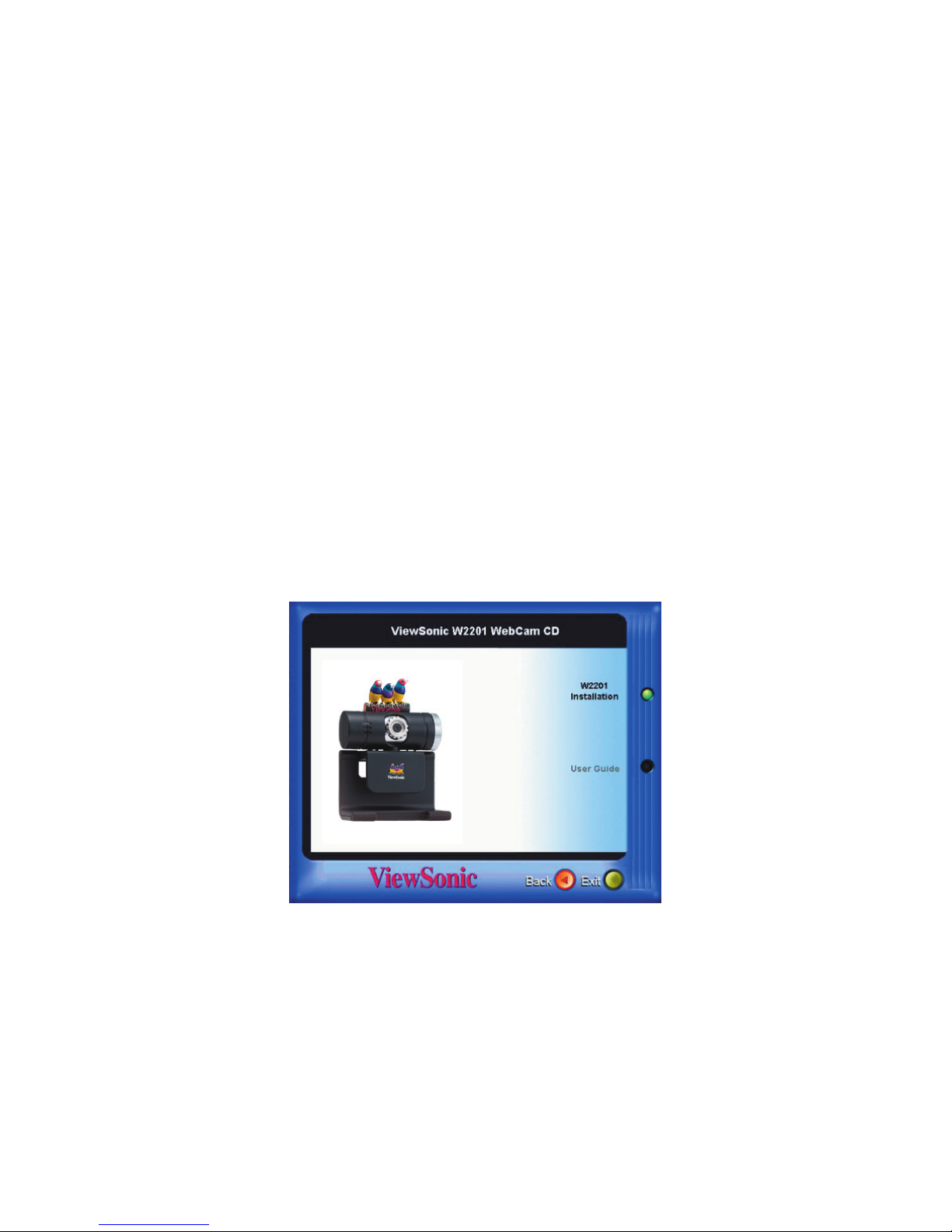
1. Insert the “ViewMate Wizard” software CD into the CD-ROM drive of your computer.
2. The installation program will run automatically. If the installation does not auto play,
please run “Setup.exe” from the CD-ROM’s root directory to install.
W2201 Installation
Attention:
Make sure to install the driver and software BEFORE plugging the camera into a USB port.
1. Click the “W2201 Installation” icon to install device drivers and then follow the
on-screen instructions to install the driver.

ViewSonic W2201 6
2. Click “Next” to continue.
3. If the “Hardware Installation” dialogue box appears, click “Continue Anyway”. (OS
98SE/ME/2000)
ViewSonic W2201 7
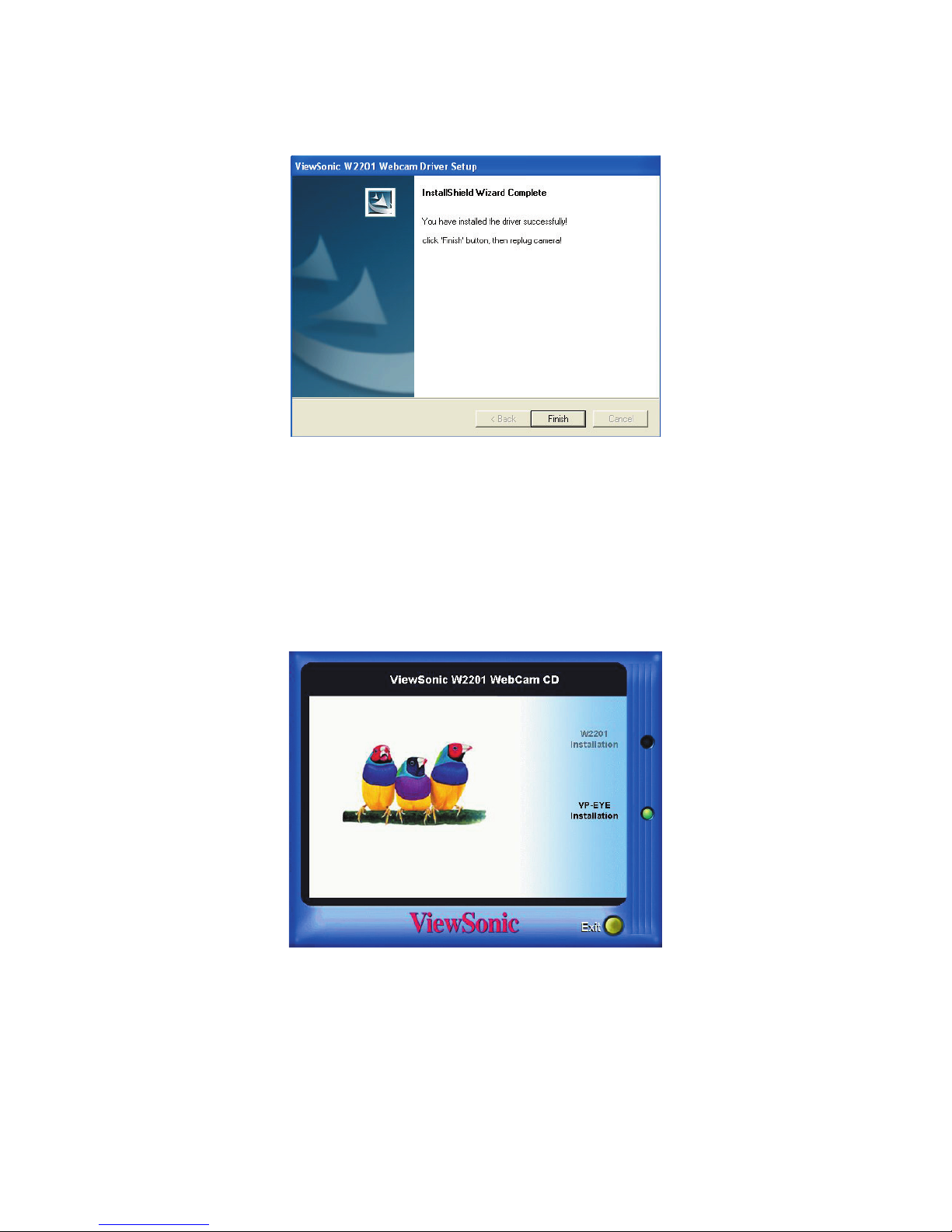
4. Click “Finish” once driver installation is complete.
VP-EYE Installation
Attention:
Make sure to install the driver and software BEFORE plugging the camera into a USB port.
1. Please click “VP-EYE Installation” and then follow the on-screen instructions to install
the software applications.
2. For Window 2000/ME/98SE systems:
When all setup procedures are finished, please restart the operating system.
Caution: Window XP system
When all setup procedures are finished, you must install hardware directly, don’t restart
the operating system manually before plugging the USB cable into camera and USB
port.

ViewSonic W2201 8
Hardware Installation
1. Plug the enclosed USB cable into the camera and the USB port on the PC separately.
(To avoid low voltage, it is recommended to plug the cable connector to USB port on PC
directly)
2. The camera LED indicator will light up upon successful installation.
Notice:
Please download the latest update of “Service Pack” (from Start → Window Update) to keep
the camera running smoothly.
Attention:
If you have more than one image device in your system, please select the
ViewSonic W2201 Webcam as the PC Camera device. In this way, you can use this camera to
capture images.
Other manuals for VIEWMATE W2201
1
This manual suits for next models
1
Table of contents
Other ViewSonic Webcam manuals