manuals.online logo
Brands
  1. Home
  2. •
  3. Brands
  4. •
  5. Vocollect
  6. •
  7. Industrial PC
  8. •
  9. Vocollect Talkman T1 User manual

Vocollect Talkman T1 User manual

This manual suits for next models

4

Popular Industrial PC manuals by other brands

Aaeon PER-1603 Quick installation guide

Aaeon

Aaeon PER-1603 Quick installation guide

Siemens SIMATIC IPC627E Quick install guide

Siemens

Siemens SIMATIC IPC627E Quick install guide

Advantech UNO-2184G user manual

Advantech

Advantech UNO-2184G user manual

MSI MS-9A76 manual

MSI

MSI MS-9A76 manual

Stackrack THOR200 user manual

Stackrack

Stackrack THOR200 user manual

Moxa Technologies DA-682C Series user manual

Moxa Technologies

Moxa Technologies DA-682C Series user manual

Nodka eBOX-3000-ETC user manual

Nodka

Nodka eBOX-3000-ETC user manual

MSI MS-9A89 user manual

MSI

MSI MS-9A89 user manual

Chipsee PPC-A72-101 manual

Chipsee

Chipsee PPC-A72-101 manual

Siemens SIMATIC Rack PC 840 V2 Getting started

Siemens

Siemens SIMATIC Rack PC 840 V2 Getting started

Advantech IPPC-6152A user manual

Advantech

Advantech IPPC-6152A user manual

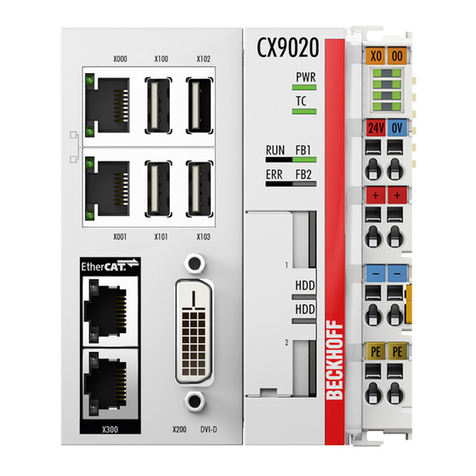
Beckhoff CX9020 manual

Beckhoff

Beckhoff CX9020 manual

Dell Embedded Box PC 5000 Installation and operation manual

Dell

Dell Embedded Box PC 5000 Installation and operation manual

IBASE Technology ASB200-918 Series user manual

IBASE Technology

IBASE Technology ASB200-918 Series user manual

Lenovo ThinkCentre M90q Hardware Maintenance Manual

Lenovo

Lenovo ThinkCentre M90q Hardware Maintenance Manual

IXXAT Econ 100 Hardware manual

IXXAT

IXXAT Econ 100 Hardware manual

Kontron KBox A-151-TGL user guide

Kontron

Kontron KBox A-151-TGL user guide

AXIOMTEK ICO500-518 Series user manual

AXIOMTEK

AXIOMTEK ICO500-518 Series user manual

manuals.online logo
manuals.online logoBrands
  • About & Mission
  • Contact us
  • Privacy Policy
  • Terms and Conditions

Copyright 2025 Manuals.Online. All Rights Reserved.

Rhein Tech Laboratories, Inc.
Client:
Vocollect, Inc.
360 Herndon Parkway
Model #:
TT-100-1-1
Suite 1400
Standards:
FCC 15.247 & RSS-210
Herndon, VA 20170
http://www.rheintech.com
ID’s:
MQO-TT-100-1-1/2570A-TT10011
Report #: 2010100
Page 47 of 63
Appendix J: Manual
Please refer to the following pages.
Chapter
1
Talkman®Devices
Figure 1:TalkmanT5
Topics:
•T5 Series Specifications:Talkman
T5 and Talkman T5m
•T2 Series Specifications:Talkman
T2x and Talkman T2
•T1 Specifications:Talkman T1
•LoadinganOperator'sTemplates
onto a Device
•Charging aT5 Battery in a Device
•Charging a T2 Series Device
•Charging aT1 Battery in a Device
•Turning a Talkman Wearable
Computer On
Figure 2:TalkmanT5m
•Turning a Talkman Wearable
Computer Off
•Adjusting the Voice's Pitch
•Adjusting the Voice's Volume
Using Voice
•Adjusting the Voice's Speed
•Changing the Speaker's Gender
•Repeating the Current Prompt
•Repeat the Previous Prompt,
Your Last Response, and the
Current Prompt
•EraseYour Current Response
and Repeat the Current Prompt
Figure 3:TalkmanT2x
•Pairing a T5 Wearable Computer
and a Bluetooth Device
•Part Number Index:Vocollect
Wearable Computers
Figure 4:TalkmanT1
Talkman devices are voice-directed wearable computers. The Talkman T1 has
been specifically designed for light-duty, light-industrial environments. Operators
listen to instructions to perform tasks such as warehouse order picking and
factory floor inspection, and then speak simple phrases to enter data. Talkman
T1 device is a lighter, lower-cost alternative to the T2- and T5-series wearable
computers. It is intended for work in areas where you don't require an extremely
rugged device.
Talkman T5-series andT2-series devices attach to a customized belt or shoulder
harness equipped with a specially designed clip. Talkman T1 devices are inserted
into a customized holster with belt clip. This leaves the operator's hands free to
inspect items, pick product, or repair defects. A headset with an attached
microphone allows the operator to hear the device's instructions or questions.
The operator talks to the device to request information, and enters data by
responding to the device's prompts.
A Talkman T5e Mobile Computer, ExternalAntenna is a T5 device with a
battery adapter mounted to a warehouse vehicle, such as a forklift. After the
device is mounted, the battery adapter is placed in the battery area of the T5
device and connected to the vehicle’s power source.
• Talkman wearable computers are assembled under strict Vocollect
manufacturing guidelines. Tampering with a device in any manner will void
published operating specifications and may void the product warranty.
• Never remove the battery from a Talkman unless it has been properly
powered off.
• Vocollect designed the Talkman to be worn on the right side of the body
with the wearable computer’s buttons on the top (T5-series and T2-series)
or facing front (T1) and its connectors toward the operator’s back (T5-series
and T2-series) or pointed up (T1).
• The Talkman T1 must be holstered with the holster opening facing up.
Holstering with the opening facing down or to the side places the unit at risk
for dropping.
•When the Talkman is not in use, it should be placed properly into a charger.
•A “Proper Use and Care” document has been provided with your order which
contains important handling instructions for the T1’s headset, the SL-4. If
you do not have this document, users should contact theirVocollect Regional
16 | OpenTopic | Talkman®Devices
Sales Manager Representative or Vocollect Reseller for additional copies
of this important document.
• Use an isopropyl alcohol (isopropanol) swab or soft cloth dampened with
isopropyl alcohol to clean metal connection points. If dirt or residue cannot
be removed with the alcohol swab or cloth, use a soft, non-abrasive rubber
eraser to clean metal connection points.You also can use a three-row
toothbrush style, general cleaning brush with natural hog hair bristles to
gently brush away dirt on the contacts.A final alcohol wipe after this should
ensure a clean contact.
Important:
• These instructions are for the T2- and T5-series devices only.
•Use only isopropyl alcohol. Do not use any other cleaning solvent.
• If using an eraser, it must be in good condition (soft, pliable, and
not worn down to the mounting). A good test is to rub the eraser
against your skin. If it feels abrasive, do not use it, because it will
damage the connectors.
OpenTopic | Talkman®Devices | 17
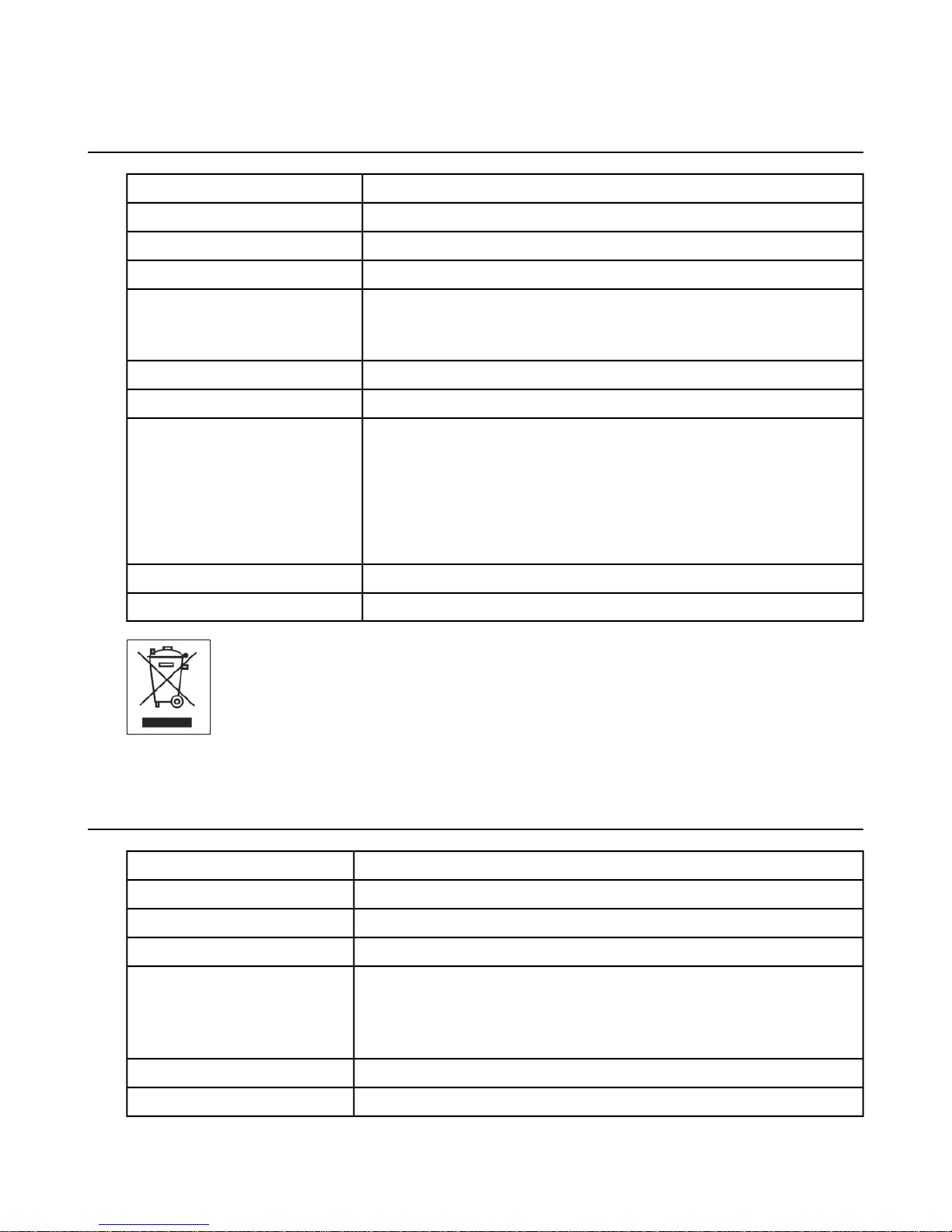
T5 Series Specifications:TalkmanT5 andTalkmanT5m
12.1 ounces (343 g) (with battery)Weight
5.5" (13.97 cm)Length
2.63" (6.68 cm)Width
1.7" (4.3 cm)Depth
I/O Ports • Headset port (yellow)
• Maintenance port with audio out and RS-232 serial support
-29°to 122°F (-33°to 50°C)Operating Temperature
-30°to 140°F (-34°to 60°C)Storage Temperature
Meets the MIL STD -810F specification for shock and vibration.
Drop Tested
In addition, the device has been tested to the following specifications:
•25 drops from 5 feet, 10 additional drops from 6 feet onto polished concrete
• 10 drops at varying angles from 5 feet at -20°F (-29°C) onto polished
concrete
100% condensingHumidity
IP67Enclosure Rating
T2 Series Specifications:TalkmanT2xandTalkmanT2
16 ounces (with standard battery)Weight
6.5" (16.5 cm)Length
3.38" (8.5 cm)Width
1.5" (4 cm)Depth
I/O Ports • Headset port (yellow)
• Maintenance port with audio out and RS-232 serial support (red)
• Bar code port with RS-232 decoded bar code support (blue)
-29°to 122°F (-34°to 50°C)Operating Temperature
-30°to 140°F (-34°to 60°C)Storage Temperature
18 | OpenTopic | Talkman®Devices
Meets the MIL STD -810F specification for shock and vibration.
Drop Tested
In addition, the device has been tested to the following specifications:
• 25 drops from 5 feet, 10 additional drops from 6 feet onto polished concrete
•10 drops at varying angles from 5 feet at -20°F (-29°C) onto polished concrete
100% condensingHumidity
IP67Enclosure Rating
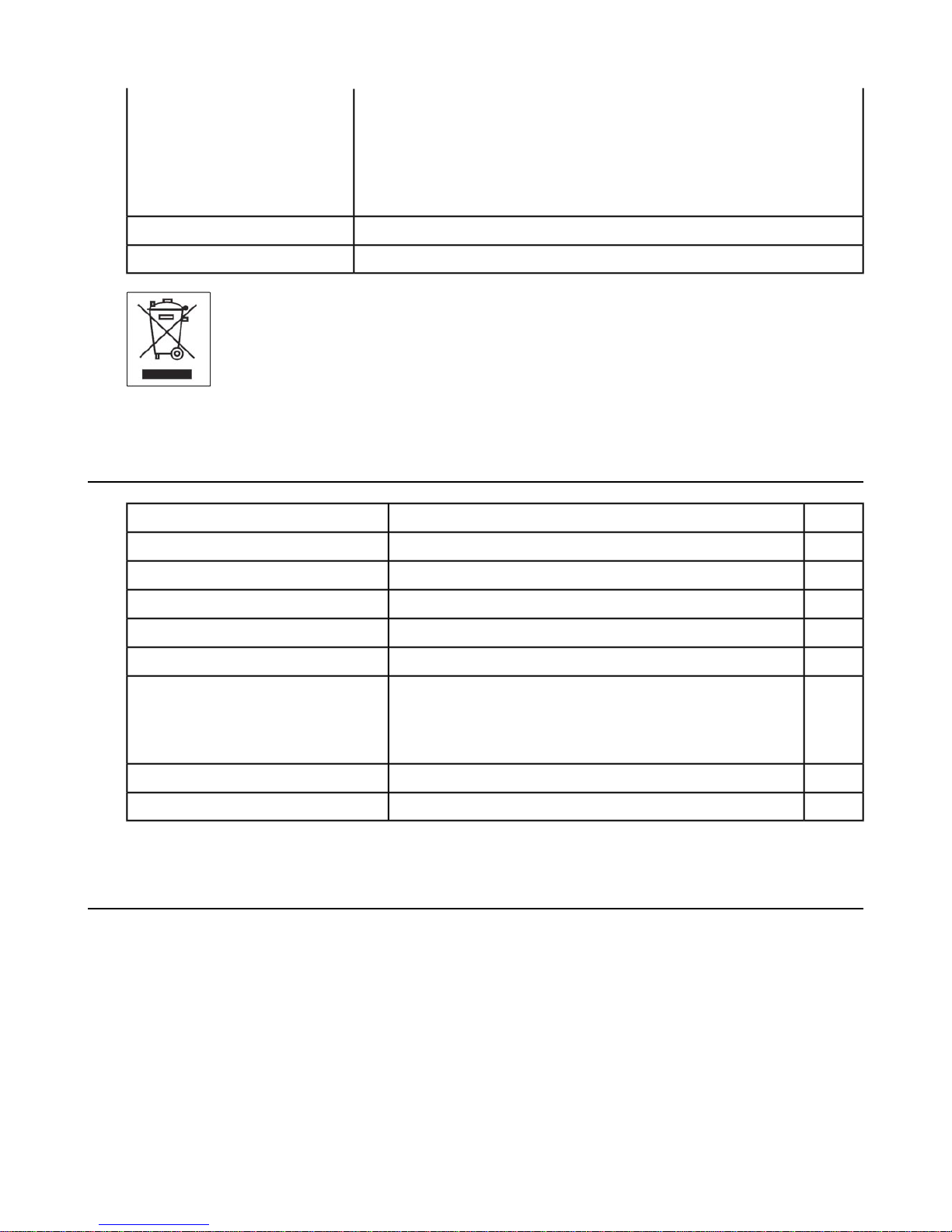
T1 Specifications:TalkmanT1
5.3 ounces (150 g) (with battery)Weight
100 mmLength
51.5 mmWidth
24 mmDepth
-1°to 50°C (30°to 122°F)Operating Temperature
-40°to 70°C (-40°to 158°F)Storage Temperature
The device is not designed to be repeatedly dropped. The device
has been tested to the following specifications:
Drop Tested
• 18 drops from 4 feet
5 to 95% non-condensingHumidity
IP54Enclosure Rating
Loading an Operator'sTemplates onto a Device
You need a device with a charged battery, headset, and any other equipment (belt, bar code reader) you are going to
use.You must be within radio range. Make sure the device is on or sleeping. The LED indicator should be either solid
green or blinking green (T5-series and T2-series) or solid green (T1).
1. Press the Operator button.
The device says "Current operator is operator name. Select menu item."
2. Press the + button or — button until the device says, "Change operator."
3. Press the Operator button.
4. The device says, "Please wait" and retrieves a list of operators and teams. Wait for the device to say, "Select team".
• If the device says "Current operator is (operator name). Change operator", skip to step 8.
OpenTopic | Talkman®Devices | 19
5. Press the + button or — button to scroll through the list of operator teams until you hear the name of a team to which
you belong.
6. Press the operator button.
The device says, "Please wait" and retrieves a list of all operators who belong to the team that was selected. The
device then says, "Current operator is (operator name). Select new operator."
7. Press the + button or — button to scroll through the list of available operator names until you hear your name.
•If you do not hear your name, press the yellow play/pause button to cancel this operation and start over from step
2.
• When selecting a team in step 6, choose the "All Operators" team.When selecting a team in step 6, choose the
"All Operators" team.
• Consult with your supervisor if you are not listed in the "All Operators" team.
8. Press the operator button.
The device says, "Loading operator" and loads your templates. Once it has loaded your templates, the device says,
"Current operator is (your operator name). Good night." The device then goes to sleep. The next time you turn the
device on, it will be ready to use.
Charging aT5 Battery in a Device
1. Remove the wearable computer from the belt clip.
2. Disconnect any other peripherals.
3. Insert the wearable computer into an open slot on the charger, pressing down and then back until the wearable
computer clicks into place.
4. After the wearable computer has been placed into the charger, make sure that the LED indicator on the wearable
computer turns on and begins to blink green.
a) If the LED does not turn on after 30 seconds, remove the wearable computer from the charger slot and then place
it into the slot again.
b) If the LED indicator still does not turn on, try another charger slot.
Caution: Do not attempt to place the device into the charger unless you have first disconnected the headset and
any other peripheral devices. Do not remove the battery from the device when placing a device into a charger.
Charging aT2 Series Device
1. Make sure the charger is powered. The charger's orange power light (LED indicator) is lit when the charger is
powered.
2. Sign off of the device if necessary.
3. Press and hold the yellow play/pause button until the LED indicator turns solid red and then turns off.
4. Remove the device from the belt clip.
5. Disconnect any other peripherals. If the device is in a cover, remove the cover.
6. Insert the device into one of the device charger slots with the button controls of the device to the top and facing
toward the left.
20 | OpenTopic | Talkman®Devices
Figure 5: Inserting aT2 Series Device Into a Charger
7. After the wearable computer has been placed into the charger, make sure that the LED indicator on the wearable
computer turns on and begins to blink green.
a) If the LED does not turn on after 30 seconds, remove the wearable computer from the charger slot and then place
it into the slot again.
b) If the LED indicator still does not turn on, try another charger slot.
Charging aT1 Battery in a Device
1. Remove the wearable computer from the holster.
2. Disconnect the headset from the wearable computer.
3. Insert the wearable computer into an open slot on the charger.
4. After the wearable computer has been placed into the charger, make sure that the LED indicator on the wearable
computer turns on and is green.
a) If the LED does not turn on after 30 seconds, remove the wearable computer from the charger slot and then place
it into the slot again.
b) If the LED indicator still does not turn on, try another charger slot.
Caution: Do not attempt to place the device into the charger unless you have first disconnected the headset.
Turning aTalkman Wearable Computer On
Before you turn on a wearable computer, make sure a headset and charged battery are properly connected to it.
1. Press the Play/Pause button on the wearable computer.
The LED indicator first turns solid red while the processor reboots. It then flashes red and green, turns solid, blinks
red, then turns solid green (T5-series and T2-series) or The LED indicator turns solid green (T1).
OpenTopic | Talkman®Devices | 21
2. The wearable computer says, "Current operator is operator name. Please keep quiet for a few seconds." The device
then starts a noise sample.
3. After a brief pause, it says, "Please wait." After another pause, the device begins asking questions or providing
instructions.
Turning aTalkman Wearable Computer Off
Press and hold the Play/Pause button on the device until the LED indicator turns red.
After a few seconds, it says, "Powering off." The device turns off, and the LED indicator light goes out.
Caution:
• Do not remove the battery until the LED indicator is off. If you remove the battery when the device is on
or sleeping, any data collected could be lost.
• You should not turn off the device if the LED indicator is blinking red (T5-series and T2-series), unless it
has been blinking red for several minutes. If a wearable computer is turned off when its LED indicator is
blinking red, it may not be ready to use when it is turned back on.
Powering Off aWearable Computer
You can use a button control or forced reset to force a Talkman wearable computer to power off. In some circumstances, the
device powers off automatically. You can then reboot the device.
Powering Off by Using the Play/Pause Button
This is the commonly used method of powering off. Press and hold the Play/Pause button for several seconds. The
wearable computer's LED indicator turns red, and the device stores any data that has not been transmitted. The device
says, "Powering off" when the process is complete, and the LED indicator turns off.
Powering Off Due to Inactivity
If the wearable computer's software detects no device activity for a specified length of time, it powers off automatically.
Powering Off Due to Low Battery Levels
If the wearable computer's software detects that the current battery level is critically low, it powers off automatically.
Booting aWearable Computer After Powering Off
If a wearable computer was properly powered off, it does the following operations after a battery is placed into the
device and the Play/Pause button is pressed:
• Performs a background noise sample
• Continues operation at the place in the task where you left off
• Transfers any templates to the host that had not been sent prior to powering off
• Transfers any output data records to the host that had not been sent prior to powering off
•Transfers any lookup tables to the wearable computer that had not been received from the host prior to powering off
Forced Reset
This type of reset is invoked by removing the battery from the wearable computer without properly powering it off first.
Caution: Perform a forced reset only as a last resort. If you reboot a wearable computer in this manner:
• the contents of its memory, including any data collected, will be lost
22 | OpenTopic | Talkman®Devices

• the wearable computer starts over at the beginning of the task
•if you are in the process of retraining vocabulary, the wearable computer will send all vocabulary word templates
to the host computer when the device is turned back on. Do not do anything until the templates have been sent
to the host.
When the battery is replaced and the wearable computer is turned back on, it boots and attempts to load the current task
and operator. Once the task and operator have successfully loaded, the device behaves identically to a one that has just
had a new task or operator loaded.
Adjusting theVoice's Pitch
Make sure the device is on or sleeping. The LED indicator should be either solid green or blinking green (T5-series and
T2-series) or solid green (T1).
Note: You can only adjust the pitch for certain languages and certain Voices.
1. Press the Operator button.
The device says "Current operator is operator name. Select menu item."
2. Press the + or — button until the device says "Change pitch."
3. Press the Operator button.
If you use the + button to scroll through the options, Change Pitch is the fifth menu item in the list.
4. Press the + button to make the voice higher or the — button to make the voice lower.
The device says "higher" each time you press the + button and "lower" each time you press the — button. If the pitch
of the voice is at the highest possible setting, it says "This is highest." If the pitch of the voice is at the lowest possible
setting, it says "This is lowest."
Note: You can exit this menu without changing the settings by pressing the Play/Pause button before you press
the Operator button.
5. When the pitch reaches the level you want, press the Operator button to save the new pitch setting.
Adjusting theVoice's Volume Using Voice
Make sure the device is on or sleeping. The LED indicator should be either solid green or blinking green (T5-series and
T2-series) or solid green (T1).
1. Say "Talkman volume".
2. Say "louder" to increase the volume or "softer" to decrease the volume.
If the device says "This is softest" or "This is loudest", you cannot make the volume any louder or softer.
3. When the voice is as loud or as soft as you want it, say "Talkman continue" to return to work.
Adjusting theVoice's Volume Using the Device Buttons
Make sure the device is on or sleeping. The LED indicator should be either solid green or blinking green (T5-series and
T2-series) or solid green (T1).
Press the + button to make the voice louder or the — button to make the voice softer.
OpenTopic | Talkman®Devices | 23