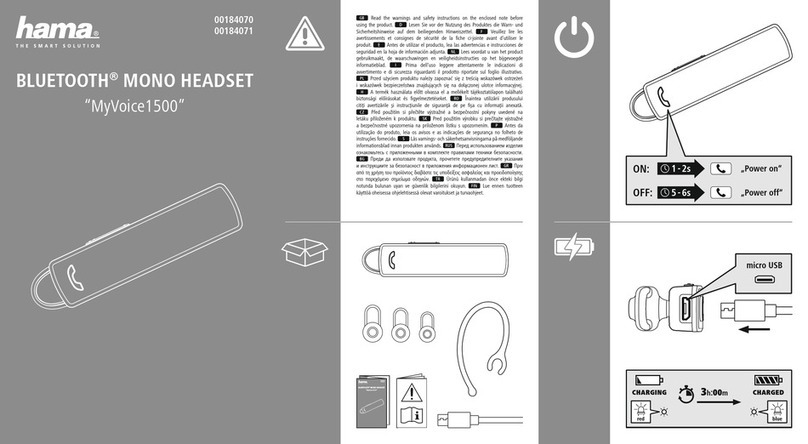
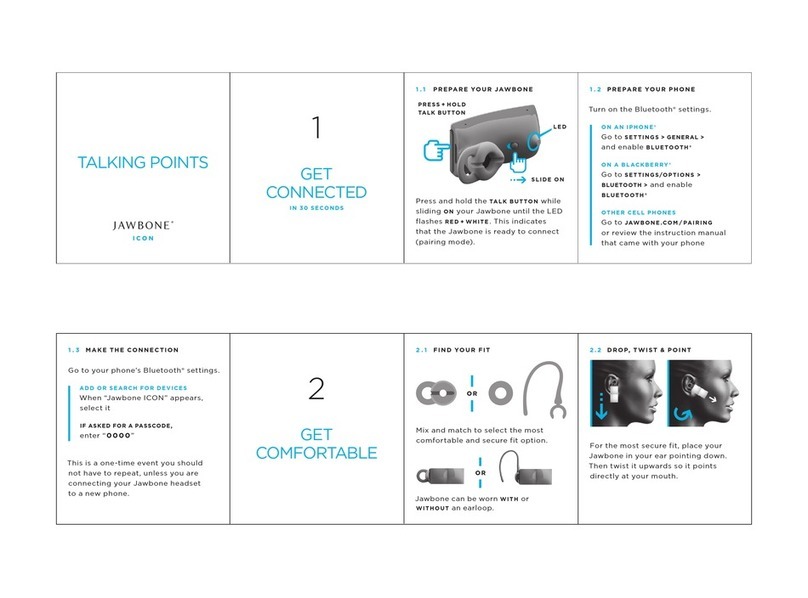
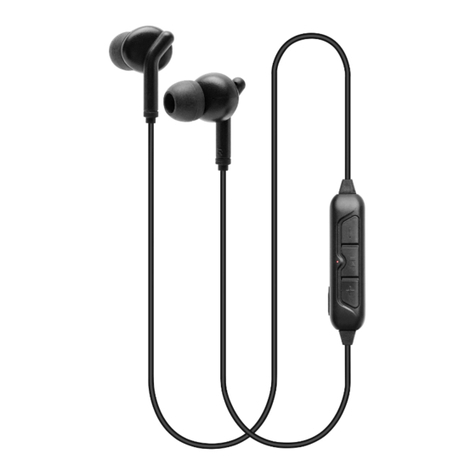
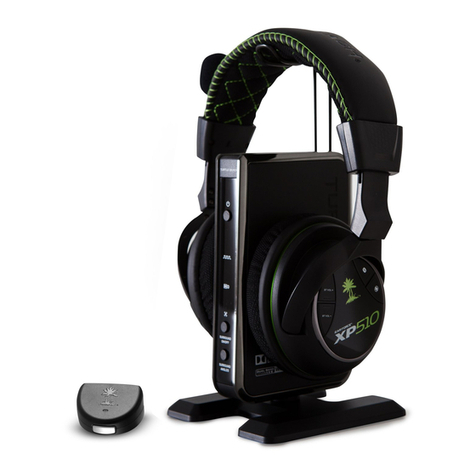
VXi BlueParrott Xplorer User manual

VXi BlueParrott®
XplorerTM
User Guide

VXi BlueParrott®XplorerTM User Guide PAGE 2
TABLE OF CONTENTS
Safety Information .............................................3
Package Contents..............................................4
Glossary of Terms..............................................5
Headset Overview..............................................6
Charging the Headset ........................................7
•Battery Power Indicators
•Operation While Using the Charger/Adapter
Getting Started ..................................................9
•On/Off/Standby
•Pairing with a Phone
–NFC (One-Touch) Pairing
–Regular Pairing
•Wearing and Adjusting the Xplorer
•Making/Taking Calls
Advanced Features and Functions....................14
•Multiple Device Pairing
•Multipoint Mode
•Proximity Pairing
•Additional Features and Functions
–Last Number Redial
–Call Waiting/Rejecting a Call
–Rejecting a Call
–Phone Voice Control (e.g. Siri®or Google NowTM)
–Muting
–Transferring Audio
–Turning Headset Indicator Lights On/Off
•Resetting Headset Paired Devices List
Functions & Indicators Table............................19

VXi BlueParrott®XplorerTM User Guide PAGE 3
IMPORTANT SAFETY NOTE: Prolonged exposure to high volume levels can damage your hearing. To avoid
injury, set the volume to the lowest comfortable level. If you experience ringing in your ears, or voices sound
muffled, stop using the headset. Avoid turning up the volume to block noisy surroundings. It’s possible for
your ears to adapt to volume that is too high, and this could result in permanent hearing damage without
any noticeable discomfort.
• Check with local and state laws regarding cell phone/headset usage while operating a motor vehicle.
• Do not immerse any part of this product in water.
• Plastic bags and small parts may cause choking if ingested. Keep them away from small children and pets.
• Use only the power cords included with this product.
• Avoid temperatures exceeding 140° F (will cause equipment failure).
SAFETY INFORMATION

VXi BlueParrott®XplorerTM User Guide PAGE 4
PACKAGE CONTENTS
1. BlueParrott®XplorerTM Headset
2. Carrying Case
3. 5 Contoured Ear Buds
(multiple sizes)
4. USB Charging Cable
5. 4 Ear Hooks (2 left, 2 right)
6. Auto Adapter
7. Quick-Start Guide*
8. Warranty and Compliance Insert*
*Not pictured.
2
1
Images are not shown to scale.
34
56

VXi BlueParrott®XplorerTM User Guide PAGE 5
GLOSSARY OF TERMS
• On: Headset is on, but there is no connection to the phone (red light will flash).
• MFB: Abbreviation for “Multifunction Button.”
• Multipoint Mode: Multipoint Mode allows you to connect and switch between two Bluetooth devices.
• Paired: Two Bluetooth devices agree to communicate with one another.
• Standby Mode: Headset is on, Bluetooth link is active, and the user is not on a call
(blue light will flash).
• Talk Mode: Headset is in use with the cell phone while the cell phone is on an active call
(blue light will flash).

VXi BlueParrott®XplorerTM User Guide PAGE 6
HEADSET OVERVIEW
A. Volume Up/Mute
B. Volume Down
C. Extendable Microphone Boom
D. On/Off Switch
E. Indicator Lights
F. Multifunction Button (MFB)
G. NFC Zone (pictured below)
A
B
E
F
D
G
C
NFC Zone

VXi BlueParrott®XplorerTM User Guide PAGE 7
CHARGING THE HEADSET
Connect USB charger cord into the headset’s
USB charging port. If the headset is not fully
charged, the indicator will turn red. When the
indicator turns blue and stays blue, the unit is
fully charged. A fully discharged battery will
need approximately 3.5 hours to achieve a
complete charge.
Battery Power Indicators
While charging, the indicator light shows
the level of battery power on your Xplorer
as follows:
Blue light: Fully charged. Over 7 hours’
talk time.
Red light: Less than a full charge.
For best performance, keep charging the
headset when not in use.
NFC Zone
Headset Charging Port
Indicator Light Location

VXi BlueParrott®XplorerTM User Guide PAGE 8
CHARGING THE HEADSET (continued)
Operation While Using the Charger/Adapter
The Xplorer headset should be operated from battery power only. If you connect the headset to a charger
while it is turned on, it will reset and shut off. To turn it back on again, first unplug the headset from the USB
charging cord, slide the switch to the “off” position (if not already done), then back to the “on” position.
NOTE: Do not attach the charger mid-call. This will cause the headset to reset, and the call will be sent back
to the phone.

VXi BlueParrott®XplorerTM User Guide PAGE 9
GETTING STARTED
On/Off/Standby
Turn Headset On: Slide the switch down towards the boom to expose a green bar in the switch cavity.
The LED will flash blue three times and you will hear a voice prompt, “Power on.”
Turn Headset Off (conserves battery power): Slide the switch up towards the back of the headset to
expose a red bar in the switch cavity. The LED will flash red four times and you will hear a voice prompt,
“Power off.”
Standby Mode: Once the headset is turned on (after the initial pairing), it will attempt to connect to the
last device that it was paired with, putting itself into Standby Mode.
Pairing with a Phone
NFC (One-Touch) Pairing
1. Confirm that your cell phone is NFC-capable.
2. Make sure that NFC is enabled on your cell phone.
3. Turn the headset on.
4. Place the NFC zone of your cell phone against the NFC zone
of the headset and hold together while your cell phone
registers the headset.
5. Follow the prompts on your cell phone until it confirms pairing is successful.
Note: NFC and One-Touch Pairing are dependent on your cell phone. The size and sensitivity of your
phone’s NFC zone and how to connect the headset may vary between devices.
NFC Zone

VXi BlueParrott®XplorerTM User Guide PAGE 10
GETTING STARTED (continued)
Manual Pairing
Placing Headset into Pairing Mode
When you turn the headset on for the first time, or if its pairing memory has been wiped clear, it will go
into pairing mode automatically. If the headset has already been paired with another device, you will
need to manually put it into pairing mode if you are not going to use NFC Pairing.
Power on the headset, then press and hold the MFB for approximately 6 seconds until you hear the audio
prompt “Discovering.” The headset will be visible for pairing to devices for 120 seconds.
Pairing to a Cell Phone
1. Make sure that other Bluetooth devices are turned off or out of range.
2. Place the headset into pairing mode.
3. Put your cell phone in Bluetooth Search/Scan Mode per the manufacturer’s instructions.
4. Select “VXi Xplorer” to pair. (Passcode is “0000” if needed.)
5. When connected, the headset will give you the voice prompt, “Your headset is connected” and the
indicator light will flash blue.
Table of contents
Other VXi BlueParrott Headset manuals