Digi-Wave 400 Series Quick Start Guide Digi-Wave 400 Series Quick Start Guide Digi-Wave 400 Series Quick Start Guide Digi-Wave 400 Series Quick Start Guide
Getting Started
Select the DLT Transceiver that will be the Master 1. A Master
1 device will declare a majority of the settings and can pass
these settings to devices that connect with it.
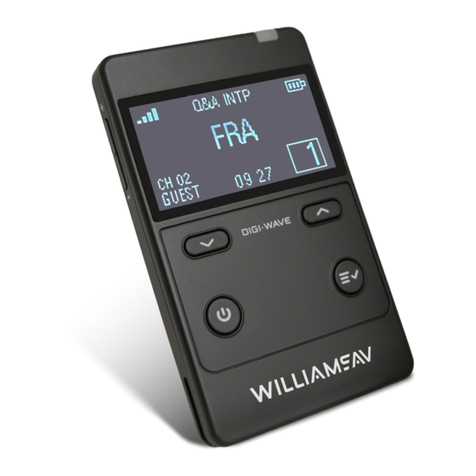
Menu Navigation Buttons
• Power Button: Press and hold for power On/O. Press
quickly to navigate back a step when using the menu.
• Talk Button: The talk button will need to be used in order
to talk or stop talking. This button is only on the DLT 400
transceivers.
• Up and Down Buttons: Navigate through menu items.
• Menu/Select Button: Hold the menu button down for a
few seconds to enter the settings menu. In the settings
menu, press the menu button to select the highlighted
option and move onto the next step.
Initial Device Settings
New Settings: To start from the very beginning with your
Digi-Wave settings, select New Settings. This will start you at
the beginning of the set-up process where you can set Basic
Settings.
Load Prole: To load an existing prole on the device, select
this option and then select the prole to load. You may either
load a prole as it is, or adjust the settings once it is loaded.
Join Group: If a Master 1 is already leading a Group or
Channel, other devices can automatically search for the
group and join it. The group or channel number could also
be manually entered from this screen. Settings will be loaded
from the Master 1 device, once a connection is established.
If a group or channel is locked by a Encryption PIN, the device
will prompt for the PIN at this time. The device cannot join the
protected group or channel without this Encryption PIN.
Basic Settings
1. Select a Mode. This determines what other settings may
be available.
2. Select Speaking Priority. If this is the rst DLT transceiver
you are setting up, you will want to select Master 1.
Typically, all other units will be Guest priority.
3. Select the group number.
4. If in Interpretation Mode, set the Broadcast Type.
5. The Master 1 can select whether to display clock and
whether the clock is a 24-hour or 12-hour clock.
6. If required, manually set the address. Automatic address
selection is recommended unless there is a need to
override the address.
7. Enter Advanced Settings if more customization is needed,
otherwise the device is ready to be used.
Advanced Settings
Some Advanced Settings may be missing from certain modes,
or with certain congurations. Default values also may change
depending on mode. Some settings include:
• Number of Microphones: In modes where multiple
speakers are available, the number of speakers at one time
can be limited.
• Tone Control: Using the up and down arrow buttons, adjust
the tone up or down to your preference.
• Side Tone Adjustment: Adjusts the volume of the
speaker's voice as heard in the headset (side tone).
• Microphone Gain and Line Gain: Gain can be used to
increase the volume of the microphone or input sound.
• Encryption: Extra security can be added to the transmitted
signal via additional encryption. An 87-bit encryption is
default, and is backwards compatible with the DLT 300 or
DLR 360. 127 + 87 bit Encryption adds an additional layer of
security, but is not backwards compatible.
• Encryption PIN: When a group or channel has been set
up with a PIN, transceivers and receivers without this PIN
entered cannot listen in on the group. The same four
digit code must be programmed into all of the Digi-Wave
devices in the group.
• Allow Join Group: other devices can be prevented from
automatically joining the group. Disabling Join Group will
prevent available groups from being listed under the Join
Group menu. Devices will have to be manually set to the
correct group or channel.
• Save Prole: If the device will be used for multiple
purposes, such as for tours and hearing assistance, the
settings should be saved in a prole. Once saved, the
settings can be easily re-loaded later by using the Load
Prole option.
Controls and Connectors
Note: The DLR 400 RCH does not have a talk button or accept a microphone.
Menu/Select
Talk Button
Power Button
Up and Down Buttons
Headphone and Microphone Jack
Volume
Adjust
USB-C Charging Port
Charging LED
Charging Contacts
(For CHG 412)
Internal
Microphone
DLT 400 Pictured
Recycling Instructions
Help Williams AV protect the environment!
Please do not dispose of equipment or used batteries
in the household trash. Take the equipment to an
electronics recycling center or return to the factory.
Take batteries to a retail or community recycling
location.