manuals.online logo
Brands
  1. Home
  2. •
  3. Brands
  4. •
  5. Windows Marketplace
  6. •
  7. Modem
  8. •
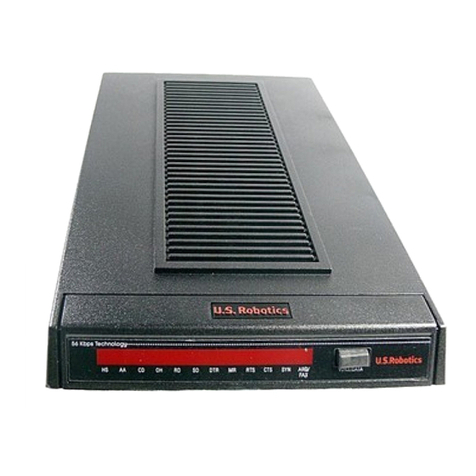
  9. Windows Marketplace V.90 User manual

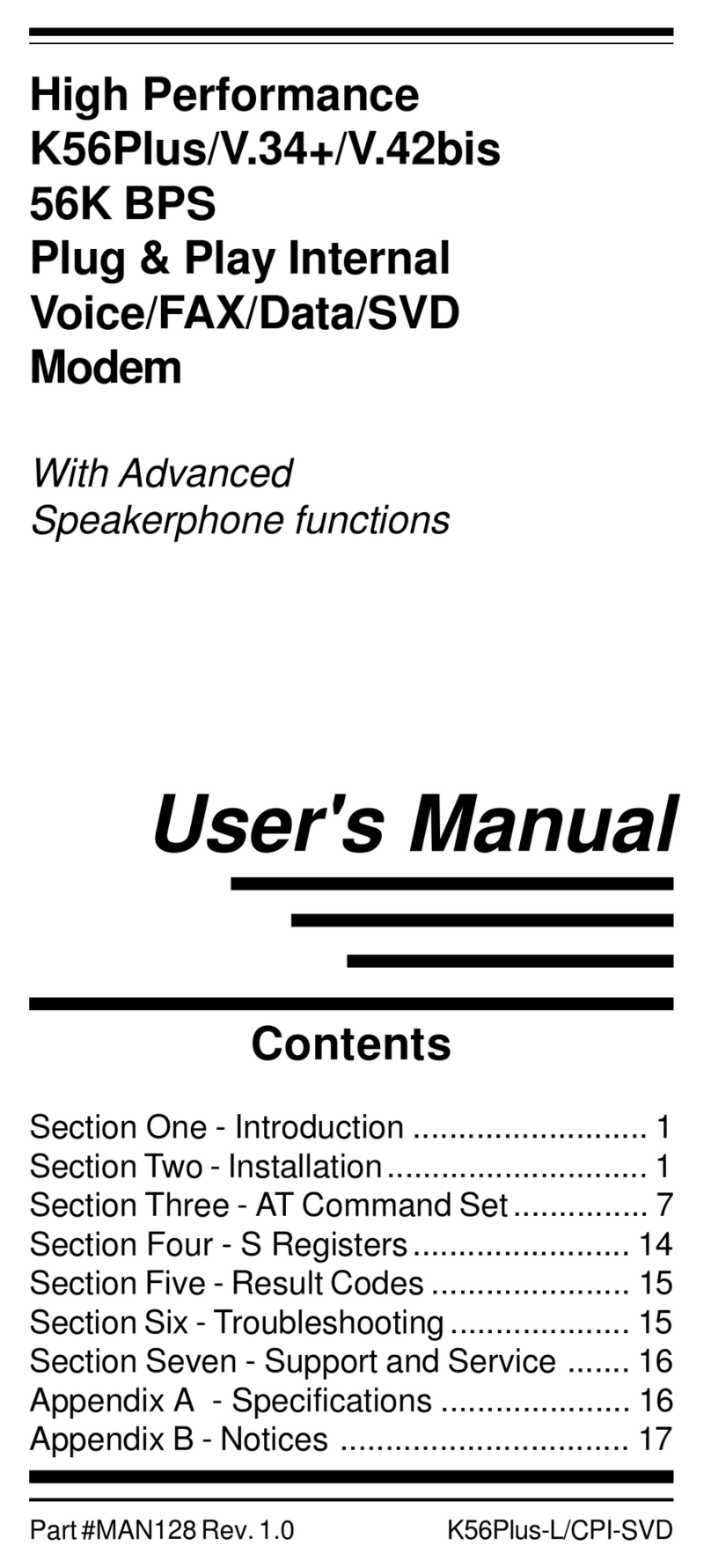
Windows Marketplace V.90 User manual

Popular Modem manuals by other brands

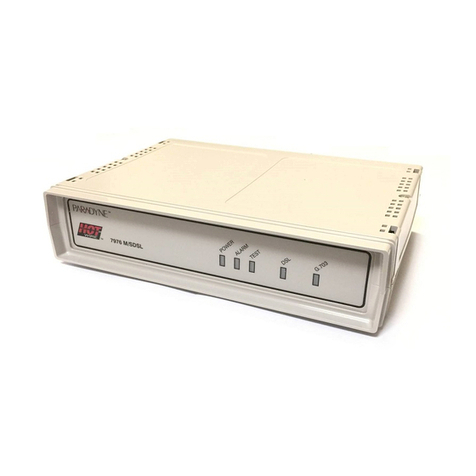
Paradyne COMSPHERE 3810 User guide supplement

Paradyne

Paradyne COMSPHERE 3810 User guide supplement

Zhone 6411-A1-xxx Technical specifications

Zhone

Zhone 6411-A1-xxx Technical specifications

Air 802 Linux USB?ADG?2 user guide

Air 802

Air 802 Linux USB?ADG?2 user guide

ETEK TD-8011 user manual

ETEK

ETEK TD-8011 user manual

Arris Touchstone CM8200 user guide

Arris

Arris Touchstone CM8200 user guide

3Com EtherLink 3C900B Installation and operating instructions

3Com

3Com EtherLink 3C900B Installation and operating instructions

Axxera DMH25 Operation manual

Axxera

Axxera DMH25 Operation manual

Lantronix M110 Series Command reference

Lantronix

Lantronix M110 Series Command reference

Megasat HD Stick 510se user manual

Megasat

Megasat HD Stick 510se user manual

Davicom DM562AP Operation manual

Davicom

Davicom DM562AP Operation manual

NetComm IG1000 Specifications

NetComm

NetComm IG1000 Specifications

Intelimax MA-2060 user manual

Intelimax

Intelimax MA-2060 user manual

ELPRO 905U-E user manual

ELPRO

ELPRO 905U-E user manual

SMC Networks D3CM1604V Administrator's manual

SMC Networks

SMC Networks D3CM1604V Administrator's manual

Telstra Wi-Fi 4G Advanced Pro X user guide

Telstra

Telstra Wi-Fi 4G Advanced Pro X user guide

Thrane&Thrane imarsat EXPLORER 300 user manual

Thrane&Thrane

Thrane&Thrane imarsat EXPLORER 300 user manual

Samsung AceLink SAM-335A user guide

Samsung

Samsung AceLink SAM-335A user guide

Enfora Enabler-G Integration guide

Enfora

Enfora Enabler-G Integration guide

manuals.online logo
manuals.online logoBrands
  • About & Mission
  • Contact us
  • Privacy Policy
  • Terms and Conditions

Copyright 2025 Manuals.Online. All Rights Reserved.

2
Table of Contents
Do This First ................................................................................................................. 3
For Windows 95 Installation ................................................................................. 3
For Windows NT 4.0 Installation .......................................................................... 5
Installing the Modem ................................................................................................... 6
Hardware Installation ............................................................................................ 6
Connecting Devices to the Modem ........................................................................ 8
Configuring Windows 95 ...................................................................................... 9
Configuring Windows 95 OEM Service Release 2 ............................................. 11
Configuring Windows NT 4.00 ............................................................................ 14
Installing and Configuring Communications Software .......................................... 17
Using the Modems Voice Features ....................................................................... 18
Troubleshooting ............................................................................................................ 19
Uninstalling the Modem ........................................................................................ 22
Appendix A - AT Command Set ................................................................................... 28
AT Commands ........................................................................................................ 28
AT Commands and S Registers for Testing and Debugging .................... 48
S Registers .............................................................................................................. 51
Appendix B - Communications Regulations .............................................................. 62
Proprietary Notice and Disclaimer
Unless otherwise noted, this document and the information herein disclosed are propri-
etary to the Manufacturer. Any person or entity to whom this document is furnished or
who otherwise has possession thereof, by acceptance agrees that it will not be copied or
reproduced in whole or in part, nor used in any manner except to meet the purposes for
which it was delivered.
The information in this document is subject to change without notice and should not be
construed as a commitment by the Manufacturer. Although the Manufacturer will make
every effort to inform users of substantive errors, the Manufacturer disclaims all liability
for any loss or damage resulting from the use of this document or any hardware or soft-
ware described herein, including without limitation contingent, special or incidental li-
ability.
Note: PC is a trademark of IBM Corporation. Windows 95 and Windows NT are trademarks of Microsoft, Inc.
K56flex is a trademark of Lucent Technologies, Inc. and Rockwell International.
3
Do This First
Please read the following tips carefully before attempting to
install your new modem.
For WINDOWS 95 INSTALLATION
 If you are replacing the modem in your computer system with this modem, be
sure to remove all other modem drivers. Go to: Start-Settings-Control Panel
and double-click on the System icon. Select the Device Manager tab. Double-
click on the Modems icon in the device tree to show the modems installed.
Highlight each modem listed by clicking once on the icon next to the modem
and then click the Remove button. It is also a good idea to physically remove
your old modem from the system. Note: once you remove the old modem and
its drivers from your system, you will need the old modem driver diskette if
you wish to reinstall it at a later date. Close the System Properties window
and return to the Control Panel. Double-click on the Modems icon. If a New
Hardware Panel comes up, click Cancel. If your old modem is listed, high-
light the modem and click the Remove button. Shutdown and turn off the
computer. Wait 5 seconds before turning the system back on.
Figure 1: Win95 Modems Properties Panel
 If you are going to use the TAM (Telephone Answering Machine) functions
of the modem, you need to install the Unimodem V components of Windows
95. If you have Windows 95 OEM Service Release 2 (Version 4.00.950 B or
above) you do not need to install this component as it is already built into the
operating system.
4
To find the Windows 95 Version on your system, select: Start-Settings-Con-
trol Panel. Double-click on the System icon. If the version of Windows 95 is
4.00.950 or 4.00.950A, go to: Start-Programs and select Windows Explorer.
Go to the UNIMODEM directory of the CD-ROM (the UNIMODEM driver
is sometimes supplied on a separate floppy) that came with your modem and
right-click on UNIMODV.INF (or UNIMODV, whichever is displayed) then
click on Install.Restart your computer to enable the drivers.
 In order to support older software, the modem will always be assigned to
COM 4. This port assignment is made by Windows 95 based on instructions
contained in the .INF file supplied with the modem. Check your Windows 95
Device Manager and verify that COM 4 is not listed.
Go to Start-Settings-Control Panel. Double-click on the System icon, and
select the Device Manager tab. From the device tree, double-click the Ports
[COM & LPT] icon to expand the Ports tree. COM 1 and COM 2 should be
listed. If COM 4 is listed, it must be made available as the modem will be
automatically assigned to this port. A COM 4 listing in Device Manager
usually means that there is a piece of hardware using the port. Highlight COM
4 by clicking once and then click the Remove button. After the port has been
removed, click the Refresh button. If the COM 4 listing returns, you have a
hardware device using the port. Reinstall the device to another COM Port.
 (Note: If you are not familiar with changing the settings within your sys-
tem BIOS setup, you should skip the following system preinstallation proce-
dure and go to the Installing the Modem section. Refer back to this area only
if you have a problem with installing the modem.)
Although it is possible for a PCI card to share interrupts, it is recommended
that you have one free IRQ available in your computer. The modem needs
one IRQ and two I/O Addresses to function. To check for any available inter-
rupts in your system, go to Start-Settings-Control Panel. Double-click the
System icon and select the Device Manager tab. Click the Properties button
to view the System Resources. Their are 16 (0-15) interrupts available in a
system. Make a note of any interrupt not listed. To make sure that an avail-
able interrupt is assigned to the PCI bus, go to your system BIOS Setup
routine and find the Plug-N-Play settings. These settings can be found within
the Advanced, PNP/PCI Configuration, or Plug and Play Configuration
sections depending on the BIOS Manufacturer. Next, verify that one free
IRQ has been set so that the PCI bus has access to it (some BIOS dont allow
individual selection of interrupts to ISA, Plug-N-Play, or PCI). These set-
tings can be called ICU, ICU/PCI, PCI, or PNP depending on your BIOS
version and manufacturer. Do not set this interrupt to ISA only or to Legacy
ISA. Pay attention to the IRQ usage of the other peripherals in your system.

5
Do not reassign an interrupt that is already in use by an ISA card to the PCI
bus. Since each BIOS manufacturer has a different way of handling these
configurations, you may have to use trial-and-error to get your modem prop-
erly configured. Be sure to Save the settings before exiting the BIOS Setup.
 You are now ready to install the modem. Proceed to the Installing the Mo-
dem section.
For WINDOWS NT 4.0 INSTALLATION
 If you are replacing the current modem in your computer system with this
new modem, be sure to remove all other modem drivers from your operating
system. Go to: Start-Settings-Control Panel and double-click on the Mo-
dems icon. Highlight the modem you wish to remove and click the Remove
button. Shutdown the computer, power-down, and physically remove the
modem from your system. Do not install your new modem at this time. Fol-
low the procedures below to help insure a trouble-free installation. Note:
once you remove the old modem and its drivers from your system, you will
need the old modem driver diskette if you wish to reinstall it at a later date.
 Determine that your operating system has the latest upgrade available. Ser-
vice Pack 3 (or greater) should be installed. Go to Start- Settings-Admin-
istrative Tools-Windows NT Diagnostics. Select the Version folder. Ser-
vice Pack 3 (or greater) should be stated. If you do not have the latest service
pack upgrade installed, it must be obtained from Microsoft. The latest up-
grade can be downloaded from the Microsoft ftp site.
 (Note: If you are not familiar with changing the settings within your system
BIOS setup, you should skip the following system preinstallation procedure
and go to the Installing the Modem section. Refer back to this area only if
you have a problem with installing the modem.)
Check your system BIOS IRQ assignments and make sure that at least
two interrupts (especially any unused interrupts) have been assigned to the
PCI bus. Go to your system BIOS Setup routine and find the Plug-N-Play
settings. These settings can be found within the Advanced, PNP/PCI Con-
figuration, or Plug and Play Configuration sections depending on the BIOS
Manufacturer. Next, verify that at least two IRQs have been set so that the
PCI bus has access to them (some BIOS dont allow individual selection of
interrupts to ISA, Plug-N-Play, or PCI). These settings can be called ICU,
ICU/PCI, PCI, or PNP depending on your BIOS version and manufacturer.
Do not set all the interrupts to ISA only or to Legacy ISA. Pay attention
to the IRQ usage of the other peripherals in your system. Do not reassign an
interrupt that is already in use by an ISA card to the PCI bus.
6
Installing The Modem
HARDWARE INSTALLATION
1. Switch off the computer and all peripheral devices connected to it.
2. Unplug the computer power cord from the wall receptacle.
3. Remove the computers cover. Refer to your computer owners manual for
instructions.
4. Remove the screw securing the expansion slot cover behind one of the
computers available PCI expansion slots. Lift the expansion slot cover out
as shown below.
Figure 5: Removing the Backplate
Always discharge static electricity before handling your modem. You may discharge static
electricity by touching a grounded metal structure or by using any commercially available
grounding strap.
Make sure the expansion slot type is PCI, which has a smaller slot to fit the PCI modem card.
These connectors are usually white in color. ISA card slots have larger connectors and are
nearly always black in color.
The position and colors of the expansion slots in your computer may differ from the illustra-
tions shown in Fig. 7 or Fig. 8, but the installation procedure should be the same.
7
5. Firmly, but gently, insert the modem into the available PCI expansion slot.
Ensure that the card is seated properly before securing it with the screw re-
moved in Step 4, as shown in the following diagram:
Fig. 6: Installing The Modem
6. Put the chassis cover back on the computer.
7. Be sure that all power switches are in the OFF position, then reconnect the
power cables to the computer and its peripherals.
8. Connect the telephone line cable to the Line (Telco) jack as shown in Fig.7.
9. Turn on the computer and proceed to the following sections to configure your
modem to the operating system you are using.
8
CONNECTING DEVICES TO THE MODEM
Fig.7: Connecting Devices
On the rear panel of your modem are input jacks to connect devices to the modem.
As shown in the diagram, there are jacks for connection to a phone and to a phone
line. The connector labeled Line (Telco) is meant to be connected to a standard
analog phone line. To help reduce the load on your phone line, it is recommended
that the modem be the only device connected. You should remove all other de-
vices from your telephone line while the modem is in use.
9
CONFIGURING WINDOWS 95
Step 1 Upon startup, Windows 95 detects the modem and displays the New
Hardware Found dialog box.
Select Driver from disk provided by hardware manufacturer
then Click OK.
Step 2 If Windows asks for an installation disk, click OK and type A:\ in the
dialog box that appears and click OK.
Step 3 After the installer has copied the .INF files to the hard disk, a New Hard-
ware Found dialog box should appear prompting for the Wave Device
for Voice Modem. Click OK. (see Do This First for information on
UNIMODEM.INF if the following screen does not appear).
10
Step 4 Click OK to copy the Wave Device .INF file from the A:\ drive (or CD-
ROM Drive) to the hard drive.
Step 5 To determine what COM port and IRQ is assigned to the modem in Win-
dows 95, click on the Modems icon in Control Panel and select the
Diagnostic tab. Click on the COM Port icon next to the modem and then
click on the More Info button to view the modem properties.