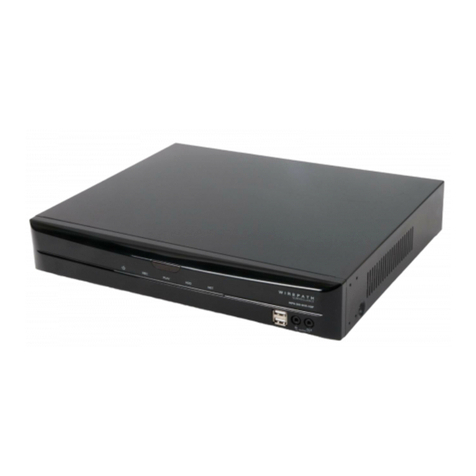
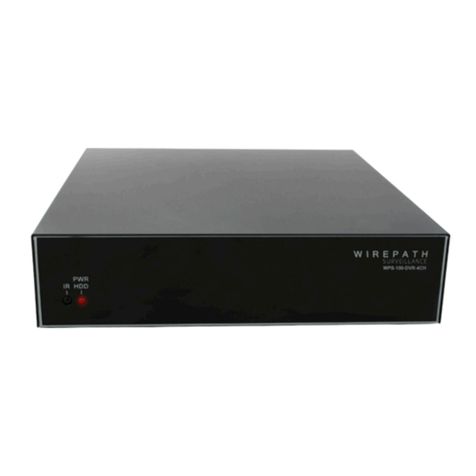
Wirepath Surveillance WPS-165-DVR User manual

WPS-165-DVR
DVR
4 CHANNEL
INSTALLATION AND USERS MANUAL
Review manual thoroughly before
installation. Retain for future reference.

TABLE OF CONTENTS
1. PRODUCT OVERVIEW 5
1.1. INTRODUCTION 5
1.2. PACKING LIST 5
1.3. FEATURES 5
2. FRONT AND REAR PANELS AND REMOTE CONTROL 6
2.1. FRONT PANEL 6
2.2. REAR PANEL 7
2.3. REMOTE CONTROL 8
3. INSTALLATION 9
3.1. POSITIONING THE 165 DVR 9
3.2. CONNECTIONS 10
3.2.1. BASIC CONNECTIONS 10
3.2.2. OPTIONAL CONNECTIONS 10
3.2.3. IP CONTROL CONNECTIONS 11
4. MAIN SCREEN AND BASIC OPERATIONS 12
4.1. TEXT INPUT 13
4.2. LOGIN / LOGOUT 14
4.3. BASIC OPERATIONS USING THE CONTROL BAR 14
4.4. DIGITAL ZOOM 16
5. MAIN MENU 17
5.1. STATUS DISPLAY 17
5.2. VOLUME CONTROL 18
5.3. VIDEO ADJUSTMENT 19
5.4. DISPLAY 20
5.5. BACKUP DEVICE 21
5.6. SOFTWARE UPGRADE 22
5.6.1. UPDATING SOFTWARE VIA DVR LOCAL DISPLAY 22
5.7. SYSTEM SHUTDOWN 23
6. SETUP MENU 24
6.1. PRE-CAMERA SETUP 25
6.2. CAMERA SETUP 26
6.2.1. VIDEO LOSS SETUP 28
6.2.2. MOTION SETUP 30
6.2.2.1. DETECTION SETTINGS 32
6.3. SEQ DISPLAY SETUP 34
6.4. SCHEDULED RECORD SETUP 35
6.5.1. SCHEDULED RECORD – EASY SETUP 38
6.6. HDD SETUP 40
6.6.1. HDD FORMAT/CLEAR 42
6.6.2. ADVANCED HDD SETUP 43
6.7. PASSWORD SETUP 45
6.7.1. ADVANCED USER SETUP 47
6.8. SYSTEM SETUP 49
6.9. NETWORK SETUP 51
6.9.1. E-MAIL SETUP 52
6.9.2. FTP SETUP 54
6.9.3. ADVANCED NETWORK SETUP 55
6.10. FACTORY DEFAULT 56
7. SEARCH/PLAYBACK/ARCHIVE 57
7.1. SEARCH BY TIME 58
7.2. SEARCH BY EVENT / LOG DISPLAY 59
7.3. SMART SEARCH 61
7.4. SEARCH ARCHIVED FILES 63
7.5. PLAYBACK SEARCH RESULTS 64
7.6. ARCHIVE (BACKUP) SEARCH RESULTS 65
8. REMOTE ACCESS 67
8.1. PC REMOTE ACCESS 67
8.2. PC REMOTE DISPLAY AND OPERATIONS 67
8.2.1. SPLIT-WINDOW OPTION MENU 68
8.2.2. CONTROL PANEL 69

8.2.3. SPLIT-WINDOW PANEL 70
8.2.4. PLAYBACK PANEL 70
8.2.5. STATUS PANEL 71
8.2.6. SEARCH PANEL AND COPY FEATURE 72
8.2.6.1. SEARCH BY TIME 72
8.2.6.2. SEARCH BY EVENT 73
8.2.6.3. COPY FUNCTION 74
8.2.7. PTZ CONTROL PANEL 75
8.2.8. DEVICE CONFIG 76
8.2.8.1. MODIFY 77
8.2.9. SOFTWARE UPGRADE 78
8.3. PC CONFIGURATION OF DEVICE PROPERTIES 78
8.3.1. SYSTEM 79
8.3.2. PASSWORD 80
8.3.3. NETWORK 83
8.3.4. PRE CAMERA 85
8.3.5. CAMERA 86
8.3.6. MOTION 87
8.3.7. MOTION DETECTION / PRIVACY MASK 89
8.3.7.1. MOTION DETECTION 89
8.3.7.2. PRIVACY MASK 90
8.3.8. VIDEO LOSS 91
8.3.9. SEQ DISPLAY 93
8.3.10. SCHEDULE 94
8.3.11. EASY SCHEDULE 95
8.3.12. E-MAIL (NOTIFICATION) 96
8.3.13. FTP 98
8.3.14. HDD 99
8.3.15. DISPLAY 100
8.4. VIDEO STREAM (DUAL STREAM) 101
8.5. REMOTE VIEWING WITH A SMARTPHONE 103
8.5.1. REMOTE DISPLAY AND OPERATION 104
9. WARRANTY 106
10.APPENDIX A – SPECIFICATIONS 107
11.APPENDIX B – MENU STRUCTURE 109
12.APPENDIX C – HARD DRIVE RECORDING TABLE 110
13.APPENDIX D – H.264 TO AVI CONVERSION UTILITY 111

SAFETY INFORMATION
• Handle this device with care. Do not strike or shake this device as this may damage it.
• Do not expose this device to water or moisture. Moisture may damage the device and also cause electric
shock. Do not operate it in wet areas. Take immediate action if the device becomes wet. Turn the power
off and refer servicing to qualied service personnel.
• Do not use this device near any heat sources such as radiators, heat registers, stoves or other apparatus that
produces heat.
• Protect the power cord from being stepped on or pinched particularly at the point where it connects to
the device and at the receptacle.
• Do not operate this device beyond its specied temperature, humidity or power source ratings.
• Use this device in humidity below 85%.
• The performance and lifespan of the hard drive is affected when used in high temperatures. It is
recommended to use this device within 68ºF ~ 86ºF.
• If mounting in a closed space, ventilation should be included. Do not block any ventilation openings.
• Handle the hard drive with care.
- It is possible to damage the hard drive if it is moved while the motor is still spinning. Do not move this
device after turning on the power. Follow the shutdown procedure (see Section 5.6) and wait at
least 30 seconds before moving this device even if it is to simply reposition it on a shelf or in a rack.
- If servicing or exchanging the hard drive, protect it from static electricity. Use a grounded static wrist
guard and matt to properly ground yourself before servicing the hard drive.
- Do not use an electric screw driver to remove or install a hard drive.
• Clean this device with a dry cloth. Do not use strong or abrasive detergents when cleaning the device
chassis. If dirt is hard to remove, use a mild detergent and wipe gently.
• Please make a note of the system settings and save them. This will help when required to change the
system conguration, or when unexpected failure or trouble occurs.
• Do not drop metallic parts through the ventilation slots. This could permanently damage the device.
If something falls inside the device, turn off the power immediately and contact qualied service personnel
for service.
• Distributing, copying, disassembling, reverse compiling, reverse engineering, or exporting the software
provided with this product, is expressly prohibited and in violation of the law.
THIS PUBLICATION COULD INCLUDE TECHNICAL INACCURACIES OR TYPOGRAPHICAL ERRORS. AT ANY TIME
CHANGES COULD BE MADE To THE INFORMATION HEREIN FOR THE IMPROVEMENT OF THIS PUBLICATION
AND/OR THE CORRESPONDING PRODUCT(S).
REGULATORY COMPLIANCE
This product complies with the relevant standards for CE, FCC, and RoHS approval. The Power Adaptor/Supply
has been tested for compliance with UL, CSA, and CE standards.

5
WPS-165-DVR-4CH Installation and Users Manual
1. PRODUCT OVERVIEW
1.1. INTRODUCTION
Wirepath™ Surveillance DVRs are state of the art, and offer unsurpassed technology. Features such as
Hexaplex operation with triple streaming via H.264 (low and high res), and MJPEG provides easy-to-use remote
access via Automation Systems, PC, or Smartphone. With H.264 compression, 960H, D1 / Half D1 / CIF video
resolution support and adjustable Frame Per Second record settings the installer can maximize the storage
time of the built-in hard drive. Wirepath™ DVR’s professional grade features make them ideal for high-end
residential and commercial monitoring applications.
1.2. PACKING LIST
(1) DVR
(1) 12V / 3.0A External Power Supply
(1) IEC Power Cord
(1) IR Remote
(2) AAA Batteries
(1) USB 1.1 Mouse
1.3. FEATURES
Connections
·Up to 4 cameras or composite video sources
· VGA outputs
·1 audio input, 1 audio output
Video / Audio
· Hexaplex operation - simultaneous record, live playback, backup, control, & simultaneous H.264 and MJPEG
remote access
· Triple Stream H.264 and MJPEG
- High Res H.264 for recording and streaming to IE Interface and Smartphones
- Low Res H.264 for streaming for devices on bandwidth limited networks
- MJPEG for streaming to Automation Systems
· Record capabilities
- Full 30 FPS (frames per second) for all channels across all resolutions
· Playback capabilities
- Full 30 FPS (frames per second) for all channels across all resolutions
· Real-time live display, 30 FPS, for each channel
·Versatile display formats: full-screen and 4 camera split window
· ADPCM audio compression
Storage
·One 500GB hard disk drive is already installed
· Video/audio backup to USB thumb drives or PC via web interface
Control / Remote Access
· IR, and IP Controllable
· Ethernet interface
- Stream video/audio to Automation Systems, IE interface, and Smartphones
- Integrated control via Automation Systems such as Control4
- Remote Setup
- Remote software upgrade
- Remote alarm notication via email
- FTP video/audio storage
- DDNS support

6
WPS-165-DVR-4CH Installation and Users Manual
2. FRONT AND REAR PANELS AND REMOTE CONTROL
2.1. FRONT PANEL
WPS-165-DVR-4CH
1 2
1. Remote IR Sensor
Use to receive signal from IR remote controller.
2. LEDs
Indicators for POWER, HDD(Hard Disk Drive) and Network access.

7
WPS-165-DVR-4CH Installation and Users Manual
2.2. REAR PANEL
VGA OUT
1 2 3
45678
1. Audio Output Connector
Supplies line-out audio signals to external devices such as ampliers. Recorded audio will be supplied from
AUDIO OUT during playback.
2. Video Out
Connection to TV monitors via BNC connector for main monitor display.
3. Video Input Connectors (1-4 on WPS-165-DVR-4CH)
Connect system cameras to these BNC connectors. The corresponding 75 Ω termination must be ON unless
the video output terminal is connected. See item 5 below.
4. Power Connection (DC IN)
Connect the supplied External Power Supply. Acceptable Range: 12V / 3.0A DC
5. USB
Connect to USB 2.0 compatible storage device, such as USB 2.0 disk drive, thumb drive, etc.
6. Ethernet Connector
Connect to a 10/100Base-T Ethernet network for remote access and integrated control and video
streaming to Automation Systems.
7. VGA Connector
Main monitor display for connection to VGA monitor for setup, control and monitoring of cameras and
system.
8. Audio Input Connector
RCA connectors for line-in audio signals supplied from external devices such as microphone ampliers.

8
WPS-165-DVR-4CH Installation and Users Manual
2.3. REMOTE CONTROL
The remote control functions include:
1. Alarm Reset
Press to reset alarm.
2. Number Buttons
Direct selection of channels, display single view of the selected channel
number
3. */mark
This button has no function with this model.
4. PTZ
Opens the PTZ menu to control a connected PTZ camera.
NOTE: The menu will not appear if the selected camera is not a PTZ camera.
5. MENU/ESC
Displays OSD menu or Exits the current menu.
6. Navigation Buttons
Navigates the DVR right side menu, PTZ controls an OSD menus.
7. Volume/Zoom
Adjusts audio level up/down. Digital zoom of currently selected Camera
8. SEQ
Press to sequentially switch through connected cameras.
9. MODE
Press to change DVR modes.
10. Transport Buttons
Press to control DVR playback
◄◄ Rewinds the currently playing recorded content.
►► Fast Forwards the currently playing recorded content.
►| Skips Forwards the currently playing recorded content.
Opens the "Backup" window and allows copying video between select
able Start/End times to an attached USB flash drive or hard drive.
1
2
3
4
5
6
7
9
8
10
11
12
13
14
15
16
17
18
►/ll Plays or Pauses the currently selected content.
Stops the currently playing recorded content.
11. DVR 1-4
DVR ID buttons. In situations with multiple DVRs, use these buttons to select the desired DVR to be controlled, from a
single remote control.
12. REC
Starts and stops recording of the currently displayed image.
13. #/code
This button has no function with this model.
14. MUTE/NEXT
MUTE - Mutes audio from the currently playing recorded content.
NEXT - single camera mode next camera
15. X2/GOTO
X2 - Press once for selected camera digital zoom. Press again for secondary zoom. Press again to exit zoom.
GOTO -In PTZ mode goto calls preset functionality of PTZ camera.
16. GRID
Press to sequentially change the video display grid for 1, 4, 7, 9, 10, 13 or 16 cameras.
17. CALL
In HD mode sets format.
18. SEARCH
Brings up menu system to search time or event for playback.

9
WPS-165-DVR-4CH Installation and Users Manual
3. INSTALLATION
3.1. POSITIONING THE 165 DVR
Wirepath Surveillance DVRs are designed to deliver unsurpassed technology with superior performance.
However, where you place the DVR can have a large effect on the performance that you receive, and
the life of the unit. Here are some guidelines to follow when installing the DVR.
• Position it with all feet resting on a solid level surface.
• Be sure that the DVR is in a well-ventilated area that provides adequate cooling.
- Do not block the cooling vents located on the side panel. Proper ventilation is important to the
performance and life span of the power supply and HDD(s).
- Do not place the DVR on carpeting or any similar material.
- Do not install the DVR near a source of heat, or in an extremely humid or wet location.
- If your installation lacks good air ow (such as solid cabinet doors or wall-mounted racks), it may be
necessary to create ventilation to allow outside air into the space.
• Allow a minimum of 2” of depth behind unit to accommodate cables and connectors.

10
WPS-165-DVR-4CH Installation and Users Manual
3.2. CONNECTIONS
To ensure proper performance and operation of the 165 DVR, it is recommended that all connections
and setup be performed by a qualied system installer.
3.2.1. BASIC CONNECTIONS
Router
Automation System
Camera(s)
Microphone
Amplifier
Speakers
LCD Monitor/Flat Panel TV
WPS-165 4CH DVR
VGA OUT
CRT Monitor
• POWER
Connect the included External Power Supply to surge protection or wall outlet.
• CAMERAS
Connect the video output from cameras or other composite video sources using coaxial cable to the
Video In connectors.
• MAINMONITOR/VGAOUTPUT
Connect the Main Monitor BNC to a surveillance TV monitor
Connect the Main Monitor VGA output to a VGA monitor or Flat Panel TV
3.2.2. OPTIONAL CONNECTIONS
• AUDIOINPUT
Connect the audio input connector to the audio line-out from line level microphones or other audio
sources. Please make sure to associate the audio inputs with a camera in the Camera Setup as described
in Section 6.2 accordingly. An audio input can only be associated with one camera.
• AUDIOOUTPUT
Connect the audio output connector to an amplier and speakers.
•ETHERNET
Connect the Ethernet connector to router via a standard Ethernet cable for control and streaming to an
Automation System, remote access via PC or Smartphone, or event email notications. Please make sure to
setup the related congurations as described in Section 6.11 Network Setup.
Table of contents
Other Wirepath Surveillance DVR manuals