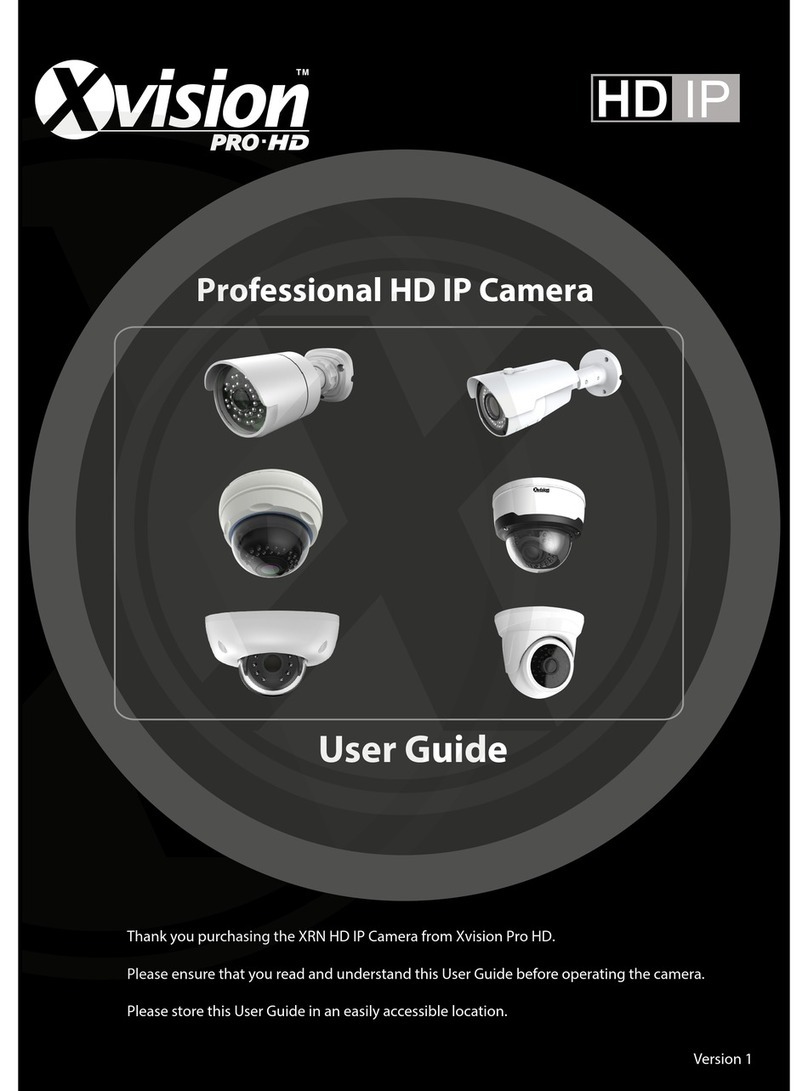
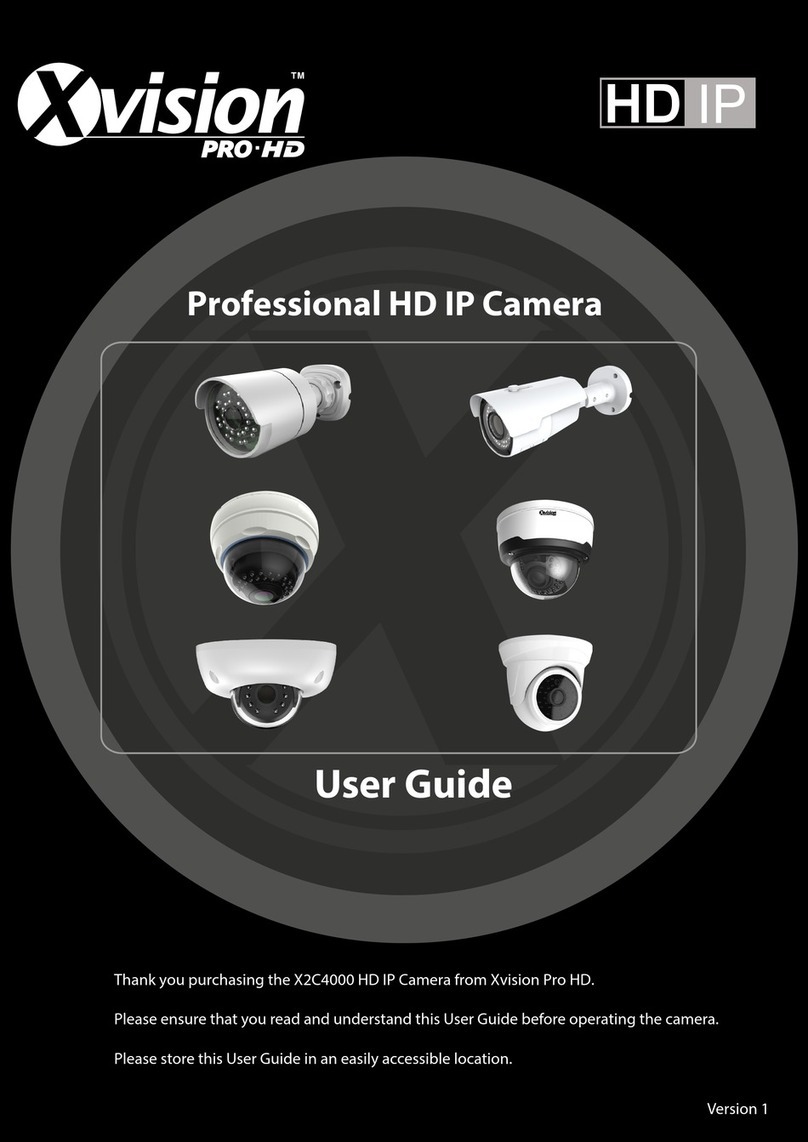
X-Vision Pro HD User manual


XC Camera Setup and OSD Guide
Contents
Safety Precautions...................................................................................................................................2
Introduction ............................................................................................................................................3
Recap.......................................................................................................................................................4
Live View .................................................................................................................................................4
PTZ Setting ..........................................................................................................................................6
System Setup Tab....................................................................................................................................7
Device info ..........................................................................................................................................7
PTZ Settings.........................................................................................................................................8
Display Settings...................................................................................................................................9
Encoding............................................................................................................................................10
Video Parameters .............................................................................................................................11
Motion Detection..............................................................................................................................12
Video Tampering...............................................................................................................................13
Privacy Mask .....................................................................................................................................14
Network Settings...............................................................................................................................15
Management Platform......................................................................................................................16
Multicast Config................................................................................................................................17
DDNS Settings ...................................................................................................................................18
NTP Settings......................................................................................................................................19
Email Settings....................................................................................................................................20
Alarm Input .......................................................................................................................................22
Alarm Output ....................................................................................................................................23
Exception Settings.............................................................................................................................24
User Info............................................................................................................................................24
System Update..................................................................................................................................25
Storage Management .......................................................................................................................25
Restore..............................................................................................................................................26
Local Settings ....................................................................................................................................26
File Management Tab ...........................................................................................................................27
Log Tab..................................................................................................................................................28
IP Camera Network Ports......................................................................................................................29
Default Network Parameters................................................................................................................30

FAQ........................................................................................................................................................30

XC Camera Setup and OSD Guide
Safety Precautions
1Do not install the equipment in an environment with too much moisture, dust or smoke dust
as this may result in fire or electric shock.
2In the unlikely event that the equipment should malfunction and emit an abnormal smell or
smoke, please immediately stop it, shut off the power and contact your supplier.
3Please do not place this equipment near a heat source to avoid risk of fire.
4Please do not store, install and use this product in danger areas with inflammable or explosive
substances.
5Please make sure the power is turned off when installing the product.
6Please ensure that you install the camera in an area with good ventilation.
7When installing the camera, please make sure that it does not face any objects giving out
strong lights as this will damage the CCD of the camera.
8Please do not use the camera in an environment where temperatures that exceed either -20°C
to +55°C.

XC Camera Setup and OSD Guide
Introduction
This guide is for the Xvision Pro HD XC Range of IP Cameras OSD Browser Guide.
It is recommended that the units are setup and tested before being mounted or installed.
These instructions are for guidance only detailed information is in accordance with the product.
The instructions may include some technical inaccuracies or typographical errors, these will
be corrected in future updates.
The product or procedures described in the instructions may be changed or updated at any
time without prior notice. Screenshots used in the instruction are only for indications and
explanations.
This guide continues from the XC/XRN Quick setup guide, please make sure you have read that
before continuing this guide.

XC Camera Setup and OSD Guide
Recap
Once you have set the IP address, amended the Active X controls and installed them, viewed
the XC IP camera on the Browser, you can now go through all the menu options.
Navigate back to your XC device, http://192.168.1.100 that we previously
setup.
Input User name –admin
Password –Blank
Select your chosen Language.
Click [Submit], as shown below:
Live View
In the Live view interface, users can use features such as voice intercom, full-screen, video
record, alarm information, PTZ and lens control, etc. These will all be covered below.

XC Camera Setup and OSD Guide
Voice intercom:Connect to audio on the device) if supported) on the audio input
port and active loudspeaker on the audio out port, then click the talkback icon. Turn
on the voice intercom switch and the icon shows as , the talkback between PC
and IP camera can be performed. Audio input setting as default mode.
SNAP: click button, snap the current image and save it in .JPG format
automatically to the storage directory of snapped images. The default path is
C:\Program Files\PREVIEW, this storage path is changeable.
Full Screen: Live preview in full screen, press keyboard ESC to exit from full screen
display.
Record: ON/ OFF selectable. When select ON, the icon will turn blue as . The
device is now recording, please note these recordings will be saved in the native
format of I8.
Alarm Info: flashing light when camera has an alarm, shows info when alarm
triggered.
Zoom-in: Use the mouse to do local zoom for the video display area by scrolling the
mouse wheel.
PTZ control: Up/ down/ left/ right/ auto, adjust the PTZ rotation speed, etc. Shown
in figure 2-8.
Lens control: focus, iris operation, Shown in figure 2-8.
Brightness: Adjust the image brightness. Shown in figure 2-9.
Contrast: Adjust the image contrast. Shown in figure 2-9

XC Camera Setup and OSD Guide
PTZ Setting
PTZ setting: Set the preset, cruise, tracking, etc. Shown below.
Preset setting: Adjust the camera to the appointed angle and location through
directional buttons, and then select a preset number on the preset drop down list,
click to set it.
Call preset: Select a preset number which you want to call on the preset drop down
list, then click to call it.
Cruise: 255 presets addable, cruise time 1-255s adjustable, cruise speed 1-10 levels
selectable. All cruise tracking can be called and delete independently.
Tracking path setting: Select a tracking number on the tracking drop down list, then
click , after a moving your PTZ camera, click to complete and store the
tracking path.
Call tracking path: Select a tracking number on the tracking drop down list, click to
call it.
Cyclotron arrow: Restore the default parameters. Shown below.

XC Camera Setup and OSD Guide
System Setup Tab
Device info
Device Name: Edit the camera name
Device Sn: Display the IPC Sn
Device Type: Display the IPC type
Serial No. : Display the product serial No.
Master Version: Display the software version date
Hardware Version: Display the hardware version number
Format: Switch to select the PAL and NTSC image scanning system (not supported
on all models)
Device Time: Set and display the IPC current time
After all parameter settings are completed, click “Save” these settings will take
immediate effect.

XC Camera Setup and OSD Guide
PTZ Settings
Protocol: Support Pelco D,Pelco P,Pelco F protocol
Address: 0-255 adjustable
Baud Rate: Baud rate selectable
Operation method: Connect analog high speed dome at the IP camera AB port, set the
protocol and baud rate, and control the high speed dome through IPC preview interface
After all parameter settings are completed, click “Save” these settings will take
immediate effect.

XC Camera Setup and OSD Guide
Display Settings
Name: Modify the appointed channel name
Main stream OSD: 12pt/18pt/24pt/36pt/48pt
Sub stream OSD: 12pt/18pt/24pt
Time Format: Select different time display mode for the appointed channel
Date Format: Select different date display mode for the appointed channel
Bright: Adjust the brightness for the appointed channel
Contrast: Adjust the contrast for the appointed channel
Saturation: Adjust the saturation for the appointed channel
Hue: Adjust the hue for the appointed channel
CH: Set the channel title location for the appointed channel
OSD: Adjustment: Set the channel date location for the appointed channel
Cyclotron arrow: Restore the default parameters
After all parameter settings are completed, click “Save” these settings will take
immediate effect.
Table of contents
Other X-Vision IP Camera manuals

X-Vision
X-Vision XPB700WDR User manual

X-Vision
X-Vision X720D User manual

X-Vision
X-Vision XIR504 Guide

X-Vision
X-Vision XIP3101 User manual

X-Vision
X-Vision XPB731WIR-2 User manual

X-Vision
X-Vision VIS600E User manual

X-Vision
X-Vision XPB650 User manual

X-Vision
X-Vision XP5000T User manual

X-Vision
X-Vision X720B User manual

X-Vision
X-Vision XIP3101 Setup guide