manuals.online logo
Brands
  1. Home
  2. •
  3. Brands
  4. •
  5. Xbrand
  6. •
  7. Fan
  8. •
  9. Xbrand Cooling & Comfort Station with Hub... User manual

Xbrand Cooling & Comfort Station with Hub... User manual

This manual suits for next models

1

Popular Fan manuals by other brands

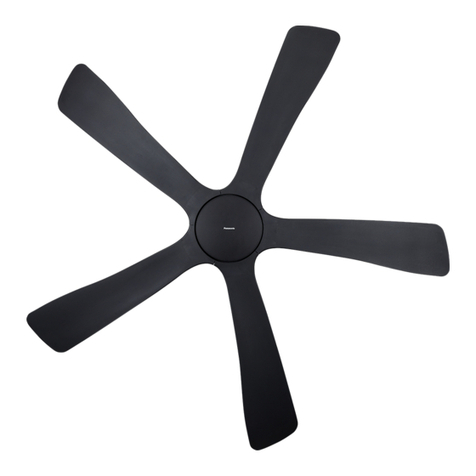
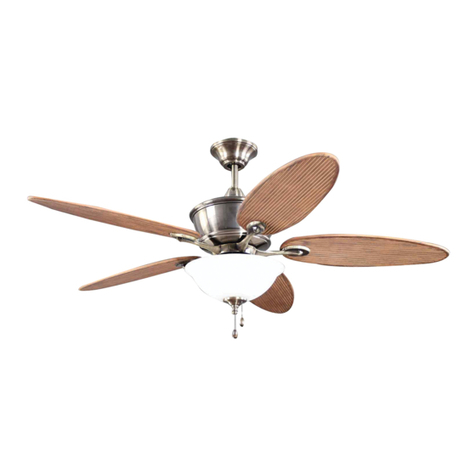
Minka Group minkaAire Wave F843 instruction manual

Minka Group

Minka Group minkaAire Wave F843 instruction manual

Airflow Adroit DV50 instruction manual

Airflow

Airflow Adroit DV50 instruction manual

Vornado 270 Series owner's guide

Vornado

Vornado 270 Series owner's guide

comfort air TH-10D instruction manual

comfort air

comfort air TH-10D instruction manual

Livoo DOM386 instruction manual

Livoo

Livoo DOM386 instruction manual

Holmes BLIZZARD HAOF-90 owner's guide

Holmes

Holmes BLIZZARD HAOF-90 owner's guide

Taurus GRECO 16 ELEGANCE manual

Taurus

Taurus GRECO 16 ELEGANCE manual

Quorum PINNACLE installation instructions

Quorum

Quorum PINNACLE installation instructions

Monte Carlo Fan Company 3DIR58RBD-V1 Owner's guide and installation manual

Monte Carlo Fan Company

Monte Carlo Fan Company 3DIR58RBD-V1 Owner's guide and installation manual

Craftmade UH52 installation guide

Craftmade

Craftmade UH52 installation guide

Jocel JVA030658 instruction manual

Jocel

Jocel JVA030658 instruction manual

MIKA MFB1211/GR user manual

MIKA

MIKA MFB1211/GR user manual

Harbor Breeze RLG52NWZ5L manual

Harbor Breeze

Harbor Breeze RLG52NWZ5L manual

Allen + Roth L1405 instruction manual

Allen + Roth

Allen + Roth L1405 instruction manual

ViM KUBAIR F400 ECOWATT Technical manual

ViM

ViM KUBAIR F400 ECOWATT Technical manual

HIDRIA R10R-56LPS-ES50B-04C10 user guide

HIDRIA

HIDRIA R10R-56LPS-ES50B-04C10 user guide

BLAUBERG Ventilatoren CENTRO-M 100 L user manual

BLAUBERG Ventilatoren

BLAUBERG Ventilatoren CENTRO-M 100 L user manual

Triangle Engineering HEAT BUSTER SPL Series owner's manual

Triangle Engineering

Triangle Engineering HEAT BUSTER SPL Series owner's manual

manuals.online logo
manuals.online logoBrands
  • About & Mission
  • Contact us
  • Privacy Policy
  • Terms and Conditions

Copyright 2025 Manuals.Online. All Rights Reserved.

Cooling & Comfort Station with Hub

model: XB-1009H-XX
1
product set-up
FOLLOW ORDER
Thank you for purchasing an Xbrand Cooling &
Comfort Station with USB Hub. We appreciate the
opportunity to earn your business and trust that
you’ll enjoy using the product as much as we do.
Let us know who you are and how we can serve
you better … please fill out the warranty
registration online at www.xbrandproducts.com
In addition to just being cool, your Cooling and Comfort
Station has 2 key purposes:
1.Keeps your laptop cool so it lives longer and the
processor runs faster.
2.Gives you access to all of your USB peripherals via
single USB cable connection to you laptop.
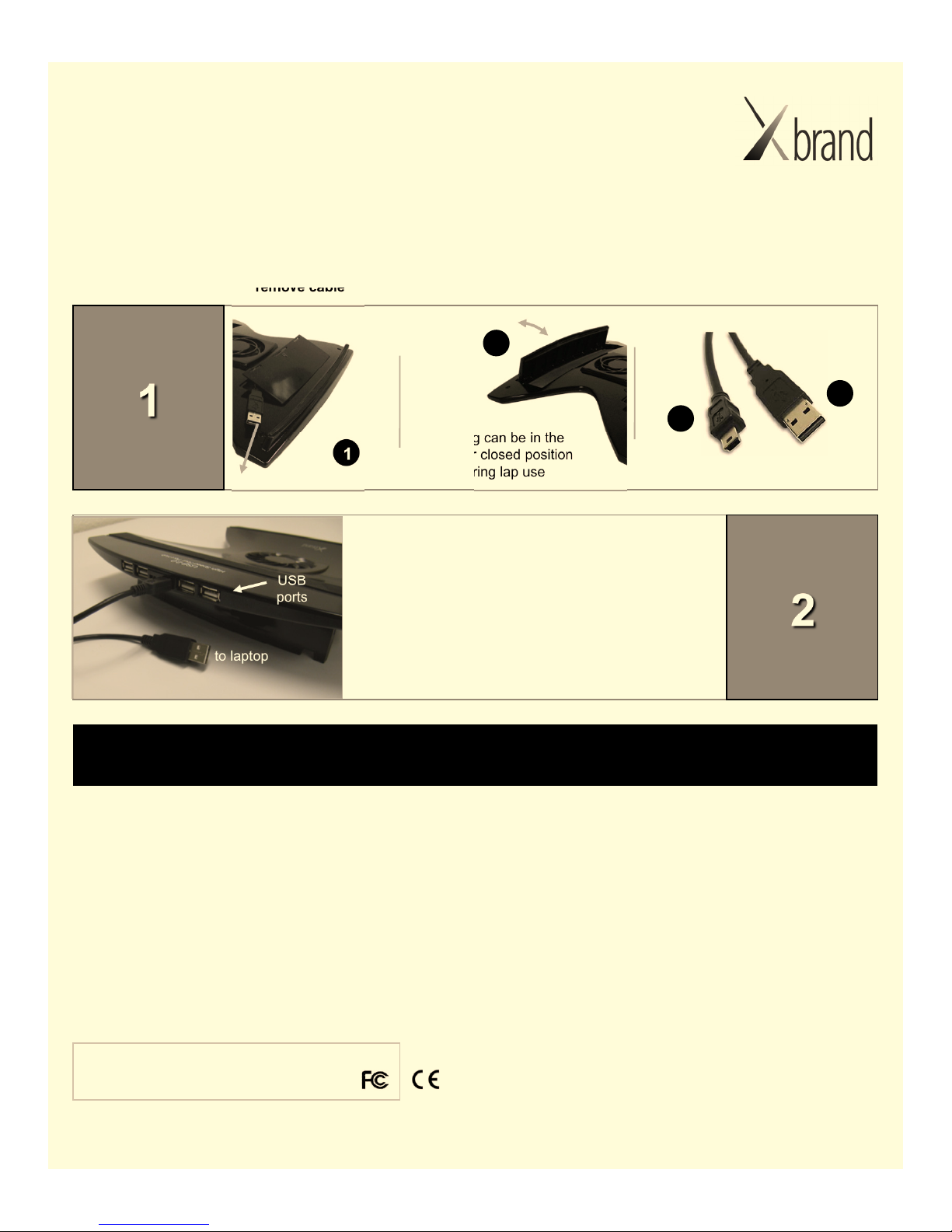
extend leg & remove cable
using the hub
connect power supply connect USB cable
3 to
outlet
to Station
4
2
5
6
to Station
to laptop
After the connections in step 1 are completed
(be sure to follow correct order) you can begin
connecting your USB devices to the Station’s
integrated USB ports.
Connect devices one at a time, making sure each
is recognized by the laptop before connecting the
next.
to laptop
USB ports
STEPS FOR USING STATION AT A DESK
CONNECTION DIAGRAM
a b c
a.connection for power supply
(make connection when using Station at a desk)
b. connection for USB cable
c. connection for USB devices
(mouse, charging cable, iPod …)
connect
power
Cooling & Comfort Station with Hub

model: XB-1009H-XX
product set-up
remove cable
using the hub
Product support & contact information
Hotwire Development - 16039 N. 82nd Street, Scottsdale, AZ 85260, 480.889.0150
Please visit our website at www.xbrandproducts.com for the most current product support and contact information.
LIMITED WARRANTY
Xbrand is a trademark of Hotwire Development LLC. Hotwire Development LLC warrants this product to be free from defects in materials
and workmanship for a period of one year from the date of purchase. This warranty is limited to repairing or replacing, at Hotwire
Development’s sole option, any such defective products. To obtain service under warranty you must obtain a Return Material Authorization
(RMA) number from an Xbrand representative. The product must be returned with transportation charges prepaid and must be
accompanied by a brief description of the problem encountered and proof of date and place of purchase. This warranty does not apply to
equipment which has been damaged by accident, negligence, or misapplication or has been altered or modified in any way. This warranty
applies to the original purchaser. EXCEPT AS PROVIDED HEREIN, HOTWIRE DEVELOPMENT MAKES NO WARRANTIES,
EXPRESSED OR IMPLIED, INCLUDING WARRANTIES OF MERCHANTIBILITY AND FITNESS FOR A PARTICULAR PURPOSE. Some
countries do not permit limitation or exclusion of implied warranties; therefore, the aforesaid limitation(s) or exclusion(s) may not apply to
the purchaser. EXCEPT AS PROVIDED ABOVE, IN NO EVENT SHALL HOTWIRE DEVELOPMENT BE LIABLE FOR DIRECT, INDIRECT,
SPECIAL, INCIDENTAL, OR CONSEQUENTIAL DAMAGES ARISING OUT OF THE USE OF THIS PRODUCT, EVEN IF ADVISED OF
THE POSSIBILITY OF SUCH DAMAGE. Specifically, Hotwire Development is not liable for any costs, such as lost profits or revenue, loss
of equipment, loss of use of equipment, loss of software, loss of data, costs of substitutes, claims by third parties, or otherwise. This
warranty gives you specific legal rights and you may also have other rights which may vary from location to location.
© 2008 Hotwire Development. All rights reserved. US Patent
6,527,241 and Patents Pending. Xbrand is a trademark of
Hotwire Development LLC. All other trademarks are the property
of their respective owners
This equipment complies with Part 15 of the FCC Rules. Operation is
subject to the following conditions: (1) This device may not cause harmful
interference, and (2) this device must accept any interference received,
including interference that may cause undesired operation.
connect USB cable
1
3
4
to Station
to laptop
While in your lap, the Station’s integrated fan and hub will
run off of the power from the laptop’s USB port. This
allows you to use the Station as a portable cooling pad
while you are mobile (not at a desk).
NOTE: High power USB devices, such as external hard
drives, may not function correctly when using the Station
in your lap. To correct this situation, the Station’s power
supply must be connected to both the Station and a
power source.
to laptop
USB
ports
STEPS FOR USING STATION ON YOUR LAP
the leg can be in the
open or closed position
during lap use
leg position
2