9
Calibration
Introduction For optimalperformance,you shouldcalibrateyour systemtoensure properlevelmatchingbetweenall
speakers and the proper setting of all controls (including crossover frequency, phase, and any channel
delaysyour receiver/processormay offer). This procedurewillvarydepending on systemconfiguration
and the information below is provided as a basic guide to assist you. Refer to the owner’s manual for
your receiver/processor for information on performing the steps required to enter their setup mode
and adjust any applicable settings.
Afterallconnectionshavebeenmade,turn ontheACpowertoyour system,starting withthefirstpieceof
sourceequipmentinthesignalchain(such asaCDorDVDplayer),thenpoweronanydedicatedequalizer,
thenpoweronyourreceiver/processor/amplifier(s),andlastbutnotleast,poweronthesubwoofer-/s.You
will need to enter your receiver’s/processor’s setup mode and adjust any applicable speaker settings
to properly match your system configuration
Receiver/Processor
With Automated Setup &
Calibration Function
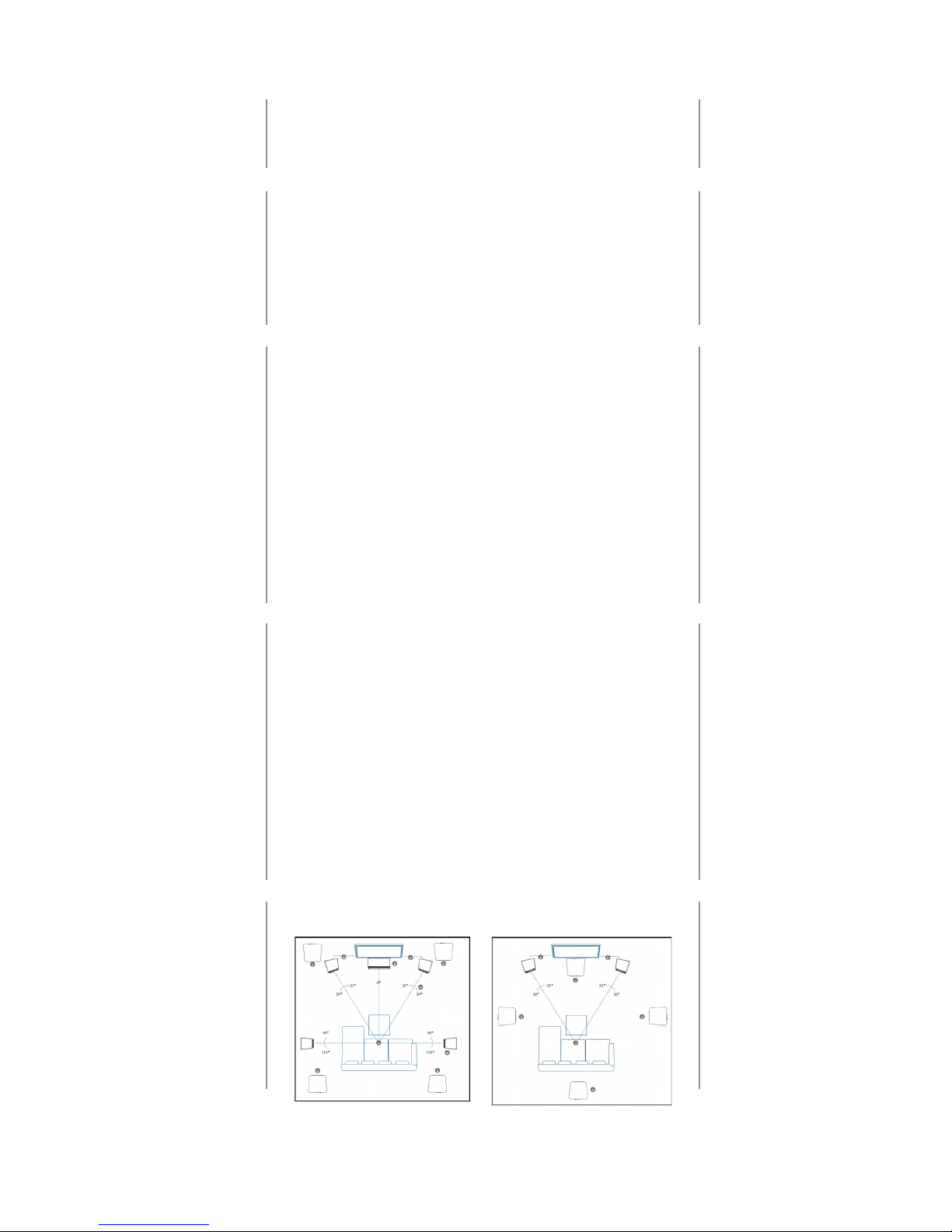
Afteryouhaveverifiedallspeakersareconnectedandyouhavemeasureddistancesofeachtothelistening
position, perform the auto-setup routine on your receiver/processor (if available). Many newer home
theater receivers/processors combine a measurementmicrophoneand anautomatedsetuproutineto
assistyou withpropersettingofspeakerlevels,crossoverfrequency,speakerdelayand phase.Consult
the owner’s manual for your receiver/processor for further instructions on how to perform the setup
routine. After the auto-setup routine is complete, verify the final settings the receiver/processor selected
to ensure there are no erroneous settings (e.g. the settings should match your system configuration).
Some settings to verify may include:
- Number of speakers (e.g. 7.1 or 5.1 system, etc.)
- Type/size of speakers (e.g. small or large front/surround and subwoofer set to yes/on)
- Crossover point should be similar for identical speakers (e.g. if your system using 3 of the same-
speakers for all front channels, verify the receiver/processor selected the same crossover point
for all these channels)
- Crossover frequency should be selected. We recommend 80Hz to start. Slightly higher or lower
crossover point may yield better results in your system.
- Note: some receivers do not have an adjustable frequency, instead there is only a choice of
“small” or “large”. In this case, we recommed choosing “small”.
- Gain settings for each channel should be reasonably close (e.g. if the speakers are placed at even
distances, the gain setting for each channel should typically be within a couple dB from channel to
channel). If the receiver/processor gain trim setting for the subwoofer channel is a large value (e.g.
+12 or -12dB) you may need to increase the subwoofer’s gain to achieve a better match
- Low subwoofer gain/trim settings (on your receiver/processor) effect the operation of the “AUTO
ON/OFF” signal sensing circuit. If your receiver/processor gain is set to a low values (e.g. attenuat-
ing the signal -6dB or more) this reduces the signal available to properly “turn on” the subwoofer
when using the “AUTO ON/OFF” feature. If your subwoofer turns off unexpectedly when watching
movies at low volumes, you may wish to increase the receiver’s/processor’s subwoofer gain
trim, and manually reduce the volume using the subwoofer’s “BASS LEVEL” control to maintain
proper balance.
- Polarity/phase; This should be adjusted for smoothest frequency response near the crossover
point.
- EQ settings; if your receiver/processor allows you to see the eq settings for each channel, verify
that it is not adding any extra “limiter”, or “HPF” to the subwoofer channel, and that it is not adding a
high level of boost (e.g. >+3dB) or cut (e.g. -10db).
NOTE:
In some installations, automated room eq algorithms may make undesired changes to the subwoofer
signal settings trying to obtain what they believe is the best room response curve. In some systems
thesechangeshavebeenknowntodegradetheoverallsoundqualityofthesubwoofer.Ifusingareceiver/
processorwithautomatedroomEQ-function,weadviseyoulistentothesystemfirstwiththeeqdisabled,
then again with the EQ enabled, to determine if the changes are beneficial.