manuals.online logo
Brands
  1. Home
  2. •
  3. Brands
  4. •
  5. Zebex
  6. •
  7. Computer Hardware
  8. •
  9. Zebex DG-5X User manual

Zebex DG-5X User manual

Popular Computer Hardware manuals by other brands

Toshiba TOSVERT VF-MB1/S15 IPE002Z Function manual

Toshiba

Toshiba TOSVERT VF-MB1/S15 IPE002Z Function manual

Shenzhen MEITRACK MVT380 user guide

Shenzhen

Shenzhen MEITRACK MVT380 user guide

TRENDnet TEW-601PC - SUPER G MIMO WRLS PC CARD user guide

TRENDnet

TRENDnet TEW-601PC - SUPER G MIMO WRLS PC CARD user guide

StarTech.com CF2IDE18 instruction manual

StarTech.com

StarTech.com CF2IDE18 instruction manual

Texas Instruments LMH0318 Programmer's guide

Texas Instruments

Texas Instruments LMH0318 Programmer's guide

Gateway 8510946 user guide

Gateway

Gateway 8510946 user guide

Devon IT TC2D Quick setup guide

Devon IT

Devon IT TC2D Quick setup guide

Krüger & Matz Air Shair2 owner's manual

Krüger & Matz

Krüger & Matz Air Shair2 owner's manual

Crystalio VPS-2300 quick guide

Crystalio

Crystalio VPS-2300 quick guide

MYiR FZ3 user manual

MYiR

MYiR FZ3 user manual

Protech Systems BC-K200 Quick reference guide

Protech Systems

Protech Systems BC-K200 Quick reference guide

Miranda DENSITE series DAP-1781 Guide to installation and operation

Miranda

Miranda DENSITE series DAP-1781 Guide to installation and operation

Sierra Wireless Sierra Wireless AirCard 890 quick start guide

Sierra Wireless

Sierra Wireless Sierra Wireless AirCard 890 quick start guide

Leadtek Killer Xeno Pro Quick installation guide

Leadtek

Leadtek Killer Xeno Pro Quick installation guide

Star Cooperation FlexTiny 3 Series Instructions for use

Star Cooperation

Star Cooperation FlexTiny 3 Series Instructions for use

Hotone Ampero user manual

Hotone

Hotone Ampero user manual

Connect Tech Xtreme/104-Express user manual

Connect Tech

Connect Tech Xtreme/104-Express user manual

Yealink WF50 user guide

Yealink

Yealink WF50 user guide

manuals.online logo
manuals.online logoBrands
  • About & Mission
  • Contact us
  • Privacy Policy
  • Terms and Conditions

Copyright 2025 Manuals.Online. All Rights Reserved.

Wireless Communication
Wireless technology operates 80M with communication dongle. Maximum
communication range may vary depending on obstacles (person, metal, wall, etc.) or
electromagnetic environment.
The following conditions may affect the sensitivity of wireless communication. There
is an obstacle such as a person, metal, or wall between this unit and wireless device.
This unit supports security capabilities that comply with the wireless standard to
provide a secure connection when the wireless technology is used, but security may
not be enough depending on the setting. Be careful when communicating using
wireless technology.
We do not take any responsibility for the leakage of information during wireless
communication.
Connection with all wireless devices cannot be guaranteed.
A device featuring wireless function is required to conform to the wireless standard
specified by wireless SIG, and be authenticated.
Even if the connected device conforms to the above mentioned wireless standard,
some devices may not be connected or work correctly, depending on the features or
specifications of the device.
Depending on the device to be connected, it may require some time to start
communication.
FCC
These limits are designed to provide reasonable protection against harmful
interference when the equipment is operated in a commercial environment. This
equipment generates, uses, and can radiate radio frequency energy, and if it is not
installed and used in accordance with the instruction manual, it may cause harmful
interference to radio communications. Operation of this equipment in a residential
area is likely to cause harmful interference, in which case the user will be required to
correct the interference at his own expense.
Modifications: Any modifications made to this device that are not approved by ZEBEX
Industries, Inc. may void the authority granted to the user by the FCC to operate this
equipment.
Important Notice
No warranty of any kind is made in regard to this material, including, but
not limited to, implied warranties of merchantability or fitness for a
particular purpose. We are not liable for any errors contained herein or
incidental or consequential damages in connection with furnishing,
performance or use of this material.
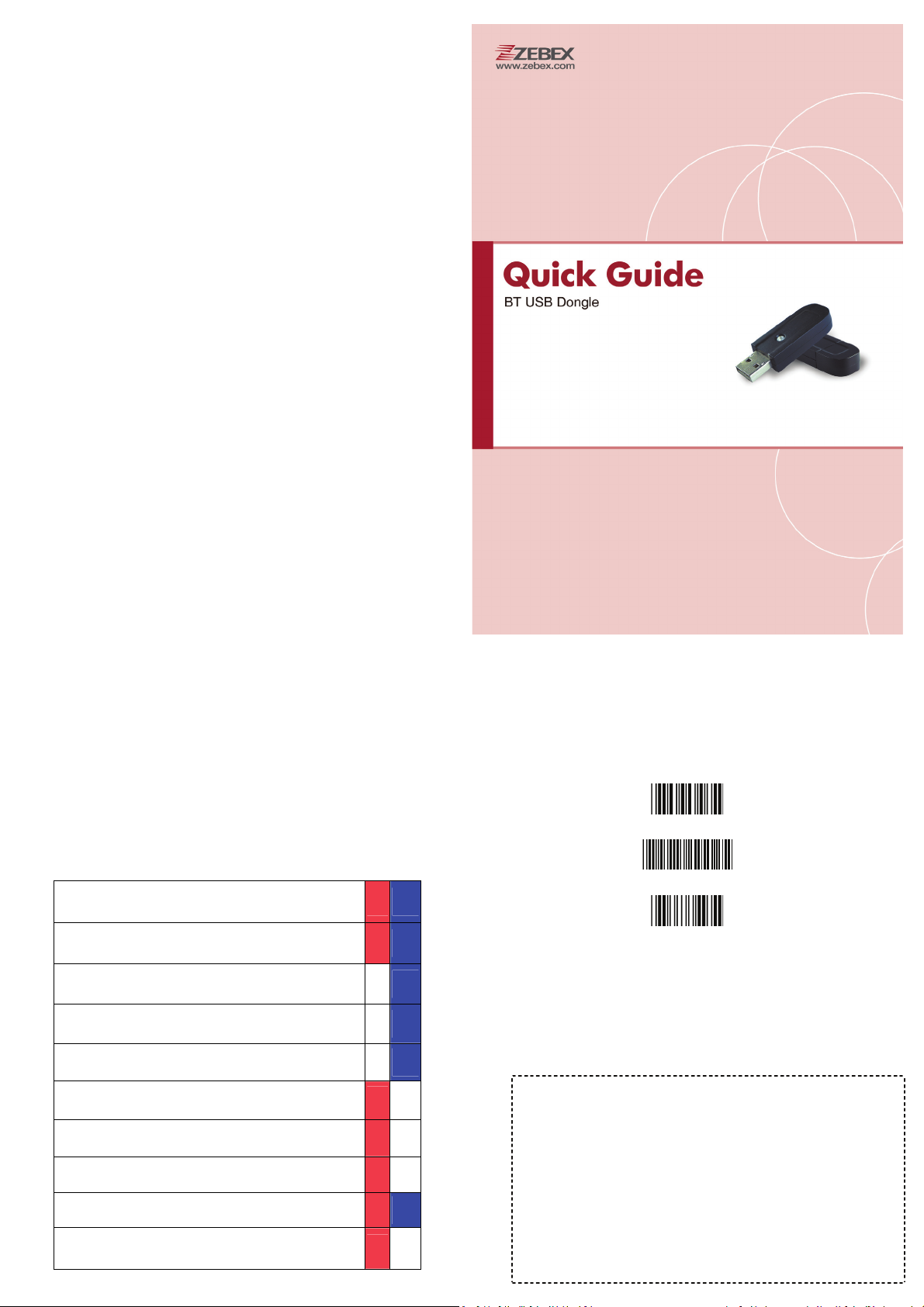
Dongle LED
LED Status RED BLUE
Dongle energized (Red and Blue flashing per 100ms)
Scanner connection-BT (Red LED off, Blue LED on)
Scanner offline-BT (Blue flash once/sec)
No Data transmission (Blue on)
Data transmission (Red on)
Firmware update (Red on/off)
Setting function mode (Red flash once, Blue LED off)
BT module initialization failure (Blue and Red flashing)
USB detect fault (Red LED on, Blue LED off)
Connecting Scanners
1. Insert the dongle in an USB port of the host.
2. Program the scanner with the “Multi Mode enable” barcode.
Start of Configuration
Multi Mode Enable
End of Configuration
3. Scan the enclosed BT address label to connect the scanner to
the host. The LED indicator on the scanner will flash blue rapidly
indicating search mode in process.
4. The LED on the dongle becomes steady blue when the pairing is
successful.
5. To connect other scanners, repeat steps 1 to 3. You may connect
up to 7 scanners at the same time.

System Function Settings
1. Follow instructions in the “Connecting Scanners” section to pair
your scanner to the host..
2. Please make sure the scanner LED is showing steady blue indicating
a connection to the host before you continue.
3. Scan the corresponding host interface the dongle is using (Either
USB-HID or USB-virtual COM) to begin using the scanner.
Start of Configuration
Return to USB-HID default
(Communication dongle link required)
Return as USB-virtual COM port default
(Communication dongle link required)
End of Configuration
Keyboard Message Terminator
Keyboard terminator---none
Keyboard terminator---Enter
Keyboard terminator---H-TAB
RS-232 Message Terminator
RS-232 message terminator—none
RS-232 message terminator—CR/LF
RS-232 message terminator—CR
RS-232 message terminator—LF
RS-232 message terminator—H tab
RS-232 message terminator—STX/ETX
RS-232 message terminator—EOT
Keyboard Wedge Setting
International Keyboard mode ( ALT method)
Keyboard language support---USA
Keyboard language support---UK send scan code
Keyboard language support---GERMANY
Keyboard language support---FRENCH send scan
code
Keyboard language support---SPANISH send scan
code
Keyboard language support---ITALIAN send scan
code
Keyboard language support---Switzerland send
scan code
Keyboard language support---Belgium send scan
code
Keyboard language support---Japanese
Capital lock on
Capital lock off
Function key emulation enable
Function key emulation disable
Send number as normal data
Send number as keypad data
Federal Communication Commission Interference Statement
This equipment has been tested and found to comply with the limits for a Class B
digital device, pursuant to Part 15 of the FCC Rules. These limits are designed to
provide reasonable protection against harmful interference in a residential installation.
This equipment generates, uses and can radiate radio frequency energy and, if not
installed and used in accordance with the instructions, may cause harmful interference
to radio communications. However, there is no guarantee that interference will not
occur in a particular installation. If this equipment does cause harmful interference
to radio or television reception, which can be determined by turning the equipment off
and on, the user is encouraged to try to correct the interference by one of the
following measures:
zReorient or relocate the receiving antenna.
zIncrease the separation between the equipment and receiver.
zConnect the equipment into an outlet on a circuit different from that to which
the receiver is connected.
zConsult the dealer or an experienced radio/TV technician for help.
15.21
FCC Caution: Any changes or modifications not expressly approved by the party
responsible for compliance could void the user's authority to operate this equipment.
15.19
This device complies with Part 15 of the FCC Rules. Operation is subject to the
following two conditions: (1) This device may not cause harmful interference, and (2)
this device must accept any interference received, including interference that may
cause undesired operation.
FCC RF Radiation Exposure Statement:
1. This Transmitter must not be co-located or operating in conjunction with any other
antenna or transmitter.
2. This equipment complies with FCC RF radiation exposure limits set forth for an
uncontrolled environment.