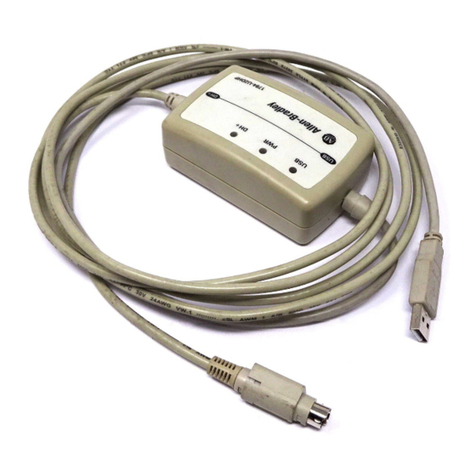
Ethernet Smart Cable
User Manual
Page 4
Installing the Ethernet Smart Cable UM020701-0506
3. Start ZDS II.
4. Open one of the projects listed in the samples directory of your ZDS II installation.
5. Select Project –› Settings. The Project Settings window appears.
6. Select the Debugger tab.
7. In the Debug Tool drop-down menu, select EthernetSmartCable.
8. Click the Setup button. Your Ethernet Smart Cable will be listed in the Smart Cables
Available list. Check the box for your Ethernet Smart Cable, then click the OK button.
If you have more than one Ethernet Smart Cable, you can uniquely identify
them by comparing the MAC address listed in the Smart Cables Available list
with the label on the bottom of the Ethernet Smart Cable.
9. Click the OK button in the Project Settings window.
Your project is now configured to run with the newly installed Ethernet Smart Cable.
You can now connect the target board to the Ethernet Smart Cable as described in “Con-
necting to the Target Board” on page 11.
Connecting the Ethernet Smart Cable Directly to a Host PC
When using a host PC that is not network-connected, you must configure the PC as fol-
lows to connect it to the Ethernet Smart Cable.
The following instructions are for the MS Windows XP platform. If your Win-
dows operating system is different, please refer to your MS Windows OS
online help for details.
1. Power on your host PC before proceeding.
2. Use the Ethernet crossover cable supplied with the Ethernet Smart Cable to connect
the Ethernet Smart Cable to the host PC’s Ethernet port.
3. Connect the 5VDC power supply to the Ethernet Smart Cable power connector.
The green PWR and RUN LEDs illuminate (see Figure 1). The green link LED on the
Ethernet Smart Cable RJ-45 cable (see Figure 2) will illuminate, indicating a live
Ethernet connection. The green activity LED on the Ethernet Smart Cable RJ-45 con-
nector (see Figure 2) will flicker, indicating network activity.
4. On the host PC, open the Windows Control Panel and double-click the Network and
Internet Connections icon. The Network Connections dialog box appears (Figure 3).
Note:
Note: