Zonet ZVC7640 User manual

Copyright Statement
is the registered trademark of Zonet Technology Inc. All the
products and product names mentioned herein are the trademarks or
registered trademarks of their respective holders. Copyright of the whole
product as integration, including its accessories and software, belongs to Zonet
Technology Inc. Without the permission of Zonet Technology Inc., any
individual or party is not allowed to copy, plagiari e, imitate or translate it into
other languages.

1
Table of Contents
CHAPTER 1 INTRODUCTION
2
1.1 P
ACKAGE
C
ONTENTS
........................................................................... 2
1.2 K
NOW
Y
OUR
ZVC7640....................................................................... 3
1.3 S
YSTEM
R
EQUIREMENTS
....................................................................... 5
CHAPTER 2 HARDWARE INSTALLATION
6
2.1 C
AMERA
S
TAND
I
NSTALLATION
............................................................... 6
2.2 C
ONNECTING
ZVC7640
TO
Y
OUR
N
ETWORK
.............................................. 7
2.3 ZVC7640
A
PPLICATION
E
XAMPLE
........................................................... 8
CHAPTER 3 SOFTWARE INSTALLATION
9
CHAPTER 4 USING SKATER UTILITY
15
4.1 G
ENERAL
S
ETTING
........................................................................... 16
CHAPTER 5 WEB CONNECTION AND SETUP
18
5.1 U
SING THE
W
EB
B
ROWSER
................................................................. 18
5.2 L
IVE
V
IEW
..................................................................................... 19
5.3 S
ETUP
......................................................................................... 20
5.3.1
N
ETWORK
S
ETUP
..................................................................... 20
5.3.2
V
IDEO
&
I
MAGE
S
ETUP
.............................................................. 23
5.3.3
A
UDIO
S
ETUP
......................................................................... 26
5.3.4
E
VENTS
................................................................................ 26
5.3.5
S
YSTEM
O
PTIONS
.................................................................... 34
5.3.6
A
BOUT
................................................................................. 39
CHAPTER 6 USING THE VIEWER UTILITY
40
6.1 B
EFORE
Y
OU
S
TART
.......................................................................... 40
6.1.1
U
SING THE
T
RAY
I
CON
.............................................................. 40
6.1.2
IP
C
AMERA
V
IEWER
I
NTRODUCTION
............................................... 41
6.2 S
YSTEM
C
ONTROL
............................................................................ 42
6.2.1
C
ALCULATOR
.......................................................................... 42
6.2.2
L
OCAL
C
ONSOLE
C
ONFIGURATION
................................................. 43
6.2.3
R
ECORDING
S
TORAGE
S
ETUP
....................................................... 45
6.2.4
O
THER
S
ETTINGS
.................................................................... 46
6.3
L
AYOUT
C
ONTROL
............................................................................ 46
6.3.1
C
HANGE
D
ISPLAY
L
AYOUT
........................................................... 46
6.4
B
UTTONS
...................................................................................... 46
6.5
P
ATTERN
T
AB
C
ONTROL
..................................................................... 47
6.6
P
LAYER
......................................................................................... 48
6.7
T
ITLE
........................................................................................... 48
6.8
P
LAY
S
TATE
I
NDICATOR
..................................................................... 49
6.9
OSD ........................................................................................... 50
6.9.1
T
OOLBAR
.............................................................................. 50
6.9.2
C
ONTROL
P
ANEL
...................................................................... 51
6.9.3
S
TATUS
I
NDICATOR
.................................................................. 52
6.9.4
P
LAYER
I
DENTIFIER
F
UNCTION
..................................................... 53
CHAPTER 7 SPEC IFICATIONS
54
CHAPTER 8 FREQUENTLY ASKED QUESTIONS
56

2
Chapter 1
Introduction
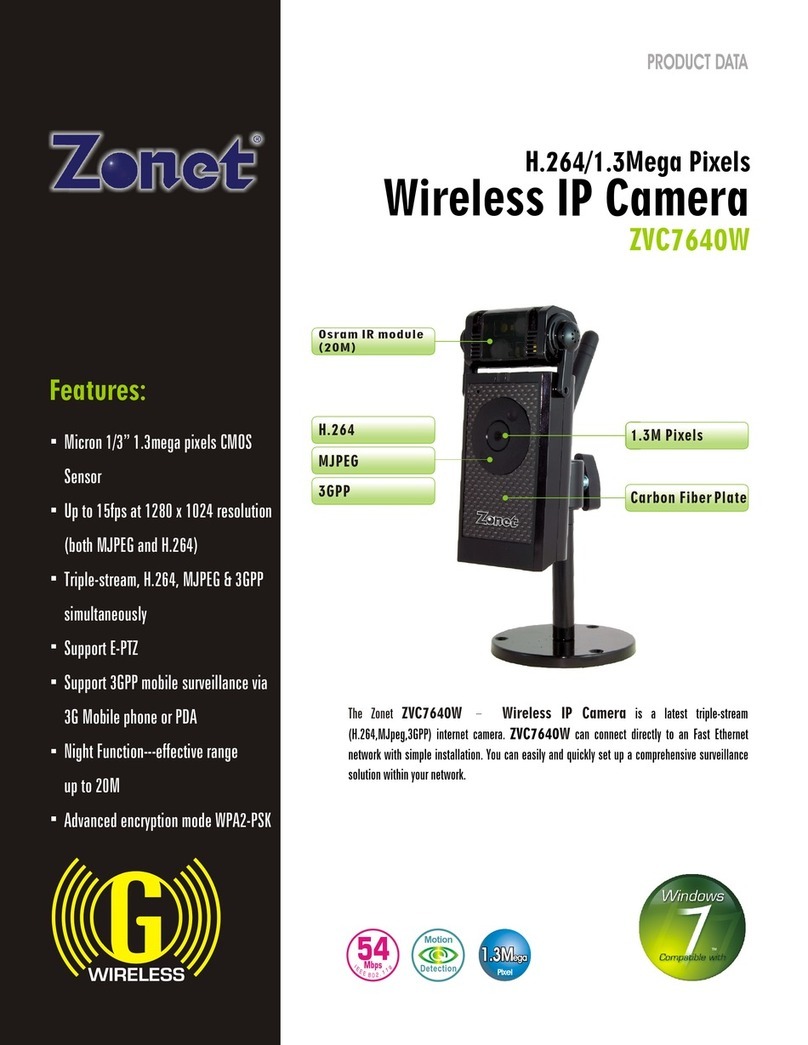
Thank you for purchasing the Zonet ZVC7640, a H.264/1.3Mega Pixels IP
Camera. It is a powerful triple-codec IP Camera with audio function which
provides a high quality image and on-the-spot audio via the Internet. The
Military standard Osram IR LED enable the camera to capture images even in
the dark environment. ZVC7640 can be installed as a standalone system within
your application environment easily and quickly. It supports remote
management function so that you can access and control it using a web
browser of your computer.
1 1 Package Contents
Check the items contained in the package carefully before installation.
One ZVC7640
One Quick Installation Guide
One Installation CD w/ User Manual
One Power Adapter
One Camera Stand
One Ethernet Cable
NOTE: Contact your local authorized reseller or the store purchased from for
any items damaged and/or missing.
3
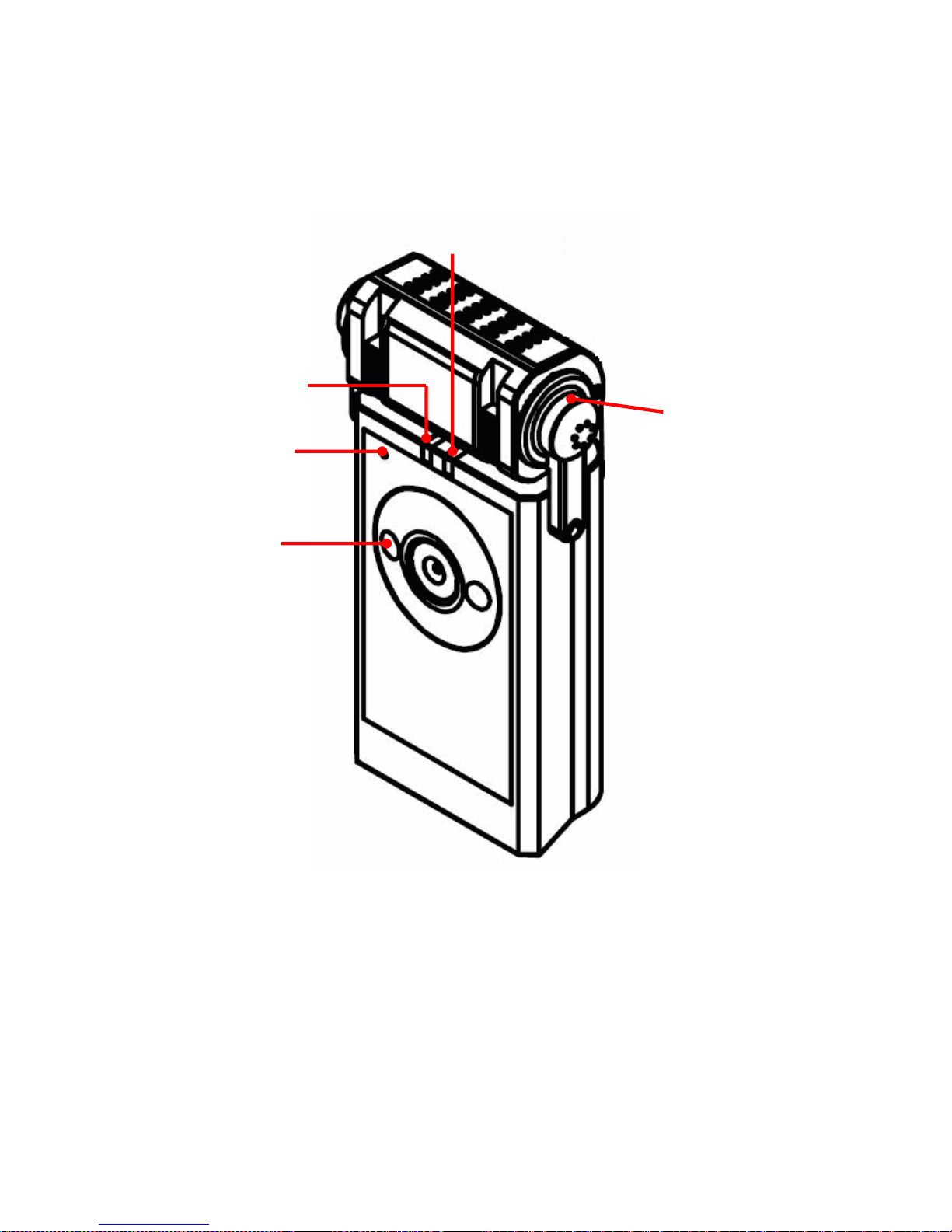
1 2 Know Your ZVC7640
Front View
Internal Microphone
Allows camera to receive
sound and voice.
Lens Assembly
Adjust focus by
turning it
Power LED
indicates camera is
power ON with
steady red light.
Link LED
indicates
camera’s network
connectivity with
flashing green light.
IR module
Using Military standard
Osram IR LED.

4
Rear/Bottom View
Screw Hole
For connecting the
camera to camera
stand.
Reset Button
‧
Press and hold for 10 seconds
to reset the camera to factory
default setting.
Power Connector
is used to connect the
power adapter, in
order to supply power
to the camera.
Ethernet Cable Connector
For connecting RJ-45 Ethernet
cable which supports NWay
protocol for the camera to
detect the network speed
automatically.
IR module
Using
Military standard
Osram IR LED.

5
1 3 System Requirements
Networking
LAN: 10Base-T Ethernet / 100Base-TX Fast Ethernet
Hardware Requirements for single ZVC7640
Platform: Windows 2000/XP/Vista/7
CPU: Intel Pentium IV 2GH or above
RAM: 512MB or above
HDD: 500MB of available space
Graphics Card: AGP with minimum 128 MB
Web browser support: Internet Explorer 6.0 or above, Mo illa Firefox 2.00
or above, Apple Safari 2 or above, Netscape 7.0 or
above.
Hardware Requirements for multiple ZVC7640
Platform: Windows 2000/XP/Vista/7
CPU: Intel Pentium IV 3GH dual-core
RAM: 1GB or above
HDD: 4GB of available space
Graphics Card: NVidia high performance or equivalent with minimum 256MB
Web browser support: Internet Explorer 6.0 or above, Mo illa Firefox 2.00
or above, Apple Safari 2 or above, Netscape 7.0 or
above.
6
Chapter 2
Hardware Installation
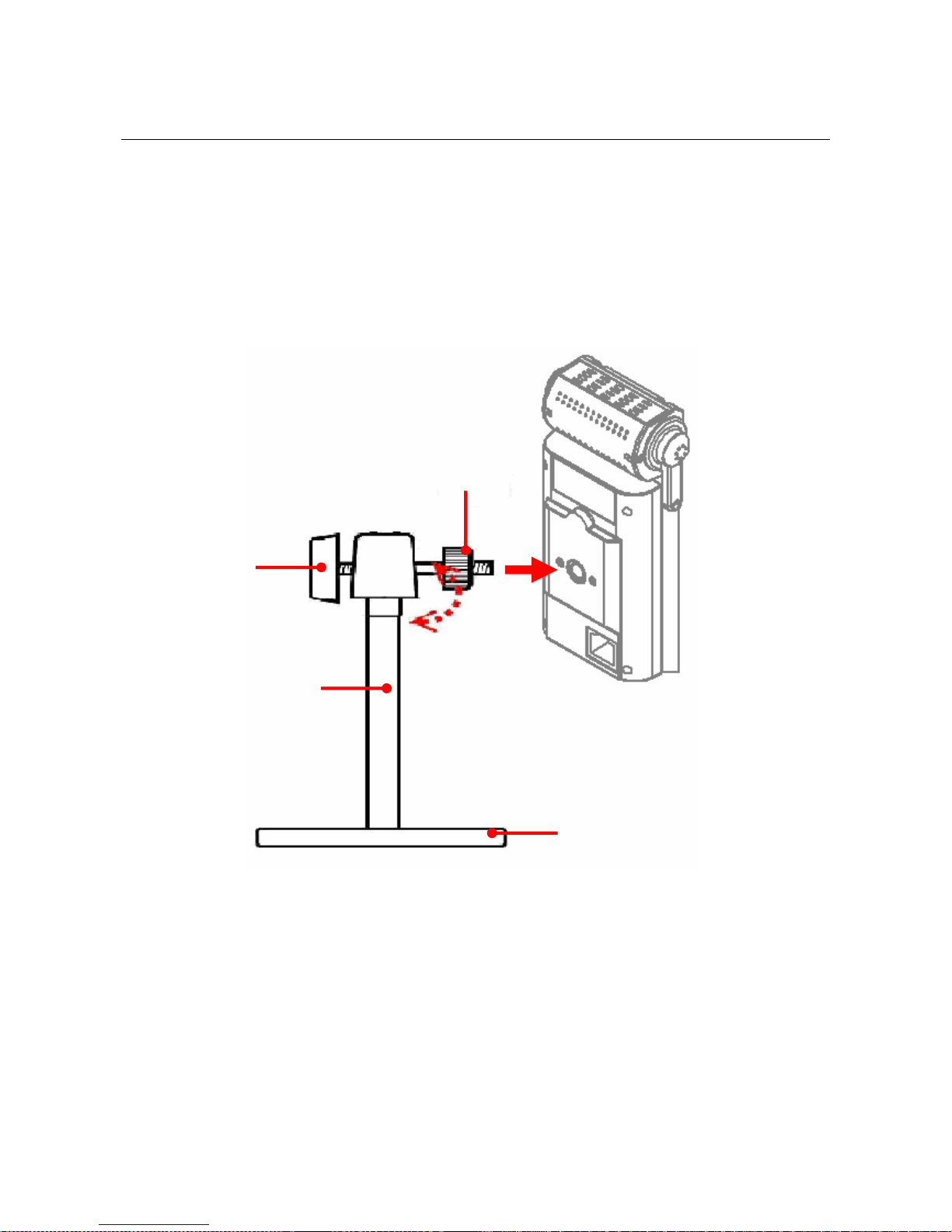
2 1 Camera Stand Installation
ZVC7640 comes with a Camera Stand which uses a swivel ball screw head to
lock the screw-holes at the back of the unit. When the stand is attached to
your ZVC7640, you can place it anywhere by mounting it through the three
screw-holes at the bottom of the Camera Stand.
Attaching the Camera Stand
Extension bar
Stand base
Locknut
Swivel ball

7
2 2 Connecting ZVC7640 to Your Network
1. Connect the provided power
adapter to ZVC7640, and then
plug the power cord to the
electrical outlet on the wall.
ZVC7640 will power ON
automatically. You may verify
the power status from the Power
LED on the front panel.
2. Use the provided Ethernet cable
to connect the camera to your
network. Once you completed
the connection, Link LED will
start flash in green, ZVC7640 is
at standby mode, and it is ready
to use.
②
②②
②
①
①①
①

8
2 3 ZVC7640 Application Example
ZVC7640 can be applied in multiple applications, including but not limited to
the followings:
Monitor different places and objects via Internet or Intranet locally and
remotely.
Capture images and video clips remotely.
Upload images and email messages with the images.
The following diagram explains one of the most typical applications for
ZVC7640.
NOTE: ZVC7640 must enclose by a waterproof housing when installing in an
outdoor en ironment.
Home Applications
Other manuals for ZVC7640
1
Other Zonet IP Camera manuals
Zonet
Zonet ZVC7611W Operation manual
Zonet
Zonet ZVC7630 User manual
Zonet
Zonet ZVC7640 Operation manual

Zonet
Zonet ZVC7610 Operation manual
Zonet
Zonet ZVC7610 User manual

Zonet
Zonet ZVC7630 User manual
Zonet
Zonet ZVC7610W User manual
Zonet
Zonet ZVC7630W User manual
Zonet
Zonet ZVC7611 User manual
Zonet
Zonet ZVC7640W Operation manual