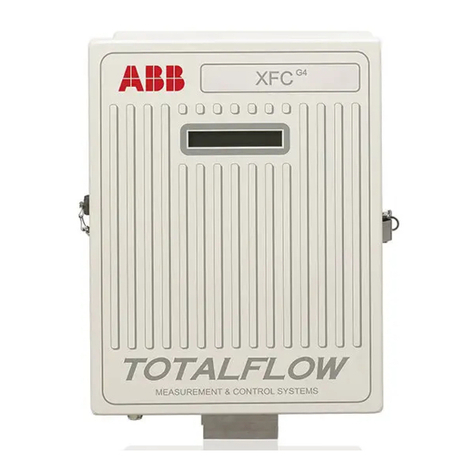
RMC-100 QUICK START GUIDE| 2107023MNAA-001
RMC-100 Quick Start Guide
Power modes
The RMC-100 supports either of two power modes:
Primary power
source to device
Battery: Nominal 12 Vdc Sealed
Lead Acid
is solar panel:
20 W or less,
R
rger is power Source:
14.5 Vdc to 15.5 Vdc, 1.65 A
+9 Vdc to 30 Vdc, 5 A max
WARNING – Bodily injury.Do not connect the
battery/charger or external power supply to the
device
until all wiring is complete.
Battery mode
ABB (XCore) enclosures for the RMC-100 do not come with a
battery. You can install an external battery and charge with an ABB
solar panel charger. See battery and charger specifications above.
ABB solar panel as charger
Mount the solar panel outdoors on a stand-alone 2-inch pipe.
:For best
charging, place the solar panel in
full sun
all day. Clean the solar panel on a regular basis to
Required materials:
−One (1) solar panel with cable
−One (1) solar panel mounting kit (includes U-bolts, brackets,
and hardware)
−Mounting pipe extension and coupling if required (length
determined by technician depending on the size of the solar
panel)
−Nylon tie wraps
NOTICE – Equipment damage. Exercise caution when
handling the solar panel to avoid damage.
Install the solar panel:
1. Verify that the solar panel is operating properly before
installation:
a. Check the solar panel using a digital voltmeter to verify
polarity and output voltage.
b. If the measured output voltage is within the
manufacturer’s specification, continue with the
installation.
c. If the measured voltage is out of specification, contact
ABB for a replacement panel.
2. Install the mounting bracket on the solar panel using the
provided hardware.
3. Attach the solar panel mounting bracket to the top end of the
mounting pipe with the U-bolts and associated mounting
hardware. Do not tighten completely.
4. Insert the panel cable into the enclosure leaving enough length
to reach the CHARGER/EXT PWR terminal block.
Wire and power the device
For wiring, refer to Figures 1 and 2 on the reverse side.
1. Wire all peripherals to the controller.
2. If battery powered:
a. Connect the battery to the BAT connector.
b. Remove the connector from the CHARGER/EXT PWR
terminal block.
c. Wire the solar panel cable wires into the removed
connector with correct polarity (+, -).
d. Reinsert the wired connector into the CHARGER/EXT PWR
terminal.
3. If externally powered:
a. Remove the connector from the CHARGER/EXT PWR
terminal block.
b. Wire the external power supply cables into the removed
connector with correct polarity (+, -).
c. Reinsert the wired connector into the CHARGER/ EXT
PWR terminal.
4. Verify the power-on sequence on the LCD.
Local communication with the device
Establish initial communication with the RMC-100 with a direct
connection to the USB or Ethernet ports.
IMPORTANT NOTE: Use PCCU32 software to configure the
device. Ensure PCCU32 is already installed in the PC or laptop.
PCCU32 has context-sensitive online help. Click Help on the
screen of interest for details.
Local connection on USB
1. Connect the laptop to the USB port.
2. Start PCCU32.
3. Click the Setup icon on the PCCU32 toolbar menu. The
System Setup window displays.
4. Under Communications, select Serial port.
5. Under Connection Parameters, on the PCCU Com Port drop-
down list, select the port on the PC or laptop assigned to the
local connection.
6. Click Close to exit connection setup and return to the main
PCCU screen.
7. Click Entry on the top PCCU toolbar to establish connection.
Local connection on Ethernet
The RMC is configured as a 2-port switch from the factory. A default
IP address (169.254.0.11) is ready for initial local communication
using either of the 2 ports. Both ports are enabled by default.
1. Connect the laptop to either Ethernet port.
2. Start PCCU32.
3. Click the Setup icon on the PCCU32 toolbar menu. The System
Setup window displays.
4. Under Communications, select TCP/IP.
5. Under Connection Parameters, type the IP address:
169.254.0.11
6. Click Close to exit connection setup and return to the main
PCCU screen.
7. Click Entry on the top PCCU tool bar to establish connection.
Configure for network communication
Configure valid IP parameters based on the RMC Ethernet mode and
field network topology required. 1 Network mode requires 1 IP
address. 2 Network mode requires 2 IP addresses.
In 2 Network mode, traffic on each Ethernet port is isolated from the
other (two separate subnets). An external router is required for
communication between these two networks. Make sure to use the
configuration, topology, and network equipment to support your
specific field requirements.
1. On the PCCU Entry mode navigation tree, select
Communications>Networking.
2. In the Ethernet section, configure IP parameters:
a. For automatic IP addressing (DHCP), select Enable.
b. For static IP addressing, type parameters manually.
3. Click Send.
4. Connect one of the RMC Ethernet ports to the appropriate
network equipment or additional Totalflow device.
5. Click Restart.
Enable MQTT support
MQTT supports connection to a service provider or private cloud. It
may require authentication certificates for the device. Consult with
your IT administrator for configuration options or requirements
when using certificates.
– Cybersecurity risk:The RMC-100 is not an
-facing device. Do not connect directly to the
Internet. An MQTT gateway is
required between the Digital
Oilfield and the RMC. If the customer’s corporate network
firewall is compromised, the RMC
-100 would be at risk
without the MQTT gateway.
Enable MQTT and REST (MQTT configuration interface):
1. On the PCCU Entry mode navigation tree, select
Communications>Services.
2. Select the MQTT Service checkbox.
3. Select the MQTT REST Service checkbox.
4. Click Send.