Network Remote Setup Procedure
1. Find the WL-IR01’s IP address on the ‘System Info.’ menu.
2. Open the web browser from any desktop/mobile device that connect to the same network as
the WL-IR01.
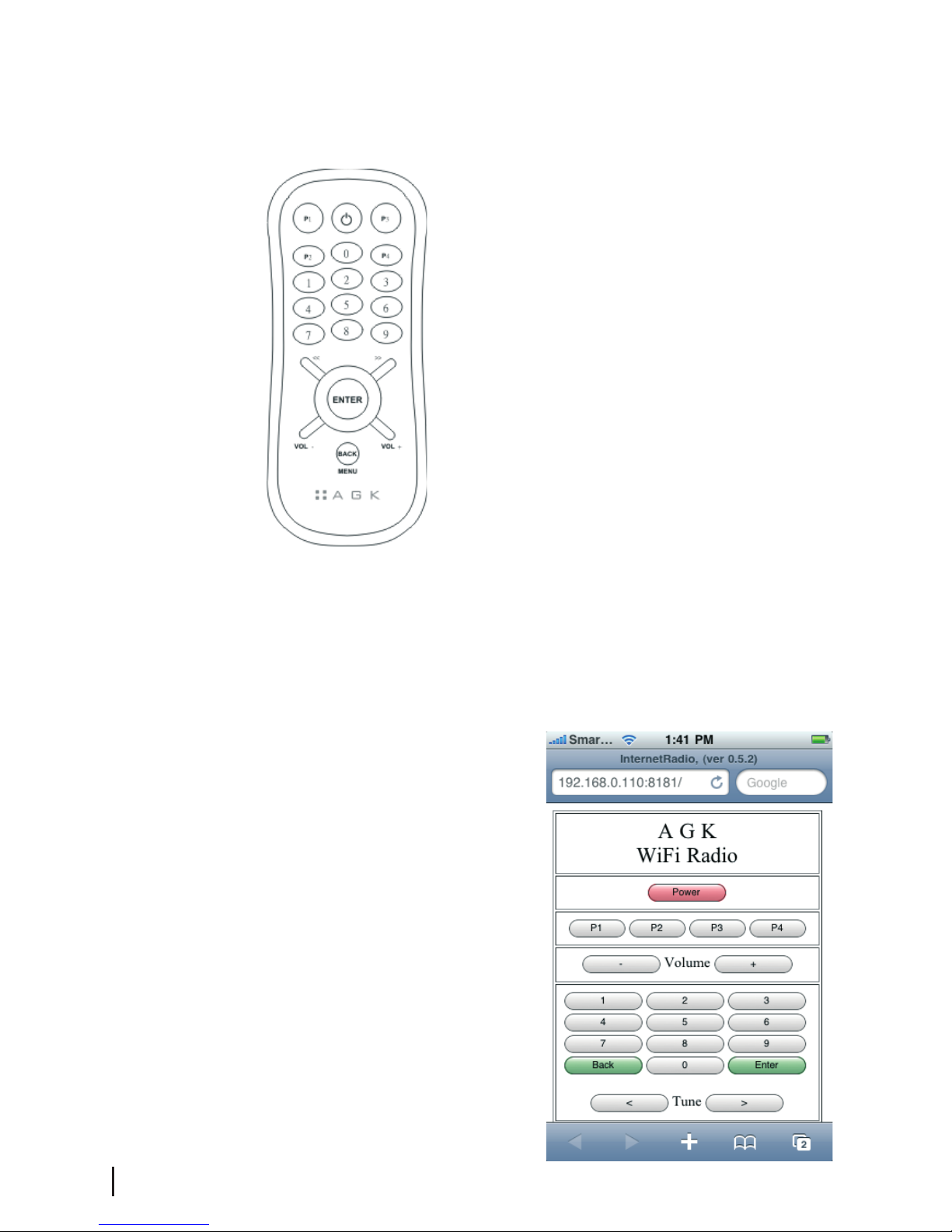
3. Enter the WL-IR01 IP address with port 8181 in the URL entry field of the web browser
‘ip address:8181’, e.g. 192.168.0.110:8181
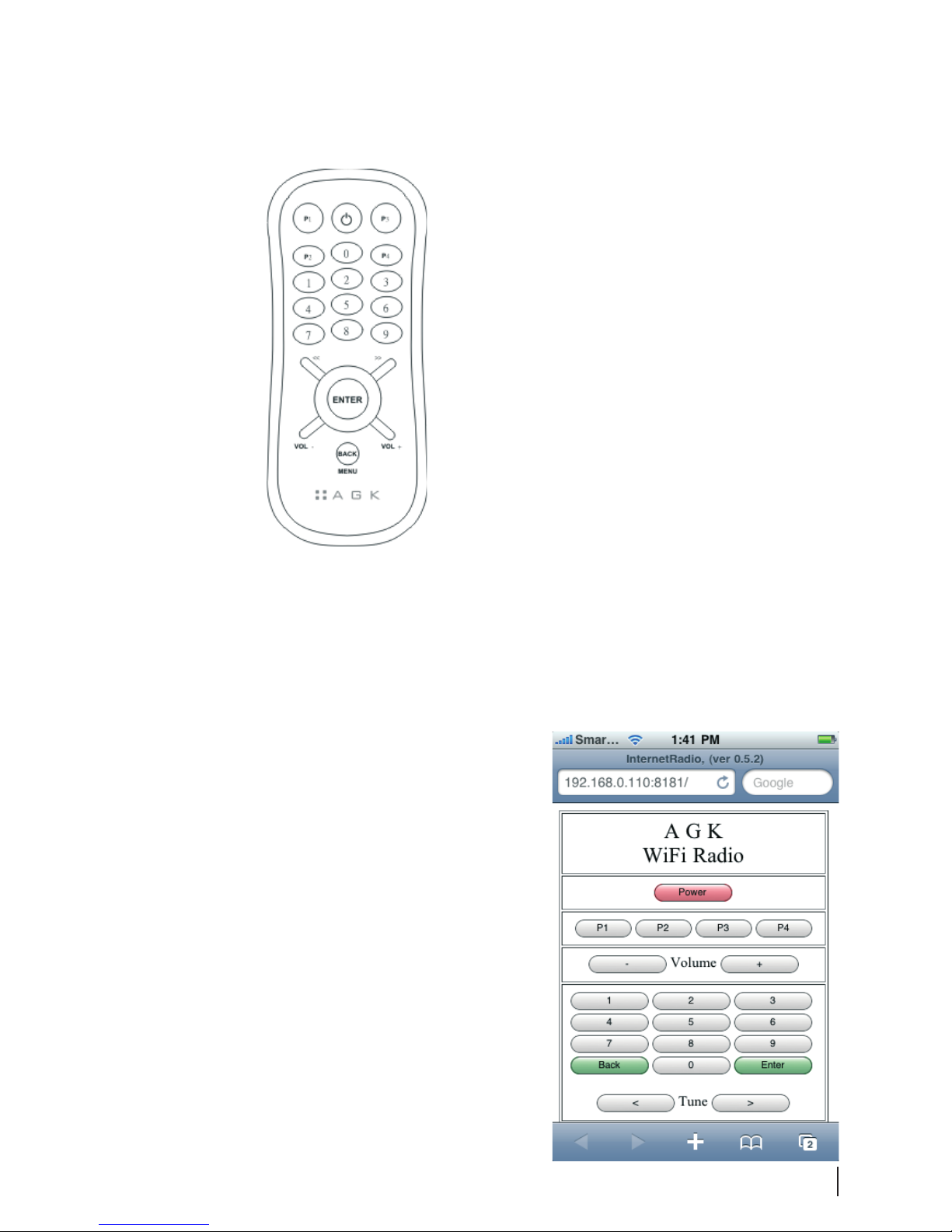
4. The 21-key network remote control screen will be displayed on the browser as shown above.
5. All IR remote control functions are supported in network remote control except the Preset
Saved function as press and hold functions are not supported in the web browser.
6. The Network Remote function as an intelligent display remote unit. The unit’s LCD display
output is forwarded to the network remote control web screen. This means that users do not
need to view the LCD display when configuring/controlling the unit.
Network Setup
1. Setup Procedure for WPS Connection
• This is used for WPS-enabled broadband routers such as D-Link DIR-300.
• Change to Standby mode and wait for ‘A G K WiFi Radio’ to be displayed.
• Press and hold the WPS button until the ‘WPS Connecting, Please Wait’ message is
displayed.
• On the WPS-enabled router, press the WPS key and the router will enter WPS WPS
connection mode
• The WPS connection will complete within 2 minutes.
• Once complete, the ‘WPS Complete, Successful’ message will be displayed.
2. Setup Procedure for WiFi connection using SSID
• Change to Standby mode and wait until ‘A G K WiFi Radio’ is displayed.
• Press the ‘MENU’ button and ‘Setup Menu: WiFi’ message’ is displayed.
• Press the ‘ENTER’ button to start SSID scanning. The ‘Please Wait, Scanning...’
message is displayed.
• When SSID scanning is complete, ’Network: 1/??: default’ is displayed. ?? is the total
number of SSID scanned and the first WiFi network SSID is displayed, e.g. ‘default’.
• Press the ‘TUNE UP’ and ‘TUNE DOWN’ buttons to select the desired network.
• Press ‘ENTER’ to conrm and ‘Security: 1/3, OPEN’ is displayed.
• Select the WiFi network security mode: OPEN, WPA or WEP.
• For OPEN networks, no password is required.
• For WPA and WEP networks, enter the password.
• In the password screen, ‘WEP/WPA key: <A>’ is displayed.
• Press the ‘TUNE UP’ and ‘TUNE DOWN’ buttons to select the desired character.
• Press ‘ENTER’ button to conrm the selection. The entered password will be
displayed on the second line.