manuals.online logo
Brands
  1. Home
  2. •
  3. Brands
  4. •
  5. Ambient Weather
  6. •
  7. Other
  8. •
  9. Ambient Weather AMBIENTCAMHD User manual

Ambient Weather AMBIENTCAMHD User manual

Popular Other manuals by other brands

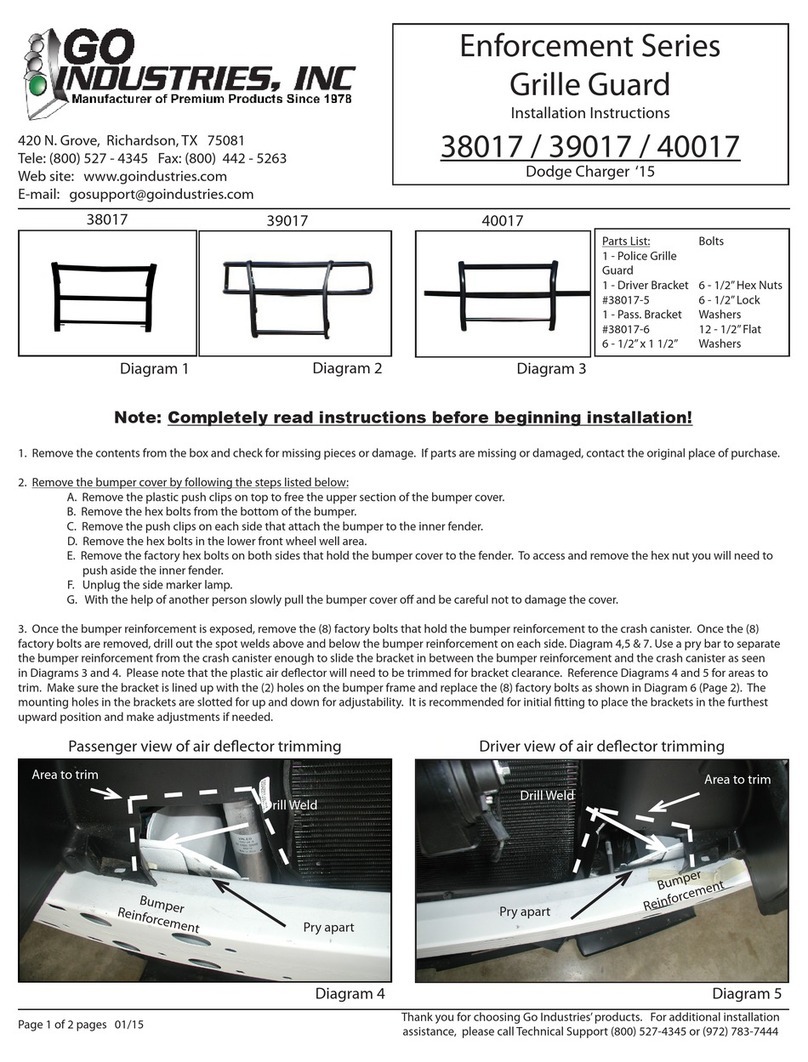
GO Industries 38017 installation instructions

GO Industries

GO Industries 38017 installation instructions

Cissell 30LBCMAN2 manual

Cissell

Cissell 30LBCMAN2 manual

RIDGID K-60SP manual

RIDGID

RIDGID K-60SP manual

Gage Bilt GB751SH-5 Original instructions

Gage Bilt

Gage Bilt GB751SH-5 Original instructions

OVE SIERRA 60 installation manual

OVE

OVE SIERRA 60 installation manual

ReelCraft 7800 OLB21 operating instructions

ReelCraft

ReelCraft 7800 OLB21 operating instructions

Body Armor 4x4 ECO-SERIES user manual

Body Armor 4x4

Body Armor 4x4 ECO-SERIES user manual

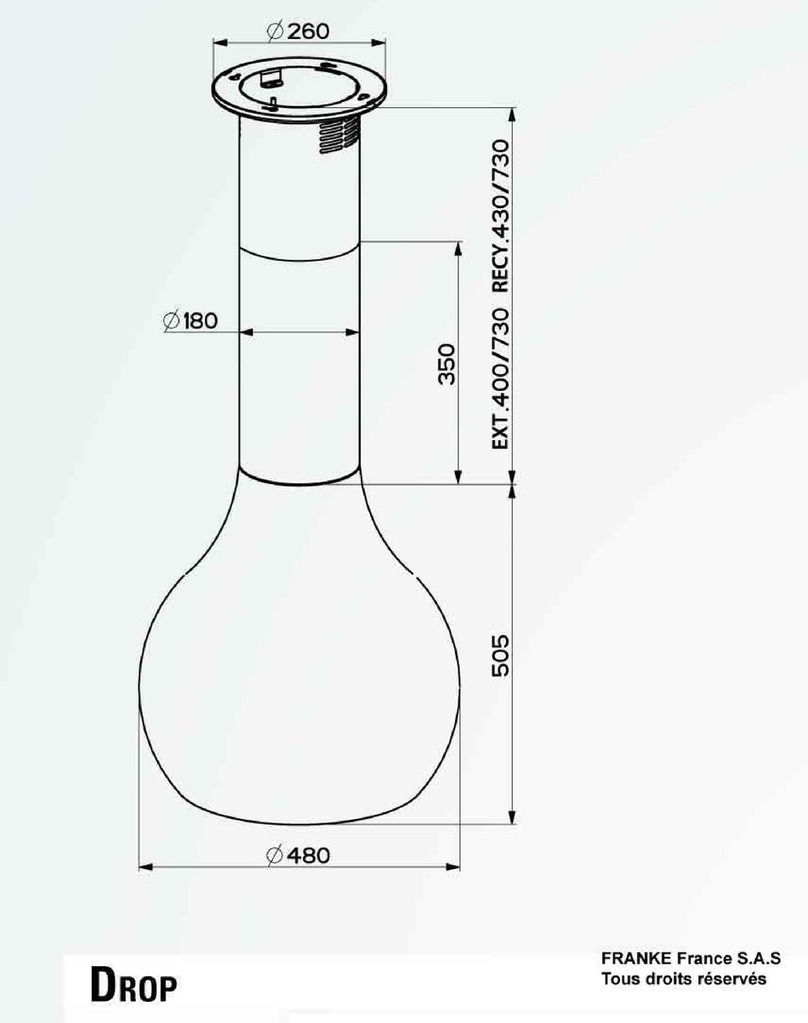
ROBLIN DROP Dimensions

ROBLIN

ROBLIN DROP Dimensions

EMG EMG-ACB BARREL Installation information

EMG

EMG EMG-ACB BARREL Installation information

MiniSolar MT-150 Assembling Guide

MiniSolar

MiniSolar MT-150 Assembling Guide

Parkside PSZ 250 B2 Operation and safety notes

Parkside

Parkside PSZ 250 B2 Operation and safety notes

ABB REM 610 Technical reference manual

ABB

ABB REM 610 Technical reference manual

Parkside 55992 translation of original operation manual

Parkside

Parkside 55992 translation of original operation manual

Skyjacker F250 installation instructions

Skyjacker

Skyjacker F250 installation instructions

IBM IBM SYSTEM Z overview

IBM

IBM IBM SYSTEM Z overview

Grech Motors G28 owner's manual

Grech Motors

Grech Motors G28 owner's manual

NOVAK BATTERY CARE SHEET Using

NOVAK

NOVAK BATTERY CARE SHEET Using

Telemotive blue PiraT Mini Startup guide

Telemotive

Telemotive blue PiraT Mini Startup guide

manuals.online logo
manuals.online logoBrands
  • About & Mission
  • Contact us
  • Privacy Policy
  • Terms and Conditions

Copyright 2025 Manuals.Online. All Rights Reserved.

2 Software Installation
1. Insert the CD into the CD drive of your computer.
Shortcut icon for Windows OS Shortcut icon for Mac OS
3Access the Camera
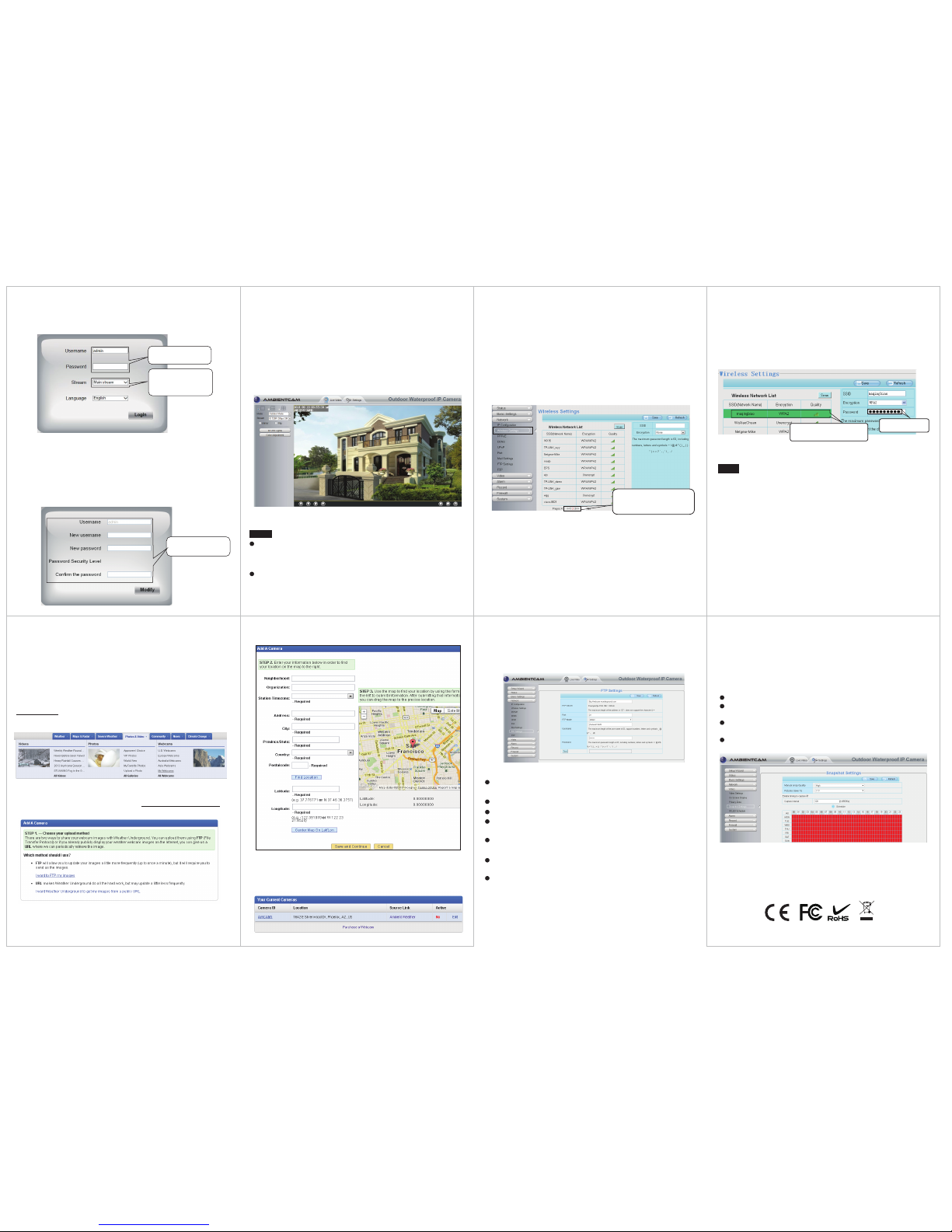
1. Enable the DHCP feature of your router (enabled by default
normally), then open the IP Camera Tool program. It should
display the camera’s IP address in your LAN (Local Area Network).
2. Double click the camera listed here, and your default browser
will open up to the camera’s login page.
The default Username is admin.
Leave the Password blank.
When logging in for the rst time, you will need to download and
install the IPCWebComponents. We will use Internet
Explorer as an example. For Google Chrome, MAC OS Safari, or
Mozilla Firefox, please refer to the User Manual.
1 Hardware Introduction
Package Contents
Quick Installation Guide
Wi-Fi Antenna
Resource CD
Ethernet Cable
Power Adapter
Mounting Bracket
IP Camera
Physical Description
Hardware Connection
1. Mount the antenna and make it stand vertically.
2. Connect the camera to the LAN network (Router or Switch) via
ethernet cable.
3. Connect the power adapter to the camera.
V4.1
Quick Installation Guide
(For Windows & Mac OS)
Outdoor HD IP Camera
WPS
Infrared LED
LENS
Antenna
LAN
Audio in/out
Power
Reset Button
Note:
Although 64-bit operating systems are supported (Windows
Vista, 7, 8, etc.), the camera does not support 64-bit web
browsers. Use a 32-bit browser.
Click Install
Note:
If your computer doesn't have a CD drive, you can download
the IP camera tool from our website here:
http://www.AmbientWeather.com/ambientcamhd.html
Model:AMBIENTCAMHD
Quick Installation Guide
(ForWindows & Mac OS)
OutdoorHD IP Camera
Model:AMBIENTCAMHD
Click Install
Find the folder “IP Camera Search Tool” , then go to the folder “For
Windows OS”or “For Mac OS”. Copy and paste the IP camera tool
le to your computer, or drag it onto your desktop.
2.
ambient weather
Note:
The following browser errors may occur while installing the
IPCWebComponents. In addition, you may not be able to view
the live video. To correct this:
Internet Explorer:
You may receive an ActiveX component installation error due to
Microsoft security settings.
To prevent this error, in Windows Explorer, select Tools | Internet
Options | Custom Levels… and locate ActiveX controls and
plug-ins, and enable the following:
Enable: Download unsigned ActiveX controls
Enable: Initialize and script ActiveX controls not marked as safe
Enable: Run ActiveX controls and plug-ins
Google Chrome will stop supporting the NPAPI protocol in
2015. The camera uses the NPAPI protocol. Check for rmware
updates here for future support of the Chrome browser:
www.AmbientWeather.com/ambientcamhd.html
Chrome:
You may receive a Plug-in Error in the browser bar. To correct
this, select Always allow plug-ins.
3.
After installing the IPCWebComponents, refresh the
browser and click Login.
5Sign up your Camera at
WeatherUnderground.com
1. Visit WeatherUnderground.com and create a free account.
4. Fill out the Add A Camera section, and select Save and Continue.
5. Note your Camera ID. You will need to enter this in your Camera FTP
Services Settings.
3. From the Add A Camera section, select I want to FTP my images.
2. From the homepage, select Photos & Videos | Webcams |
My Webcams.
6Enter Camera FTP Service Settings 7Create an FTP Upload Schedule
Select Video | Snapshot Settings from the menu.
Select Network | FTP Settings from the menu.
If you receive an FTP server address error message, you have not correctly
entered the FTP Server Name ftp://webcam.wunderground.com.
1. Login into your camera and view the camera web interface.
NOTE:
It may take up to 24 hours for your camera account to become active on
Wunderground.com. In the mean time, you may receive an FTP Server
Connection Fails message when selecting the Test button.
2. Enter the following settings:
FTP Port: 21 (this is the standard port for any FTP server)
FTP User: Enter the Camera ID obtained in the previous section. This
is case sensitive.
FTP Mode: PASV (signies Passive mode)
Press TEST to conrm there are no FTP errors and the login
credentials were entered correctly.
Press Save to save the settings.
FTP Password: Enter your WeatherUnderground.com password. This
is case sensitive.
FTP Server: ftp://webcam.wunderground.com (the name of the
WeatherUnderground FTP server)
6. After logging in, you should see the live video on the web
interface. If you do not see the live video, you have not properly
congured your browser for the plug-ins.
4. When setting up your camera for the rst time, it will request
that you modify the default username and/or password if both
are still set to default. Input the New username, New password
and Conrm the password, click Modify to complete the
modication. You will now use the new username and password
to log in to the camera in the future.
Notes:
If you forget your username or password, you can press and
hold the reset button on the bottom of the camera using a pin
for 5 seconds. This resets the camera to factory defaults.
If you want to access your camera over wireless or the Internet,
please continue with the setup by following the Wireless and
Remote Access steps below.
To create an FTP upload schedule:
Check Enable timing to capture
Enter Capture Interval in seconds. Note: Recommended interval is 60
seconds or greater.
Set the schedule. Note: Press ALL to highlight the entire schedule at
once. The schedule block will turn red once set.
Press Save to save the settings.
4Wireless Connection
1. Choose “Settings” on the top of the camera web page, then
go to the “Network - Wireless Settings” section on the left side
of the screen, then click Scan.
Select Network | Wireless Settings from the menu.
2. Click the SSID (name of your router) in the list, and the
corresponding SSID and encryption will be lled automatically on
the right side of the page. All you need to do is to input the
password for your wireless network.
1. Click the SSID (name) of your router,
and the corresponding information will
be lled in the elds.
2. Input the password of
your router.
3. Click the Save button and disconnect the network cable.
Keep the camera powered on until it shows up in the IP Camera
Tool. If the camera does not show up, try unplugging the
power cable from the camera and plugging it back in. It should
connect to the wireless network automatically.
Click through dierent pages to
see other wireless networks if
there are more than 10.
Main stream oers the highest
quality video while Sub stream
oers less quality, but also less
delay when viewing.
Default username is admin
with no password.
Input the New username,
New password and
Conrm the password.
5.
After logging in for the rst time, it will come to the “Setup
Wizard” automatically. Please set the basic parameters, such as
the camera name, camera time, wireless settings and more.
The IP address may change after transitioning from cabled to
wireless. Relaunch the IP Camera Search Tool to nd the new IP
address.
Note: