Quick Hardware Installation Guide
eZswap™ Hard Drive Installation
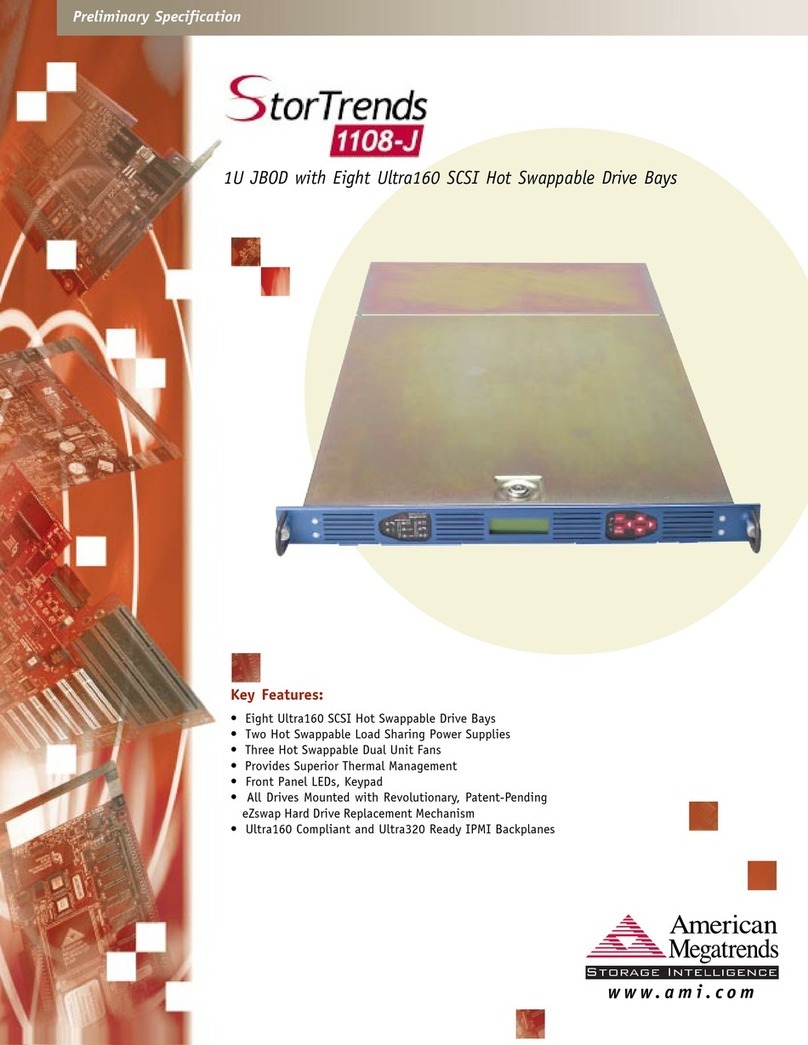
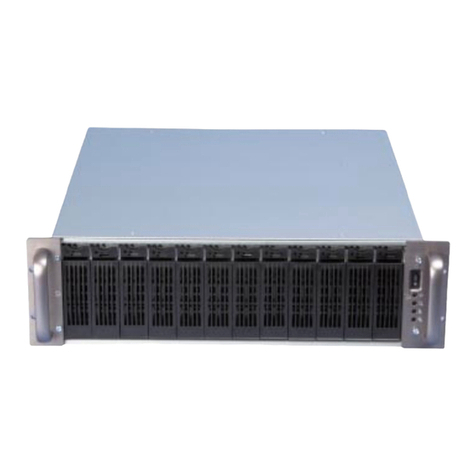
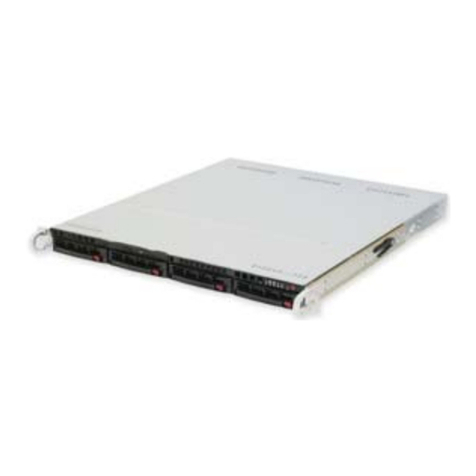
Slide the StorTrends 1108 out and unlock the chassis cover. Select an available eZswap™ bay.
Simply drop in a SCSI hard drive and secure it into place by sliding the lever forward.
Power On
To power on the unit, press the “ESC” and “OK/MENU” buttons at the same time. They are
located on the right side of the faceplate.
IP Setup
The first screen you see on the LCD panel will display the AMI logo. Press the “OK/MENU”
button. This will take you to the Main Menu screen.
Main Menu
System Controls
IP Setup
Using the arrow buttons, select IP Setup and press the “OK/MENU” button.
NIC Selection
NIC 0
NIC 1
The StorTrends 1108 has two NIC (network interface cards) adapters. NIC1 and NIC2. Using the
arrow buttons, select the NIC you would like to setup, depending on the NIC adapter you used to
connect to your network. Once you have made your selection press the “OK/MENU” button.
NIC 0 IP Setup
DHCP
STATIC IP
Using the arrow buttons, select the type of IP address you would like to assign. Press the
“OK/MENU” button once you have made your selection.
IP Setup, Continued
If you selected DHCP, you will be asked to restart the StorTrends 1108. Once the StorTrends 1108
powers back on, you are finished setting up the unit itself and can move on to the NAS software
setup.
If you selected Static IP, the Static IP Config screen will display.
Static IP Config
IP 000.000.000.000
Mask 000.000.000.000
Gate 000.000.000.000
Use the “up” and “down” arrow buttons to change the value for each digit you wish to change in the
IP field. Use the “right” and “left” arrow buttons to navigate the whole IP value. Once you have
entered the entire IP address, press the “OK/MENU” button. You will be prompted with a message
that states:
Accept Change
Yes
No
If Yes, press the “OK/MENU” button and another prompt will appear.
Setup Changed
Changes will be
In effect only
After reboot
Press the “OK/MENU” button and continue the same process for the Mask and Gateway values.
Once you have completed that, go to the System Control screen and select Reboot.
Once the StorTrends 1108 powers back on, you are finished setting up the unit itself and can move
on to the NAS software setup.
NAS Software
Once the hardware setup is complete, you will be ready to configure the StorTrends 1108 remotely
using the AMI NAS Software. Open your Internet browser and type in the StorTrends 1108’s IP
address inside the Internet browser address field. Once you activate the address, the log on screen
will display. Enter admin for the username and password for the password to continue.
The AMI NAS Software screen will display and you are now ready to setup the NAS Software.
Click on Configuration and then Quick Setup. Follow the onscreen instructions.
For more information on how to setup the American Megatrends StorTrends 1108 NAS unit,
consult your User’s Manual located on the CD.
AMI Corporate Headquarters
American Megatrends Inc.
6145-F Northbelt Parkway,
Norcross, Georgia 30071-2976
Main (770)246-8600 Fax (770)246-8790
Germany:
Wardein Strasse 3A
D - 81825 Munchen, Germany
Tel [49]89-9699-9510 Fax [49]89-9699-9519
Japan:
8F Mikuni Bldg.,
6-13-11 Sotokanda, Chiyoda-ku
Tokyo, 101-0021, Japan
Tel [81] 03-5812-0020 Fax [81] 03-5812-0022
Taiwan:
Suite A, Floor 6, No. 150
Tun Hwa N. Road
Taipei, Taiwan, R.O.C.
Tel [886]2-2716-0036 Fax [886]2-2718-1121
Korea:
3 rd. Floor, 773-6
Ryucksam-Dong, Kangnam-Ku
Seoul, 135-080, Korea
Tel [82]2-569-5689 Fax [82]2-569-4689
www.ami.com
®
2001 American Megatrends Inc. All Rights Reserved. Printed in the U.S.A.