manuals.online logo
Brands
  1. Home
  2. •
  3. Brands
  4. •
  5. Apollo
  6. •
  7. DVR
  8. •
  9. Apollo RoadRunner User manual

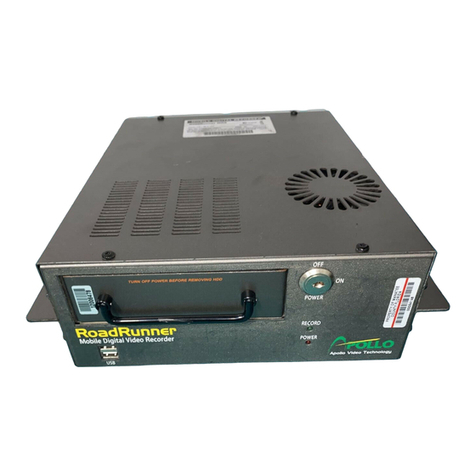
Apollo RoadRunner User manual

Other manuals for RoadRunner

4

Other Apollo DVR manuals

Apollo RoadRunner MR8 Series User manual

Apollo

Apollo RoadRunner MR8 Series User manual

Apollo MRH Series User manual

Apollo

Apollo MRH Series User manual

Apollo HD Series Guide

Apollo

Apollo HD Series Guide

Apollo HD Series User manual

Apollo

Apollo HD Series User manual

Apollo RoadRunner MRH16 User manual

Apollo

Apollo RoadRunner MRH16 User manual

Apollo RoadRunner User manual

Apollo

Apollo RoadRunner User manual

Popular DVR manuals by other brands

Pace TDC577X manual

Pace

Pace TDC577X manual

Zavio NQ2040 user manual

Zavio

Zavio NQ2040 user manual

KGuard Security KG-SHA104 user manual

KGuard Security

KGuard Security KG-SHA104 user manual

SanDisk V-Mate Quick manual

SanDisk

SanDisk V-Mate Quick manual

Panasonic WJND200 - NETWORK DISK RECORDER Setup instructions

Panasonic

Panasonic WJND200 - NETWORK DISK RECORDER Setup instructions

Hunt Electronic HVRM-T1600Q Install & user's guide

Hunt Electronic

Hunt Electronic HVRM-T1600Q Install & user's guide

Portwell PIVS-6104 user manual

Portwell

Portwell PIVS-6104 user manual

AVer EXR6004 Mini Quick user guide

AVer

AVer EXR6004 Mini Quick user guide

Security Labs SLD261 owner's manual

Security Labs

Security Labs SLD261 owner's manual

Swann DIGITAL VIDEO RECORDER instruction manual

Swann

Swann DIGITAL VIDEO RECORDER instruction manual

EverFocus ECOR 4 instruction manual

EverFocus

EverFocus ECOR 4 instruction manual

Xoro HRK 7550 user manual

Xoro

Xoro HRK 7550 user manual

FLIR M3100E Series instruction manual

FLIR

FLIR M3100E Series instruction manual

VTRACKPRO FPRO300 user manual

VTRACKPRO

VTRACKPRO FPRO300 user manual

Swann NVR-7085 models instruction manual

Swann

Swann NVR-7085 models instruction manual

RMRC FPV1000 manual

RMRC

RMRC FPV1000 manual

urmet domus 1093/004AHD instructions

urmet domus

urmet domus 1093/004AHD instructions

Toshiba D-VR3SU Service manual

Toshiba

Toshiba D-VR3SU Service manual

manuals.online logo
manuals.online logoBrands
  • About & Mission
  • Contact us
  • Privacy Policy
  • Terms and Conditions

Copyright 2025 Manuals.Online. All Rights Reserved.

1331-118th Ave SE, Ste 300 - Bellevue, WA 98005
Tel: 800.641.1401 Fax: 425.453.0959
[email protected] www.avt-usa.com
Installation Guide - School Bus
Introduction
Cables and Hardware Description
Camera Placement
Camera Field-of-View
System Overview
Power Connections
Camera Wiring
External Recording Triggers
Laptop and IP Configurations
IRAS Software Installation
Glossary
Settings and Passwords
RoadRunner
Mobile Digital Video Recording System
RoadRunner Installation Guide
Introduction
1331-118th Ave SE, Ste 300 - Bellevue, WA 98005
Tel: 425.453.0430 / Fax: 425.453.0959
www.avt-usa.com
Page 1
The Roadrunner is a Milspec-rated Digital Video Recorder for transit bus applications. It employs MPEG4 compression to record up to 4 cameras and 4 audio
sources on a removable hard drive, and can be accessed directly on board using a laptop computer, with the optional controller and monitor; or the removable
hard drive can be read directly on a desktop PC with the optional Hard Disk Player.
Installation follows these basic steps:
Remove the DVR from its base and remove the cable guard from the rear of the DVR.
Note: be sure to pass the wiring through the cable guard if you wish to reinstall it when the wiring is complete.
Mount the DVR base in its intended location (but DO NOT secure the DVR to its base until wiring is completed)
Install the specified camera(s) in the front and rear of the bus
Run the wiring through the bus, including the wiring for connecting the camera video, audio and power, and
Main Power connections using the supplied harness.
If door-activated Event recording is needed, see instructions on page 7 of this guide.
Connect the wiring to the rear panel of the DVR.
Connect power and turn on the DVR.
If a laptop computer is being used to communicate with and program the Roadrunner:
Assign the laptop an IP address which is compatible with the DVR’s IP address (see page 9).
Install the IRAS software on the laptop
Connect the Laptop to the DVR (see page 13).
Refer to the direction in this guide for more data
If the optional monitor and controller are being used to communicate with the Roadrunner:
Connect the monitor and controller as part of the installation (see page 5).
Enter the menu by pressing the MENU button
Enter the default password: 4321
Refer to the operations manual for further instructions
-
-
-
-
-
-
-
-
-
-
-
-
-
-
-
RoadRunner Installation Guide
Cable and Hardware Descriptions
1331-118th Ave SE, Ste 300 - Bellevue, WA 98005
Tel: 425.453.0430 / Fax: 425.453.0959
www.avt-usa.com
Page 2
Note: These photos are for identification only. Some Items below are optional and may not be included with every
order. Other options may also be available. Individual specifications and color codes subject to change without notice.
RR-CT: Teardrop Vandal Resistant
Indoor/Outdoor Color Camera
Relay and pigtail: used to connect 12 VDC
sourcessuch as door switches to the alarm
inputs on the RoadRunner
RR-HDP: (Sold Seperately)
Hard Drive Player for connection to USB
compatible computer (also included: USB cable,
power supply, power cable)
RR-CD: Dome Vandal Resistant
Indoor/Outdoor Color Camera
RR-CIR1: IR Illlumination Camera
with Audio Recording
Push Button Recording Trigger
Crossover network cable for laptop
installations (color may vary)
Main Power harness: reduces 6 wires to 3;
connects to Ground, Battery and Ignition
Coax with BNC connectors at both ends.
Used for both video and audio sources.
RoadRunner Installation Guide
Camera Placement Suggestions: Top View
1331-118th Ave SE, Ste 300 - Bellevue, WA 98005
Tel: 425.453.0430 / Fax: 425.453.0959
www.avt-usa.com
Page 3
RR-CT Camera
Interior or Exterior Forward or
Rear Facing
Camera gimbal is reversible for
mounting at any angle
Yellow: Video
Red: Power
RR-CD Camera
Fixed Ceiling Mount
or Wall Mount
Yellow: Video
Red: Power
RR-CIR1 Camera
Interior, Infrared
Wide Angle, Reversible Image
Built-In Microphone
White: Audio
Yellow: Video
Red: Power
Note: Arrows indicate suggested mounting points only.
Actual camera placement will depend on the structure of
the bus, desired field-of-view, total number of cameras,
and other factors.
RoadRunner Installation Guide
Camera Field of View Guide
1331-118th Ave SE, Ste 300 - Bellevue, WA 98005
Tel: 425.453.0430 / Fax: 425.453.0959
www.avt-usa.com
Page 4
Example of camera placement with wide-angle lens.
Example of camera placement with a longer field of view.
RoadRunner Installation Guide
System Overview- using Monitor and Control Panel to Control the DVR
1331-118th Ave SE, Ste 300 - Bellevue, WA 98005
Tel: 425.453.0430 / Fax: 425.453.0959
www.avt-usa.com
Page 5
Video-Coax
Audio-Coax
Power
Video-Coax
Audio-Coax
Power
Main Power:
Refer to Main Power
Connection Guide
Auxillary Power
Connections: 12 VDC
Output polarity sensitive
12V = Pos / G = Neg
Press tab, insert wire in
bottom hole. Test
connections by pulling
wire.
Red + and black - power
wires to 12 VDC on DVR
Connect 9 pin cable to
RS-232 plug
Use supplied extension
cable to connect to
controller
Power - red
Audio - white
Video - yellow
RoadRunner Installation Guide
Main Power Connections
1331-118th Ave SE, Ste 300 - Bellevue, WA 98005
Tel: 425.453.0430 / Fax: 425.453.0959
www.avt-usa.com
Page 6
Main Power Input
Yellow to Ignition
If connecting to ignition switch,
use blue connector to tap
ignition wire.
Red to Positive
Black to Negative
Red Power Wire
Install supplied
10 amp fuse
CAUTION:
If connecting to fuse block,
connect ONLY to ignition fuse
Install supplied
1 amp fuse
before ignition
switch
If available, use 24 VDC bus power (filtered on-board power not necessary)
RoadRunner Installation Guide
Camera Wiring: Power, Video and Audio
1331-118th Ave SE, Ste 300 - Bellevue, WA 98005
Tel: 425.453.0430 / Fax: 425.453.0959
www.avt-usa.com
Page 7
Note: This diagram represents a typical installation; camera models and locations may vary.
Coax - Black
Power - Red
Coax - Audio and Video Cables
Camera Power Cables 4 Auxillary Power Outputs for Cameras, etc.
4 Audio Inputs for External Mic or Camera Mic
4 Video Inputs for Cameras
RoadRunner Installation Guide
Connections: External Recording Triggers
1331-118th Ave SE, Ste 300 - Bellevue, WA 98005
Tel: 425.453.0430 / Fax: 425.453.0959
www.avt-usa.com
Page 8
It may be necessary or preferable to use switches, doors or other triggers to initiate recording.
READ THE FOLLOWING PRIOR TO INSTALLATION
Any 12 VDC or higher ouput MUST use
the supplied relay or damage to the DVR
can result.
Devices which go to Ground when
activated do not require the relay and
may be connected directly to the DVR
alarm inputs.
Many devices besides door switches or
indicators may be used as recording and
event log triggers.
Up to three external devices can be used
as Recording and Event log triggers.
Some software set-up is required; see
RoadRunner manual for more information.
Alarm input 4 is reserved for the optional
Panic Button.
STOP
Relay Connections:
85 From 12 VDC trigger
86 To DVR alarm ground
30 Tied to 86
87 To DVR alarm input 1, 2 or 3 From 12 VDC output 87
86
30
85
To DVR alarm ground input
To DVR alarm input 1, 2 or 3
Supplied Relays
and connectors
RoadRunner Installation Guide
Laptop Configuration: Step 1
1331-118th Ave SE, Ste 300 - Bellevue, WA 98005
Tel: 425.453.0430 / Fax: 425.453.0959
www.avt-usa.com
Page 9
Note: Roadrunner RAS Software is compatible with Windows 98, 2000 and XP. It is NOT compatible with Mac OS, Windows 95 or NT.
The Roadrunner DVR is generally preconfigured according to customer-supplied specifications before
delivery. However, should on-site programming be required, it is accomplished primarily with a laptop
computer and the supplied IRAS Software. This enables the user to create custom configurations,
multiple configurations for one DVR, or even to copy configurations into many DVR’s, which can be a
huge time savings when installing DVR’s into many vehicles.
Configuring a laptop to communicate with the Roadrunner DVR is not difficult and simply refers to
assigning the laptop an IP address that is compatible with the default IP address of the DVR. It is
similar to having two telephones… if they had the same phone number they would not be able to call
each other. In the same way, the laptop and the DVR must have different IP addresses.
The Roadrunner DVR has a factory default IP address of 192.168.1.129, which makes it simple to
connect to any MR4 you encounter in the field.
IP Address: (Internet Protocol) There are three parts to an IP address. Just like a phone number has
a country code, area code and exchange, i.e.: 01-555-555-5555, an IP address has the address, the
subnet mask and the gateway.
Generally it will only be necessary to set the laptop’s IP address and possibly the subnet mask:
192.168.1.130: IP address
255.255.255.0: Subnet mask
192.168.1.254: Gateway, if needed
1. First, go to the Start Menu, then click on Control Panel.