Asus EB1503 User manual

English
EeeBox EB1503
EeeBox PC
User Manual

English
Copyright © 2012 ASUSTeK COMPUTER INC. All Rights Reserved.
No part of this manual, including the products and software described in it, may
be reproduced, transmitted, transcribed, stored in a retrieval system, or translated
into any language in any form or by any means, except documentation kept by the
purchaser for backup purposes, without the express written permission of ASUSTeK
COMPUTER, INC. (“ASUS”).
Products and corporate names mentioned in this manual may or may not be
registered trademarks or copyrights of their respective companies, and are used
for identification purposes only. All trademarks are the property of their respective
owners.
Every effort has been made to ensure that the contents of this manual are correct
and up to date. However, the manufacturer makes no guarantee regarding the
accuracy of its contents, and reserves the right to make changes without prior
notice.
E7300
First Edition
March 2012

EeeBox PC 3
English
Contents
Contents.......................................................................................................3
Notices.......................................................................................................... 5
CE Marking............................................................................................7
Safety information..................................................................................10
Notes for this manual............................................................................13
Welcome....................................................................14
Package contents....................................................................................14
Knowing your EeeBox PC.........................................15
Front view..................................................................................................15
Rear view....................................................................................................17
Using the slot-in DVD player...............................................................19
Using the remote control (on selected models)..........................20
Controlling EeeBox PC remotely .......................................................23
Positioning your EeeBox PC.....................................24
Installing the stand.................................................................................24
EeeBox PC position warning...............................................................25
Installing your EeeBox PC to a monitor ..........................................26
Setting up your EeeBox PC ......................................27
Connecting to a display........................................................................27
Connecting to USB devices.................................................................27
Connecting to a network device.......................................................28
Connecting to Wi-Fi via wireless antenna......................................29
Turning on the system..........................................................................30
Using your EeeBox PC ..............................................31
Configuring wireless connection......................................................31
Configuring wired connection...........................................................32
Configuring audio output via an HDMI device............................36
ASUS Easy Update ..................................................................................38

4 EeeBox PC
English
Contents
Recovering your system...........................................39
Using the recovery partition...............................................................39
Recovering the OS to the Factory Default Partition
(F9 Recovery) .....................................................................................39
Backing up the Factory Default Environment Data
to a USB Drive (F9 Backup)............................................................40
Using the USB storage device (USB Restore) ................................41

EeeBox PC 5
English
Notices
Federal Communications Commission Statement
This device complies with Part 15 of the FCC Rules. Operation is
subject to the following two conditions:
• Thisdevicemaynotcauseharmfulinterference,and
• Thisdevicemustacceptanyinterferencereceivedincluding
interference that may cause undesired operation.
This equipment has been tested and found to comply with the limits
for a Class B digital device, pursuant to Part 15 of the FCC Rules.
These limits are designed to provide reasonable protection against
harmful interference in a residential installation.This equipment
generates, uses and can radiate radio frequency energy and, if not
installed and used in accordance with manufacturer’s instructions,
may cause harmful interference to radio communications. However,
there is no guarantee that interference will not occur in a particular
installation. If this equipment does cause harmful interference to
radio or television reception, which can be determined by turning
the equipment off and on, the user is encouraged to try to correct
the interference by one or more of the following measures:
• Reorientorrelocatethereceivingantenna.
• Increasetheseparationbetweentheequipmentandreceiver.
• Connecttheequipmenttoanoutletonacircuitdifferentfrom
that to which the receiver is connected.
• Consultthedealeroranexperiencedradio/TVtechnicianfor
help.
CAUTION: Any changes or modifications not expressly approved by
the grantee of this device could void the user’s authority to operate
the equipment.

6 EeeBox PC
English
Declaration of Conformity
(R&TTE directive 1999/5/EC)
The following items were completed and are considered relevant
and sufficient:
• Essentialrequirementsasin[Article3]
• Protectionrequirementsforhealthandsafetyasin[Article3.1a]
• Testingforelectricsafetyaccordingto[EN60950]
• Protectionrequirementsforelectromagneticcompatibilityin
[Article3.1b]
• Testingforelectromagneticcompatibilityaccordingto[EN301
489-1]&[EN301489-17]
• Effectiveuseoftheradiospectrumasin[Article3.2]
• Radiotestsuitesaccordingto[EN300328-2]
RF exposure warning
This equipment must be installed and operated in accordance with
provided instructions and the antenna(s) used for this transmitter
must be installed to provide a separation distance of at least 20
cm from all persons and must not be co-located or operating in
conjunction with any other antenna or transmitter. End-users and
installers must be provide with antenna installation instructions
and transmitter operating conditions for satisfying RF exposure
compliance.

EeeBox PC 7
English
CE Marking
CE marking for devices without wireless LAN/Bluetooth
The shipped version of this device complies with the requirements
oftheEECdirectives2004/108/EC“Electromagneticcompatibility”
and2006/95/EC“Lowvoltagedirective”.
CE marking for devices with wireless LAN/ Bluetooth
ThisequipmentcomplieswiththerequirementsofDirective1999/5/
EC of the European Parliament and Commission from 9 March, 1999
governing Radio and Telecommunications Equipment and mutual
recognition of conformity.
Wireless Operation Channel for Different Domains
N. America 2.412-2.462 GHz Ch01 through CH11
Japan 2.412-2.484 GHz Ch01 through Ch14
Europe ETSI 2.412-2.472 GHz Ch01 through Ch13

8 EeeBox PC
English
France Restricted Wireless Frequency Bands
Some areas of France have a restricted frequency band.The worst
case maximum authorized power indoors are:
• 10mWfortheentire2.4GHzband(2400MHz–2483.5MHz)
• 100mWforfrequenciesbetween2446.5MHzand2483.5MHz
Channels 10 through 13 inclusive operate in the band 2446.6 MHz
to 2483.5 MHz.
There are few possibilities for outdoor use: On private property or on
the private property of public persons, use is subject to a preliminary
authorization procedure by the Ministry of Defense, with maximum
authorizedpowerof100mWinthe2446.5–2483.5MHzband.Use
outdoors on public property is not permitted.
In the departments listed below, for the entire 2.4 GHz band:
• Maximumauthorizedpowerindoorsis100mW
• Maximumauthorizedpoweroutdoorsis10mW
Departmentsinwhichtheuseofthe2400–2483.5MHzbandis
permitted with an EIRP of less than 100mW indoors and less than
10mW outdoors:
01 Ain 02 Aisne 03 Allier
05 Hautes Alpes 08 Ardennes 09 Ariège
11 Aude 12 Aveyron 16 Charente
24 Dordogne 25 Doubs 26 Drôme
32Gers 36Indre 37IndreetLoire
41LoiretCher 45Loiret 50Manche
55 Meuse 58 Nièvre 59 Nord
60 Oise 61 Orne 63 Puy du Dôme
64 Pyrénées Atlantique 66 Pyrénées Orientales
67 Bas Rhin 68 Haut Rhin
70HauteSaône 71SaôneetLoire
75 Paris 82 Tarn et Garonne
84 Vaucluse 88 Vosges 89 Yonne
90 Territoire de Belfort 94 Val de Marne

EeeBox PC 9
English
Canadian Department of Communications Statement
This digital apparatus does not exceed the Class B limits for
radio noise emissions from digital apparatus set out in the
Radio Interference Regulations of the Canadian Department of
Communications.
This class B digital apparatus complies with Canadian ICES-003.
This requirement is likely to change over time, allowing you to use
yourwirelessLANcardinmoreareaswithinFrance.Pleasecheck
with ART for the latest information (www.arcep.fr)
YourWLANCardtransmitslessthan100mW,butmorethan10mW.
IC Radiation Exposure Statement for Canada
This equipment complies with IC radiation exposure limits set forth
for an uncontrolled environment.To maintain compliance with IC
RF exposure compliance requirements, please avoid direct contact
to the transmitting antenna during transmitting. End users must
follow the specific operating instructions for satisfying RF exposure
compliance.
Operation is subject to the following two conditions:
• Thisdevicemaynotcauseinterferenceand
• Thisdevicemustacceptanyinterference,includinginterference
that may cause undesired operation of the device.
REACH
Complying with the REACH (Registration, Evaluation, Authorization,
and Restriction of Chemicals) regulatory framework, we publish
the chemical substances in our products at ASUS REACH website at
http://csr.asus.com/english/REACH.htm.

10 EeeBox PC
English
Safety information
Your EeeBox PC is designed and tested to meet the latest standards
of safety for information technology equipment. However, to
ensure your safety, it is important that you read the following safety
instructions.
Setting up your system
• Readandfollowallinstructionsinthedocumentationbeforeyou
operate your system.
• Donotusethisproductnearwateroraheatedsourcesuchasa
radiator.
• Setupthesystemonastablesurfacewiththeprovidedstand.
• Openingsonthechassisareforventilation.Donotblockorcover
these openings. Ensure you leave plenty of space around the
system for ventilation. Never insert objects of any kind into the
ventilation openings.
• Usethisproductinenvironmentswithambienttemperatures
between 0˚C and 35˚C.
• Ifyouuseanextensioncord,ensurethatthetotalampererating
of the devices plugged into the extension cord does not exceed
its ampere rating.
Care during use
• Donotwalkonthepowercordorallowanythingtorestonit.
• Donotspillwateroranyotherliquidsonyoursystem.
• Whenthesystemisturnedoff,asmallamountofelectrical
current still flows. Always unplug all power, modem, and network
cables from the power outlets before cleaning the system.
• Ifyouencounterthefollowingtechnicalproblemswiththe
product, unplug the power cord and contact a qualified service
technician or your retailer.
Table of contents
Other Asus Desktop manuals
Asus
Asus T5 Series User manual
Asus
Asus Barebone System A7VT400 User manual
Asus
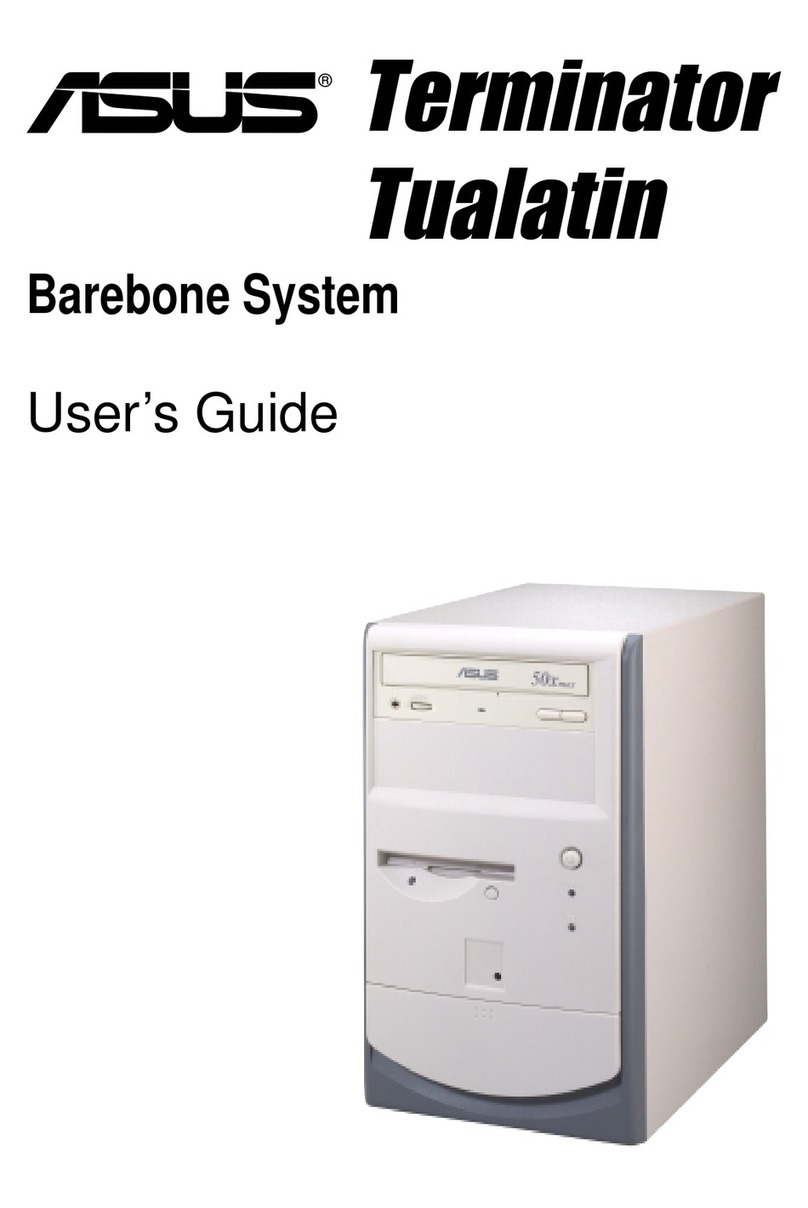
Asus Terminator Tualatin User manual
Asus
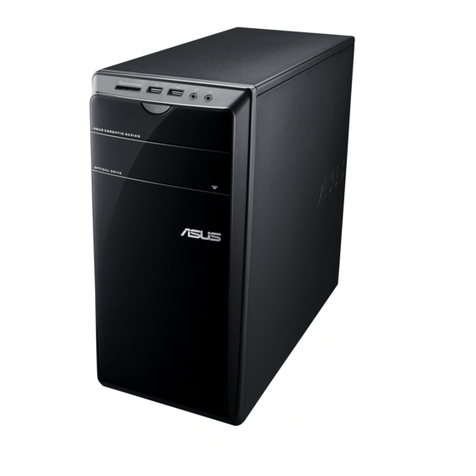
Asus Essentio CM6730 User manual

Asus
Asus Barebone Vintage-PH1 User manual
Asus
Asus AAEON BOXER-6405U User manual

Asus
Asus Essentio CM6431 User manual
Asus
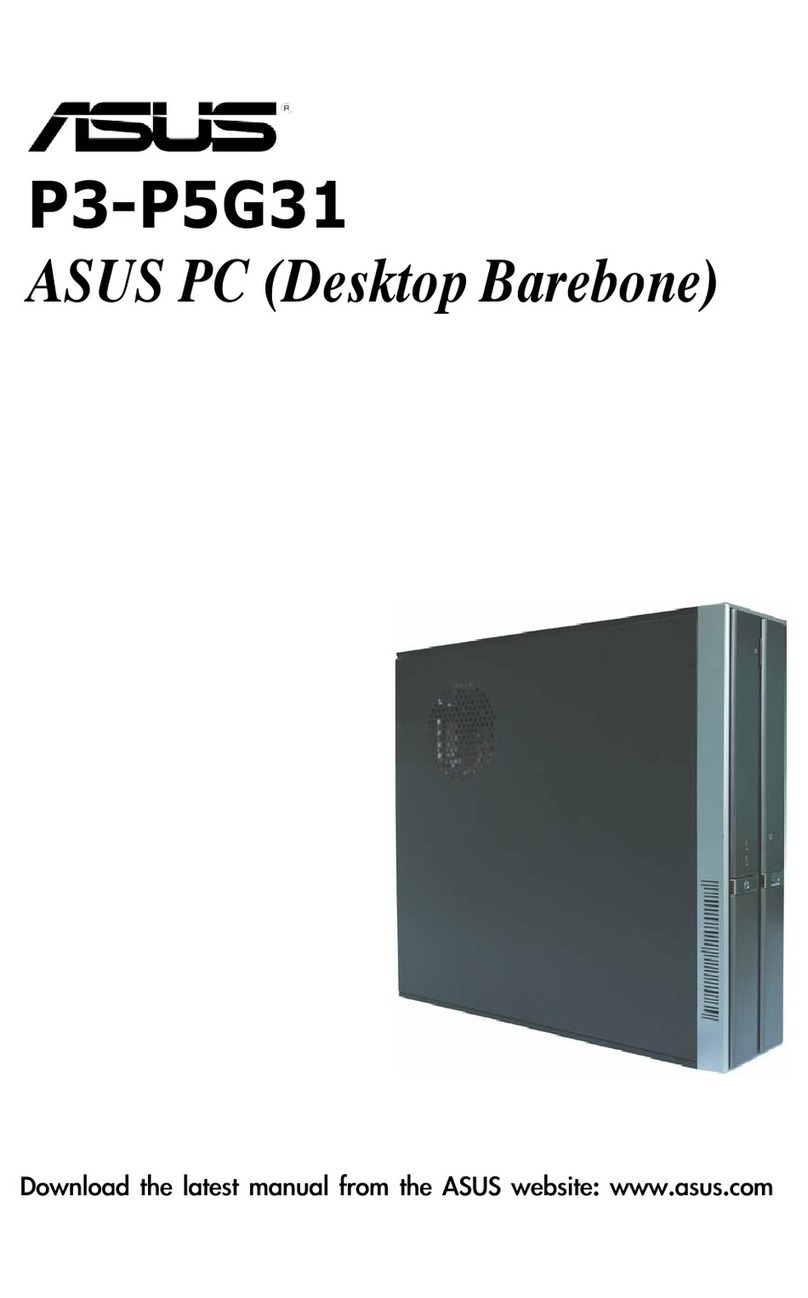
Asus P3-P5G31 User manual

Asus
Asus PN51 User manual
Asus
Asus Essentio CM1730 User manual