manuals.online logo
Brands
  1. Home
  2. •
  3. Brands
  4. •
  5. ATTO Technology
  6. •
  7. Storage
  8. •
  9. ATTO Technology FibreBridge 6500 User manual

ATTO Technology FibreBridge 6500 User manual

Other ATTO Technology Storage manuals

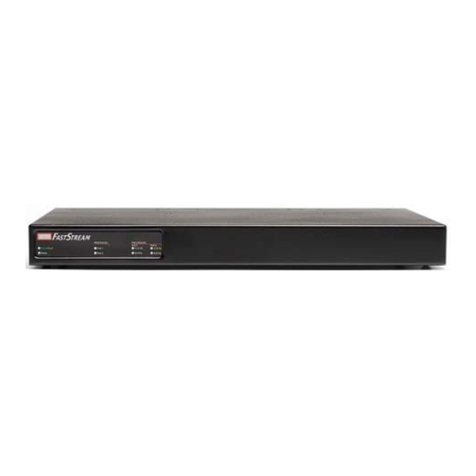
ATTO Technology FastStream SC 5300 User manual

ATTO Technology

ATTO Technology FastStream SC 5300 User manual

ATTO Technology FastStream SC 5500 User manual

ATTO Technology

ATTO Technology FastStream SC 5500 User manual

ATTO Technology iPBridge 2500D User manual

ATTO Technology

ATTO Technology iPBridge 2500D User manual

ATTO Technology FastStream NDMP 4600 User manual

ATTO Technology

ATTO Technology FastStream NDMP 4600 User manual

ATTO Technology FibreBridge 2300D User manual

ATTO Technology

ATTO Technology FibreBridge 2300D User manual

ATTO Technology FibreBridge 2400D User manual

ATTO Technology

ATTO Technology FibreBridge 2400D User manual

ATTO Technology FastStream SC 5700 User manual

ATTO Technology

ATTO Technology FastStream SC 5700 User manual

ATTO Technology FastStream SC 5500E User manual

ATTO Technology

ATTO Technology FastStream SC 5500E User manual

ATTO Technology FastStream SC 5300 User manual

ATTO Technology

ATTO Technology FastStream SC 5300 User manual

ATTO Technology FastStream SC 7700 User manual

ATTO Technology

ATTO Technology FastStream SC 7700 User manual

ATTO Technology FastStream VT 5700 User manual

ATTO Technology

ATTO Technology FastStream VT 5700 User manual

ATTO Technology Diamond Array V User manual

ATTO Technology

ATTO Technology Diamond Array V User manual

ATTO Technology FastStream SC 5300 User manual

ATTO Technology

ATTO Technology FastStream SC 5300 User manual

ATTO Technology FastStream VT 5300 User manual

ATTO Technology

ATTO Technology FastStream VT 5300 User manual

ATTO Technology FastStream SC 7500 User manual

ATTO Technology

ATTO Technology FastStream SC 7500 User manual

ATTO Technology FastStream SC 5700 User manual

ATTO Technology

ATTO Technology FastStream SC 5700 User manual

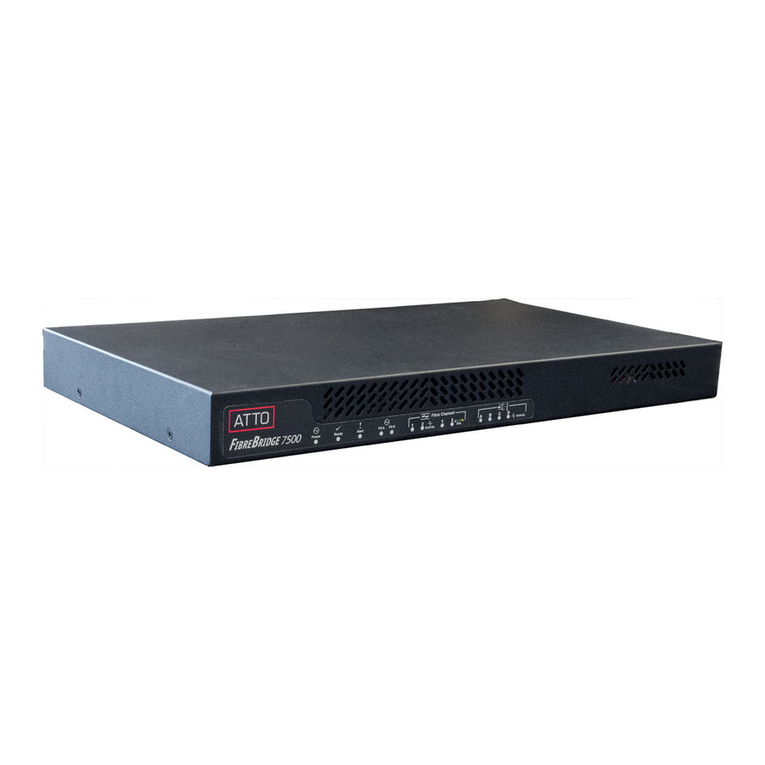
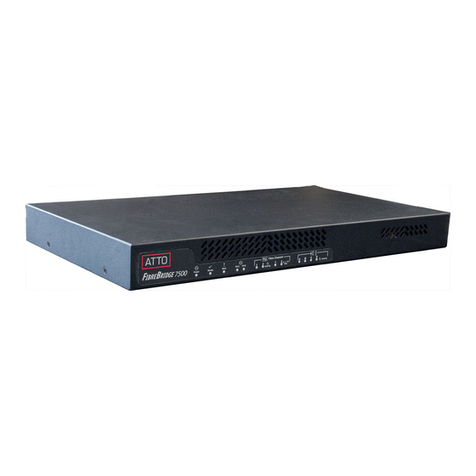
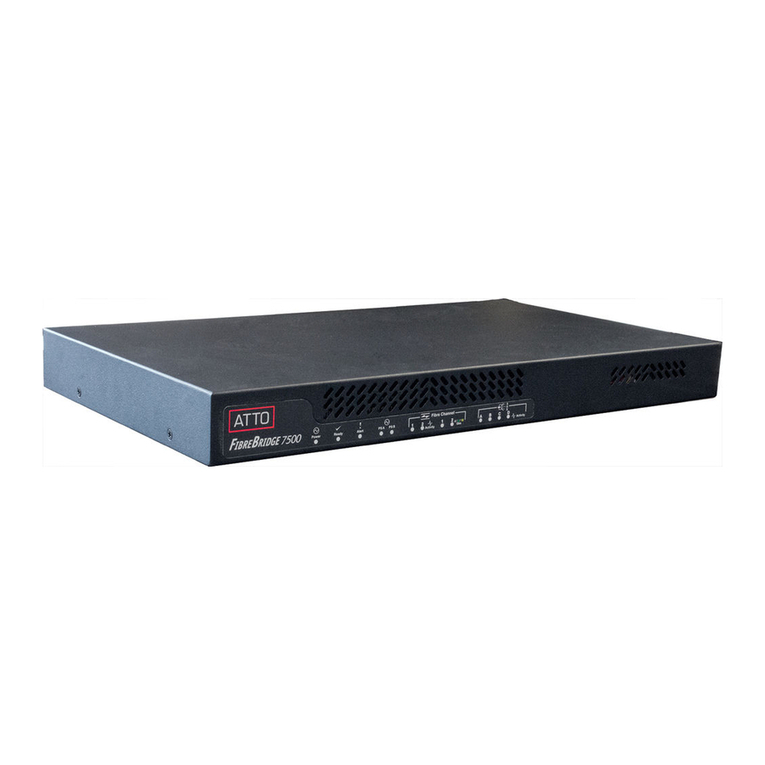
ATTO Technology FibreBridge 7500 User manual

ATTO Technology

ATTO Technology FibreBridge 7500 User manual

ATTO Technology FibreBridge 2300D User manual

ATTO Technology

ATTO Technology FibreBridge 2300D User manual

ATTO Technology FastStream SC 8500 User manual

ATTO Technology

ATTO Technology FastStream SC 8500 User manual

ATTO Technology FastStream SC 5700 User manual

ATTO Technology

ATTO Technology FastStream SC 5700 User manual

ATTO Technology FastStream SC 5300 User manual

ATTO Technology

ATTO Technology FastStream SC 5300 User manual

ATTO Technology FastStream SC 5300 Owner's manual

ATTO Technology

ATTO Technology FastStream SC 5300 Owner's manual

ATTO Technology FastStream SC 7500 User manual

ATTO Technology

ATTO Technology FastStream SC 7500 User manual

ATTO Technology FastStream SC 5300 User manual

ATTO Technology

ATTO Technology FastStream SC 5300 User manual

Popular Storage manuals by other brands

IBM 40/80 GB HH DLTVS user guide

IBM

IBM 40/80 GB HH DLTVS user guide

Synology DiskStation DS716+II Quick installation guide

Synology

Synology DiskStation DS716+II Quick installation guide

Vantec NexStar-HX4 user manual

Vantec

Vantec NexStar-HX4 user manual

LaCie Christofle Galet datasheet

LaCie

LaCie Christofle Galet datasheet

LaCie Rugged Thunderbolt user manual

LaCie

LaCie Rugged Thunderbolt user manual

OCZ IBIS datasheet

OCZ

OCZ IBIS datasheet

Transcend JetFlash 110 Brochure & specs

Transcend

Transcend JetFlash 110 Brochure & specs

QNAP TS 32PXU Series user guide

QNAP

QNAP TS 32PXU Series user guide

LaCie RUGGED RAID user manual

LaCie

LaCie RUGGED RAID user manual

Freecom CLS DOCK Quick install guide

Freecom

Freecom CLS DOCK Quick install guide

PNY Attache P-FD64MBATT3 install guide

PNY

PNY Attache P-FD64MBATT3 install guide

OWC Mercury Elite Pro Dual mini Assembly manual

OWC

OWC Mercury Elite Pro Dual mini Assembly manual

OLT 6x6 Maximizer Assembly manual

OLT

OLT 6x6 Maximizer Assembly manual

Transcend JetFlash 160 Specifications

Transcend

Transcend JetFlash 160 Specifications

Thunderbolt 600 user manual

Thunderbolt

Thunderbolt 600 user manual

Intel RAID High Availability user guide

Intel

Intel RAID High Availability user guide

LaCie 12big Thunderbolt 3 Quick install guide

LaCie

LaCie 12big Thunderbolt 3 Quick install guide

Spectra Logic T-Series Spectra T50e quick start guide

Spectra Logic

Spectra Logic T-Series Spectra T50e quick start guide

manuals.online logo
manuals.online logoBrands
  • About & Mission
  • Contact us
  • Privacy Policy
  • Terms and Conditions

Copyright 2025 Manuals.Online. All Rights Reserved.

ATTO Technology, Inc.
155 CrossPoint Parkway
Amherst, New York 14068 USA
www.attotech.com
Tel (716) 691-1999
Fax (716) 691-9353
Sales support: [email protected]
Technical support: Monday -- Friday, 8am-6pm EST
[email protected] (716)691-1999 ext. 242
© 2015 ATTO Technology, Inc. All rights reserved. All brand or product names are trademarks of their respective holders.
No part of this document may be reproduced in any form or by any means without the express written permission of ATTO
Technology, Inc.
06/2015 PRMA-0422-000MD
FibreBridge™ 6500
Getting Started Guide
Thank you for purchasing an ATTO FibreBridge. This guide gives you the basics for installing
and configuring your FibreBridge. For more information, refer to the FibreBridge Installation
and Operation Manual
Examine the contents of your FibreBridge
packing box. If any of the items listed below
are missing, contact your ATTO
representative.
• The FibreBridge. Note the serial number of
your FibreBridge unit:
________________________
• Power cord(s)
• “L” brackets for mounting in a 19” rack
• Ethernet cable
• RS 232 cable
1 Install the FibreBridge
Note
Please visit the download section of www.attotech.com for
Firmware, Installation and Operation Manual,
QuickNAV™ IP discovery program and system drivers
1.1 Place the FibreBridge on a stable flat
surface, install it into a standard rack or
into your device.If installing the
FibreBridge 6500 into a rack, see Exhibit
1 and follow these instructions:
a. Attach “L” brackets so that the front
side with the LEDs face front and the
connector side is at the back.
b. Install the FibreBridge horizontally
within the rack so it does not reduce the
air flow within the rack.
1.2 Connect and power up Fibre Channel
devices from your SAN to the FibreBridge
using SFPs and multimode fiber optic
cables for the Fibre Channel ports. Keep
cable lengths as short as possible to
ensure the highest signal quality and
performance. Refer to Cabling in the
FibreBridge Installation and Operation
Manual.
1.3 Connect and power up SAS/SATA target
devices. Refer to Cabling in the
FibreBridge Installation and Operation
Manual.
1.4 Connect the Ethernet port to your
network.
1.5 Connect power:
a. Connect the AC power cord(s) from
the FibreBridge to the proper AC
source outlet and turn on the power
using the power switch on each
receptacle.
Note
The power source must be connected to a protective
earth ground and comply with local electrical codes.
Improper grounding may result in an electrical shock
or damage to the unit.
If you are using a rack:
a. Properly ground the FibreBridge to the
rack equipment. The earth ground
connection must be maintained.
b. The power requirements plus the power
draw of the other equipment in the rack
must not overload the supply circuit and/
or wiring of the rack.
1.6 Wait up to two minutes for the FibreBridge
Ready LED to light indicating the
FibreBridge has completed its power-on self
test sequence.
2 Discover the IP address
Note
The FibreBridge is initially configured with DHCP
enabled. It is best if you have access to a DHCP server.
2.1 Work from the computer attached to the
FibreBridge Ethernet port on the same
domain. From the download section of
www.attotech.com, run the QuickNav Utility
QuickNAV-windows.exe for Windows or
QuickNAV-Mac for Mac OS X.
2.2 Locate the FibreBridge with the serial
number recorded earlier.
2.3 Highlight the serial number.
2.4 Click Next.
If a DHCP server is available on your network,
an address is assigned automatically by the
server. Note the assigned address:
____________________________________
If you do not have a DHCP server, get an IP
address and subnet mask from your network
administrator, type it into the area provided,
and click on Next.
2.5 Click on Launch Browser
Your browser points to the ATTO
ExpressNAV splash screen. If you use
Internet Explorer as a browser, continue on to
Internet Explorer setup below. If not, continue
on to Begin initial configuration .
3 Internet Explorer setup
3.1 Open your browser
3.2 Select Internet Options.
3.3 In the Internet Options screen, select the
Security tab.
3.4 Click on the Trusted Sites icon.
3.5 Click on the Sites button.
3.6 In the text box Add this Web site to the
zone, add the IP address of the appliance.
You may use wild cards.
3.7 Click on Add
3.8 Uncheck the Require server verification
check box.
3.9 Click OK.
3.10 At the bottom of the Internet Options box,
click on OK and close the box.
4 Begin initial configuration
4.1 The ExpressNAV System Manager
welcome screen appears. Click on Enter
Here
4.2 Type in the user name and password.
Note
The default values are user name
root
and password
Password
. The user name is case insensitive and the
password is case sensitive.It is best practice to change
the default user name and password.
4.3 You are now ready to configure the
FibreBridge for use. For more information,
refer to the Installation and Operation
Manual.
5UsingwithTape
5.1 If using with a stand alone drive no further
configuration is required.
5.2 If using with a library or autoloader with a
tape medium changer proceed to the
following instructions:
a. Use telnet or serial CLI (to map all tape
devices to a single fibre channel port).
b. Set FcMultiNode enabled.
c. Saveconfiguration Restart (wait for
reboot and a ready prompt).
d. Automap [N] (where N= 1 or 2).
5.3 If mapping to a single port is not required,
issue an Automap to distribute devices
evenly.
Exhibit 1 Brackets to install the FibreBridge into a rack
Exhibit 2 FibreBridge 6500S, LEDs, power receptacle
and ports
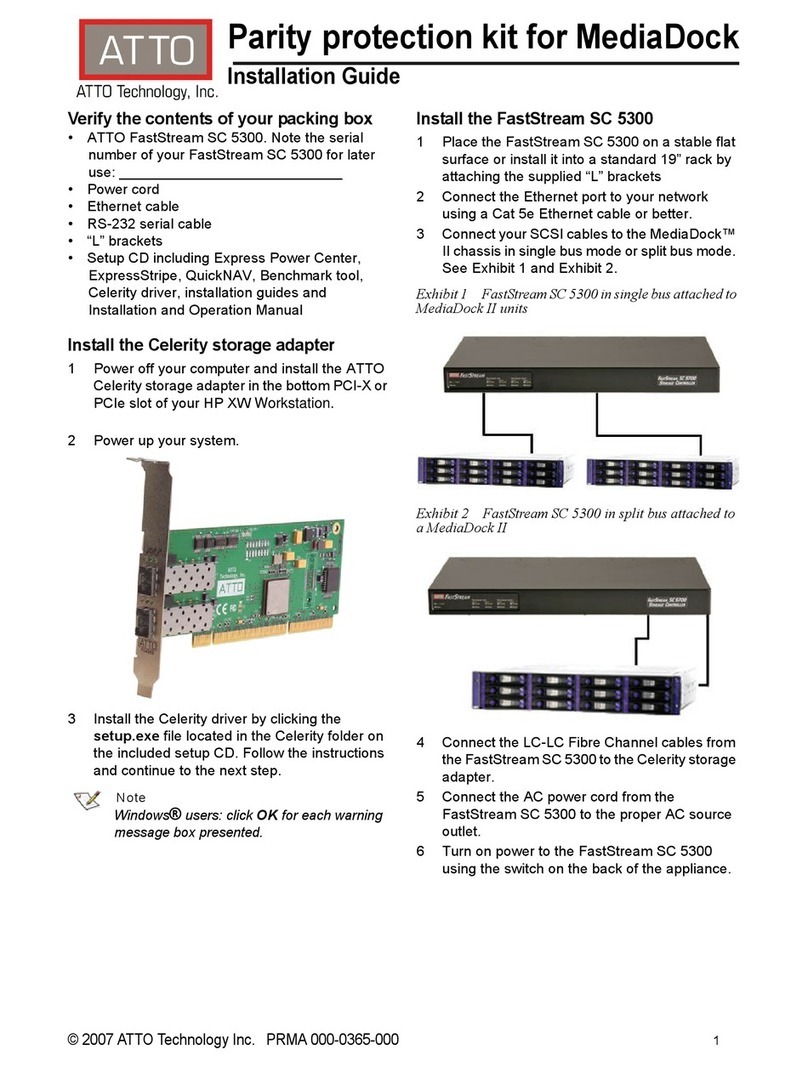
Exhibit 3 FibreBridge 6500D, LEDs, power receptacle
and ports